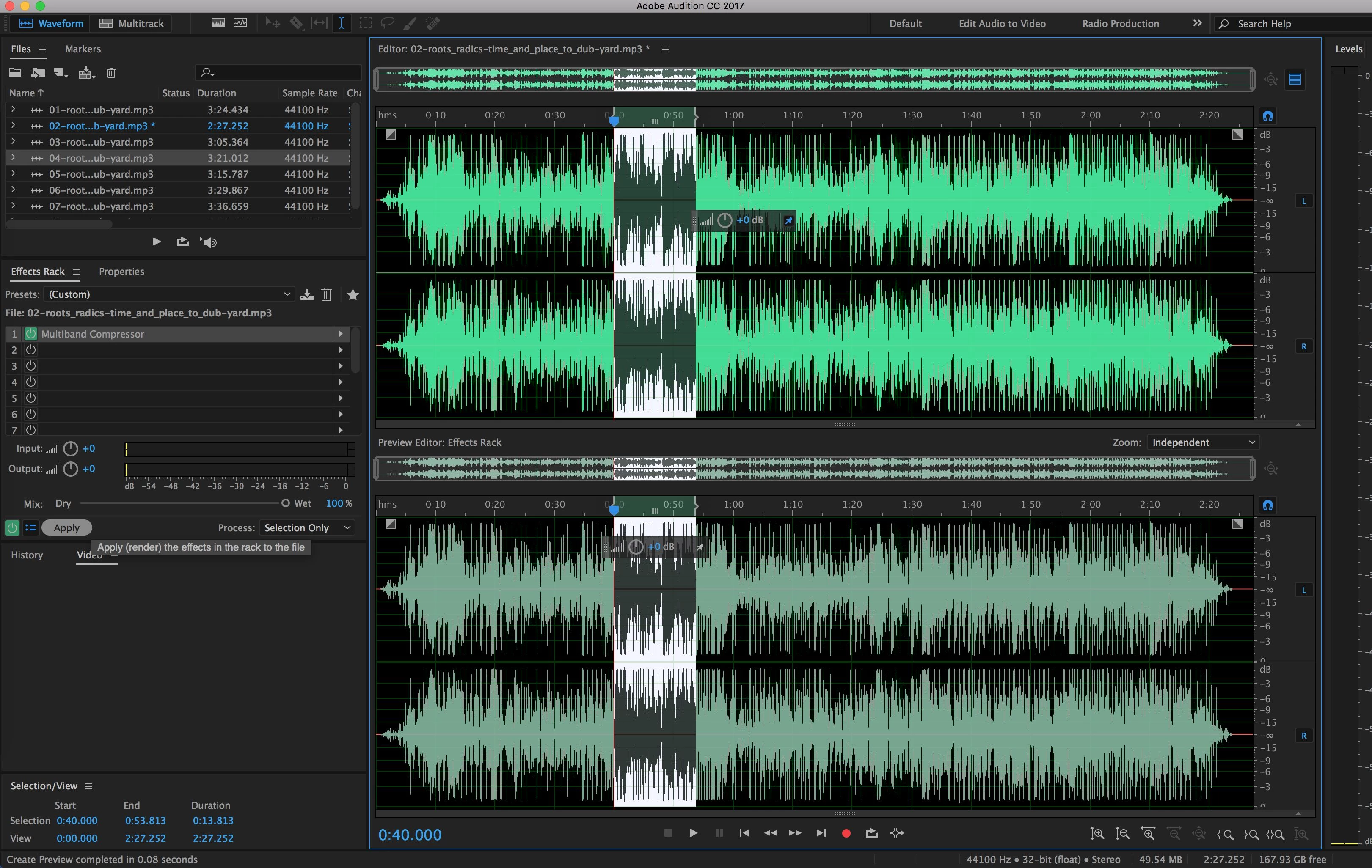
Adobe Audition operates as a specialized digital audio workstation tailored specifically for post-production, podcasting, and broadcast restoration. Unlike music-first software focused on MIDI sequencing and virtual instruments, this application targets the precise workflow of editing recorded audio, cleaning up background noise, and mixing sound to picture. It serves video editors, sound designers, audiobook narrators, and radio producers who require exact control over dialogue pacing and environmental effects. The environment focuses entirely on waveforms and multitrack mixing rather than musical composition, filling a distinct gap in the audio engineering landscape.
Relying on a dedicated desktop client is critical for professional audio manipulation. Browser-based editors simply cannot handle the high-latency demands of real-time multitrack mixing involving dozens of overlapping channels. Web applications also struggle to locally process massive uncompressed WAV files, often requiring tedious upload and download phases that disrupt the creative process. A native desktop environment utilizes local CPU and RAM to run intensive operations, such as adaptive noise reduction algorithms and complex VST plugin chains, with zero latency. By running directly on Windows 11 and Windows 10, the application ensures that high-fidelity recording sessions remain stable. This localized processing means users can capture multiple hardware microphones simultaneously over long recording durations without browser crashes or internet dropouts interrupting the session.
Key Features
- Essential Sound Panel: This interface categorizes clips into Dialogue, Music, SFX, or Foley, applying targeted macro controls tailored to each audio type. Instead of adjusting complex parametric EQ bands from scratch, users can tweak sliders for dialogue clarity, background noise reduction, and auto-ducking to mix elements quickly. This panel acts as a bridge for video editors who need professional-sounding mixes without studying advanced audio engineering techniques.
- Spectral Frequency Display: This visual heatmap represents audio frequencies over time, allowing editors to see non-vocal sounds embedded within a recording. Users can select visual anomalies like passing sirens, physical microphone bumps, or electrical ground hums using a marquee or brush tool and paint them out of the recording. This approach provides a surgical alternative to traditional equalization, preserving the natural tone of the human voice while eliminating isolated interruptions.
- Remix Tool: This function analyzes the tempo and structure of a music track and automatically rearranges its arrangement to fit a specific target duration. It ensures the intro, transitions, and outro remain structurally intact while dynamically looping or cutting the middle sections to match the exact length of a video scene. Editors save significant manual cutting time, as the software crossfades the generated edits invisibly based on the musical beat grid.
- Multitrack and Waveform Editors: The workspace provides a dual-environment workflow, allowing users to toggle between a non-destructive session and a destructive single-file view. The Multitrack view handles the non-destructive layering, panning, and mixing of multiple clips with real-time effect racks. Conversely, the Waveform view allows sample-level destructive editing of individual files, which is necessary for permanently applying noise reduction prints or hard-limiting audio peaks.
- Automatic Speech Alignment: This tool syncs overdubbed studio dialogue with original production audio captured on set, a process known as ADR. It analyzes the specific waveforms of both tracks and automatically matches the timing of the new studio recording to the original on-set pacing. This automation saves hours of manual nudging and time-stretching, ensuring lip-sync accuracy when replacing bad production sound.
- Match Loudness: This batch processing feature ensures broadcast and streaming compliance by analyzing track volume against standardized LUFS (Loudness Units relative to Full Scale) targets. It automatically analyzes and adjusts the output of multiple files simultaneously to meet specific television, podcasting, or streaming platform specifications. Users simply drag an entire folder of finished mixes into the panel, select a preset like standard broadcast, and let the software normalize the entire batch.
How to Install Adobe Audition on Windows
- Download the application installer archive from our website directly to your local Windows storage drive.
- Locate the downloaded ZIP or RAR file in your Downloads folder and extract it into a dedicated new folder on your desktop using a utility like 7-Zip or the native Windows extraction tool.
- Open the newly extracted folder and locate the readme.txt file. Read this document thoroughly to check for any specific pre-installation instructions, offline requirements, or visual C++ dependencies.
- Navigate through the extracted directory and double-click the setup.exe file to launch the main installation interface.
- Choose your preferred installation language from the dropdown menu and verify the default installation path, which typically defaults to your primary C:Program FilesAdobe directory.
- Click the install button and wait for the setup wizard to unpack the core application files, default audio effects libraries, and required background licensing services.
- Do not interrupt the process or close the window while the progress bar finalizes the registry entries and file associations on your system.
- Launch the program from your newly created Start menu shortcut. On the first run, the interface will prompt you to sign in with your Adobe ID to verify your active subscription or initiate a trial period before loading the primary workspace.
Adobe Audition Free vs. Paid
This software operates entirely on a subscription-based business model, with no permanent free tier, open-source variant, or lifetime perpetual license available for purchase. Users who wish to test the application can access a 7-day free trial, which requires entering payment details upfront and will automatically transition to a paid billing cycle if not canceled before the trial period concludes.
For users who only require professional audio editing, the standalone application costs approximately $22.99 per month when committing to an annual contract. If a user prefers flexibility without an annual lock-in, the month-to-month subscription rate increases to around $33.99. This standalone tier provides full access to the software, cloud storage space for project syncing, and immediate access to all minor and major feature updates as they are released.
Alternatively, the application is included in the Creative Cloud All Apps plan, which typically ranges from $69.99 to $79.99 per month depending on current promotions. This bundle serves as the standard path for multimedia creators and video editors who also actively use Premiere Pro, After Effects, and Photoshop. Because the audio software relies on round-trip workflows with Premiere Pro, many professionals find the All Apps tier to be the most practical financial choice.
Adobe Audition vs. Pro Tools vs. Reaper
Pro Tools serves as an entrenched standard for heavy music production, scoring, and massive commercial recording studios. Users should choose Pro Tools if they work in large musical environments, collaborate extensively with dedicated music producers, or require deep MIDI integration and virtual instrument sequencing. Adobe Audition intentionally omits MIDI instrument support, making Pro Tools the necessary choice for actual music composition and beat making.
Reaper provides an extensively customizable, exceptionally efficient alternative that operates on a one-time perpetual license costing approximately $60. It is the better choice for budget-conscious creators, programmers who want to build custom workflow macros, and users running older hardware. While Reaper requires very little CPU overhead, it lacks the out-of-the-box spectral repair interfaces found in Adobe's offering, often requiring users to buy third-party plugins to achieve similar restoration results.
Adobe Audition proves to be the better fit when the primary focus is voice recording, podcasting, audiobook narration, or video post-production. Its direct integration with Premiere Pro, combined with built-in restoration tools and workflow presets designed specifically for spoken-word content, makes it the faster option for broadcast cleanup. Editors who do not want to learn complex routing or build their own tools from scratch benefit from its immediate visual feedback and pre-configured dialogue panels.
Common Issues and Fixes
- Microphone is not recording sound. Go to Edit > Preferences > Audio Hardware and check the Default Input dropdown menu. Ensure your specific USB microphone or external audio interface is selected, and verify the multitrack channel is armed by clicking the red 'R' button on the specific track.
- Audio playback crackles or pops during editing. This behavior indicates the computer CPU is struggling to process real-time VST effects. Open the Audio Hardware preferences and increase the Latency or Buffer Size (for example, to 512 or 1024 samples) to give the processor more time to render the audio stream.
- Third-party VST plugins cause the software to crash. Some older or heavily customized plugins can freeze the application during the initial launch scan. Hold down the Shift key while launching the application to bypass third-party plugins, then use the Audio Plug-In Manager to isolate and disable the faulty effect.
- Exported mixdown is completely silent. This happens when the wrong tracks are soloed or the master track output is routed to an inactive hardware channel. Verify that no unwanted tracks have the yellow 'S' (Solo) button active and that the master output is routed directly to your main stereo channel before initiating the mixdown export.
- Media files refuse to import into the multitrack session. The software occasionally rejects specific proprietary video or audio container formats. Convert the problematic file to a standard uncompressed WAV file (for audio) or an MP4 file (for video) using an external media converter before dragging it back into the project panel.
Version Latest — 2025
- Resolved stability issues that caused the application to crash during CD burning or audio extraction processes.
- Corrected a visual glitch where the waveform display would not update correctly after deleting audio content.
- Fixed an error that occurred when attempting to save files in the MP2 format.
- Implemented general performance enhancements to improve overall application stability.