Description
Video encoding software bridges the gap between raw footage and playable content, ensuring files work across different devices and platforms. Two prominent options dominate this space: Adobe Media Encoder, a professional-grade tool integrated into the Adobe ecosystem, and HandBrake, a popular open-source transcoder. This comparison examines their capabilities to help developers and content creators decide which tool fits their production pipeline.
Adobe Media Encoder
Adobe Media Encoder functions as the encoding engine for the Creative Cloud suite, specifically designed to handle tasks for Premiere Pro and After Effects. Adobe develops this software to allow users to continue editing in other applications while files render in the background. It supports a vast array of broadcast and professional formats, making it a standard in commercial video production environments on Windows 10 and 11.
- Ecosystem Integration: Direct dynamic linking with Premiere Pro and After Effects allows for immediate rendering without intermediate file exports.
- Watch Folders: Automated encoding triggers whenever a file is dropped into a designated directory, streamlining batch processing.
- Professional Format Support: extensive input and output options, including ProRes, DNxHD, HEVC, and various broadcast standards.
- Time Tuner: Automatically adjusts the duration of a video by adding or removing frames to fit specific broadcast time slots.
Pricing Model: Adobe Media Encoder is not available as a standalone purchase. It requires a subscription to the Adobe Creative Cloud, either through the "All Apps" plan or coupled with Premiere Pro.
Best Suited For: Professional video editors, motion graphics artists, and production houses already invested in the Adobe ecosystem who require broadcast-ready delivery standards.
HandBrake
HandBrake is a free, open-source video transcoder maintained by a community of volunteers. Version 1.10 continues to offer a focused set of tools for converting video from nearly any format to a selection of modern, widely supported codecs. Unlike Adobe's offering, HandBrake operates entirely as a standalone application. It excels at taking large video files or physical media and compressing them into efficient formats for web streaming or storage.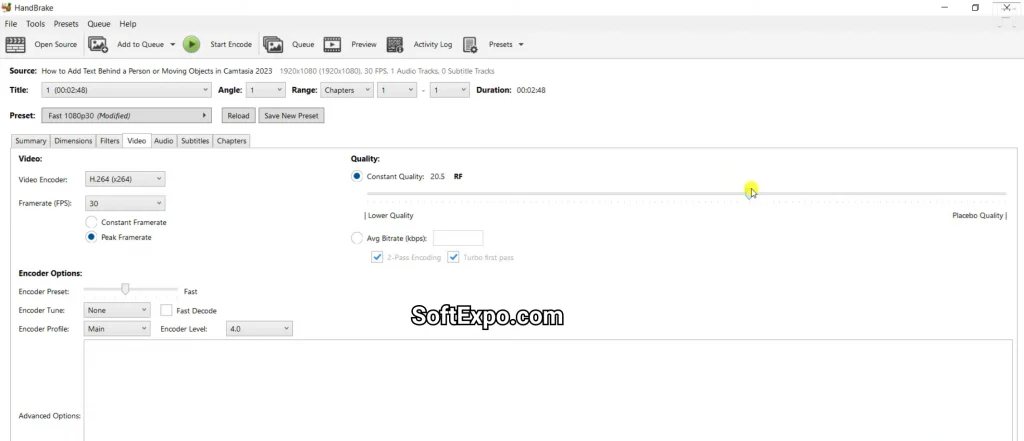
- Open Source Transparency: Completely free to use with code available for audit, ensuring no hidden telemetry or licensing costs.
- Disc Ripping: Capable of reading non-copy-protected DVDs and Blu-ray sources directly for digital conversion.
- Simplified Container Support: Focuses on creating .MP4, .MKV, and .WebM files, which covers the majority of modern playback needs.
- Video Filters: Includes built-in tools for decomb, deinterlace, denoise, and grayscale to improve older or low-quality footage.
Pricing Model: Free and open-source (GPL license).
Best Suited For: Developers, hobbyists, and users who need a reliable tool for ripping discs or compressing videos for the web without recurring costs.
Key Differences
Output Versatility
The most distinct difference lies in output options. Adobe Media Encoder can export to virtually any format required by a TV station or cinema, including uncompressed codecs and specific broadcast wrappers. HandBrake intentionally limits its output to MP4, MKV, and WebM containers using H.264, H.265, AV1, and VP9 codecs. While HandBrake covers 99% of consumer playback needs, it cannot generate the specialized master files that a broadcaster might request.
Workflow Automation
Adobe Media Encoder is built for heavy automation within a production line. Its "Watch Folder" capability means a server can automatically process files uploaded by a team member. HandBrake supports a queue for batch processing, but it lacks the automated monitoring capabilities found in Adobe's tool, requiring more manual setup for each batch.
DRM and Physical Media
HandBrake retains unique utility for archiving physical media. It can read DVD and Blu-ray structures directly, allowing users to back up their movie collections. Adobe Media Encoder does not interact with optical disc structures in this way and is strictly for file-based workflows.
Which Should You Choose?
Choose Adobe Media Encoder if you:
- Work professionally with Premiere Pro or After Effects.
- Need to deliver files in specific broadcast formats like MXF or DCP.
- Require automated processing via Watch Folders for a team environment.
Choose HandBrake if you:
- Need a free, reliable tool to compress videos for the web or personal storage.
- Want to convert DVD or Blu-ray content to digital files.
- Prefer a lightweight, standalone application without a subscription requirement.