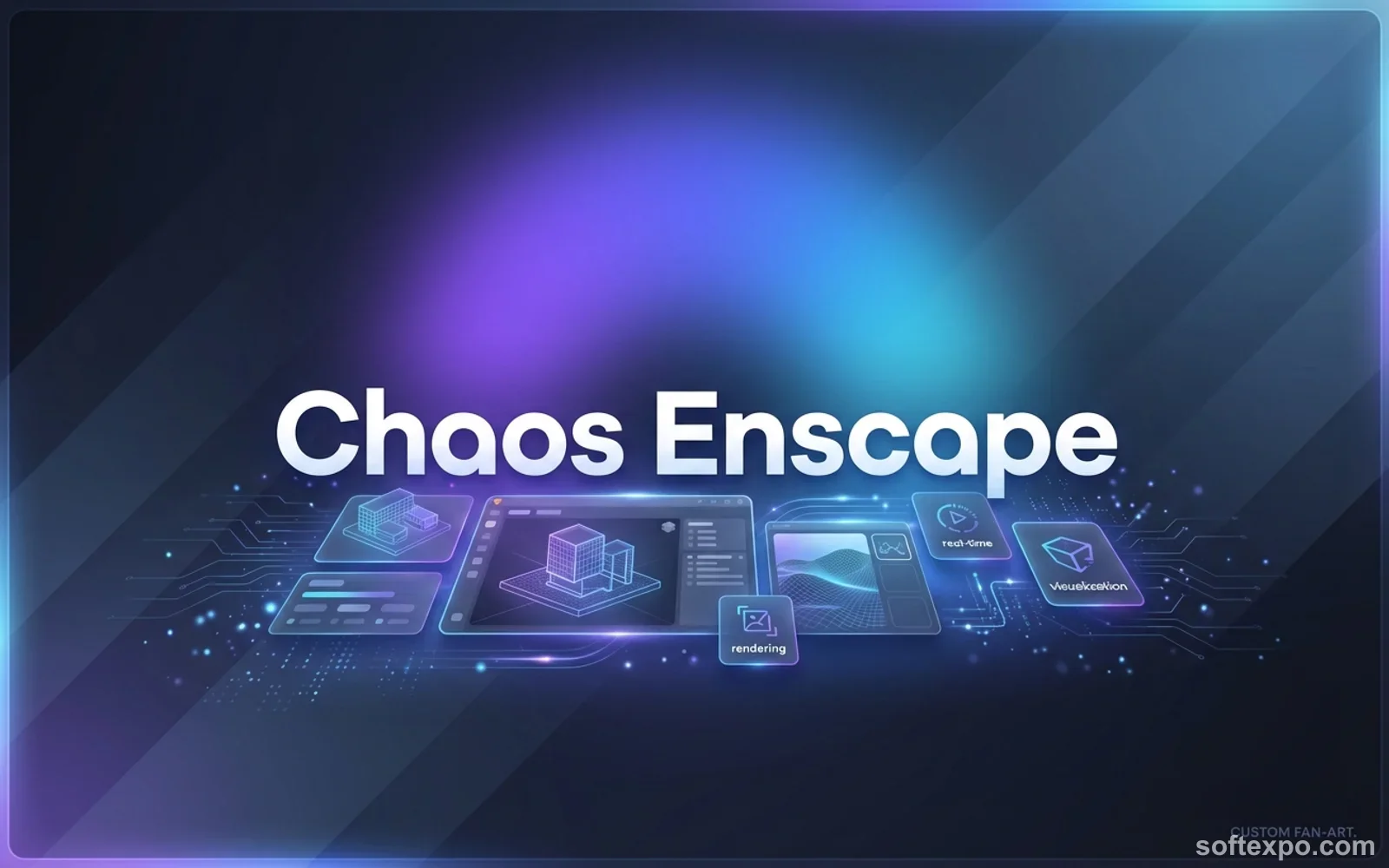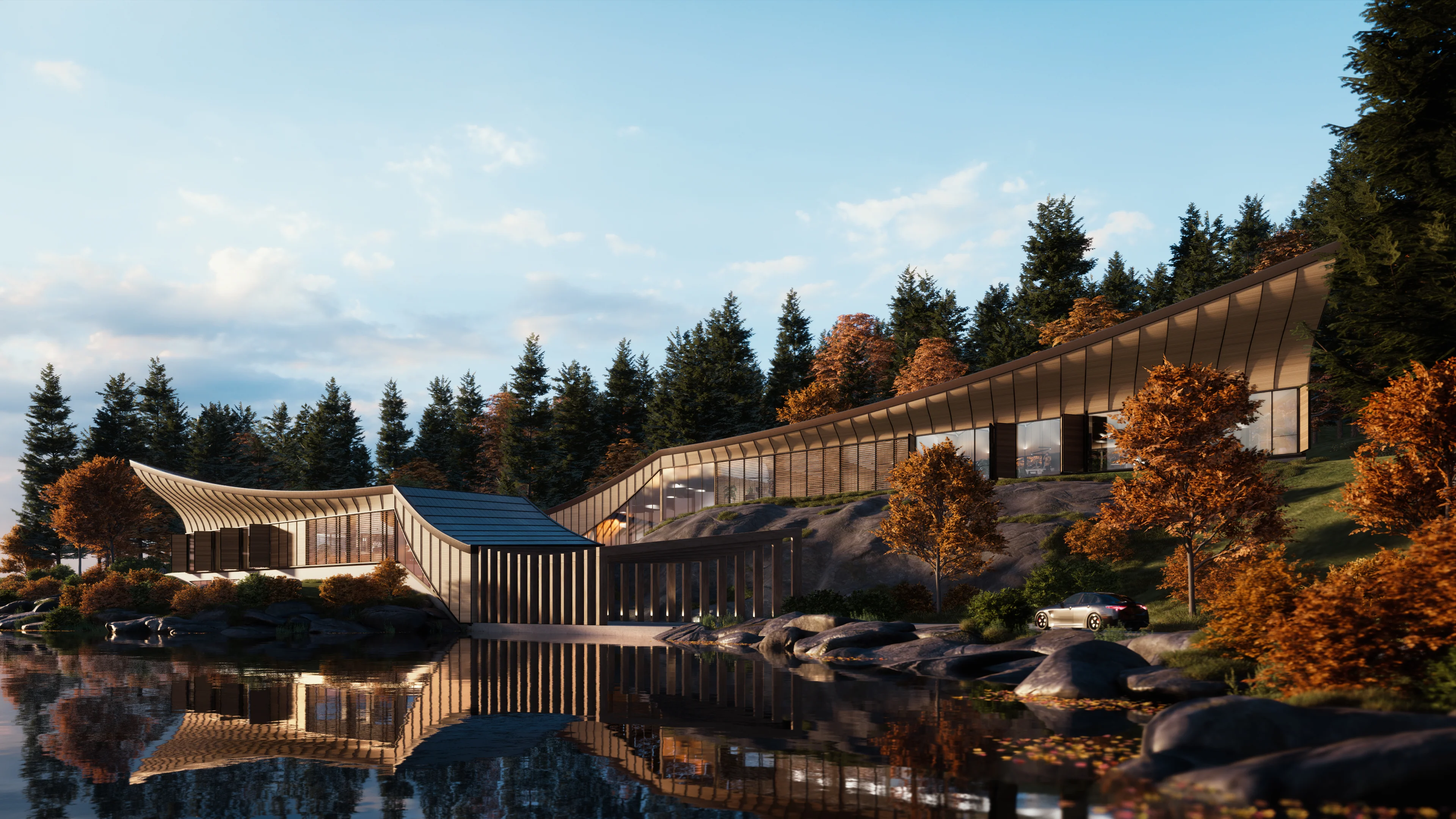
Chaos Enscape acts as a real-time rendering and virtual reality plugin designed specifically for architectural visualization and building information modeling. Unlike traditional rendering engines that require exporting a finalized model into a separate software environment, this tool docks directly inside your primary design applications, including Autodesk Revit, SketchUp, Rhino, Archicad, and Vectorworks. Architects and designers use it to bridge the gap between technical drafting and photorealistic client presentations, turning static floor plans into fully navigable 3D walkthroughs without waiting for long calculation times.
The reliance on a heavy desktop client is highly intentional. Real-time path tracing, high-resolution texture loading, and complex artificial lighting calculations demand direct access to the dedicated VRAM on modern graphics cards. Browser-based alternatives simply cannot process a fully detailed commercial building containing thousands of geometric faces and high-poly vegetation assets without severe lag. By utilizing local GPU hardware, the software renders material reflections, sunlight shadows, and volumetric fog instantaneously as you modify the source geometry. This continuous visual feedback loop eliminates the friction of traditional visualization, allowing design teams to assess space, scale, and lighting conditions interactively during internal reviews or live client sessions.
Key Features
- Real-Time Bidirectional Synchronization: The plugin creates a live link between your CAD program and the rendering viewport. When you move a wall in Revit or adjust a window in SketchUp, the rendered output updates in a fraction of a second, meaning you never have to deal with manual file exports or complex scene preparation.
- Chaos Cosmos Asset Integration: Populating architectural scenes with entourage can quickly bloat source files. The plugin solves this through direct access to the Cosmos library, which houses thousands of optimized 3D models including furniture, vegetation, and human figures that display as lightweight placeholders in your host software but render as high-polygon objects.
- Enscape Impact Building Analytics: This building performance add-on brings energy modeling directly into the visual workspace. It calculates peak heating and cooling loads, operational carbon emissions, and energy use intensity based on your building's massing, displaying the resulting data on a dials panel right inside the render window.
- Virtual Reality Immersion: For accurate spatial understanding, the software provides native plug-and-play support for major VR headsets like the Meta Quest and HTC Vive. Clicking the Enable VR button instantly drops stakeholders inside the virtual environment, allowing them to physically walk through corridors and gauge ceiling heights.
- Diverse Export Formats: Delivering the final visualization accommodates various client needs without requiring them to own the software. You can export the entire navigable 3D environment as a standalone executable file or a browser-based Web Standalone link, alongside standard high-resolution images, video flythroughs, and 360-degree panoramas.
- Atmospheric and Visual Overrides: Photorealism is not always the best approach during early conceptual phases. The visual settings panel includes a White Mode that strips away all material textures, orthographic projection toggles, and adjustable artificial light colored shadows to evaluate daylight penetration and massing composition.
- AI-Enhanced Visual Upgrades: The built-in AI Enhancer tool analyzes and improves specific elements of the rendered scene during the final image generation. It specifically targets vegetation and human entourage, upscaling textures and adding realistic variations to leaves and skin tones without extending the local hardware rendering time.
How to Install Chaos Enscape on Windows
- Download the installer archive from our website to your local storage.
- Extract the downloaded archive into a designated folder on your desktop using a standard extraction utility.
- Open the readme.txt file located inside the extracted folder to review specific directory requirements and ensure your host 3D applications are completely closed.
- Double-click the setup executable file from the extracted folder to launch the installation wizard.
- Accept the end-user license agreement and choose whether to install the software for all users on the current machine or strictly for your personal Windows user profile.
- Check the specific boxes for the host CAD applications you use, such as Revit or SketchUp, to ensure the plugin connects to the correct environments.
- Complete the setup wizard, making sure the default installation path is maintained to avoid permission conflicts, and launch your chosen 3D modeling program.
- Locate the newly added ribbon or toolbar within your host software's interface, click the launch button, and enter your account credentials to activate the license.
Chaos Enscape Free vs. Paid
Chaos Enscape operates entirely on a subscription-based model and does not offer a permanently free tier or a one-time perpetual license. However, professionals and students can test the software through a fully functional 14-day free trial. This trial period unlocks the complete rendering engine, the entire asset library, and all export capabilities without applying watermarks, allowing users to accurately evaluate the hardware requirements and workflow integration on a real project before committing to a purchase.
Paid plans are structured to accommodate different team sizes and collaborative needs. The entry-level tier, known as Enscape Solo, costs approximately $47.90 per month when billed annually. This tier is restricted to a single named user and binds the license to one specific computer. It provides access to the core real-time rendering engine, the standard asset library, and essential cloud collaboration features, making it the practical choice for freelance architects or individual designers who work primarily from a single workstation.
For larger architectural firms and collaborative environments, the Enscape Premium tier is available for around $52.90 per month on an annual billing cycle. This tier introduces floating licenses, which allow multiple team members to share access to the software across different machines, provided they are not rendering simultaneously. The Premium plan also unlocks advanced functionality, including higher-capacity cloud storage, priority support, and access to the AI Pro tier for enhanced image generation and scene enrichment.
Chaos Enscape vs. Lumion vs. Twinmotion
Lumion operates as a highly capable, standalone rendering program that requires users to export their completed 3D geometry from their CAD software and import it into a separate interface. It is famous for handling massive exterior landscapes, highly detailed weather particle systems, and complex water effects with ease. However, this disconnected workflow means that any structural changes made in the original architectural model require a complete re-export and re-sync process. If your projects involve constant, rapid floor plan alterations, this export cycle introduces significant friction compared to a live plugin.
Twinmotion, built on the Unreal Engine, similarly functions as a standalone application, though it offers direct synchronization tools to mitigate the export hassle. It excels in generating high-end cinematic video animations, applying physical path-traced lighting, and simulating realistic environmental behaviors like seasons changing or leaves blowing in the wind. While its visual ceiling is incredibly high, its node-based material setup and specialized user interface demand a steeper learning curve, making it better suited for dedicated visualization artists rather than architects who simply want to review a space during active drafting.
Chaos Enscape proves to be the superior choice when workflow efficiency and immediate visual feedback are the highest priorities. Because it docks natively inside programs like Revit and SketchUp, users never have to abandon their primary drafting interface or learn a complex, separate rendering UI. Every wall adjustment, material change, or sunlight tweak is reflected in the rendering viewport instantly. This zero-friction approach makes it the most practical tool for architects who rely on rendering not just for final marketing images, but as an active, continuous design companion throughout the entire project lifecycle.
Common Issues and Fixes
- Enscape renderer error on startup. This error is frequently triggered when the software attempts to initialize on a graphics card that lacks the physical hardware for ray tracing. To resolve this, open the General Settings menu from the ribbon inside your CAD software, navigate to the performance tab, uncheck the Hardware-accelerated Ray-Tracing box, and restart the plugin to load standard rasterized lighting.
- Flickering textures or overlapping surfaces. When surfaces rapidly flicker between two different materials in the rendering window, the issue is caused by Z-fighting in the host 3D model. This occurs when two faces are modeled on the exact same spatial coordinate, forcing the renderer to guess which one belongs in front. Return to your modeling software and slightly raise or offset one of the conflicting geometries to eliminate the overlap.
- Transparent walls or incorrect lighting shadows. The rendering engine relies on strict face orientation to calculate physical light bounces. If your model includes reversed faces, commonly seen as blue-grey back faces in SketchUp, the software will treat them improperly, resulting in transparent geometry or splotchy artifacts. Switch your viewport to a monochrome face style, select any reversed geometry, and use the Reverse Faces command to ensure the white front faces point outward.
- Black screen when launching the plugin on a laptop. Many workstation laptops use both a low-power integrated graphics chip and a high-performance dedicated GPU. If the operating system mistakenly assigns the integrated chip to handle the rendering window, it will fail to load and display a black screen. Open your Windows Display settings or the graphics control panel, locate your host CAD application and the rendering executable, and force both to run strictly on the high-performance dedicated graphics processor.
Version 4.14.0.668 — December 2025
- Introduced Light Management Browser allowing users to adjust lighting properties such as intensity, color, and on/off states directly within Enscape through customizable Light Presets
- Added Material Generator feature accessible via Cosmos that enables creating complete materials from uploaded images or textures with automatic map generation
- Enhanced grass rendering with new detailed geometry models featuring height-specific variations for more realistic close-up visualization
- Improved grass edge handling with smoother transitions at borders, eliminating visible low-polygon artifacts and surface overlap issues
- Resolved shading artifacts that occurred with DLSS or automatic subsampling along geometry edges
- Fixed Impact module issues including incorrect profile ID displays, undo functionality in Thermal Comfort, and room type change validation
- Addressed Custom Asset Editor crashes during tab key navigation and batch import window switching problems
- Disabled Ray Traced Artificial Lights on AMD GPUs temporarily due to driver-related visual issues pending future driver updates
- Corrected mouse cursor visibility problems after interactions between renderer and other application windows