Adobe Acrobat DC operates as the primary desktop application for creating, modifying, and securing Portable Document Format files. While basic PDF readers handle simple viewing tasks, this application serves professionals who need to directly alter text, replace embedded images, and execute optical character recognition on scanned paper. Legal clerks, financial analysts, and print designers rely on it to ensure strict layout fidelity across different devices, knowing that a document exported from this environment will print exactly as it appears on screen. The application acts as a digital bridge between raw authoring tools like word processors and the final, unalterable archival format required for official distribution.
Choosing a dedicated desktop application over browser-based PDF utilities becomes critical when handling heavy workloads. A web browser struggles or crashes when tasked with processing a 500-page court transcript or rendering high-resolution architectural blueprints. Operating locally on Windows 10 or Windows 11 allows the software to utilize system RAM and local disk caching efficiently, preventing interface lockups during heavy batch conversions. Furthermore, local execution ensures that confidential financial records or internal company memos do not need to be uploaded to a third-party server just to combine pages or apply a redaction mask.
Beyond static text editing, the software integrates advanced document intelligence to accelerate daily reading tasks. Instead of manually scrolling through lengthy contracts to find specific clauses, users interact with document text through natural language queries. The application maps the document structure, identifies key headings, and extracts the core arguments or financial terms into manageable summaries. This practical utility turns a passive reading experience into an active extraction process, making it an essential tool for anyone whose daily work revolves around managing, signing, reviewing, and archiving complex digital paperwork on a tight deadline.
Key Features
- Optical Character Recognition (OCR): The software scans flat images of text and converts them into selectable, searchable alphanumeric characters. When a user opens a scanned TIFF or JPEG document, the application automatically prompts the text recognition engine to map the geometry of the page. It matches the recognized characters with custom system fonts, ensuring that copied text maintains the exact spatial layout of the original paper scan. This prevents manual retyping and allows immediate keyword searching across hundreds of archived pages.
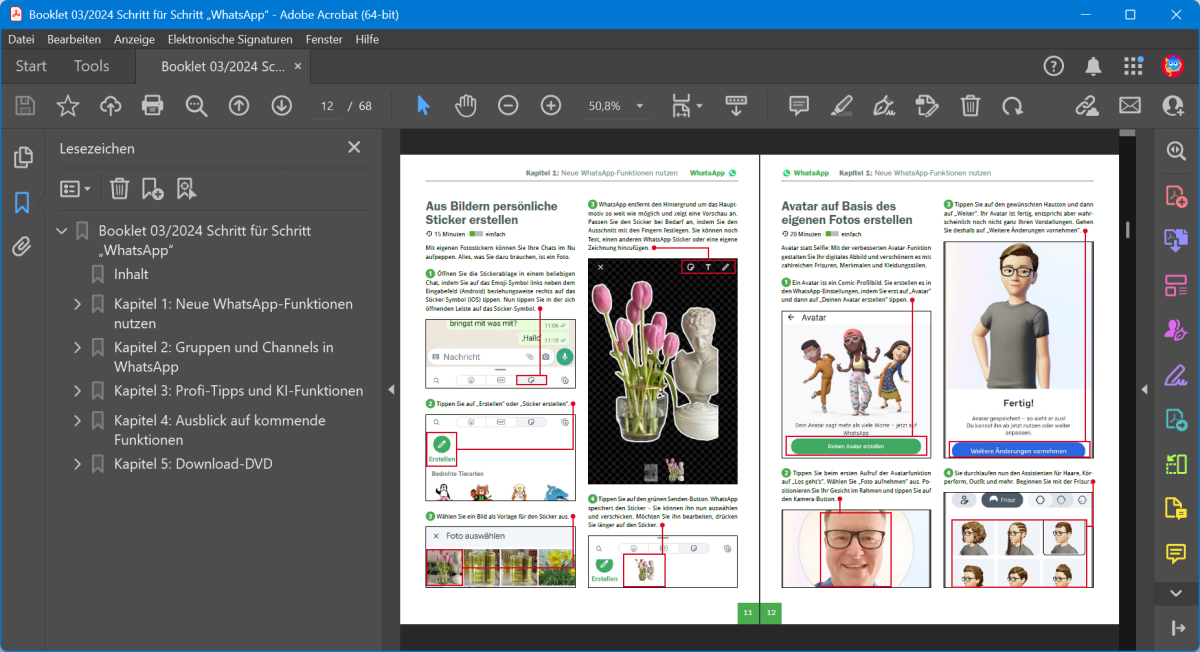
- Generative AI Assistant: Users can query the contents of massive documents using a dedicated conversational interface. By clicking the AI Assistant button in the top navigation bar, individuals can ask the software to summarize a 100-page contract or extract specific liability clauses into bullet points. The engine provides clickable citations linked directly to the source paragraphs, ensuring that the extracted information remains factually grounded in the text rather than hallucinated. This reduces the hours spent isolating specific project deliverables.
- Document Redaction and Security: For legal and medical compliance, the redaction tool permanently strips sensitive data from the file structure. Unlike drawing a black box over text—which can easily be bypassed by copying the text underneath—the redaction command deletes the underlying text vectors and metadata. Users can also apply AES-256 encryption, restricting printing, copying, or modifying via a permissions password under the Protection menu, securing data before external email distribution.
- Fillable Form Creation: Administrators can transform flat documents into interactive digital forms using the Prepare Form tool. The software automatically detects horizontal lines and boxed areas, placing text fields, checkboxes, and radio buttons in the appropriate locations. Creators can assign custom properties to these fields, such as mandatory numeric formatting, character limits, or calculated fields that automatically sum up invoice totals based on user input. This standardizes data collection without requiring specialized web development skills.
- E-Signature Workflows: The application facilitates binding digital signatures through the Request e-signatures panel. Users specify recipient email addresses and drag signature blocks onto the necessary pages. The system tracks the document's progress, records an audit trail of when the file was opened and signed, and cryptographically seals the final PDF to prevent post-signature tampering. The dashboard alerts the sender upon completion, removing the friction of printing, physically signing, and rescanning paperwork.
- Advanced Prepress Controls: Print designers utilize the Print Production toolset to verify color fidelity before sending files to commercial offset printers. The interface includes a Preflight panel that checks for missing fonts, low-resolution images, and incorrect color spaces. Users can convert RGB elements to CMYK, adjust ink coverage limits, and embed crop marks directly within the file geometry to ensure exact trimming at the print shop. This guarantees that digital proofs match physical ink output without costly press errors.
How to Install Adobe Acrobat DC on Windows
- Navigate to the official Adobe portal using your web browser and sign in with your account credentials to access the user download dashboard.
- Select the Windows installer package for the desktop application, taking care to choose the full executable download rather than the lightweight browser extension.
- Launch the downloaded setup executable from your designated downloads folder, which will prompt the User Account Control dialog; grant administrative privileges to allow system modifications.
- Review the installation options to determine the default file association, keeping the checkbox ticked if you want the application to automatically open all PDF files on the system instead of routing them to a web browser.
- Choose the destination folder on your local drive, though keeping the default system path on the primary partition is recommended for proper integration with shell extensions and thumbnail preview handlers.
- Wait for the installer to extract the core application files, register essential system libraries, and configure the background update service necessary for security patches.
- Click the finish button and launch the application from the Start menu, which will immediately trigger a final authentication screen requiring your account login to validate the active subscription and fetch your cloud preferences.
Adobe Acrobat DC Free vs. Paid
The software operates on a strict tiered model, separating basic reading capabilities from advanced authoring and editing tools. The base application, known as Reader, is free to download and use without an expiration date. This free tier allows users to open PDFs, fill out existing interactive forms, add sticky notes, and apply basic electronic signatures. However, it explicitly restricts the ability to modify existing text, reorganize pages, or export documents into other formats like Microsoft Excel or Word.
To unlock the full editing and creation suite, users must subscribe to the Standard or Pro tiers. The Standard tier costs approximately $12.99 per month when billed annually, providing the core tools needed to edit text, convert files, and manage basic security features. The Pro tier, priced around $19.99 per month on an annual commitment, expands these capabilities by adding prepress print production tools, bulk sending options for e-signatures, and the ability to compare two document versions side-by-side to track detailed textual changes over time.
Additionally, the newly introduced AI Assistant operates as a separate add-on subscription. Regardless of whether a user is on the free or paid tier, accessing the generative summarization and conversational query features requires an extra monthly fee, typically starting around $4.99. The vendor phased out perpetual, single-payment licenses for this primary application track, meaning long-term users must maintain an active internet connection periodically to validate their ongoing subscription status and prevent the software from reverting to read-only mode.
Adobe Acrobat DC vs. Foxit PDF Editor vs. Nitro Pro
Foxit PDF Editor positions itself as a responsive alternative for organizations looking to minimize ongoing software expenditures. It mirrors the traditional ribbon interface familiar to Microsoft Office users, making the transition straightforward for administrative staff handling daily paperwork. Users typically choose Foxit when they need bulk perpetual licensing without mandatory cloud subscription overhead, or when deploying the software across virtual desktop environments where conserving system memory and CPU cycles is a strict requirement for network stability.
Nitro Pro focuses heavily on batch processing and simplified enterprise deployment. It excels in environments where users frequently combine hundreds of different file types into single, massive binders for legal discovery or corporate auditing. The software offers clean conversion algorithms, often retaining complex table structures when exporting a PDF back into an Excel spreadsheet. IT administrators favor Nitro Pro for its straightforward deployment packages and fixed licensing costs that avoid the complexity of individual account management and rolling monthly cloud fees.
Adobe Acrobat DC remains the superior choice for professionals who require exact document fidelity, commercial print preparation, and deep integration with specialized creative tools. Its optical character recognition engine handles skewed, low-contrast scans better than the alternatives, and its prepress color management tools are strictly required by most commercial printing houses. Furthermore, organizations that rely heavily on legally binding, cryptographically secure e-signatures and centralized document tracking find the native integration with the vendor's cloud ecosystem beneficial for complex remote workflows.
Common Issues and Fixes
- Application crashes immediately upon opening a file. This behavior often stems from a conflict with the software's internal sandbox or incompatible third-party plugins. To fix it, launch the application without opening a document, navigate to the Preferences menu, select the Security (Enhanced) tab, and temporarily disable Protected Mode at startup to verify if a specific system configuration is blocking execution.
- Scanned text is not selectable or editable. The software does not automatically recognize text in flattened images unless explicitly instructed by the user. Click the Scan & OCR tool in the right-hand pane and run the Recognize Text command to force the engine to map the characters, ensuring that the correct primary language is selected in the settings dialogue for accurate output.
- The interface renders slowly and scrolling stutters. High-resolution displays or complex vector documents can strain the application's rendering engine, especially on older hardware. Go to the Page Display preferences and uncheck the "Smooth line art" and "Smooth images" options, which significantly reduces the processing load required to redraw the screen during rapid scrolling.
- Exported Word documents contain garbled text or broken layouts. This occurs when the original PDF uses custom, un-embedded fonts that your local system does not possess in its font directory. To correct the layout, ask the original author to re-export the file with fonts strictly embedded, or use the Edit PDF tool to manually replace the missing font with a standard system equivalent before running the Word conversion.
Version 25.001.20997 — December 2025
Added:
- Integration with ChatGPT: Organize and edit PDFs directly within ChatGPT using natural language commands.
- Generate Presentation: Capability extended to more user tiers, allowing slide creation from PDF content.
- AI Assistant Actions: AI can now perform tool-based actions for enterprise workflows.
- PDF Spaces Support: Added support for Spanish, Italian, and Portuguese languages.
- Screenshot Tool: New capture option available from the Quick action toolbar.
Improved:
- PDFMaker Export: Exports from Microsoft Word now exclude tracked changes and comments by default for cleaner output.
- Accessibility: Enhanced keyboard navigation and screen reader support.
Fixed:
- Fixed tracked changes visibility issues during Word to PDF conversion.
- Resolved specific crash instances on launch for some Windows configurations.
Security:
- Addressed CVE-2025-62221 (Zero-Day) and other critical vulnerabilities.
- Security updates for December 2025 addressing arbitrary code execution risks.