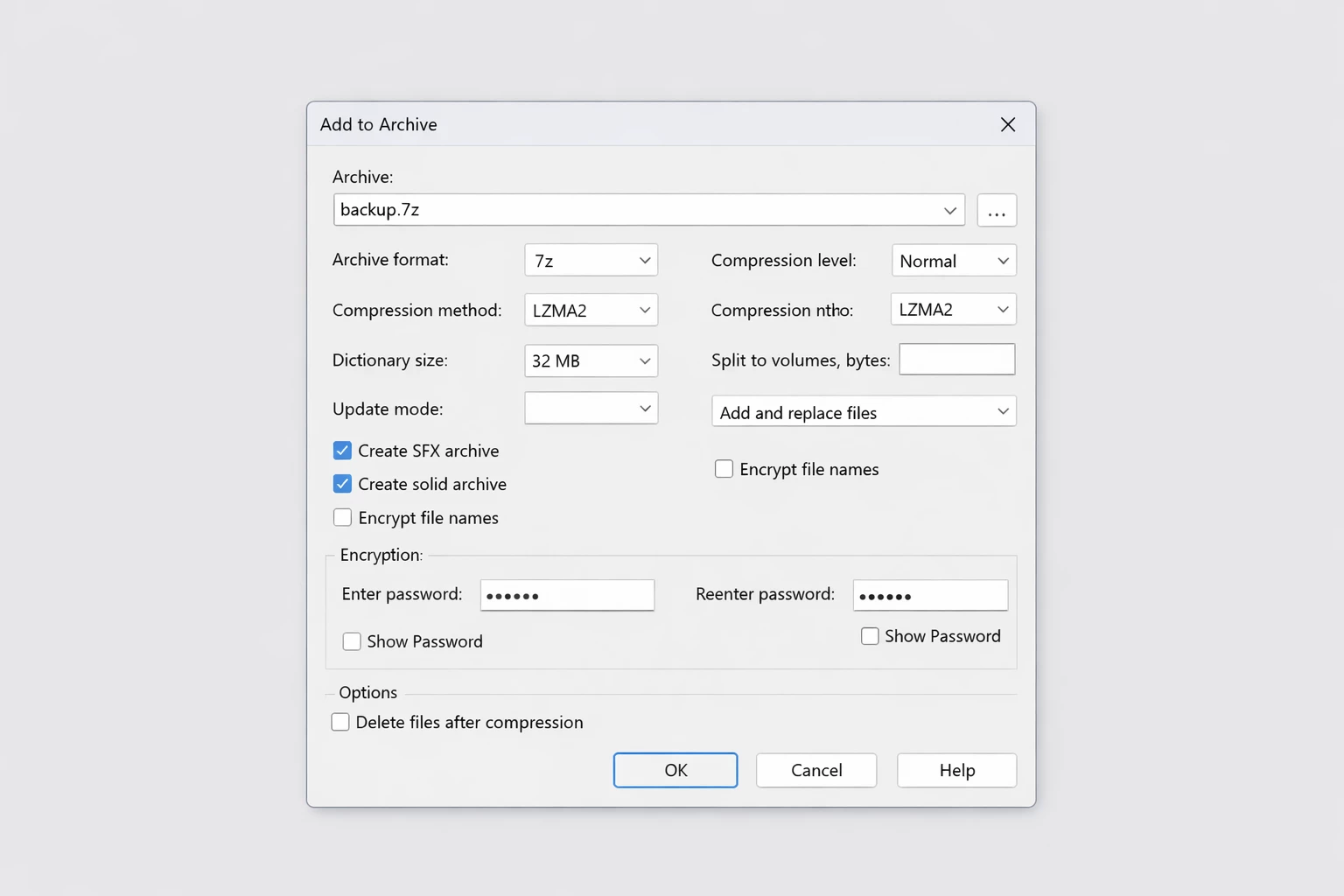
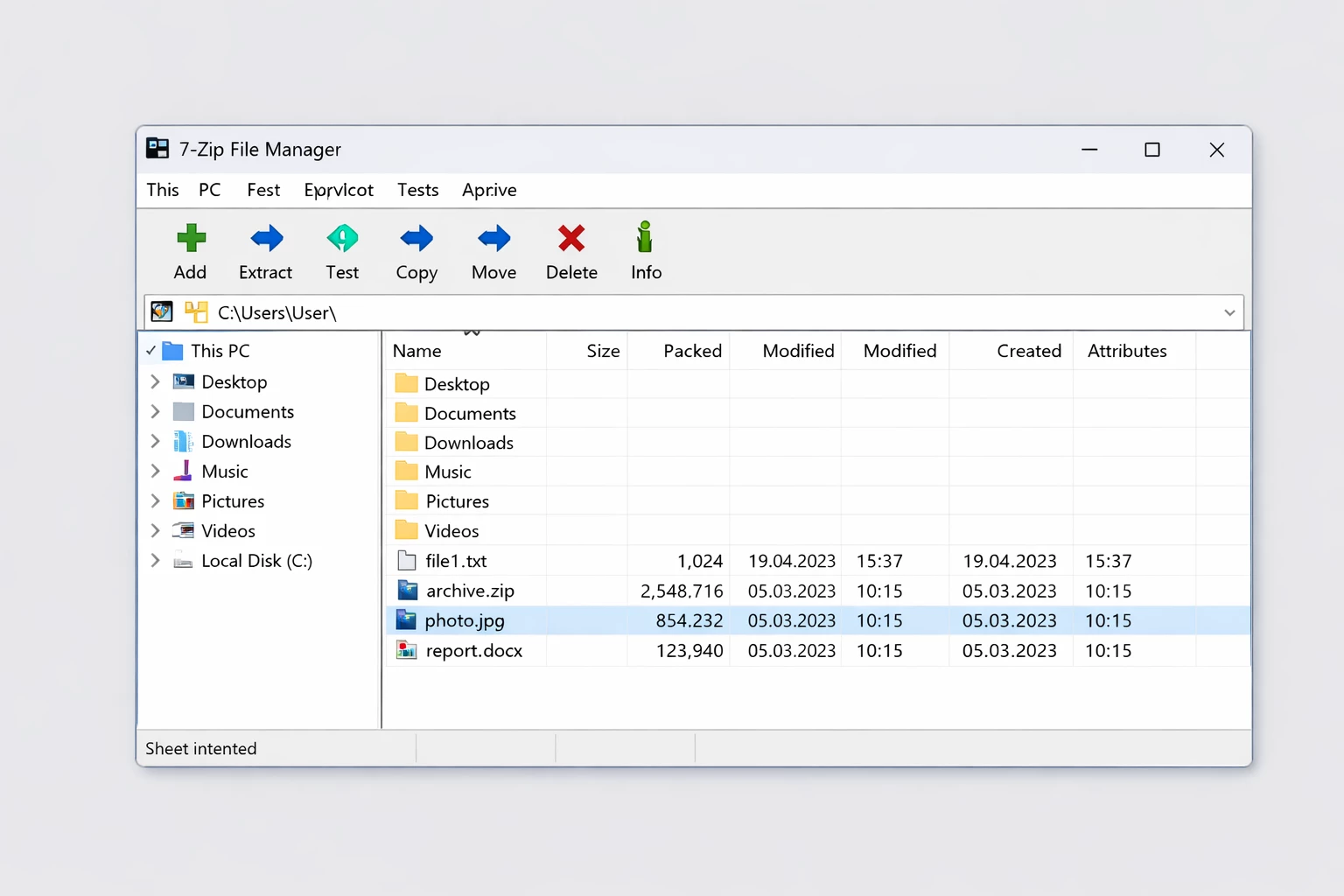
7-Zip operates as a utilitarian file archiver built specifically for Windows desktops, designed deliberately to minimize the storage footprint of large datasets and manage deeply nested directory structures. Rather than adopting modern graphical styling, the application relies entirely on a traditional two-pane file manager interface and straightforward dialogue boxes. System administrators, database managers, and standard PC operators deploy the application to shrink gigabytes of raw files—such as virtual machine images, database dumps, uncompiled code repositories, and high-resolution media assets—into transportable archives. The interface prioritizes strict utility over visual design, bypassing heavy graphical layers to ensure minimal memory consumption, zero system lag, and rapid execution times during demanding tasks.
While modern storage drives offer immense capacity, network bandwidth limits and cloud transfer quotas still restrict the movement of massive directories. Moving a folder containing thousands of tiny web development files across a network introduces file system overhead, causing transfers to slow to a crawl. By wrapping these scattered directories into a single, densely compressed container, the application measurably reduces the required input and output operations. This aggregation ensures that hardware threads process the data locally, avoiding the memory restrictions and network latency inherent in web-only conversion tools. Desktop architecture remains necessary for handling heavy computational workloads.
The software focuses on local file manipulation, actively bypassing cloud integrations, account requirements, and background telemetry. Operators interact with the tool primarily through the native right-click shell menu to instantly unpack incoming downloads or wrap outgoing directories into encrypted containers. By integrating directly into the Windows explorer environment, the archiver reduces the friction of daily file management. Operators can execute complex compression commands, assign passwords, and split massive datasets into smaller volumes without ever opening the standalone graphical interface. When the manager is required, it offers a purely functional aesthetic where keyboard shortcuts execute immediate operations.
Key Features
- LZMA and LZMA2 Architecture: The primary compression engine utilizes a sliding dictionary approach to reduce file sizes significantly compared to standard ZIP algorithms. This architecture yields the proprietary 7z format, which compresses raw data blocks to save disk space and network bandwidth during large transfers. Operators can define dictionary sizes up to several gigabytes on modern machines.
- Broad Format Extraction Support: The extraction engine handles dozens of archive types well beyond its native format, including TAR, GZIP, and WIM for packing, and RAR, CAB, ISO, and VHD for unpacking. This broad compatibility means operators can extract raw files from software installers (MSI), open disk image files directly, and recover data from legacy formats without installing secondary software.
- Local AES-256 Encryption: Users can secure sensitive files by applying AES-256 encryption to both the archive contents and the file names within 7z or ZIP containers. This function locks the directory structure from view until the correct password is provided, preventing unauthorized local access. The encryption occurs offline, ensuring no cryptographic keys are ever transmitted.
- Windows Shell Context Menu Integration: The application anchors itself into the native right-click menu within the operating system explorer. Selecting a file or folder immediately exposes quick-action commands like "Extract Here", "Extract to folder name", or "Add to archive," bypassing the need to navigate the standalone file manager for routine daily operations.
- Multi-threading CPU Optimization: The compression engine actively detects and utilizes multiple processor cores during demanding packing operations. Users can manually assign the number of active CPU threads in the compression dialogue box, balancing maximum processing speed against system responsiveness. High-thread utilization reduces the time required to shrink gigabytes of uncompressed media.
- Command-Line Executable: Beyond the graphical interface, the installation includes a dedicated command-line tool designed for automation. System administrators routinely utilize this executable to write batch scripts that compress nightly server backups, assigning strict parameters for compression levels and output directories without requiring human intervention.
- Traditional Two-Pane File Manager: The standalone graphical interface features a dual-pane layout for direct file manipulation, resembling classic directory navigators. This interface allows users to open archives internally, drag specific files between local disks and compressed containers, and test archive integrity without executing a full extraction to the local hard drive.
How to Install 7-Zip on Windows
- Download the installer archive directly from our website and save the file to a designated local folder on your hard drive.
- Extract the downloaded archive using the built-in Windows Explorer extraction tool or your current file utility to reveal the underlying setup files.
- Open the newly extracted folder and double-click the included readme.txt file to review specific installation parameters, command-line arguments, and hardware prerequisites.
- Run the primary setup executable located in the extracted folder to initiate the installation wizard, granting permission if the User Account Control prompts for access.
- Review the default destination path, which automatically assigns the program to the standard Program Files directory, or modify the path manually if you prefer a custom storage drive location.
- Click the install button to copy the necessary binaries; the local transfer completes in seconds without prompting for user registration or background telemetry permissions.
- Launch the file manager from the Start menu, navigate to the Tools menu, select Options, and use the System tab to associate the program with your preferred file extensions by clicking the plus icon.
7-Zip Free vs. Paid
The software operates under a completely free, open-source distribution model, primarily utilizing the GNU LGPL license for its core code. The developer does not lock any features behind paywalls, subscription tiers, or premium upgrades. Every compression algorithm, encryption protocol, shell integration, and extraction capability is fully available immediately upon installation. There are no trial periods to expire, and the application never restricts the size of the archives you can create or extract.
There is no enterprise, pro, or commercial tier. Businesses, government agencies, academic institutions, and individual operators can deploy the software across unlimited internal workstations without purchasing commercial licenses or tracking usage seats. The application never displays advertisements, never bundles third-party promotional software during setup, and never prompts the user for financial contributions within the graphical interface. IT administrators appreciate this model because it eliminates the need for software auditing and license compliance tracking within large corporate networks.
Because the development relies on open-source principles rather than corporate revenue generation, the software avoids the aggressive monetization tactics common in the desktop utility sector. A specific unRAR restriction applies to the source code used for unpacking RAR files, prohibiting developers from using that code to build a reverse-engineered RAR compression tool, but this legal nuance does not impact the end user. The overall business model ensures that the tool remains a strict, functional utility, maintained by its developer without requiring commercial validation or recurring billing.
7-Zip vs. WinRAR vs. PeaZip
WinRAR maintains a strong presence in the utility market primarily due to its proprietary RAR compression format, which allows operators to create specialized recovery volumes. These recovery records can physically repair corrupted archives if a storage drive or network transfer damages the file. While 7-Zip can easily unpack RAR files, it cannot create them. Operators who rely heavily on generating new RAR files for legacy networks, or who require built-in data recovery records for unstable storage media, will find WinRAR necessary despite its commercial trial model.
PeaZip acts as an open-source alternative that wraps multiple different compression engines into a modernized, visually polished graphical interface. Operators who find traditional dual-pane layouts visually dated often prefer PeaZip for its cleaner aesthetic, native dark mode, and built-in password manager. PeaZip functions more as a unified frontend for various algorithms rather than a standalone engine, prioritizing user experience and visual accessibility over the raw, stripped-down utility approach found in classic archiving tools.
7-Zip remains the superior choice for users who prioritize absolute minimal resource consumption and the highest possible compression ratio via the native LZMA engine. By omitting heavy graphical layers, password managers, and recovery volumes, the application ensures that CPU threads and system memory are entirely dedicated to the mathematical compression of data. When the objective is strictly to reduce file size as efficiently as possible on a Windows desktop without navigating through bloated menus, this tool provides the most direct, unhindered path to completion.
Common Issues and Fixes
- Missing context menu in Windows 11. Windows 11 hides legacy right-click options under a secondary layer. To restore direct access, open the standalone file manager as an administrator, navigate to the Tools menu, select Options, open the 7-Zip tab, and ensure the context menu box is actively checked.
- Cannot open file as archive error. This alert appears when the archive header is mathematically damaged or the file download terminated prematurely, leaving the container incomplete. Attempt to download the source file again using a different browser, or open the corrupted file directly within the standalone manager and run the "Test" command to identify exactly which internal data block failed.
- CRC failed during extraction. A Cyclic Redundancy Check failure indicates that the extracted data no longer matches the original checksum hash. While you cannot extract the broken file using standard methods, you can often open the archive manually, locate unaffected files, and drag them out individually.
- Extraction halts due to permission errors. If the software cannot write files to the destination folder, the operating system's security policies are actively blocking access. Right-click the extraction tool shortcut and select "Run as administrator," or manually change the output directory to a user-controlled path like the local Desktop or Documents folder.
- High memory usage freezes the computer during packing. Setting the dictionary size too high during LZMA compression forces the software to consume more RAM than the physical system has available, leading to severe operating system lag. Cancel the current operation, reduce the dictionary size in the compression settings dialogue box, and lower the active CPU thread count before restarting the task.
Version 25.01 — August 2025
- Enhanced symbolic link security measures when extracting archives to prevent potential vulnerabilities
- Introduced command-line parameter -snld20 to override standard security protocols for symbolic link creation when needed
- Resolved CVE-2025-55188 security issue related to file extraction handling
- Improved archive extraction safety by implementing stricter symbolic link processing controls
- Various bug fixes and stability improvements throughout the application