Hasleo WinToUSB provides a dedicated method for deploying a fully functional Windows workspace onto a portable USB flash drive, external hard drive, or Thunderbolt drive. Instead of merely formatting a setup disk that installs an operating system onto an internal hard drive, this software executes a "Windows To Go" deployment. This means the external drive acts as the actual primary system disk. Users plug the drive into different hardware configurations, boot directly from the USB port, and operate within their own personalized desktop environment complete with their saved files, specific applications, and exact system settings.
System administrators, software testers, and remote workers use this utility to carry an isolated diagnostic environment or a secure corporate workspace in their pockets. A software tester, for example, often needs to verify applications on a clean operating system environment without wiping their primary workstation. Instead of dual-booting, which alters the internal drive's master boot record, or running a virtual machine, which incurs performance overhead by sharing system RAM and CPU cores, the tester can boot directly from a high-speed external SSD. The host computer's processor and graphics card run the portable operating system natively, providing bare-metal performance while keeping the internal drive completely untouched and secure.
For users dealing with hardware failure on their primary internal drive, this utility offers a direct lifeline. By building a portable workspace on a secondary machine and bringing it to the broken computer, users can boot directly into a familiar desktop interface to recover stranded files, execute hardware diagnostics, or securely wipe internal storage before a hardware replacement. Because the software circumvents the strict hardware restrictions historically enforced by the native Microsoft Windows To Go Creator wizard, users do not need expensive, officially certified enterprise flash drives to make the workspace functional. The software accepts standard ISO, WIM, ESD, SWM, VHD, and VHDX image files as the source material, allowing for heavily customized deployments. A dedicated desktop application is strictly necessary for this type of system-level cloning and partition management, as browser-based utilities or lightweight cloud tools cannot interface with local motherboard firmware, format raw disk partitions, or write boot sectors.
Key Features
- Feature Name: Live System Cloning: You can clone your currently running operating system directly to a USB drive without needing to reboot the computer or create a separate backup image file first. The software performs a "hot clone" of the active primary drive and the necessary hidden boot partitions, reproducing the exact current state of your desktop, installed software, and user profiles onto the external drive.
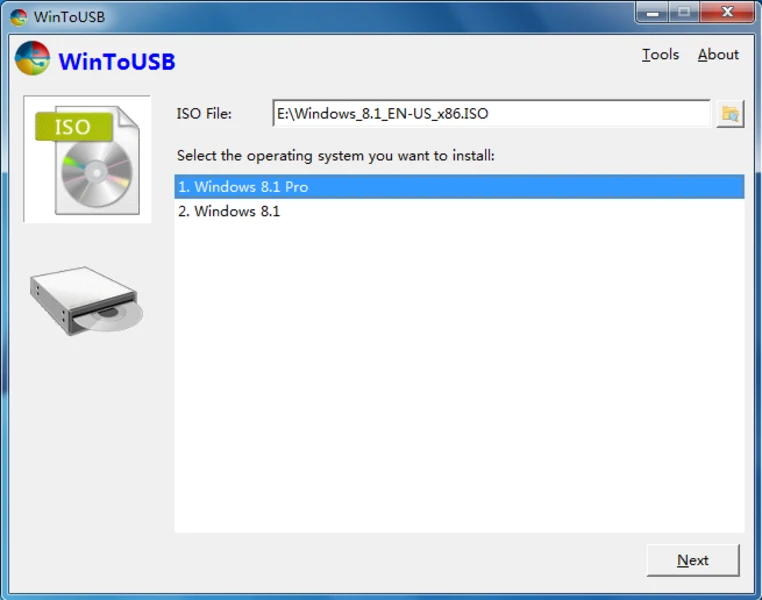
- Feature Name: Image File Deployment: The utility extracts and writes system files directly from standard installation images, including ISO, WIM, ESD, SWM, and virtual hard disk formats. Users browse to the source file on their local disk, select the specific target edition from the file's internal index, and instruct the application to write it to the connected flash drive.
- Feature Name: Partition Scheme Selection: When configuring the destination disk, the interface provides dropdown options to select the exact partition layout. Users can select "MBR for BIOS", "GPT for UEFI", or a hybrid "MBR for BIOS and UEFI" scheme to maximize boot compatibility across different generations of desktop motherboards.
- Feature Name: Delta Cloning Technology: Rather than formatting the drive and copying the entire operating system again when an update is needed, the software includes a specialized delta clone feature. This function compares the live system against an existing portable workspace and transfers only the changed blocks, allowing users to rapidly synchronize their external drive with their main workstation.
- Feature Name: VHD-Based Deployments: Instead of extracting thousands of individual system files directly onto the raw flash drive partition, the software can encapsulate the entire portable operating system inside a Virtual Hard Disk (VHD or VHDX) file. This reduces root directory clutter on the external drive and makes the portable system significantly easier to back up, copy, or migrate to larger storage media later.
- Feature Name: Standard Installation USB Creation: Beyond building live portable workspaces, the tool can format a standard setup drive used to install the operating system onto an internal hard disk. It formats the target media appropriately and writes the installer files so that the setup environment boots successfully on heavily restricted corporate laptops or custom-built desktop rigs.
- Feature Name: WinPE Bootable Media Generation: IT technicians can create Windows Preinstallation Environment (WinPE) rescue drives directly from the main interface. By pointing the utility to a valid WinPE ISO file, the software transfers the diagnostic contents to a flash drive, creating a minimal, self-contained boot environment for troubleshooting unbootable internal hardware or recovering raw data from corrupted partitions.
How to Install WinToUSB on Windows
- Download the official Windows installer executable package from the Hasleo Software website to your local storage drive.
- Double-click the downloaded setup file to launch the installer and grant administrative privileges when prompted by the User Account Control dialogue, as the software requires deep system access for physical disk management.
- Accept the end-user license agreement on the first screen and click Next to proceed to the destination folder selection phase.
- Leave the default Program Files installation directory intact, or click the Browse button to specify a custom folder path on a secondary internal drive.
- Choose whether to create a desktop shortcut icon and a Start menu folder, then click Install to begin extracting the core program files and drivers.
- Wait for the progress bar to complete, which typically takes only a few seconds due to the application's small footprint and lack of bundled bloatware.
- Click Finish to close the wizard and leave the checkbox ticked to launch the software immediately.
- Upon first launch, you will see the main application interface displaying the primary operation modules, allowing you to immediately select an ISO file or begin cloning your active system.
WinToUSB Free vs. Paid
Hasleo WinToUSB operates on a strict freemium model. The Free tier is restricted entirely to non-commercial, personal home use. It allows users to create standard portable workspaces from ISO files or clone a live system, but it enforces artificial speed limits on the cloning and extraction processes. Furthermore, the Free tier restricts which exact editions of the operating system you can deploy, blocking the creation of advanced Server environments or specialized Enterprise builds, and it completely disables the ability to apply BitLocker encryption to the target drive.
The Professional tier is available for a one-time perpetual license fee of $29.95, which covers activation on up to two personal computers. This tier removes all artificial write speed restrictions, unlocking the maximum sequential throughput supported by the target flash drive. It also enables all advanced features in the interface, including full support for Server editions, BitLocker encryption integration, and the ability to utilize the VHDX deployment method for encapsulated workspaces. Payment processing for these premium tiers is handled through secure online gateways, and the perpetual license means the software will not arbitrarily demand a recurring monthly subscription fee to retain basic access.
For larger deployment scenarios, the Enterprise tier is available starting at $299. This tier allows activation on an unlimited number of computers within the same organization at a single physical site, making it cost-effective for corporate IT departments. Both the Professional and Enterprise tiers include free priority technical support and lifetime access to the newest software updates without additional upgrade charges, whereas the Free tier provides no direct developer support.
WinToUSB vs. Rufus vs. AOMEI Partition Assistant
Rufus is a free, open-source formatting utility widely known for creating standard bootable installation media. While Rufus does include a basic "Windows To Go" option in its interface dropdown when a supported ISO is loaded, its functionality is strictly limited to extracting an ISO file to the flash drive. It cannot clone a currently running live desktop, it lacks advanced VHD encapsulation options, and it offers no native BitLocker integration during the creation phase. Users who simply need a fast, lightweight, and entirely free tool to create a clean portable workspace from an image file often prefer Rufus, as it requires no installation.
AOMEI Partition Assistant is a broad disk management suite that includes a dedicated "Windows To Go Creator" module alongside its primary resizing, formatting, and disk cloning tools. The AOMEI tool is effective for building portable drives and supports live cloning, but it forces users to install a heavy disk management suite just to access the specific USB creation feature. Additionally, advanced options like keeping the portable operating system within a VHD file or creating specialized Server environments are often restricted behind the higher-priced professional tiers of the partition software.
WinToUSB is the better fit for users and technicians who need a dedicated, specialized utility built entirely around portable operating system deployments. Because its primary focus is live system cloning, delta updates, and boot-sector management for external drives, it handles complex deployment scenarios far better than a general formatting tool like Rufus or a broad disk suite like AOMEI. When bare-metal performance, BitLocker security, and exact cloning of an active desktop are absolute requirements, Hasleo's utility provides a significantly more precise and flexible workflow.
Common Issues and Fixes
- Problem description: The portable system runs very slowly or freezes randomly during basic tasks. This occurs when the destination drive lacks the sustained random write speeds required by an operating system. To fix this, replace cheap USB 2.0 or basic USB 3.0 flash drives with high-performance external SSDs or flash drives built with solid-state controllers.
- Problem description: A "Windows created a temporary paging file" error appears upon booting the portable drive. This happens because the operating system struggles to manage the page file dynamically on certain removable media architectures. To fix this, boot into the portable environment safely, navigate to the advanced system properties, disable the page file completely, reboot, delete any hidden pagefile.sys file on the root directory, and then manually assign a fixed page file size.
- Problem description: The creation process stalls indefinitely or returns Error Code 0x0000008000B40000. This specific hexadecimal error indicates a failure to extract and write specific system files from the source image. To resolve it, verify the cryptographic integrity of the downloaded ISO file, try using a different base image directly from official distribution sources, or ensure the target drive is wiped and formatted correctly before initiating the build.
- Problem description: The host computer fails to recognize the USB drive as a valid boot device on startup. This happens when the partition scheme of the portable drive does not match the host computer's motherboard firmware. To fix this, recreate the drive using the "MBR for BIOS and UEFI" hybrid partition scheme in the interface, and ensure that Secure Boot is temporarily disabled in the host computer's firmware settings.
- Problem description: The portable environment boots successfully but the external keyboard, mouse, or network adapter does not work. This indicates that the base installation image lacks the specific drivers required by the host hardware. To fix this, boot the portable drive on a compatible machine first, manually download and install the missing drivers for the target hardware, or inject the necessary INF files into the base image before creating the drive.
Version 10.2 — November 2025
Added:
- Support for dynamically expanding virtual disks (VHD/VHDX)
Improved:
- Delta Clone feature performance
Fixed:
- Issue causing cloned Windows to fail to start properly
- Other minor bugs