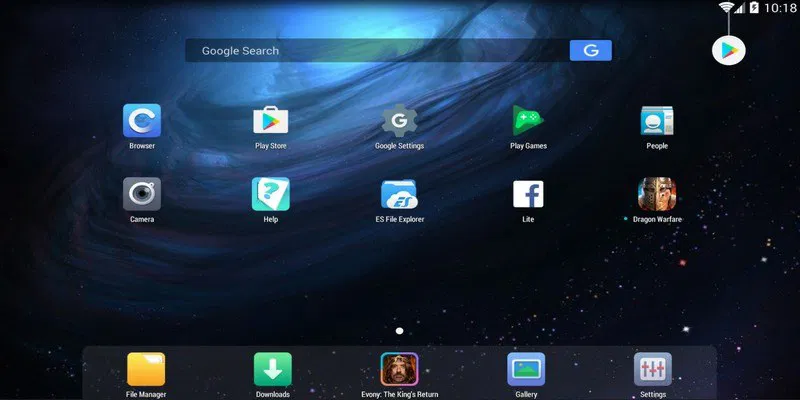
Nox App Player operates as a specialized desktop virtualization tool designed to create a fully functional mobile operating system environment directly on a computer monitor. Rather than relying on a physical smartphone or tablet, users can run mobile applications straight from their Windows desktop. This resolves common mobile hardware bottlenecks, including rapid battery drain, severe thermal throttling, limited storage space, and the inherent inaccuracy of small touchscreen displays. By translating mobile software architecture into a format that a desktop processor can natively understand, the application provides a dedicated bridge between two completely distinct software ecosystems.
Targeted heavily at mobile gamers, application testers, and power users, the software fundamentally shifts interface control from touch-based screen inputs to a physical keyboard and mouse. Complex mobile games that require fast reflexes and precise aiming become significantly easier to manage when played with standard desktop peripherals. Beyond entertainment, software developers frequently use the platform to test their application builds in a controlled, sandboxed environment without the friction of constantly transferring installation files to a physical testing device. The engine acts as a standalone virtual machine, firmly isolating the mobile workspace from the host computer’s primary file system. This isolation allows developers to test different screen DPI settings, custom aspect ratios, and simulated network conditions without permanently altering their physical hardware.
Relying on a local desktop client rather than a browser-based cloud alternative ensures that performance scales directly with the local computer hardware. Cloud solutions often suffer from severe input latency, video compression artifacts, and mandatory high-speed internet requirements. A local installation utilizes the host machine's dedicated graphics processing unit and primary processor, resulting in raw frame rates and crisp visual fidelity that cloud streaming cannot match. This local processing model remains strictly mandatory for users who manage multiple accounts simultaneously, rely on precise macro timing for repetitive tasks, or need to work while entirely disconnected from the internet.
Key Features
- Feature Name: Multi-Instance Manager. This utility allows users to launch and operate multiple virtual mobile environments simultaneously on the exact same monitor. Each instance acts as a completely independent device, meaning users can log into different accounts for the same game or run completely different applications side-by-side. The manager includes a synchronization tool that duplicates mouse clicks and keystrokes across all active windows, which drastically reduces the physical time spent on repetitive daily tasks.
- Feature Name: Keyboard and Mouse Mapping. The application translates physical peripheral inputs into simulated screen taps, directional swipes, and multi-finger gestures. Users open the mapping menu, drag a directional D-pad or a targeting crosshair onto the virtual screen, and assign specific keys to those exact coordinate points. This tool includes specialized macro buttons for casting complex skill combinations in multiplayer arenas, entirely bypassing the limitations of standard touch controls.
- Feature Name: Macro Script Recorder. For tasks that require constant repetition, the built-in script tool records a sequence of mouse clicks and timing intervals. Users perform the action once, stop the recording, and save the exact sequence as a local script file. The tool allows configuring loop intervals, playback speed modifiers, and automated repetition limits, meaning the engine can handle basic resource gathering or inventory management unattended.
- Feature Name: Hardware Virtualization Integration. To maximize raw frame rates, the engine communicates directly with the motherboard's virtualization technology, translating instructions without heavy software bottlenecks. When enabled in the host machine's BIOS, this feature permits the software to allocate specific physical CPU cores and exact megabytes of RAM directly to the virtual environment. This direct allocation is what prevents stuttering during demanding graphical processing workloads.
- Feature Name: Virtual Location Spoofing. A built-in mapping interface allows users to select a custom geographical coordinate and trick the virtual environment into believing it is physically located there. This overrides the default network location data provided by the host connection. Application developers use this to test regional compliance, while standard users rely on it for applications that mandate specific physical movement or region-locked event participation.
- Feature Name: Direct Application Package Installation. Instead of relying solely on the built-in digital storefront, users can drag and drop raw installation files directly onto the emulator window. The engine automatically unpacks the file, registers it within the virtual environment, and places a launch icon directly on the home screen. This provides a clear path for side-loading archived applications, testing early developmental builds, or installing software unavailable in certain regions.
How to Install Nox App Player on Windows
- Download the official Windows installer executable directly from the developer's main website to ensure you receive an unmodified, secure package.
- Double-click the downloaded file and grant permission at the User Account Control prompt to launch the primary setup wizard.
- Click the "Custom" or "Advanced" text link located in the bottom corner of the launcher to expand the directory options and choose a specific hard drive path for the virtual machine data.
- Review any promotional screens carefully; the installer often includes optional third-party security or browser software, which you must manually click "Decline" or "Reject" to bypass.
- Click the main "Install" button to begin extracting the virtualization files, allowing the progress bar to complete without interrupting the local disk writing process.
- Once the extraction finishes, click "Start" to boot the engine for the first time, which will take slightly longer than usual as it generates the initial virtual file system and configures the graphical interface.
- Upon reaching the home screen, navigate to the system settings gear icon to manually adjust the CPU core allocation and RAM limits based on your hardware capacity before signing into any cloud accounts.
Nox App Player Free vs. Paid
The core virtualization software is entirely free to download and use without restrictive time trials, mandatory feature paywalls, or hard limits on the number of instances you can create. The developer sustains this business model through integrated advertising. Free users will encounter banner advertisements on the main home screen, sponsored application recommendations in the search bar, and occasional promotional pop-ups when the engine initially boots. Despite the visual clutter, the actual emulation performance, macro tools, and mapping interfaces remain fully unrestricted.
For users who prefer a cleaner workspace, the developer offers an optional VIP or Premium subscription model. Priced at a monthly subscription fee, this premium tier removes all third-party advertisements from the interface and stops sponsored applications from automatically appearing on the launcher dashboard. Upgrading to the VIP tier requires creating a user account directly with the developer and processing the payment through their official web portal.
Subscribing does not unlock hidden performance settings, provide exclusive game modifications, or increase frame rate caps, as those are strictly tied to the host machine's physical hardware capabilities. The paid tier operates strictly as an ad-removal and quality-of-life service designed for dedicated users who spend hours working within the interface. Casual users who only need the software for occasional testing or short gaming sessions generally find the free, ad-supported tier perfectly adequate for their requirements.
Nox App Player vs. BlueStacks vs. LDPlayer
BlueStacks operates as the heaviest but most polished alternative in this software category. It features heavy integration with cloud ecosystems, offers extensive built-in game guides, and defaults to very high visual fidelity. Users should choose BlueStacks if they have high-end desktop hardware and prioritize a highly guided, user-friendly experience over manual configuration. However, its background resource consumption is notoriously high, making it less suitable for running a massive number of simultaneous virtual screens.
LDPlayer takes the opposite approach, focusing heavily on extreme optimization for low-end hardware and competitive gaming. Its engine strips away excess features to guarantee the lowest possible input latency, making it the preferred choice for fast-paced shooters and action titles. Users with aging processors or those who strictly play competitive multiplayer titles will benefit from LDPlayer's aggressive resource management. It lacks some of the deeper scripting interfaces found in heavier alternatives, but compensates with raw stability.
Nox App Player sits comfortably between these two extremes, catering directly to power users who require extensive manual control. It offers better multi-instance management than BlueStacks while providing far deeper macro recording and automation tools than LDPlayer. When a user needs to carefully record complex farming scripts, manage dozens of independent accounts at once, or manually override exact CPU and RAM limits per window, this software provides the most capable toolset for the job.
Common Issues and Fixes
- Installation or loading screen gets stuck exactly at 99%. This happens when the host computer's processor virtualization technology is disabled. You must restart the computer, enter the motherboard BIOS, enable Intel VT-x or AMD-V, save the changes, and ensure Windows Hyper-V is turned off in the Windows Features menu.
- System Error 1017 appears immediately upon launching the engine. Third-party antivirus software often flags the virtualization process as a false positive and blocks it from executing. Open your security software, navigate to the hardware-assisted virtualization scanning settings, disable that specific module, and restart the computer.
- Applications crash immediately after tapping their icon. The emulated graphics mode is likely incompatible with the specific software architecture. Click the settings gear icon, navigate to the performance or display tab, switch the rendering engine from OpenGL to DirectX (or vice versa), and restart the virtual machine.
- Severe audio crackling and visual stuttering during heavy workloads. The virtual environment is likely starved for physical hardware resources. Open the configuration menu and manually assign at least 4 physical CPU cores and 4096 MB of RAM to the engine, provided your host machine possesses enough total capacity to spare.
- Black screen appears when capturing video or sharing the emulator window. Desktop recording tools often fail to capture the default rendering method. Change the emulator's display mode to a compatible rendering option and ensure the recording software targets the specific executable process rather than the entire desktop display.
Version 7.0.6.2 — January 2025
Added:
- Android 9 performance optimization
Improved:
- Overall system stability and performance
Fixed:
- Crash and display issue of Wuthering Waves game