Description
Renoise offers a unique tracker-based workflow, but integrating external VST plugins allows you to expand your sound palette beyond the native internal samplers. Learning how to properly configure and load these plugins is essential for modern production on Windows. This guide explains the exact process to scan, load, and trigger VST instruments within the Renoise environment.
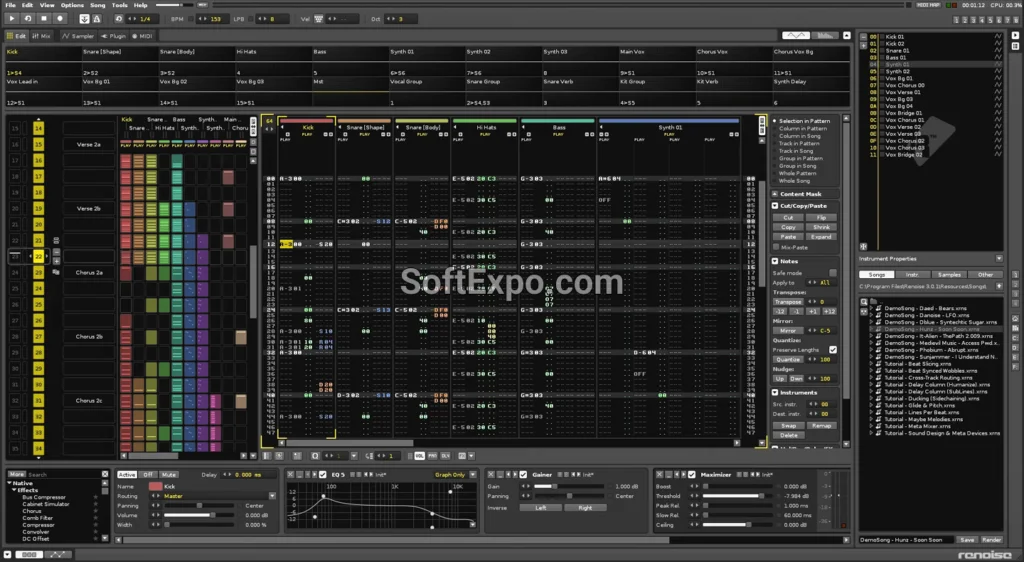
What You'll Need
- Renoise 3.4 or later (Installed on Windows 10/11)
- VST2 or VST3 Plugins installed on your system (e.g., .dll or .vst3 files)
- Known installation paths for your plugins (typically C:Program FilesVSTPlugins or similar)
Step-by-Step Guide
- Open the Preferences Menu
Launch Renoise. Go to the top menu bar, click Edit, and select Preferences from the dropdown list.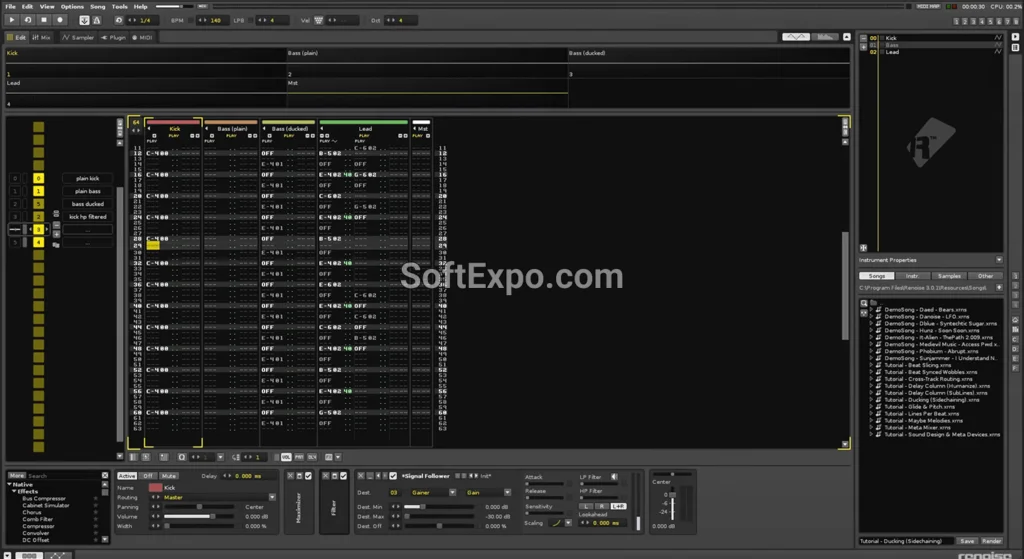
- Navigate to the Plugins Section
In the Preferences window, locate the icon labeled Plug/Misc (often represented by a plug icon) in the left sidebar or top tab strip, depending on your theme. - Set Your VST Paths
Find the "VST Plugins" section. You will see empty text fields for custom folders. Click the Browse button next to the first field and navigate to the folder where your VST plugins are installed on your Windows drive (e.g.,C:Program FilesVSTPlugins). Repeat this for VST3 folders if necessary. - Scan for Plugins
Once the paths are set, click the Rescan button. Renoise will briefly freeze while it scans the folders. You should see a progress bar indicating that it is detecting your installed instruments and effects. - Close Preferences
After the scan completes, close the Preferences window to return to the main interface. - Select the Plugin Tab
Look at the Instrument Selector box (usually in the top-right area). By default, it might be on the "Sampler" tab. Click the Plugin tab at the top of this box (icon looks like a power plug). - Load a VST Instrument
Click the dropdown menu labeled "No Plugin Loaded" (or similar empty state). A list of your installed manufacturers and plugins will appear. Navigate through the list and click the name of the VST you want to load. - Play the Instrument
Once loaded, the plugin interface may open automatically. Press keys on your computer keyboard (like Z, X, C) to trigger notes. You can now record these notes into the Pattern Editor just like a native sample.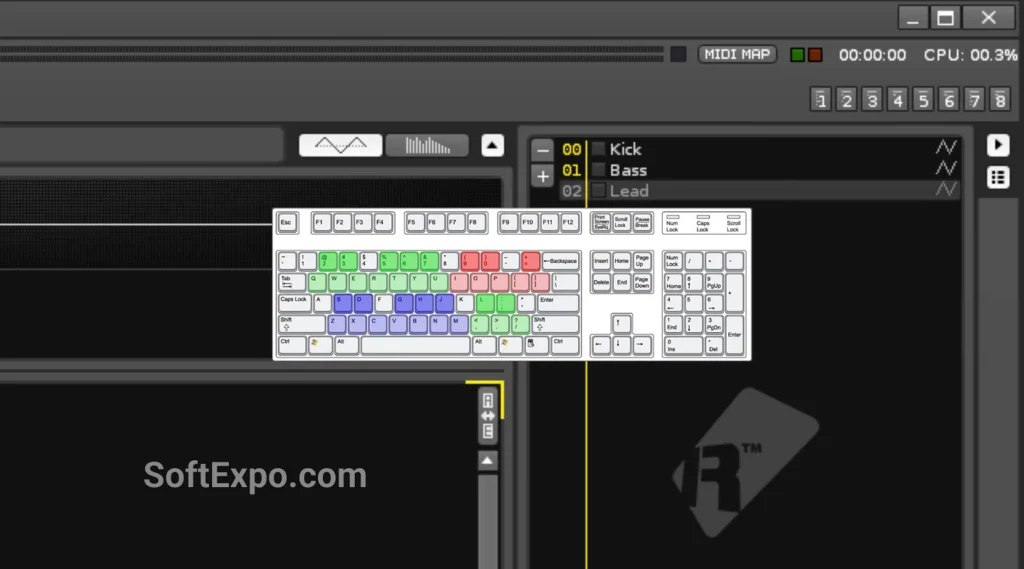
Tips for Better Results
- Enable 'Run in Sandbox': If a specific plugin crashes frequently, right-click it in the plugin list and select "Run in Sandbox" to prevent it from crashing the entire Renoise application.
- Use Favorites: If you have a large library, right-click your most-used plugins in the list and mark them as favorites for faster access.
- Render to Sample: To save CPU, you can right-click a VST instrument in the selector and choose "Render to Sample" to convert the current patch into a native Renoise instrument.
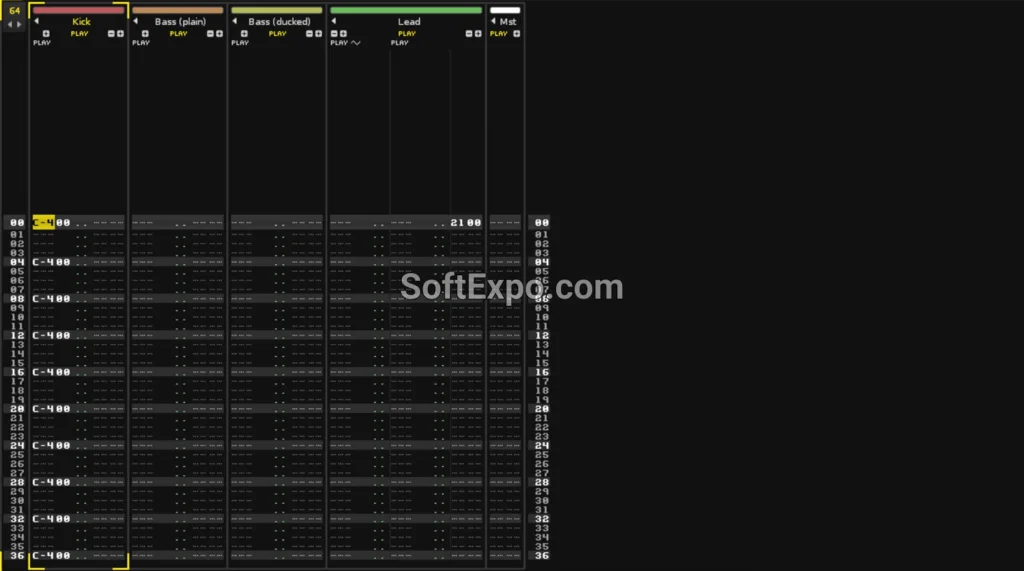
Common Mistakes to Avoid
- Wrong Architecture: Ensure you are not trying to load 32-bit plugins in 64-bit Renoise (or vice versa) unless you have a bridge installed, though using matching architectures is more stable.
- Ignoring VST3: Some modern plugins only come in VST3 format. Make sure you have enabled VST3 scanning in the Preferences menu if your plugin does not appear.
Last updated: 23.01.2026
Views: 82


