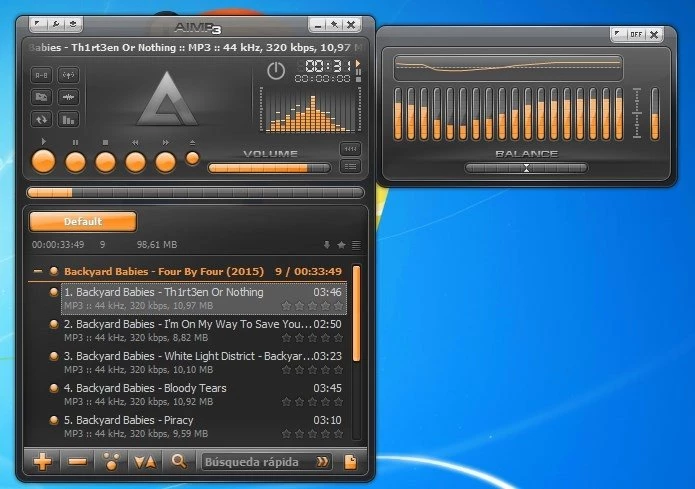
AIMP is a dedicated desktop audio player designed for music collectors, audiophiles, and radio enthusiasts who need an efficient way to play, manage, and convert high-fidelity sound files. Rather than relying on a bloated media suite or a web browser to handle local media, users turn to this specialized application to process formats ranging from standard MP3s and OGG files to high-resolution FLAC, APE, and DFF archives. The software prioritizes audio fidelity through a specialized 32-bit processing engine, bypassing default system audio mixers to deliver uncolored, precise sound output straight to your dedicated DAC or audio hardware. This direct communication with your audio devices ensures that the sound remains free from unnecessary operating system interference, maintaining the exact sample rate and bit depth of the original recording.
For individuals managing large local music libraries, relying on streaming interfaces or cloud-based platforms often falls short. AIMP provides a strictly offline-capable workspace that handles massive local directories, internet radio streams, and podcast feeds without requiring a persistent internet connection or a user account. You control your playback environment entirely through the desktop application, utilizing integrated modules like an advanced tag editor, an audio format converter, and a multi-tabbed playlist manager. These built-in utilities eliminate the need to download separate third-party tools for extracting audio tracks from disk, applying replay gain algorithms, or modifying file metadata in bulk. The workflow remains centralized, saving you time when organizing scattered downloads into neatly tagged album folders.
Choosing a dedicated desktop application over web-based players gives users low-latency access to global system hotkeys, custom file associations, and direct hardware output through WASAPI Exclusive or ASIO interfaces. The software caches audio data directly into system memory, buffering up to 250 megabytes of tracks to prevent playback stuttering when accessing files from slow mechanical hard drives, external USB drives, or network-attached storage devices. This focus on local execution, combined with an interface that supports deep customization through native skins and modular layout panels, makes the player an ideal workstation tool for listeners who demand granular control over their listening environment. You dictate exactly how the player looks, how it organizes your queues, and how it communicates with your output hardware.
Key Features
- 32-Bit Audio Engine: The software processes all playback through a custom 32-bit sound engine to preserve dynamic range and prevent digital clipping during volume changes. You can route the output directly to your sound card using ASIO, WASAPI, or DirectSound interfaces, ensuring bit-perfect audio delivery that bypasses the standard Windows mixer completely.
- Multi-Format Audio Converter: A built-in encoding utility allows you to convert files between formats such as WAV, MP3, WMA, and OGG directly from the main interface. The converter module supports multi-threading, meaning it utilizes multiple CPU cores to batch-process entire albums quickly, and it can automatically transfer existing metadata tags to the newly created files.
- Advanced Tag Editor: Users can modify ID3v1, ID3v2, APE, and Vorbis tags across multiple files simultaneously using the integrated metadata editor. The tool includes functions for generating tags from file names, renaming files based on existing tags, and fetching missing album art from external image files or folder directories.
- 18-Band Graphic Equalizer: To adjust playback characteristics, the player includes an 18-band equalizer equipped with built-in sound effects like Reverb, Flanger, Chorus, and Pitch shifting. You can save specific equalizer profiles for different musical genres, or configure the application to automatically load a specific EQ preset when a particular track or album begins playing.
- RAM Caching for Playback: To guarantee uninterrupted listening, the application can cache up to 250 megabytes of audio data directly into your computer's RAM. This buffering technique prevents audio dropouts when reading tracks from heavily fragmented hard drives, sleeping external disks, or unstable network-attached storage environments.
- Internet Radio Recording: The player connects to online radio directories, allowing you to stream broadcasts in OGG, WAV, MP3, and AAC formats. A dedicated capture module lets you record these live streams directly to your local drive, automatically splitting the recording into individual tracks based on the metadata broadcasted by the radio station.
- Multi-Tab Playlist Management: You can keep multiple playlists open simultaneously in separate tabs, allowing for quick drag-and-drop file transfers between different mixes. The playlist engine supports auto-bookmarks, meaning the software remembers exactly where you stopped listening in a specific queue and resumes playback from that exact second upon the next launch.
How to Install AIMP on Windows
- Download the official Windows installer package from the vendor's primary distribution server.
- Launch the downloaded executable file to initiate the setup wizard, and select your preferred interface language from the initial dropdown menu.
- Read and accept the end-user license agreement to proceed to the installation type screen.
- Choose between a standard installation, which registers the application in the Windows registry, or a portable installation, which extracts the files into a single directory without modifying system settings.
- Select your destination folder; the setup wizard defaults to the standard program files directory on your primary Windows drive.
- Choose your shortcut preferences and specify whether the application should associate itself with supported audio file formats like MP3, FLAC, and WAV.
- Click the install button to copy the local files and built-in plugins to your storage drive.
- Once the extraction completes, check the box to launch the player immediately, where you can select your initial interface skin and begin importing your local music folders.
AIMP Free vs. Paid
AIMP operates under a strict freeware licensing model, meaning the application is available at no cost for both personal and commercial use. Users have unrestricted access to the 32-bit audio engine, the multi-format file converter, the tag editor, and the internet radio recording module without encountering any paywalls or feature locks. The developer relies entirely on voluntary user donations and community contributions rather than enforcing mandatory subscriptions or upfront license fees.
Because there are no paid tiers, professional versions, or enterprise editions, every downloaded copy contains the exact same toolset. You will not experience arbitrary limits on how many files you can convert, how many playlists you can generate, or how much internet radio you can record. The software does not insert audio watermarks into your converted tracks, nor does it display banner advertisements within the graphical interface.
The freeware approach also extends to the application's ecosystem of add-ons. The official catalog of custom skins, visualizers, and decoder plugins is maintained by the community and distributed freely. You do not need to register a user account, verify an email address, or maintain an active internet connection to validate a license key. The software executes fully offline, respecting user privacy while delivering an unrestricted audio playback environment.
AIMP vs. foobar2000 vs. MusicBee
foobar2000 appeals to listeners who prioritize extreme interface modularity and minimalist design above all else. Its default appearance is essentially a blank canvas, requiring users to spend time configuring layout panels, downloading third-party components, and scripting custom behaviors to achieve their desired setup. While foobar2000 excels at bit-perfect audio delivery and gapless playback for esoteric file formats, its steep learning curve can frustrate listeners who want an attractive, ready-to-use player immediately after installation.
MusicBee focuses heavily on extensive library management, making it an excellent choice for users managing tens of thousands of tracks who rely heavily on automated tagging, podcast synchronization, and metadata scraping. It features a visually dense interface that integrates auto-DJ functions, synced lyrics, and device synchronization for external hardware. However, this heavy emphasis on library organization means MusicBee consumes more background memory and CPU resources, which can be detrimental on older desktop machines or laptops running on battery power.
AIMP serves as the ideal middle ground for listeners who want excellent sound fidelity and immediate visual appeal without the complex setup of foobar2000 or the heavier footprint of MusicBee. It delivers a highly responsive, skinnable interface right out of the box, complete with essential tools like a tag editor and format converter. If you prioritize lightweight performance, quick playlist manipulation via multiple tabs, and low system resource consumption, this player handles massive local directories efficiently while maintaining a clean, familiar layout.
Common Issues and Fixes
- Media playback keys stop working. When you press the play, pause, or skip buttons on your keyboard, a web browser or another background application might intercept the command instead of the audio player. To fix this, open the player's options menu, navigate to the Hotkeys section, and check the box to enable global hotkey interception, ensuring the player maintains priority over browser-based media sessions.
- Internet radio streams take too long to start. The application relies on a memory buffer to prevent audio stuttering over unstable network connections, and it waits until this cache fills to 25 percent before initiating playback. If you experience delays when switching stations, go to the playback settings and reduce the internet radio cache size from the default 60 seconds to a lower value like 5 or 10 seconds.
- Audio playback stutters on Bluetooth headphones. High-latency wireless audio devices can sometimes conflict with low-latency output settings designed for wired interfaces. Navigate to the playback options and switch your output device mode from WASAPI Exclusive or ASIO back to the standard DirectSound or standard WASAPI shared mode to restore smooth wireless transmission.
- Missing album art in the playlist view. The player might fail to display cover art if the image files are embedded in an unrecognized format or stored in a hidden directory folder. Open the application preferences, navigate to the Album Art section, and verify that the player is configured to search for local folder images, such as cover.jpg or folder.jpg, in addition to reading embedded ID3 metadata tags.
Version 5.40.2703 — December 2025
- Updated internal BASS audio libraries and localization files.
- Upgraded Monkey's Audio codec to version 11.89 within the Audio Converter.
- Fixed a bug in the Audio Converter where the file addition progress was not displaying.
- Resolved an issue in the Tag Editor causing inaccurate chapter navigation in large MP3 files.
- Addressed various stability issues identified from incoming crash reports.