Streaming audio platforms have fundamentally shifted how listeners consume media, replacing local file ownership with encrypted application caches. While this model provides instant access to massive catalogs, it completely restricts what users can do with the audio. The official desktop client stores downloaded tracks as DRM-protected Ogg Vorbis files, which cannot be loaded into DJ software, transferred to dedicated digital audio players, or archived on network-attached storage drives. Viwizard Spotify Music Converter addresses this exact limitation. It functions as a localized audio capture and encoding utility that intercepts the playback stream directly from the official desktop client. By capturing the audio data before it hits the hardware output layer, the software converts the proprietary encrypted stream into standard, unencrypted audio formats like MP3, FLAC, WAV, AAC, M4A, and M4B.
This software is specifically engineered for archivists, DJs, video editors, and users building local media servers who require raw audio files for their workflows. For example, a working DJ using Serato or Rekordbox cannot import an encrypted cache file; they require a standard MP3 or WAV file to analyze BPM and waveforms. Similarly, a user hosting a Plex media server needs clean, tagged audio files stored on a local hard drive for distribution to home theater systems. Instead of relying on unreliable web-based downloaders that frequently fail when backend API changes occur, this application builds a direct communication bridge with the official Windows client. It commands the client to play the tracks at high speed while simultaneously recording and encoding the output. This method ensures that the final file retains the exact audio fidelity of the original stream, maintaining bitrates up to 320 kbps without introducing unwanted digital artifacts.
Choosing a dedicated desktop application over lighter browser extensions provides a significantly more stable workflow for bulk processing. Browser extensions are routinely blocked, often compress audio down to 128 kbps to save bandwidth, and frequently fail to capture proper metadata. A native Windows utility utilizes system resources to manage multiple capture threads, resulting in accelerated batch processing. It also handles the complex task of sorting and tagging hundreds of files simultaneously. Users can drag an entire artist discography or a massive customized playlist into the interface, define their exact audio parameters, and let the software handle the extraction process autonomously. This level of control and predictability is necessary for users who treat their local libraries seriously and refuse to rely entirely on an active internet connection or a continuous subscription for playback.
Key Features
- Local Format Conversion: Bypasses encrypted application caches to save tracks directly as MP3, AAC, FLAC, WAV, M4A, or M4B files. This allows native playback on standard media hardware, completely removing the requirement to use the official proprietary player or maintain an active internet connection for offline listening. By converting the tracks locally, users regain complete administrative control over their streamed library, allowing them to transfer the files to USB drives or SD cards for hardware that lacks Wi-Fi capabilities.
- Customizable Audio Parameters: Allows users to manually define the output specifications before initiating a batch run. Users can set the bit rate up to 320 kbps for high-fidelity MP3s, adjust the sample rate from 8kHz up to 48kHz, and toggle between stereo and mono channel configurations based on their storage capacities and listening hardware. This precise control over the encoding variables ensures that audiophiles can preserve maximum dynamic range when exporting to lossless formats like FLAC, while casual listeners can compress podcast episodes to save disk space.
- ID3 Tag Preservation: Captures and embeds original metadata into the exported audio files during the encoding phase. This ensures that critical tracking information—including artist names, track titles, album artwork, release dates, genre tags, and track numbers—populates correctly in local media servers like Plex or standalone digital audio players. Proper metadata retention eliminates the tedious process of manually renaming hundreds of audio tracks using third-party tagging software after the download phase is complete.
- Automated Library Organization: Includes built-in sorting rules that automatically create and route downloaded files into specific folder structures based on the embedded metadata. Users can configure the application to sort outputs strictly by Artist, by Album, or into nested Artist and Album directories, preventing a cluttered mass of files in a single root download folder. This automated routing system is especially useful when extracting entire discographies, as it builds a clean, highly structured directory tree that mirrors professional digital music storefronts.
- Accelerated Batch Processing: Converts entire playlists, artist discographies, or extensive albums concurrently rather than requiring track-by-track manual intervention. By managing multiple capture threads, the application operates at a maximum 5x processing speed on Windows systems, drastically reducing the time required to archive large music collections. This threading capability bypasses the traditional real-time recording limitation that older capture utilities forced upon users.
- Built-In Audio Preview Player: Provides a local playback environment directly within the application interface. This allows users to test output volume, verify track integrity, and check exact playback speed before committing to a massive batch export, reducing the likelihood of processing errors on large, unverified playlists. By validating the audio within the application, users avoid wasting processing time on broken or geoblocked tracks.
How to Install Viwizard Spotify Music Converter on Windows
- Download the official Windows installer executable from the developer's website and locate the setup file in your system's default downloads directory.
- Verify that the official Spotify desktop application is currently installed and authenticated on your Windows machine, as the converter relies entirely on this client to access and capture the audio streams.
- Execute the setup file to launch the installation wizard, review the end-user license agreement, and define a custom installation path if you prefer not to use the default system drive directory.
- Select your preferred shortcut configurations during the setup prompts, such as adding an executable link to the desktop or pinning the application to the taskbar for quicker access during frequent archiving sessions.
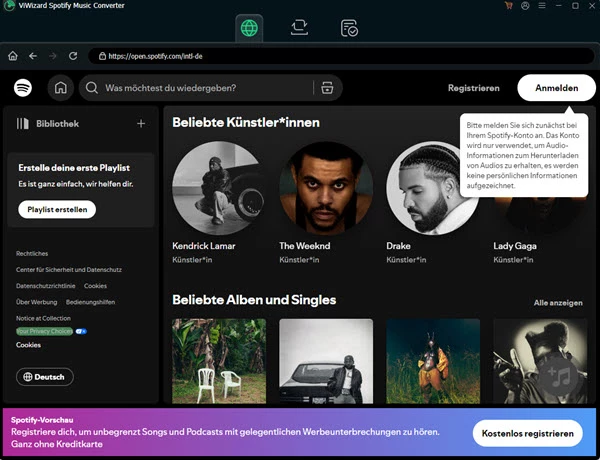
- Finalize the installation process and launch the converter. The software will automatically attempt to send a command to open the Spotify desktop client alongside it, establishing the necessary communication bridge between the two programs.
- Navigate to the top menu bar to access the Preferences window immediately after the first launch. Here, you must specify your target output folder to ensure that large uncompressed audio files, such as FLAC or WAV exports, do not consume critical space on your primary operating system drive.
Viwizard Spotify Music Converter Free vs. Paid
The application operates on a strict freemium model. The free trial tier functions primarily as a hardware compatibility test, restricting the output by only converting the first 60 seconds of any selected track. This allows users to confirm that the audio capture hooks work correctly with their specific sound card and network configuration, but it prevents the practical extraction of full songs or podcasts without purchasing a license. Users cannot bypass this hardcoded restriction without entering a valid registration code.
Paid tiers are divided into recurring subscriptions and perpetual licenses. The Monthly License typically ranges between $14.95 and $19.95 for a single Windows computer, renewing automatically until canceled. For longer archival projects, a Yearly License provides a reduced monthly equivalent cost, often priced around $44.95 to $49.95. The Lifetime License offers a one-time purchase option—usually priced around $89.95—granting permanent offline access to the software on one machine without any future billing cycles. All paid tiers unlock the ability to convert tracks of any length and enable the batch processing functions without interruption.
Upon purchasing a license, users receive a registration key via email that removes the one-minute conversion limit immediately upon entering it into the software's registration prompt. Paid users also receive priority technical support and critical software updates. These updates are strictly necessary for the application's continued functionality, as streaming platforms frequently deploy backend architectural changes that break older capture methodologies, requiring immediate patches from the developer to restore compatibility.
Viwizard Spotify Music Converter vs. Sidify Music Converter vs. NoteBurner Spotify Music Converter
NoteBurner Spotify Music Converter provides an alternative approach by offering both a web player capture mode and a dedicated application capture mode. NoteBurner also includes additional utility modules, such as a direct CD burner and a tool for uploading converted tracks directly to cloud storage platforms. Users who require extra administrative tools or a native 10x conversion speed on Windows might prefer NoteBurner, though its interface is considerably more cluttered with these supplementary functions. The inclusion of the web player capture method provides a fallback option if the desktop client capture fails, but it forces users to log into their accounts through an embedded browser window, which introduces extra login steps.
Sidify Music Converter focuses heavily on interface aesthetics and broad language localization, offering a specialized dark mode and supporting nearly 50 interface languages. It relies on a similar dual-capture method and includes secondary features like format conversion for existing local files and ID3 tag editing. Sidify is often priced higher than the market average due to its frequent update cycle, making it suitable for users who prioritize an extended feature set and visual design over budget constraints. However, the additional tools can feel unnecessary for users who only want to extract audio tracks without managing a secondary media editor.
Viwizard Spotify Music Converter is the better fit for users who require a strictly focused, streamlined audio extraction tool without the distraction of CD burners or format converters for non-Spotify files. Its interface remains highly direct: drag a playlist into the window, set the output parameters, and execute the conversion. By concentrating solely on the core capture process, it delivers high reliability for archivists and local library builders who simply want their playlists transferred to local storage as efficiently and predictably as possible. It avoids UI bloat and focuses entirely on maintaining high-fidelity audio capture.
Common Issues and Fixes
- Spotify application fails to respond or crashes during conversion. This occurs when hardware acceleration conflicts with the capture process. Open the official application settings, scroll down to the compatibility section, disable hardware acceleration, and restart both programs.
- Conversion halts at 99 percent or outputs a silent file. This typically indicates an audio output device routing error on your Windows machine. Verify that your primary speakers or headphones are actively connected and recognized by the Windows taskbar sound icon, as the software requires an active audio endpoint to capture the stream.
- The converter displays a "Spotify is not installed" error. This happens if you installed the Windows Store iteration of the client rather than the standard desktop executable. Uninstall the Windows Store version, download the direct standalone installer from the official website, and log back into your account.
- Tracks randomly skip or crossfade into each other during export. The capture process records exactly what the client plays. Go into your playback preferences and turn off the Crossfade slider completely to ensure clear, distinct beginnings and endings for every downloaded file.
- Downloaded files accumulate in the system drive and cause storage warnings. By default, the software may route exported files to the primary user document folder. Open the preferences menu inside the converter and remap the output directory to an external hard drive or a dedicated secondary storage partition.
Version 3.6.1 — October 2025
Improved:
- Optimized overall performance for more stable conversion
- Enhanced compatibility with latest Spotify client updates
Fixed:
- Fixed several bugs affecting conversion stability