Losing critical files—whether it is an archived project directory, raw photography from a recent shoot, or financial spreadsheets—creates an immediate need for specialized recovery tools. 4DDiG Data Recovery is a desktop application designed to locate and restore deleted or corrupted files across internal hard drives, external USB flash drives, and camera memory cards. When a user empties the recycle bin or formats a storage partition, the Windows operating system simply marks that physical storage space as available for new data. It removes the logical pointer to the file, but the file itself is not immediately destroyed. Until new files actively overwrite those exact physical sectors, the original binary data remains hidden on the disk. This utility scans the storage media at a low level to identify those orphaned file fragments and piece them back together into usable formats, reversing the deletion process before permanent overwrite occurs.
Unlike web-based utilities or basic undelete scripts, a dedicated desktop installation is strictly required for this process because the software needs direct, unmediated access to the hardware and file system directories. 4DDiG Data Recovery bypasses standard operating system file browsers to perform intensive, sector-by-sector deep scans. It identifies over 2,000 specific file signatures, ensuring that proprietary camera raw formats, complex video containers, and standard office documents are recognized even when the master file table is missing, wiped, or severely damaged. The application reads directly from the physical storage clusters, allowing it to bypass logical errors that normally cause Windows to display a restrictive drive access warning.
Beyond simple file retrieval from an emptied recycle bin, the application targets high-stress scenarios where drives become completely inaccessible due to raw file system errors, accidental formatting, or partition corruption during an interrupted operating system update. It appeals directly to photographers, videographers, and office workers who need a strict, self-contained local environment to manage their own data emergencies. By processing all file restoration locally on the host machine, users maintain strict privacy over their sensitive documents without relying on slow cloud network uploads or shipping their physical hard drives to expensive, specialized forensic laboratories.
Key Features
- Deep Scan and File Signature Recognition: The application systematically reads the underlying storage sectors of a drive rather than just querying the visible file index. It reconstructs files by matching binary patterns against a database of over 2,000 file types, allowing it to recover complex formats like CR3 images, MKV video files, and heavily layered PSD files even if the original file names and folder structures are permanently lost.
- Integrated Media Repair: Recovering a file does not always mean it is intact, especially if parts of it were overwritten by background system processes. The utility includes a dedicated Photo Repair and Video Repair module in the side navigation menu that fixes broken file headers and corrects visual corruption in common media formats like JPEG and MP4 so they actually open in standard media players.
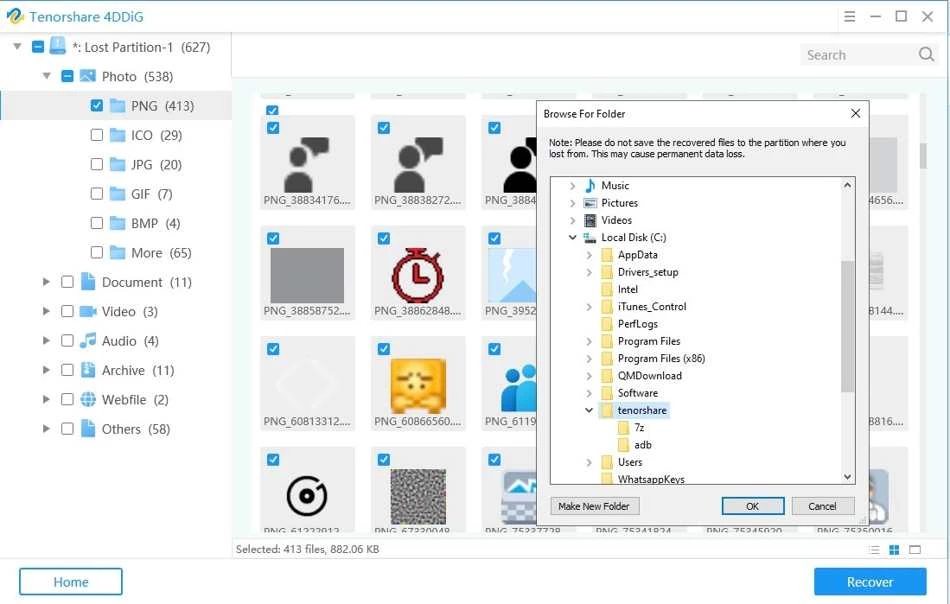
- Live File Preview and Filtering: Scanning a large external hard drive generates thousands of results, making it exceptionally difficult to find a specific missing document. The interface provides a live preview pane that displays image thumbnails and text document contents before the user commits to saving them, alongside a dynamic tree-view filter to isolate results by specific extensions, file sizes, or original file paths.
- Lost Partition Rescue: When a drive letter suddenly disappears from Windows Explorer due to an accidental disk management action or a corrupted boot record, the physical disk is still active but lacks a recognized logical structure. The application detects these missing partitions, mounting them virtually within its own internal interface so users can browse, highlight, and extract the trapped directories to a secure location.
- BitLocker Drive Support: For corporate environments or security-conscious home users, the software directly interacts with BitLocker-encrypted volumes. As long as the user possesses the original encryption password or numerical recovery key, the program unlocks the drive within the scan wizard and performs a deep recovery without requiring the user to decrypt the entire disk via the Windows command prompt first.
- Formatted Drive Recovery: Accidentally clicking the Format option on a USB stick or SD card usually wipes the immediate file index but leaves the underlying data untouched. The software rebuilds the directory tree from a quick format operation, allowing users to restore their folder hierarchies and file names exactly as they existed before the accidental wipe occurred.
How to Install 4DDiG Data Recovery on Windows
- Download the official Windows installer executable package directly from the vendor's primary website.
- Locate the downloaded file in your default downloads folder, but before clicking it, ensure you are not installing the program onto the exact same drive that contains your lost data.
- If your lost files are located on the primary system drive, connect a secondary external USB drive and move the installer file there before running it.
- Double-click the installer to launch the setup wizard, wait for the extraction engine to load, and carefully review the end-user license agreement.
- Click the Install Options or Custom Install button to manually change the installation directory to your secondary external drive, preventing the new application files from overwriting your hidden deleted data.
- Click the install button and wait for the extraction process to finish, which typically takes a few minutes depending on your disk write speed and processor.
- Close the installer window and launch the application from the newly created shortcut; the initial dashboard will immediately load and display all connected local disks, external storage drives, and active system recycle bins.
4DDiG Data Recovery Free vs. Paid
The software operates on a freemium business model, meaning the free version acts primarily as a diagnostic tool rather than an unrestricted data retrieval utility. Users can download the free application, select any connected drive, and run a full deep scan to locate their missing files. The free tier allows users to preview the discovered images and documents to verify their integrity. Some promotional offers provide a small data allowance—such as 500 MB or 2 GB if the user shares a promotional link on social media platforms—but the baseline free version restricts the ability to export large batches of files to a safe location.
To unlock full export capabilities and remove the data size restrictions, users must purchase a paid license. The vendor offers these licenses in monthly, yearly, and lifetime tiers. The monthly and yearly tiers operate as auto-renewing subscriptions, which means users who only need the tool for a single emergency recovery job must actively cancel their subscription through the vendor's online billing portal to avoid subsequent monthly charges. The lifetime license requires a higher upfront payment but provides perpetual access to the current application build and minor updates without any recurring billing schedules.
When evaluating the cost, users should base their financial decision strictly on the results of the free diagnostic scan. Because data recovery success depends entirely on whether the physical drive sectors have been overwritten, purchasing a license before running the initial scan is a poor strategy. If the free scan displays the missing files and the preview pane confirms they are not corrupted, the paid license will successfully export them. If the files are completely missing from the scan results or the image previews show solid gray blocks, upgrading to the paid tier will not magically fix the underlying data destruction.
4DDiG Data Recovery vs. Disk Drill vs. Recuva
Disk Drill presents a highly refined, modern user interface that emphasizes proactive data protection alongside standard file recovery. While both tools perform deep sector-level scans, Disk Drill includes background monitoring features like Recovery Vault, which actively logs deleted file metadata to make future restorations faster and more reliable. However, 4DDiG Data Recovery holds a distinct advantage when dealing with partially degraded media files, as it includes built-in AI repair modules to fix broken video headers and corrupted image files, whereas Disk Drill focuses strictly on retrieving the data in its exact current state, even if that state is broken.
Recuva is a highly practical, lightweight utility developed by Piriform that remains a popular choice for immediate, low-stakes undelete operations. It provides a genuinely free tier for basic recovery without the strict export size limits imposed by premium alternatives. Users should select Recuva when they have just accidentally deleted a document and need to undelete it instantly before the operating system actively overwrites it. In contrast, 4DDiG Data Recovery is necessary for complex logical failures, such as retrieving a lost partition or scanning an accidentally formatted external hard drive, where Recuva's older scanning engine frequently fails to reconstruct the broken folder hierarchy.
Users dealing with a simple recycle bin mistake should try Recuva first to see if the free undelete process works. If the storage device is a formatted SD card, a missing partition, or if the recovered video files refuse to play in a media player, 4DDiG Data Recovery is the more appropriate tool due to its specialized media repair functions and aggressive deep scanning algorithms that handle severe file system corruption.
Common Issues and Fixes
- Recovered files display an error and will not open. This occurs because the operating system partially overwrote the file sectors with new data before the recovery software could rescue them. To fix this, navigate to the Photo Repair or Video Repair tool located in the application's main menu, import the broken files, and run the dedicated repair process to rebuild the missing file headers.
- The deep scan process takes several hours and appears stuck. Scanning high-capacity mechanical hard drives or disks with physical bad sectors drastically slows down the read speed. Pause the scan using the on-screen controls, navigate to the File Filter tab, and extract the specific files you need from the currently discovered list rather than waiting for the entire drive to finish processing.
- The external drive does not appear in the application dashboard. The software relies on the Windows Disk Management subsystem to detect connected hardware. Press the Windows key, type Disk Management, and check if the drive is listed there; if the drive is clicking, spinning down, or entirely absent from the operating system, the disk has physically failed and requires a specialized hardware recovery service instead of a software tool.
- Recovered files do not have their original folder names. When the master file table is completely destroyed by a disk format, the software relies entirely on raw file signatures to identify data. Look in the Raw Files or Extra Files folder in the scan results, where the application automatically sorts these unassigned files by their extension type rather than their original directory names.
- Deleted files from a solid-state drive (SSD) are unrecoverable. Modern solid-state drives utilize a hardware-level garbage collection command called TRIM, which permanently erases deleted sectors to maintain optimal write speeds. If Windows executed the TRIM command immediately after deletion, no software can recover the data; always disable TRIM or disconnect the SSD immediately if you suspect accidental data loss has occurred.
Version 10.6.11.3 — December 2025
- Enhanced scanning algorithms to better support recovery from high-capacity hard drives and SSDs.
- Expanded compatibility for RAW image and video file formats, improving restoration success rates.
- Optimized software performance and stability specifically for Windows 11 24H2 environments.
- Introduced new recovery modes tailored for detecting lost data on external storage media.
- Fixed various minor bugs and improved overall system stability during deep scans.