Adobe Animate operates as the primary authoring environment for creating interactive vector graphics and 2D animations. Originally known for driving early web aesthetics, the application has transitioned into a strictly professional tool for generating HTML5 Canvas elements, sprite sheets for game engines, and standard video exports for video platforms. Animators rely on its frame-by-frame capabilities and timeline tweening to construct character movements, digital advertisements, and educational modules. Unlike lightweight web-based animation makers that struggle with long timelines and high-resolution assets, a dedicated desktop installation provides direct access to system memory, ensuring the Stage remains responsive when manipulating hundreds of vector nodes or syncing complex audio waveforms.
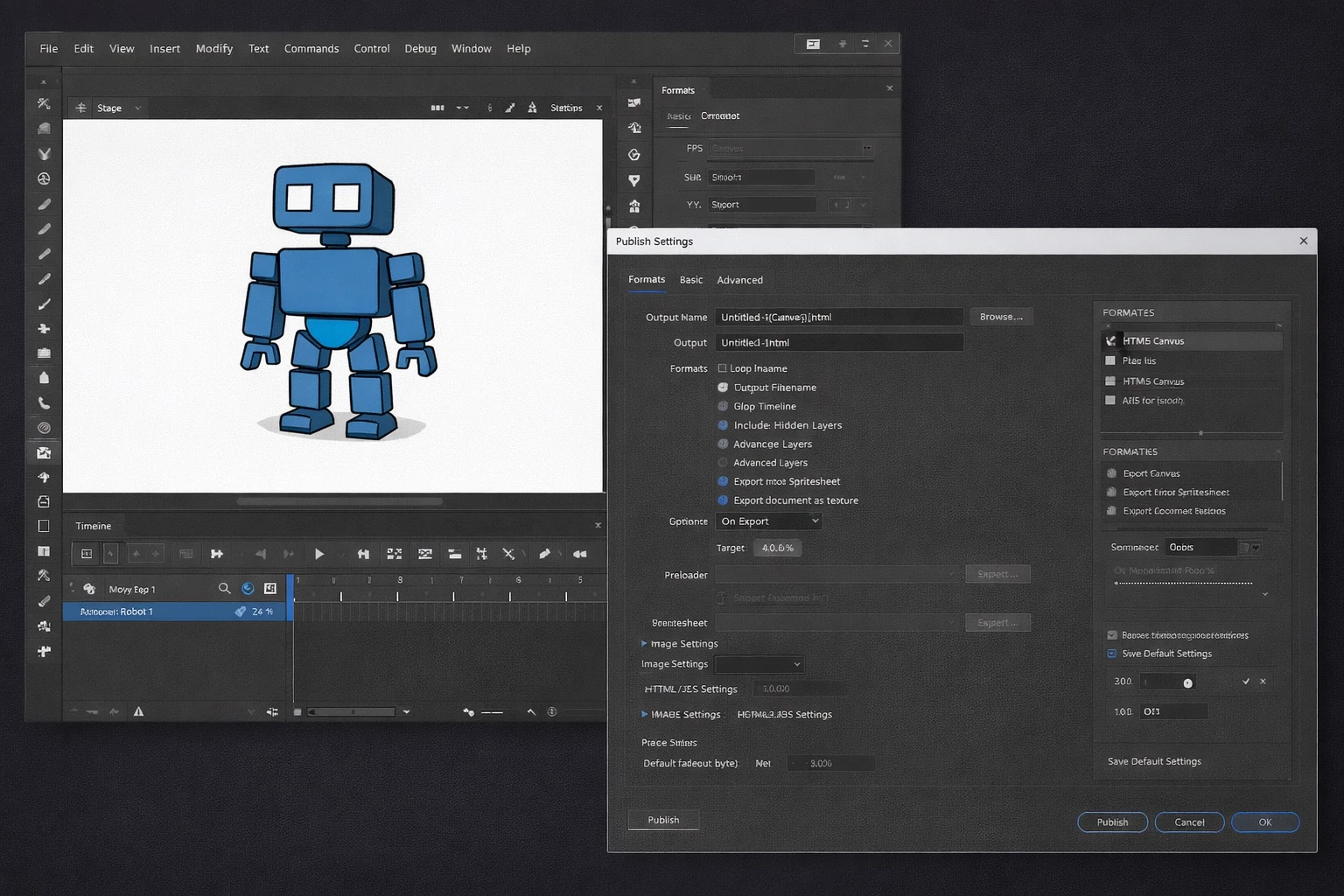
Animators primarily use the workspace to combine imported raster images with natively drawn vector shapes, manipulating them across a multi-layer timeline. The interface organizes work through the central Stage, a customizable Tools panel on the left, and the granular Properties panel on the right, which dynamically updates based on the selected object. By keeping assets strictly vector-based until the final render, file sizes remain small while retaining sharp edges at any scale. This mathematical approach to drawing makes it the default choice for studios building scalable character rigs, where a single puppet needs to perform various actions across multiple scenes without redrawing every frame.
Choosing a desktop app over browser alternatives ensures hardware-accelerated rendering during playback and scrub-through. Browser tools frequently drop frames when handling multiple overlapping tweens or complex alpha channels. The local installation also guarantees offline access to large project files, custom brush libraries, and uncompressed audio tracks, eliminating the latency of cloud syncing during active drawing sessions. For commercial workflows involving strict deadlines, local file management and immediate rendering feedback define the practical utility of the software.
Key Features
- Feature Name: Asset Warp Tool. This tool allows animators to place mesh pins directly onto vector shapes or imported bitmap graphics to deform them naturally. By dragging a pin, the surrounding mesh bends and stretches, which can be keyframed on the timeline to simulate organic movement like breathing or fabric waving without redrawing individual frames.
- Feature Name: Auto Lip-Sync. Located within the Sound section of the Properties panel, this function maps spoken audio tracks to a pre-defined set of mouth poses. The system analyzes the vocal track and automatically assigns the correct visemes to the timeline, drastically reducing the time spent manually matching phonemes to character speech.
- Feature Name: Layer Parenting. The timeline allows specific layers to act as children to a parent layer, creating a linked skeletal structure for character animation. When you rotate the parent torso layer, the attached child arm and head layers follow the transformation accurately, which streamlines the manipulation of cut-out style character rigs.
- Feature Name: Cross-Platform Publishing. The Publish Settings dialog supports direct output to modern web standards, bypassing obsolete plugin requirements. Users can compile their timelines into HTML5 Canvas, WebGL, or custom SVG sequences, generating the necessary JavaScript and HTML files to embed interactive buttons and animations directly into a web page.
- Feature Name: Advanced Vector Brushes. The Tools panel includes pressure-sensitive fluid brushes that respond to drawing tablet input for line thickness and tilt. Because these strokes are mathematically calculated rather than pixel-based, you can select the resulting line with the Subselection tool to tweak individual curve points long after the initial sketch is completed.
- Feature Name: Interactive Actions Panel. For developers building games or web interfaces, this built-in code editor supports JavaScript and ActionScript. It allows users to write logic for mouse clicks, touch events, and timeline navigation, transforming passive video sequences into fully playable interactive modules.
How to Install Adobe Animate on Windows
- Download the installer archive from our secure web directory to your local drive.
- Extract the downloaded ZIP archive into a dedicated folder on your hard drive using a standard file extraction utility.
- Open the included readme.txt file located in the extracted folder to check for specific offline installation notes or required system dependencies.
- Double-click the setup.exe application file found within the extracted directory to launch the standard Windows installation wizard.
- Confirm your preferred language settings and accept the default installation directory, which is typically configured to C:Program FilesAdobeAdobe Animate.
- Wait for the installer progress bar to complete the transfer of local program files and the creation of necessary registry entries.
- Launch the application from your Start menu shortcut.
- On the initial launch, follow the prompt to sign in with your Adobe ID to authenticate your trial or active subscription license before accessing the workspace.
Adobe Animate Free vs. Paid
Adobe Animate operates strictly on a subscription model, with no permanent license or free tier available. Users who want to test the toolset can access a 7-day trial, which provides the unrestricted application before requiring payment. The trial converts automatically to a paid plan if a billing method was provided at registration.
For individual users, the single-app plan costs approximately $20.99 per month when committing to an annual contract. If you prefer to pay month-to-month without an annual commitment, the price increases to around $34.49 per month. An annual prepaid option is also available for roughly $239.88, which simplifies billing but does not offer a significant discount over the monthly annual plan.
Many professional users access the software through the broader Creative Cloud All Apps plan, which bundles it alongside Photoshop, Illustrator, and After Effects. While the standalone subscription includes 100GB of cloud storage and access to Adobe Fonts, the pricing structure places it firmly in the commercial software category, requiring an ongoing financial commitment to maintain access to working files.
Adobe Animate vs. Toon Boom Harmony vs. Moho
Toon Boom Harmony represents the highest standard for traditional 2D film and television production. It offers an incredibly deep node-based compositing system and advanced bone deformation tools that handle complex studio rigs. However, it carries a much steeper learning curve and a higher entry price, making it overkill for basic web banners or simple interactive modules.
Moho Pro appeals heavily to solo creators and independent studios through its specialized Smart Bones system, which animates tricky joint distortions automatically. It is widely praised for character rigging efficiency and offers a more accessible pricing structure compared to enterprise subscription tools. Yet, it lacks the native web-publishing features and interactive coding environments that web developers require.
Adobe Animate remains the clear choice when your final product requires web interactivity or HTML5 Canvas integration. It excels at combining basic timeline animation with JavaScript logic, making it the standard for digital advertising, game asset generation, and interactive eLearning design. For users who already pay for the wider Creative Cloud suite, its native file sharing with Illustrator and Photoshop makes the workflow highly efficient.
Common Issues and Fixes
- Problem description. Paint Bucket Tool refuses to fill enclosed shapes. This error typically occurs when "Object Drawing Mode" is active or lines are spread across different layers. Select the drawing, press Ctrl+B to break apart the objects into raw vector shapes, and confirm all boundaries reside on the currently active layer before clicking with the tool.
- Problem description. Audio playback falls out of sync with the animation upon export. Large sound files or incorrect sample rates cause timing drift between the visual timeline and the audio track. Convert your source audio to a standard 44.1kHz MP3 or WAV file, and change the Sync option in the Sound Properties panel from "Event" to "Stream" to force frame-by-frame synchronization.
- Problem description. Brush strokes lag severely when drawing on a zoomed-in stage. High-resolution displays can strain the vector rendering engine when calculating complex, pressure-sensitive strokes. Navigate to the application preferences and disable the "Fluid Brush" feature if your system lacks DirectX 12 support, or reduce the stage zoom percentage while sketching.
- Problem description. In-app tutorials display a "not available at this moment" error. This happens when the local configuration folder fails to download the tutorial assets. Close the application, navigate to C:Users[Username]AppDataLocalAdobeAnimate[Language]Configuration, delete the folder named "coachmark", and relaunch the application to force a fresh download of the learning files.
Version 24.0.12 — September 2025
Based on my search results, I found that Adobe Animate version 24.0.12 exists, but there are no specific release notes or changelog available for this particular version. The search results consistently show "Change log not available for this version" for 24.0.12 and several other minor updates. The most documented version is 24.0, which was the October 2023 release. Since no specific changelog was found for version 24.0.12, I'll provide a generic update note as instructed:
Version 24.0.12 — September 2025
- Enhanced overall application stability and reliability through critical bug fixes
- Optimized performance for smoother timeline playback and faster file operations
- Refined user interface elements for better workflow efficiency
- Resolved issues affecting compatibility with various file formats and legacy projects
- Improved integration with Adobe Creative Cloud services and libraries