Dealing with incompatible video formats is a routine hurdle for Windows users, whether trying to play a high-efficiency smartphone recording on a desktop or shrinking a massive gameplay capture for web upload. Movavi Video Converter is a dedicated desktop utility designed to translate media files across different technical standards. Instead of uploading gigabytes of data to a browser-based tool and waiting for a remote server to process the job, this software runs locally. It relies on your system hardware to transcode video, audio, and image formats directly on your hard drive, keeping large files private and avoiding bandwidth bottlenecks.
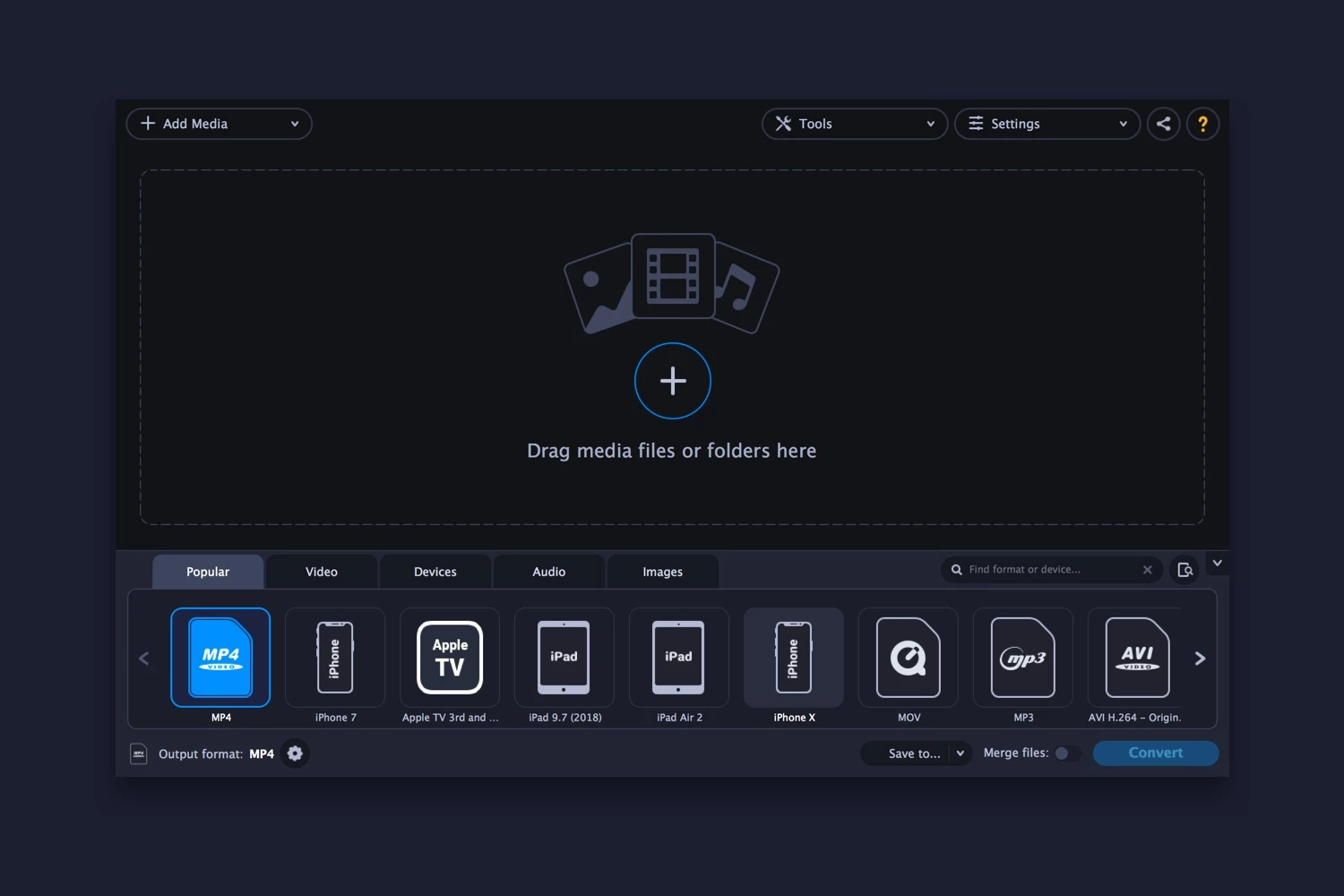
The software targets casual editors, remote workers, and home media organizers who need to fix "file not supported" playback errors quickly. It eliminates the need to understand complex bitrate calculations, pixel aspect ratios, or codec interactions. By dragging a file into the workspace and selecting a target device, users can compress raw recordings, extract audio tracks from lectures, or prepare standard MP4 files for social media platforms. The interface remains intentionally straightforward, grouping output options by device name rather than relying solely on technical jargon, making it accessible to those who simply want their media to play correctly.
In addition to translation, the software provides a controlled environment for media preparation. Users can import an entire folder of mixed file types, set a single target output, and walk away while the batch processor handles the queue. This is especially useful for standardizing an archive of old home movies, standardizing digital camera clips before importing them into a non-linear editor, or converting a library of FLAC audio files into space-saving MP3s for a mobile device.
Key Features
- Format Transcoding: Converts files between more than 180 media formats, including MP4, MKV, AVI, MOV, FLV, and HEVC. This allows users to change containers and codecs to resolve playback errors across different hardware players. The software can also isolate audio streams to export standalone MP3, WAV, or AAC files from video sources.
- SuperSpeed Mode: Alters the container format of a video file without re-encoding the underlying video stream. This method processes files in seconds rather than minutes, provided the target codec matches the original source. It effectively copies the data into a new digital wrapper, preserving original image clarity without taxing the computer processor.
- Hardware Acceleration: Offloads rendering tasks from the computer processor to the graphics card to maintain system responsiveness. The software supports Intel HD Graphics, NVIDIA NVENC, and AMD technologies to accelerate export times during heavy encoding jobs, reducing wait times when processing high-definition or 4K media.
- Device-Specific Presets: Offers a library of over 200 output profiles tailored for specific smartphones, tablets, televisions, and gaming consoles. Choosing a device preset automatically configures the correct resolution, frame rate, and bitrate, removing the guesswork for users who just want a file to play smoothly on an external display.
- Built-in Trimming Panel: Includes a dedicated preview window where users can cut dead space, crop out screen edges, or merge multiple clips together. This allows for basic media cleanup before committing to a full format conversion, ensuring that storage space is not wasted on unwanted intro or outro footage.
- AI Video Upscaling: Analyzes low-resolution footage and artificially generates additional pixels to increase image sharpness. This tool helps improve the clarity of standard-definition clips, vintage digital recordings, or heavily compressed web videos when preparing them for high-definition displays.
- Subtitle Management: Reads soft and hard subtitle tracks embedded in media files to maintain accessibility. Users can extract text tracks from existing videos or embed new subtitle files, ensuring that captions display correctly on standalone media players or smart televisions without requiring a separate text document.
How to Install Movavi Video Converter on Windows
- Navigate to the official vendor website to acquire the Windows installer executable file, ensuring you avoid unofficial mirrors to prevent downloading bundled adware.
- Locate the downloaded installation package in your local downloads folder and double-click it to start the setup wizard.
- Read and accept the End User License Agreement to proceed with the installation, and choose your preferred interface language from the dropdown menu.
- Review the default installation path, which typically defaults to the primary system drive, or click the installation settings button to select a custom folder location on a secondary storage drive.
- Click the install button and wait for the wizard to extract the necessary application files, write local registry keys, and configure system components for media rendering.
- Decide whether to opt into anonymous usage statistics if the prompt appears during the configuration steps, unchecking the box if you prefer to keep telemetry data private.
- Click the finish button to close the wizard and launch the workspace for the first time, where you will be greeted by an onboarding screen explaining how to add your first media file.
- Choose whether to activate a purchased license code immediately using the activation dialog box, or click the prompt to continue using the software under the 7-day trial restrictions.
Movavi Video Converter Free vs. Paid
Movavi Video Converter operates as a commercial desktop application rather than a freeware tool. The developer provides a strict 7-day trial period designed specifically for testing interface navigation, format compatibility, and hardware acceleration behavior on your local machine. This trial is not intended for permanent use and restricts several core output functions to encourage users to purchase a license for their encoding tasks.
During the 7-day evaluation window, any exported video will display a permanent, large "Trial" watermark across the center of the frame, rendering the output unsuitable for professional use or public sharing. Additionally, audio-only conversions are severely capped, processing only half the length of the original sound file. The SuperSpeed conversion feature also faces this identical length restriction, stopping halfway through the selected media file, which prevents users from quickly batching entire movie files for free.
To remove the watermark and lift the length limitations, users must buy a commercial license. Movavi sells the software through two primary billing structures: an annual subscription model that requires yearly renewal, or a one-time perpetual license that grants indefinite access to that specific build of the software. Paying for either tier grants unrestricted access to AI upscaling, timeline trimming, batch processing workflows, and full-length media exports without any visual branding overlays.
Customers should note that major version upgrades are typically handled differently depending on the license type. Subscription holders generally receive access to new major builds as long as their subscription remains active. Perpetual license holders, however, may need to pay an upgrade fee if they wish to access new AI features or codec updates released in subsequent annual iterations of the software.
Movavi Video Converter vs. HandBrake vs. VideoProc Converter AI
HandBrake is a completely free, open-source video transcoder that operates without watermarks, trial limits, or paid upgrades. It provides deep granular control over encoding parameters, allowing technical users to fine-tune bitrates, constant rate factors, and frame rates. However, HandBrake focuses exclusively on converting files to MP4, MKV, and WebM containers, and it lacks the AI upscaling, timeline trimming features, and broader 180-format support found in commercial desktop applications. It also presents a steeper learning curve for beginners staring at its dense settings tabs.
VideoProc Converter AI targets users managing large 4K and 8K media files, specifically using level-3 GPU acceleration to maintain high processing speeds across intense rendering tasks. It includes additional utilities for downloading online media directly from URLs and recording screen activity, which expands its utility beyond simple file translation. While it handles heavy action camera footage well and features its own AI enhancement suite, its interface contains more panels and menus, which might feel cluttered for someone who just needs a quick MP4 export.
Movavi Video Converter is the better fit for everyday Windows users who prioritize speed and a low learning curve over advanced encoding mathematics. Its drag-and-drop workflow, extensive visual library of device presets, and quick trimming panel make it faster to navigate for quick format fixes. It is ideal for users who want to select a device name from a visual list and click export without analyzing codec settings, offering a highly visual environment for standard media conversions.
Common Issues and Fixes
- Export failures or application crashing. This is frequently linked to Intel Graphics chip conflicts or outdated display drivers that fail during the rendering pipeline. Fix this by opening the settings menu, disabling hardware acceleration entirely, and attempting the export again using software encoding, or update your GPU drivers to the latest Windows release.
- Audio and video play out of sync. This timing error often happens when importing screen recordings captured with variable frame rates (VFR), which confuses the converter's timeline. Fix this by ensuring your initial capture software records at a constant frame rate (CFR) before dropping the file into the converter, or process the file through a dedicated VFR-to-CFR translation pass first.
- Exported videos contain a large watermark. The software operates as a paid commercial product and heavily restricts unpaid outputs to prevent free exploitation. Fix this by purchasing an official license code from the vendor website and activating the application in the help menu to process clean video files.
- HDR color space looks washed out after conversion. The software primarily works in the Rec 709 SDR color space and does not fully retain or map Rec 2020 or Rec 2100 data accurately during standard conversions. Fix this by using a dedicated HDR grading tool or an alternative open-source encoder if you specifically need to maintain 10-bit or 12-bit HDR profiles for a home theater setup.
- Interface freezes during batch processing. Queueing dozens of high-resolution files simultaneously can overwhelm system RAM or CPU resources. Fix this by lowering the number of active concurrent conversions in the application preferences, forcing the software to process fewer files at a time to keep the operating system responsive.
Version 24.4.0 — December 2025
- Added thoughtful workflow enhancements designed to streamline the user experience and reduce interaction steps.
- Improved overall application performance, resulting in faster processing times for daily conversion tasks.
- Fixed minor stability issues and internal bugs to ensure smoother operation across supported formats.