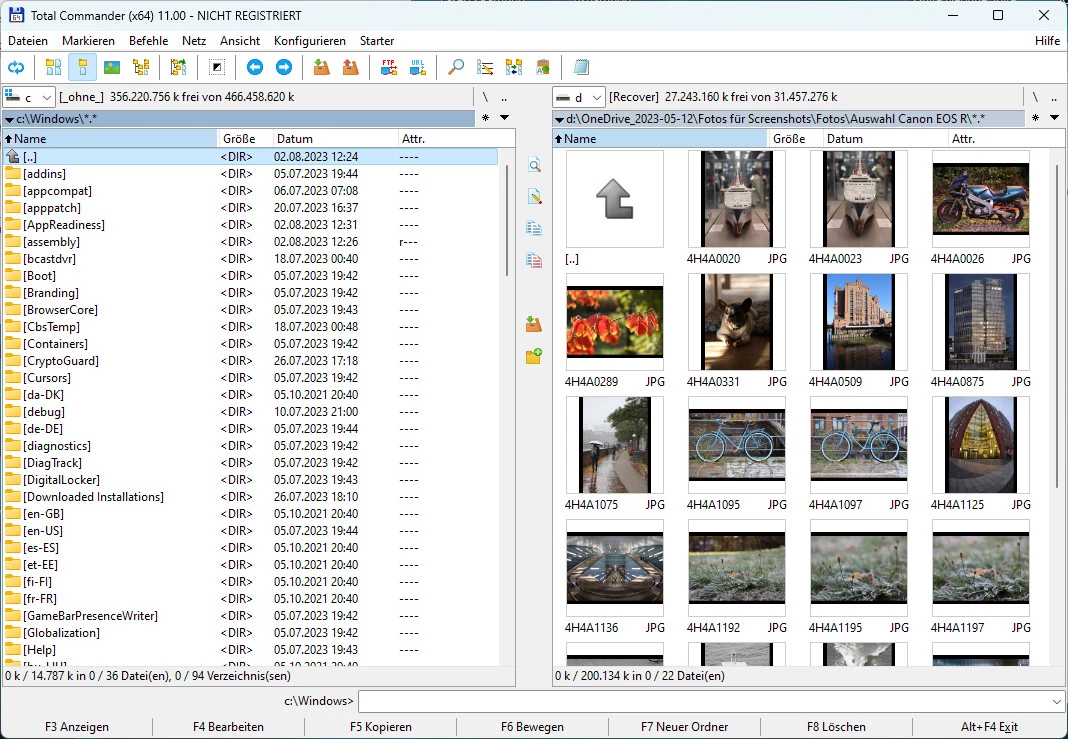
Navigating complex file structures using standard operating system windows often involves opening multiple overlapping folders, dragging items across the screen, and dealing with accidental drops. For users who manage large volumes of data—such as developers, system administrators, and technical professionals—this visual friction slows down daily work. Total Commander replaces the standard single-window approach with a strict, dual-pane interface heavily inspired by classic file managers of the DOS era. Instead of relying on a mouse, the software encourages rapid keyboard navigation, allowing users to execute complex file operations using dedicated shortcut keys.
Using a standard system explorer often forces users to reach for the mouse, click through nested folders, navigate multiple monitors, and visually confirm every drop. This constant context switching creates a bottleneck for users who need to process thousands of files a day. By strictly adhering to a two-pane layout, the software ensures that a source and destination are always defined before any action is taken. This predictability eliminates the risk of dropping files into the wrong folder. Beyond simply moving files, the application acts as a central hub for all local and remote data management. The software handles archiving, remote server access, and bulk renaming directly inside the primary interface. By treating remote FTP servers and compressed archives exactly like local directories, the workflow remains uniform regardless of where the data actually resides. This eliminates the constant need to switch between dedicated unzipping utilities, standalone FTP clients, and basic system tools.
Because the application prioritizes speed and extreme customization over modern visual aesthetics, the interface looks highly technical upon first launch. Every button, panel, and keyboard shortcut can be modified to fit specific workflows. Users can save custom views, build personalized button bars for frequently used external scripts, and write specific color-coding rules based on file extensions. A significant part of the software's longevity stems from its open plugin architecture. Over the years, a large community of developers has created third-party add-ons that allow the application to read obscure disk formats, preview proprietary image files, or connect to cloud storage protocols directly from the standard file panes. Because these plugins load directly into the core interface, users do not have to learn new software to handle edge-case formats.
Key Features
- Dual-Pane Navigation: The core interface is permanently split into two identical file lists. This layout allows users to browse a source directory in the left pane and a destination directory in the right pane. File operations are driven by function keys, such as F5 to copy and F6 to move, instantly transferring the selected items from the active panel to the inactive one without requiring drag-and-drop actions. Users do not have to open multiple instances of the application or snap windows to different edges of the screen.
- Multi-Rename Tool: Pressing Ctrl+M opens a dedicated utility for renaming hundreds of files simultaneously. Users can apply complex renaming rules using sequential counters, search-and-replace strings, or regular expressions. The tool also extracts metadata, allowing users to automatically rename digital photographs based on EXIF creation dates or audio files based on ID3 tags. This is especially useful for photographers organizing raw image dumps or developers standardizing variable names across a project directory.
- Built-in Archive Handling: The application treats compressed files like standard file folders. Users can double-click ZIP, RAR, TAR, or GZ archives to view their contents, then copy individual files out of the archive into a standard directory. This native handling bypasses the need for external extraction tools and allows for quick inspections of compressed data.
- Integrated FTP Client: A built-in connection manager allows users to save login credentials for remote web servers. Once connected, the remote server appears in one of the standard panes, allowing users to transfer files between their local disk and the server using the exact same F5 and F6 keyboard shortcuts they use for local files.
- Directory Synchronization: The sync tool compares two different folders to identify missing or modified files. Users can compare directories based on file size, modification date, or exact byte-by-byte content. The interface presents a color-coded list of differences, making it easy to mirror a local folder to a backup drive or verify that a large transfer completed without errors.
- Advanced Search and Filtering: The built-in search tool extends far beyond finding file names. Users can locate files based on exact text strings inside documents, search for specific hexadecimal values, or filter results by precise date ranges and file sizes. It can even search inside compressed archives without extracting them first, which cuts down on the time required to find an old document backed up in a deep folder tree. Once a search is complete, the results can be fed into a virtual list panel, allowing users to apply batch operations to files scattered across multiple different folders.
- Custom Button Bars and Menus: The top interface bar can be heavily modified to trigger external applications, batch scripts, or internal commands. Users can assign specific icons to these buttons and pass command-line parameters to them directly from the active file pane. This allows the file manager to function as an application launcher tailored to specific technical workflows.
How to Install Total Commander on Windows
- Download the executable Windows installer package from the official vendor website to ensure you receive the unmodified application files. The installer package is notoriously lightweight, often downloading in just a few seconds due to its small file size.
- Launch the setup file and choose your preferred primary interface language from the initial dropdown menu. The setup process does not require a system reboot.
- Review the prompt asking whether you want to install additional language files; selecting "No" saves a small amount of disk space if you only need English.
- Select the destination folder for the application files, which defaults to the standard program directory on modern Windows environments.
- Choose the location for your configuration files, specifically the `wincmd.ini` and `wcx_ftp.ini` files. Selecting the user AppData folder is strongly recommended to prevent file permission errors when saving layout changes later.
- Complete the setup wizard and launch the application from the newly created desktop shortcut or Start menu entry.
- Upon the first launch, read the trial prompt and click the specific numbered button (1, 2, or 3) requested on the screen to dismiss the prompt window and access the main interface.
Total Commander Free vs. Paid
Total Commander operates on a classic shareware model, offering a fully functional 30-day trial period. During this trial, the software places no restrictions on file transfers, archive handling, or connection speeds. However, users are greeted with a startup prompt—often referred to as a nag screen—which requires them to press a randomly assigned numbered button (1, 2, or 3) before the main interface loads. This startup screen is a hallmark of the software's history, functioning as a gentle reminder rather than an aggressive lockout. Once the correct button is pressed, the software runs at full speed. This prompt remains active until the software is officially registered.
If users decide to keep the software after the trial, they must purchase a lifetime license. The vendor charges a one-time fee, typically around 42 EUR, though the final cost fluctuates slightly depending on regional taxes. Purchasing this license provides a registration key file that removes the startup prompt permanently. Unlike many modern software tools, there are no recurring subscription fees, and the vendor does not sell higher-tier enterprise tiers that lock basic functionality behind a paywall. Students and educators can also apply for a discounted rate by submitting proof of enrollment directly to the vendor.
The most notable aspect of this pricing model is the lifetime update policy. Historically, a single license purchase has granted users access to all future updates indefinitely. A registration key purchased a decade ago still unlocks the software today. This perpetual license model, combined with the lack of cloud dependencies or forced online activation, makes the pricing structure highly predictable for long-term users.
Total Commander vs. Directory Opus vs. FreeCommander
Directory Opus is a highly visual, extremely customizable file manager designed to act as a complete replacement for standard Windows Explorer. While Total Commander relies heavily on keyboard-driven navigation and a rigid aesthetic, Directory Opus focuses on deep visual customization, complex scripting capabilities, and a highly polished interface. Directory Opus allows users to replace standard right-click context menus, implement complex metadata tagging, and customize toolbars with dynamic scripting. Users who want to completely overhaul how their desktop looks and behaves, and who are willing to pay a premium price for advanced graphical file management, often lean toward Directory Opus.
FreeCommander provides a dual-pane interface, tabbed navigation, and built-in archive handling without requiring a paid license. Because it is available for free, it is an attractive option for users who want the basic dual-panel workflow but cannot justify purchasing commercial software. However, FreeCommander lacks the large ecosystem of specialized third-party plugins that Total Commander has accumulated over decades, meaning it is less suited for obscure file types or highly niche server configurations.
Total Commander remains the better choice for users who prioritize raw execution speed, extreme backwards compatibility, and ultra-low system resource usage. Its interface may look older than both Directory Opus and FreeCommander, but its reliance on ingrained keyboard shortcuts allows experienced users to work faster than they could with a mouse. Additionally, the portable nature of its INI configuration files makes it the ideal tool for IT professionals who carry their custom file management environment on a USB drive from machine to machine.
Common Issues and Fixes
- Problem description: Application settings and layout changes do not save after closing the program. This occurs when the primary configuration file, usually named `wincmd.ini`, is stored inside the Program Files directory but the application does not have administrator privileges to overwrite it. To fix this, users can reinstall the application and choose the "AppData" folder for configuration files, or manually move the configuration file to the user profile and update the registry path.
- Problem description: FTP connections fail to retrieve directory listings or time out during transfers. Modern routers and network firewalls frequently block the active FTP connections that the application attempts to use by default. To resolve this, open the FTP connection settings for the specific server and check the box labeled "Use passive mode for transfers" to force the connection through ports that are typically left open by standard firewalls.
- Problem description: Mapped network drives disappear from the drive dropdown menu. If a user launches the file manager with elevated administrator privileges, Windows security policies prevent the elevated application from seeing network drives mapped by the standard user account. To fix this, users must either map the drive directly from within the elevated instance of the file manager, or edit the Windows registry to enable the required linked connections policy.
- Problem description: The application hangs or freezes for several seconds upon startup. This delay is almost always caused by the program attempting to reconnect to an offline network drive or an unreachable FTP server that was left open in a background tab during the last session. To fix this, disconnect any inactive network drives in Windows, or manually open the configuration file in a text editor and delete the network paths listed under the tab settings.
Version 11.56 — August 2025
- Improved security by preventing potential directory traversal attacks in archives; paths containing ".." are now automatically sanitized.
- Updated internal handling of unrar.dll to prevent loading outdated versions from the system path if the program directory load fails.
- Upgraded core compression and decompression libraries (LZMA SDK, 7-Zip, and WinRAR components) to their latest 2025 versions for better compatibility.
- Fixed an issue where the password prompt would fail to appear when unpacking specific encrypted RAR archives.
- Resolved a visual glitch in the System Information tool where groupbox headers were missing in the 64-bit version.