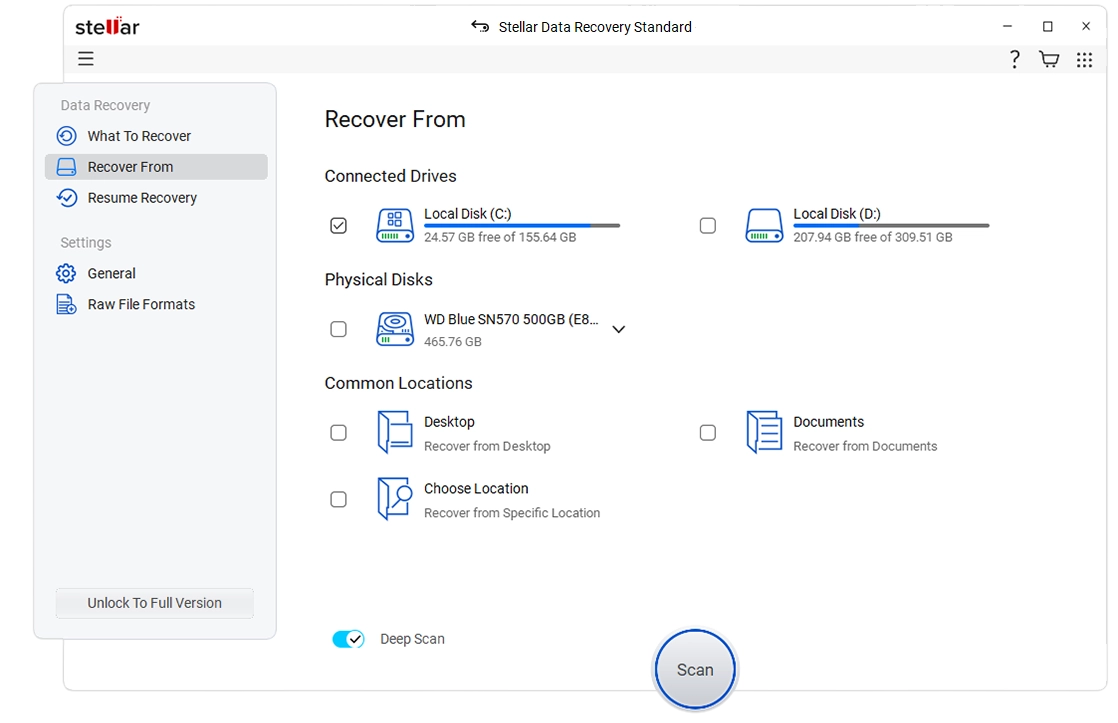
Data loss strikes unexpectedly, often leaving users staring at an emptied recycle bin, a corrupted partition, or a mistakenly formatted storage drive. Stellar Data Recovery serves as a dedicated retrieval utility engineered to salvage lost documents, photos, and archives directly from local storage environments. Instead of relying on cloud backups that may be outdated or incomplete, this application scans the physical sectors of a hard drive to locate data remnants and reconstruct them into usable files. It is designed for everyday computer owners dealing with accidental deletions, as well as IT professionals managing complex storage failures.
Relying on a native desktop application is necessary for deep system access. Browser-based tools or lightweight cloud utilities cannot interface directly with local file systems like NTFS, FAT32, or exFAT. By running locally on Windows 10 and Windows 11, the software gains the low-level disk access required to read raw sectors, bypass damaged partition tables, and identify file signatures that the operating system no longer recognizes. This direct hardware interaction makes it possible to retrieve information even after a drive appears empty or prompts a format warning.
When dealing with a compromised disk, time and methodology dictate the success rate. The application provides multiple scanning engines to balance speed with depth, ensuring users can quickly grab a deleted text document or systematically reconstruct a terabyte-sized video archive. By allowing users to preview media and documents before committing to a restore operation, it provides concrete verification of what is actually salvageable, preventing wasted time on corrupted fragments.
Key Features
- Signature-Based Deep Scan: When a hard drive loses its Master File Table, the operating system can no longer locate stored data. The deep scan engine bypasses the broken directory entirely and reads raw storage sectors to identify over 300 specific file formats based on their hexadecimal signatures. This allows the application to pull intact JPEGs, PDFs, and MP4s directly from the physical platter or flash memory chips.
- BitLocker Drive Support: Encrypted drives present a major hurdle for standard retrieval utilities, often returning scrambled data. This tool integrates direct support for BitLocker partitions, prompting the user for the encryption password during the setup phase. Once authenticated, it scans the unlocked volume just like a standard drive, ensuring secure data remains accessible to the authorized owner.
- Live File Preview: Knowing whether a file is intact before exporting it saves significant time and storage space. The interface includes a preview window that renders thumbnails for images, playback for video files, and readable text for office documents during the scanning process. If a photo appears half-gray in the preview, the user knows the file is partially overwritten and cannot be fully salvaged.
- Formatted Partition Retrieval: Accidentally executing a quick format on a USB thumb drive or secondary hard drive removes the pointers, but leaves the underlying data untouched. The software scans the remaining structural metadata to rebuild the original directory trees, maintaining the original folder names and file hierarchies. This organized output makes sorting through thousands of rescued items manageable.
- Targeted File Filtering: Sifting through hundreds of thousands of raw sectors often produces an overwhelming amount of raw output. The application organizes scan results using specific tabs, including a Tree View for folder navigation, a File Type list for sorting by extensions like .docx or .xlsx, and a Deleted List to isolate items recently removed from the recycle bin. Users can also type specific file names into the search bar to bypass manual browsing.
- Bootable Rescue Media: A critical system crash can leave a computer trapped in an endless repair loop, preventing access to the desktop environment. Premium tiers include a utility to flash a bootable USB drive, allowing the user to bypass the broken operating system and load the retrieval environment directly from the BIOS. This grants immediate access to the internal storage drive to offload critical files before reinstalling the operating system.
How to Install Stellar Data Recovery on Windows
- Download the official Windows installer package from the vendor's primary website to ensure you receive an unmodified executable.
- Locate the downloaded setup file in your default downloads folder and execute it, granting administrator privileges when prompted by the Windows User Account Control dialogue.
- Select your preferred interface language from the dropdown menu and accept the end-user license agreement to proceed with the setup wizard.
- Choose an installation directory carefully; you must select a drive letter that is different from the partition you intend to scan, as installing the software over your lost data will overwrite those exact physical sectors.
- Review the desktop shortcut and start menu options, then click the install button to extract the core application files to your selected directory.
- Once the installation completes, check the box to launch the application immediately and close the setup wizard.
- On the initial startup screen, specify the exact data types you are looking for, such as Emails, Videos, or Audio, which optimizes the scanning engine to ignore irrelevant file signatures and reduces the total processing time.
Stellar Data Recovery Free vs. Paid
Stellar Data Recovery operates on a freemium model, offering a fully functional trial alongside tiered premium licenses based on technical requirements. The Free Edition allows users to download the program, run quick and deep scans, and utilize the live preview window without spending money. This tier permits users to permanently save up to 1 GB of salvaged data, making it a highly practical option for rescuing a handful of important spreadsheets or family photos.
For data loss situations exceeding the initial free allocation, users must move to one of the paid tiers. The Standard edition removes the data cap entirely for a starting price of $49, granting unlimited retrieval for standard internal and external drives. The Professional edition introduces advanced features, including the ability to reconstruct lost partitions, read optical media like scratched CDs or DVDs, and create a bootable USB drive for machines stuck in a system repair loop.
For specialized IT environments, the Premium and Technician tiers include built-in utilities to repair corrupted image and video headers, ensuring broken files become playable again. These upper tiers also introduce support for rebuilding hardware and software RAID configurations. Licenses are generally available as annual subscriptions or perpetual lifetime purchases, depending on whether the user is addressing a single emergency or stocking an IT department's utility toolkit.
Stellar Data Recovery vs. Recuva vs. EaseUS Data Recovery Wizard
Recuva is a lightweight, widely utilized utility that provides unlimited free recovery for non-commercial personal use. It excels at simple tasks, such as restoring an accidental deletion that just bypassed the system recycle bin. However, its interface feels dated, and its scanning engine relies heavily on intact file-system metadata. When tasked with reading RAW partitions, formatted solid-state drives, or fragmented multimedia archives, it frequently fails to reconstruct the data.
EaseUS Data Recovery Wizard delivers a highly intuitive, beginner-friendly interface paired with exceptionally fast scanning engines. It guides users through the retrieval process with minimal friction and handles routine storage failures effectively. The primary drawback for cost-conscious users is its free version, which strictly limits restoration to 2 GB, forcing a rapid upgrade to a paid license for any substantial task. Furthermore, it lacks some of the specialized partition reconstruction utilities required for heavily degraded enterprise storage environments.
Stellar Data Recovery is the better fit when dealing with severe corruption, encrypted BitLocker volumes, or entirely missing partitions. While its paid tiers require an upfront investment and the deep scan process takes longer than lighter alternatives, the extensive file signature database ensures higher success rates on formatted or failing hardware. It provides a methodical, verifiable workflow for users who prioritize exact file reconstruction over absolute scanning speed.
Common Issues and Fixes
- Deep scan takes several hours to complete. Large hard drives with read errors or significant fragmentation require extensive sector-by-sector analysis, causing the progress bar to move very slowly. Fix: Use the Quick Scan option first for recently deleted items, and only initiate a Deep Scan if the partition is formatted, RAW, or severely corrupted.
- Recovered videos or photos will not open. The file was likely partially overwritten by new data before the retrieval was attempted, which destroys the file header and renders it unreadable. Fix: Try opening the file with a media player that ignores broken indexes, or utilize the dedicated photo and video repair utilities included in the premium software tiers.
- Application fails to detect the storage drive. The software cannot interface with a device that has severe physical hardware damage, such as a shattered platter or a burnt controller board. Fix: Open the Windows Disk Management console to see if the drive registers at the system level; if the drive is completely dead or making audible clicking noises, disconnect it immediately and consult a physical hardware lab.
- Overwriting data by saving to the same disk. Users often attempt to restore their rescued files directly back to the corrupted drive, which permanently destroys the very information they are trying to save. Fix: Always select a separate physical hard drive, an external USB flash drive, or a network location as the destination path for your exported files.
Version Latest — 2025
- Added new "On-the-Fly" preview functionality, allowing users to view and save files while the scanning process is still active.
- Introduced a completely redesigned user interface featuring three customizable themes: Dark, Light, and Vibrant.
- Improved scanning engine with "Pause and Resume" capabilities, enabling flexible management of long recovery sessions.
- Expanded support for recovering data from Synology, QNAP, and ASUSTOR NAS drives with BTRFS file system compatibility.
- Enhanced virtual machine recovery tools, now supporting VMDK, VDI, VHD, and VHDX file formats.
- Fixed compatibility issues with the latest macOS updates (including M3 chip support) and Windows 11 system architectures.
- Optimized deep scanning algorithms for better retrieval rates from 4K hard drives and RAW partitions.