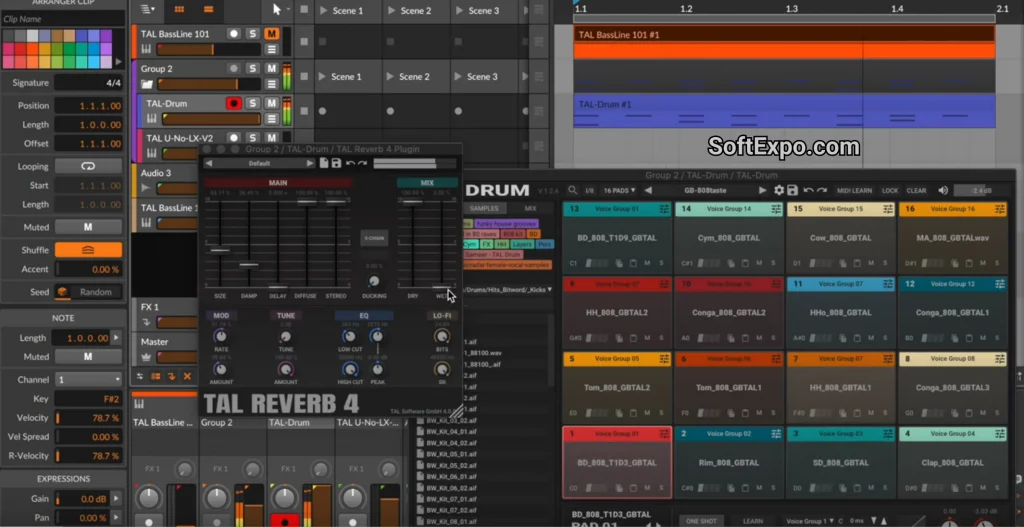
TAL-Reverb-4 is a high-quality standalone reverb plugin capable of delivering a vintage 80s character to your audio projects. Because it is a VST/VST3 plugin, it integrates directly into Adobe Audition, allowing you to apply lush, modulated plate reverb effects to vocals, drums, and instruments without needing complex external hardware. Its primary strength lies in its simplicity and specific sound character, which emulates the diffuse, fast-building reverb tails found in classic recordings.
Key Features
- Vintage Plate Sound: Delivers a modulated, diffuse reverb tone characteristic of 1980s hardware units.
- Ducking Control: Built-in ducking feature automatically lowers the reverb volume when the dry signal is active, keeping mixes clear.
- Fast Build-Up: The reverb tail develops quickly, making it effective for percussive elements like snare drums.
- Damp and EQ Controls: Dedicated knobs allow you to shape the high and low frequencies of the reverb tail to fit your mix.
- Simple Interface: A streamlined GUI with only essential controls prevents menu-diving and speeds up workflow.
- Stereo Processing: Designed specifically to handle stereo channels for a wide, spatial effect.
Installation and Setup
Installing TAL-Reverb-4 on Windows is a straightforward process involving the official installer and Adobe Audition's plugin manager.
- Download the Plugin: Visit the TAL Software website and download the Windows 64-bit installer (VST3 version recommended).
- Run the Installer: Execute the downloaded file and follow the prompts. The default location for VST3 plugins is usually
C:Program FilesCommon FilesVST3. - Open Adobe Audition: Launch the application and navigate to the Effects menu at the top of the screen.
- Scan for Plugins: Select Audio Plug-in Manager... from the menu. In the dialog box, ensure your VST folder path is listed (click Add... if you installed it to a custom location).
- Enable the Plugin: Click Scan for Plug-ins. Once the scan finishes, locate TAL-Reverb-4 in the list, check the box to enable it, and click OK.
The plugin is free to use, making it an accessible option for all levels of production.
How to Use TAL-Reverb-4
Once installed, you can apply the reverb directly to a clip or as a track effect.
- Apply as a Track Effect: Go to the Effects Rack panel, click the small arrow to open the menu, and choose VST3 > TAL Software > TAL-Reverb-4. This is non-destructive, meaning you can tweak settings later.
- Dial in the Size: Start with the 'Size' knob to define the virtual space. Small values sound like tight rooms, while larger values create massive, ambient washes.
- Use Ducking for Vocals: If the reverb is drowning out your voiceover or singer, increase the 'Ducking' knob. This suppresses the reverb while the person is speaking and brings it back during pauses.
- Manage the Low End: Use the 'Low Cut' slider to remove bass frequencies from the reverb signal. This prevents the mix from sounding muddy, especially on deep voice recordings.
Compatibility
To run TAL-Reverb-4 effectively, ensure your system meets these specifications:
- Windows OS: Windows 7 or higher (64-bit required).
- Host Software: Adobe Audition CS6, CC, or newer (must support VST or VST3).
- Architecture: Your version of Adobe Audition must be 64-bit to match the plugin architecture.