Red Giant Universe is a comprehensive collection of GPU-accelerated effects and transitions designed for editors and motion graphics artists. While primarily applied within host applications like Adobe Premiere Pro and After Effects, its integration with Adobe Media Encoder is critical for the final output of your video projects. By ensuring Red Giant Universe is correctly installed and recognized by Media Encoder, you guarantee that all stylized effects, motion graphics, and transitions render accurately during the export process.
Understanding the relationship between this plugin suite and your rendering engine is essential for a professional workflow. Adobe Media Encoder does not provide a user interface to apply these effects directly; instead, it acts as the background processing engine that interprets and finalizes the visual data created in your editing timeline. Without the proper setup, projects containing Universe effects may fail to render or display a "missing effect" watermark, making correct installation and configuration vital for delivering high-quality content.
Key Features
- GPU Acceleration: All effects are optimized to run on your graphics card, ensuring faster rendering times within Media Encoder compared to standard CPU-based effects.
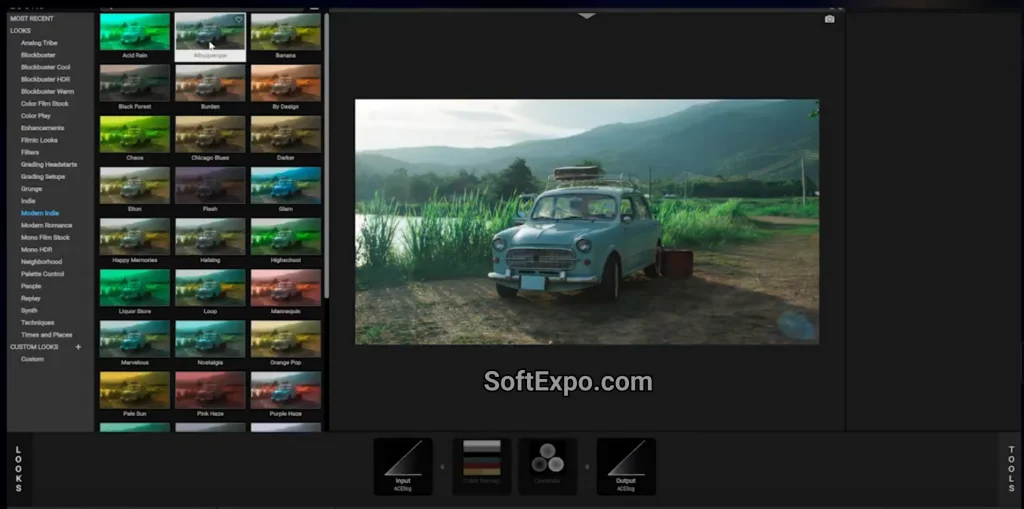
- 70+ Stylize Tools: Includes VHS retro looks, glitches, glows, and chromatic aberrations that render consistently across all Adobe video apps.
- Motion Graphics Generators: Create looping backgrounds, HUD components, and fractal noises that are mathematically generated during the render phase.
- Text Effects: specialized tools for kinetic typography and type animations that remain editable until the final export.
- Transition Library: A wide array of wipe, dissolve, and geometric transitions that maintain smooth playback performance during the encoding process.
- Maxon App Integration: Centralized management ensures your specific version is synchronized between your editor and Media Encoder to prevent version mismatch errors.
Installation and Setup
To use Red Giant Universe with Adobe Media Encoder on Windows, you must install the suite through the Maxon App. This unified installer manages licenses and deployments for all Maxon products.
- Download and launch the Maxon App for Windows.
- Log in with your Maxon ID.
- Navigate to the Universe section under the "Install" tab.
- Click Install. The installer will automatically detect all compatible Adobe host applications present on your system, including Adobe Media Encoder.
- Ensure that the specific version installed matches the version of your Premiere Pro or After Effects installation. For example, if you are using Adobe Creative Cloud 2026, ensure the latest Universe update (version 2026) is applied.
- Once finished, restart your computer to ensure the plugin paths are registered correctly by the Windows registry.
How to Use Red Giant Universe
Unlike Premiere Pro, you will not find a "Red Giant" folder in the Effects panel of Adobe Media Encoder. The usage workflow is entirely passive but requires specific render settings to function correctly.
Standard Workflow:
Apply your Universe effects (like Uni.VHS or Uni.Glow) to your clips inside Premiere Pro or After Effects. When you are ready to export, choose File > Export > Media and select "Send to Media Encoder." Media Encoder will launch and add the sequence to the queue.
Critical Render Settings:
For Universe plugins to render correctly, you must enable GPU rendering in Media Encoder. Go to the Renderer dropdown menu at the bottom of the Queue panel (or in the Preset settings) and select Mercury Playback Engine GPU Acceleration (CUDA) on systems with NVIDIA cards. If this is set to "Software Only," renders will be significantly slower and some Universe effects may render with visual artifacts or fail entirely.
Troubleshooting Watermarks:
If you see a red "X" or watermark in your final render from Media Encoder, it typically means the Maxon App is not logged in, or the license has not synced with the background process. Open the Maxon App, verify your subscription status, and clear the Media Encoder cache by going to Edit > Preferences > Media and cleaning the media cache database.
Compatibility
As of January 2026, Red Giant Universe supports the following configuration on Windows systems:
- Host Applications: Adobe Media Encoder 2024, 2025, and 2026.
- Operating System: Windows 10 (64-bit, version 22H2 or later) or Windows 11.
- Graphics Hardware: A dedicated GPU is strongly recommended. NVIDIA cards should use the latest Studio Drivers. Intel or AMD discrete GPUs must support OpenCL and have at least 4GB of VRAM for reliable rendering of 4K content.