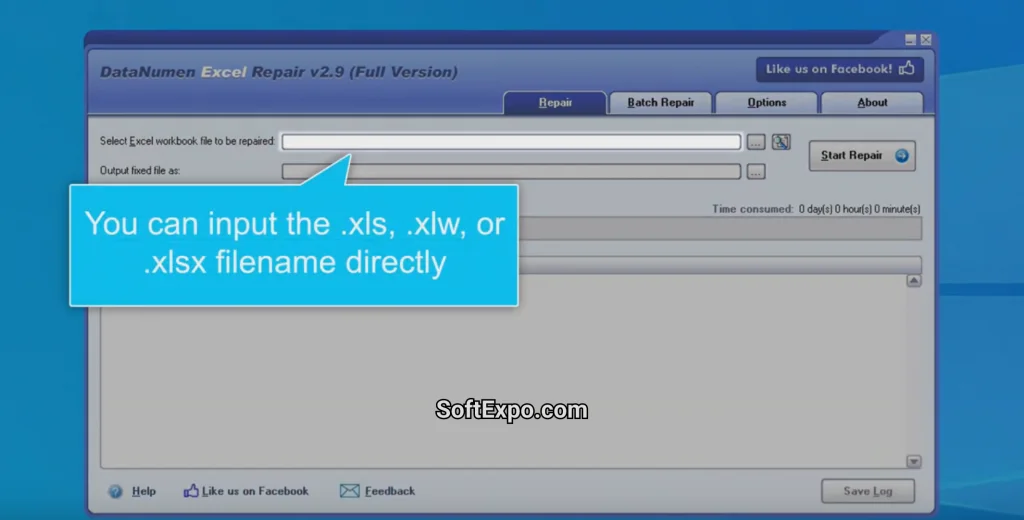
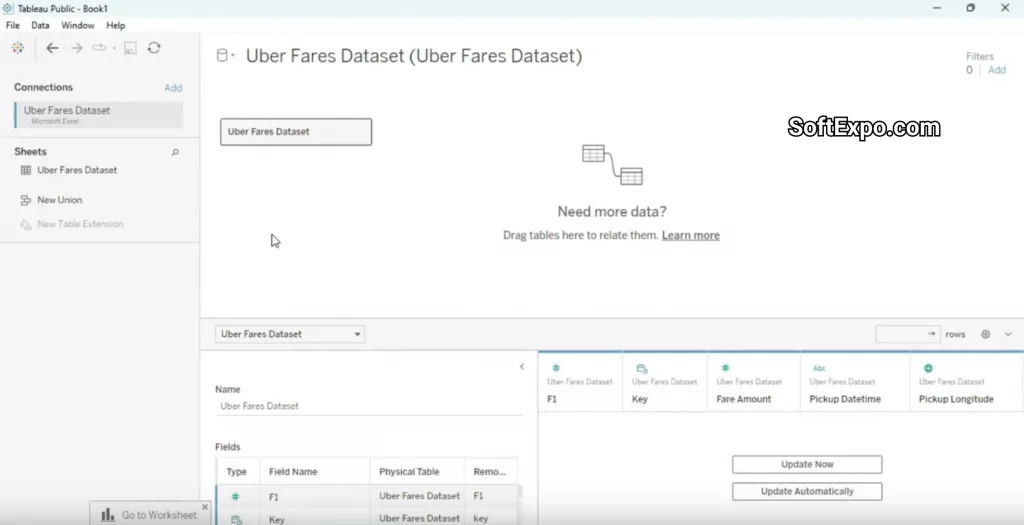


Microsoft Office allows users to significantly expand its core capabilities through "Add-ins," frequently referred to by users as plugins. The "Popular" category within the integrated Office Store serves as a curated gateway to the most widely used and highly-rated extensions available, such as Grammarly, Wikipedia, and Adobe Creative Cloud. These tools integrate directly into your document workflow, enabling you to perform specialized tasks—like language translation, advanced data visualization, or citation management—without ever leaving the application window. By utilizing these top-tier extensions, professionals can customize their workspace to suit specific industry needs, from legal drafting to financial modeling.
Key Features
- Integrated Task Panes: Most popular plugins operate within a dedicated side panel, allowing you to research, copy, and interact with external tools while keeping your document in focus.
- One-Click Content Insertion: Tools like the Wikipedia or Emoji keyboard plugins allow you to insert text, images, and data directly into your document with a single click.
- Live Data Connectivity: Extensions in the popular category often connect to live web services, ensuring that data (such as stock prices or exchange rates in Excel) remains current.
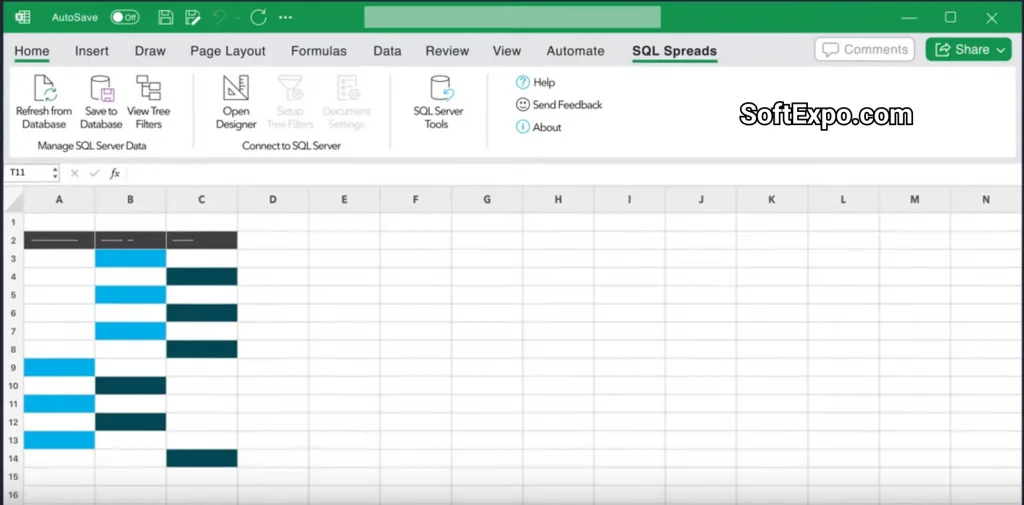
- Ribbon Integration: Installing a plugin often adds a custom group or button to your standard Home or Insert tabs for quick access.
- Cross-Suite Functionality: Many top plugins are designed to work across multiple Office apps, providing a consistent experience in Word, Excel, and PowerPoint.
- Verified Security: Plugins featured in the "Popular" section of the Office Store have undergone Microsoft's validation process for security and performance.
Installation and Setup
Installing plugins from the Popular category is a straightforward process built directly into the Office interface. No external downloads or complex installers are required.
- Open your Microsoft Office application (Word, Excel, or PowerPoint) on Windows.
- Navigate to the Insert tab located on the top Ribbon.
- Click on the Get Add-ins (sometimes labeled "Store") button.
- In the window that appears, the default view often highlights Editor's Picks. Click the Popular tab or filter to view the most downloaded tools.
- Select a plugin (e.g., "QR4Office" or "Script Lab") and click the Add button.
- Review the license terms and privacy policy, then click Continue. The new tool will install instantly.
Most popular plugins offer a free tier, though specialized business tools may require a paid subscription key from the developer.
How to Use Popular plugins
Once installed, the plugin typically places a launch icon on the **Home** tab, usually on the far right side of the Ribbon. Clicking this icon opens the tool's interface, often as a panel on the right side of your screen. For content-focused plugins, simply search or select the item you need and click to place it into your document. For utility plugins like grammar checkers, the tool will scan your document automatically when active. To manage your collection, go to **Insert > My Add-ins**, where you can remove tools you no longer need. A best practice is to only keep the plugins you use daily to ensure your Office ribbons remain uncluttered.
Compatibility
The "Popular" plugins found in the Office Store are built on a modern web-based framework, ensuring high compatibility across recent Windows systems.
- Windows Requirements: Fully supported on Windows 10 and Windows 11.
- Office Versions: Compatible with Microsoft 365, Office 2021, Office 2019, and Office 2016.
- Connection: An active internet connection is required to browse the store and for most plugins to function.