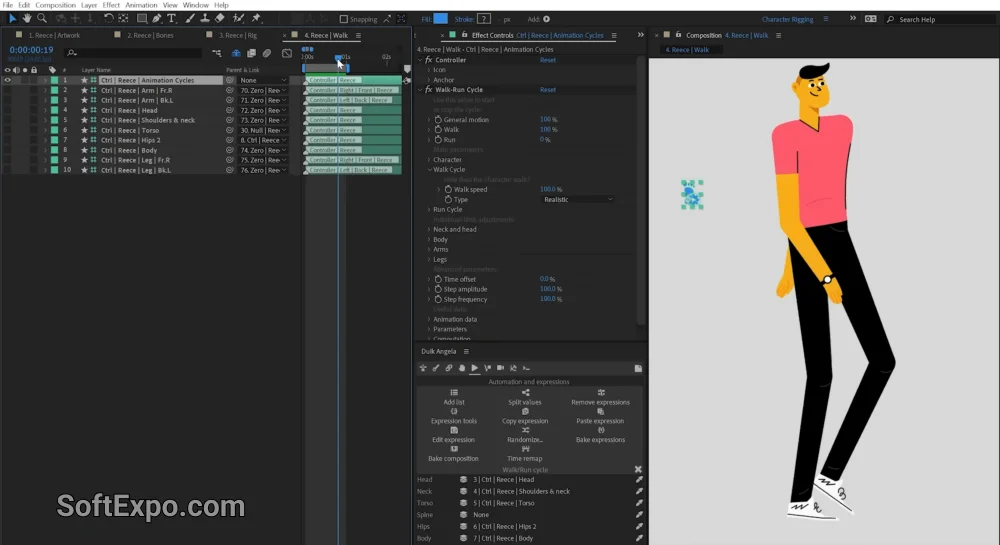
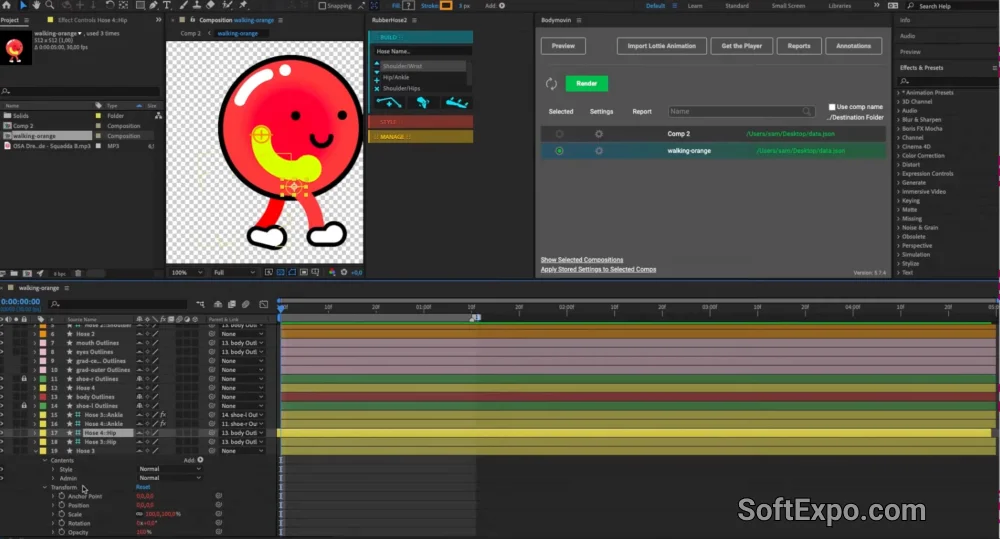
DUIK and RubberHose are the industry-standard tools for character animation within the Adobe ecosystem, specifically designed to function as powerful plugins for Adobe After Effects. While often discussed alongside Adobe Character Animator due to their shared focus on bringing 2D characters to life, they offer a distinct workflow: instead of performance capture (webcam-based acting), these tools provide precise, keyframe-based rigging and inverse kinematics (IK). They are essential for animators who need total control over limb movement, walk cycles, and structural deformation on Windows-based production pipelines.
Key Features
- Inverse Kinematics (IK): Both tools allow you to animate limbs (arms/legs) by moving the hand or foot, with the elbow or knee bending automatically.
- Bendy Limb Creation: RubberHose specializes in creating vintage "rubber hose" style curved limbs that bend smoothly without rigid joints.
- Auto-Rigging (DUIK Angela): DUIK features a comprehensive auto-rig system that can instantly apply bone structures to humanoid and animal characters.
- Controller Customization: Create intuitive visual controllers on your screen to manipulate character parts easily without digging into layer properties.
- Procedural Animation: DUIK includes automation tools for procedural walk cycles, run cycles, and mechanical rotations.
- Vector & Raster Support: Both plugins work seamlessly with artwork imported from Adobe Illustrator (vector) and Photoshop (raster).
Installation and Setup
Since these are third-party extensions for the Adobe ecosystem, installation on Windows requires a specific manual process or a ZXP installer.
- Purchase/Download: Download RubberHose 3 from the Battle Axe website (approx. $45-$65) and DUIK Angela from RxLaboratory (Free/Donationware).
- Install via ZXP Installer: Use a ZXP installer utility to drag and drop the
.zxpfile for RubberHose. For DUIK, you may need to copy script files to theSupport Files/Scripts/ScriptUI Panelsfolder in your After Effects installation directory. - Launch: Open Adobe After Effects (not Character Animator directly), go to the Window menu, and select the plugin name from the bottom of the list to dock the panel.
- Workflow Note: While these do not install inside Adobe Character Animator, you can composite Character Animator performances in After Effects and use these tools to add rigged props or additional background characters.
How to Use DUIK and RubberHose: Best Plugins
The workflow typically begins with importing a layered character file from Photoshop or Illustrator.
- Rigging Limbs: In RubberHose, click "New Hose" to generate a ready-to-animate leg or arm immediately. In DUIK, place "Structure" pins over your character's joints (shoulder, elbow, wrist) and click "Auto-Rig."
- Controlling Motion: Use the generated Controller layers to set keyframes. For a walk cycle, move the Foot Controller; the leg will stretch and bend naturally.
- Best Practice: Keep your rig hierarchy clean. Lock your artwork layers and only interact with the Controller layers to avoid accidental displacements.
- Common Setting: Adjust the "Bend Radius" (RubberHose) or "Softness" (DUIK) to determine how sharply a joint bends versus a smooth curve.
Compatibility
To ensure stability on Windows production machines, ensure your software meets these criteria:
- Host Application: Adobe After Effects CC 2022 or higher (required for latest script architecture).
- Operating System: Windows 10 (Version 22H2 or later) or Windows 11.
- Hardware: A dedicated GPU is recommended for rendering complex deformer calculations in real-time.