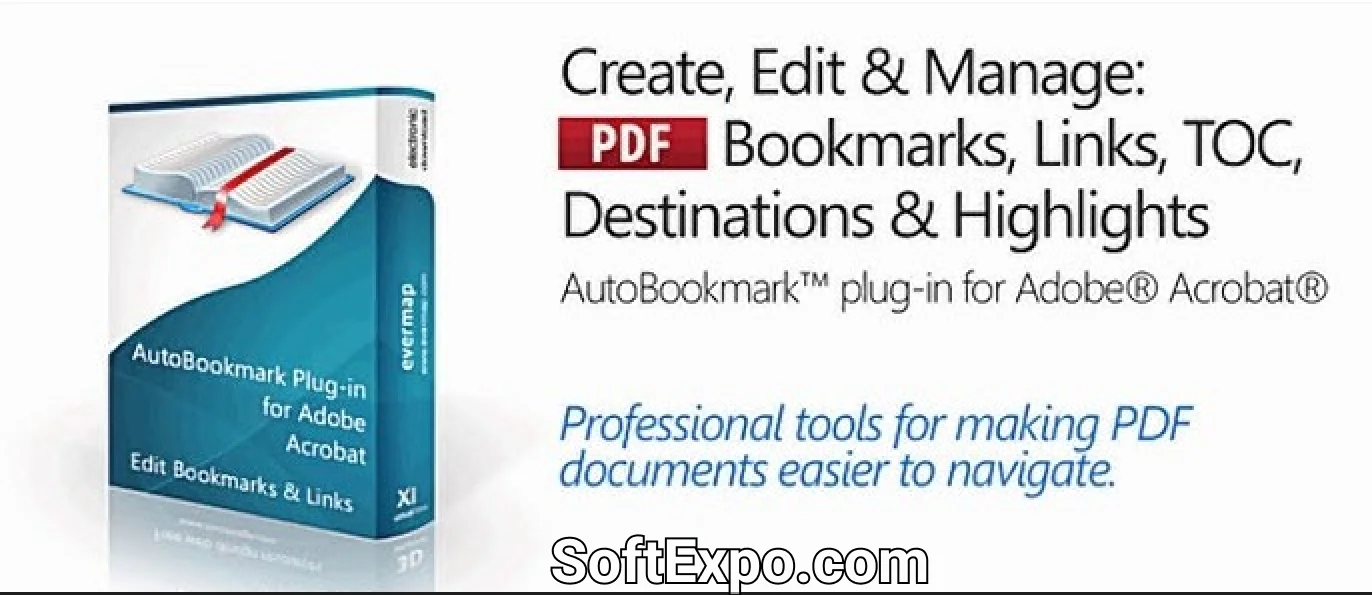
AutoBookmark by EverMap (often mistaken for an "Evernote" plugin due to the similar name) is the industry-standard automation tool for Adobe Acrobat Pro DC. While no dedicated "Evernote Plugin" exists strictly for Acrobat, this guide covers the powerful AutoBookmark plugin for organizing PDFs and details how to effectively integrate your workflow with Evernote using standard methods. AutoBookmark allows users to automatically generate bookmarks, links, and tables of contents based on text styles and indentation, saving hours of manual work for legal, academic, and business professionals.
Key Features
- Automated Bookmark Generation: Create multi-level bookmarks automatically based on font styles, text size, indentation, or specific content patterns (regex).
- Table of Contents Creation: specific tools to generate a visual, hyperlinked Table of Contents (TOC) page from existing bookmarks.
- Link Validation and Management: Automatically check for broken links across documents and batch-create hyperlinks from text strings (e.g., linking every occurrence of "See Exhibit A").
- Destination Management: Convert bookmarks to named destinations for robust external linking between PDF files.
- Batch Processing: Apply bookmarking and linking rules across hundreds of PDF files simultaneously.
- Text Highlighting to Bookmarks: innovative feature that converts highlighted text or comments directly into a bookmark structure.
Installation and Setup
To install the AutoBookmark plugin, visit the official EverMap website. Ensure you are running a compatible version of Windows, as this plugin is Windows-exclusive.
- Close Adobe Acrobat Pro DC completely.
- Download the AutoBookmark Professional or Standard installer (currently version 8.7.1) from the EverMap download page.
- Run the installer (Setup.exe) and follow the on-screen prompts. The software automatically detects your Acrobat installation directory.
- Launch Adobe Acrobat Pro DC. You will see a new top-level menu item named "Plug-ins".
- Note: AutoBookmark offers a 30-day trial; a perpetual license must be purchased for continued use.
How to Use Evernote Plugin and AutoBookmark
Using AutoBookmark: The most common workflow is creating bookmarks from text headings (e.g., Chapter titles).
- Open your PDF in Acrobat Pro DC.
- Go to Plug-ins > Bookmarks > Generate from Text Styles.
- Select a sample of the text you want to bookmark (e.g., a "Chapter 1" heading) and click "Add Style" in the dialog box.
- Repeat for sub-headings (Level 2, Level 3).
- Click OK to generate a complete bookmark tree instantly.
Evernote Integration Workflow: While there is no .api plugin for Evernote, you can streamline the process:
- Send to Evernote: Use the "Print to PDF" feature and select "Save to Evernote" if the Evernote desktop app is installed.
- Import Folder: Set up an "Import Folder" in Evernote (Tools > Import Folders) on your Windows PC. Any PDF you save or edit with AutoBookmark in that specific Windows folder will automatically sync to your Evernote account.
Compatibility
AutoBookmark is designed exclusively for the Windows platform and supports the following configurations:
- Adobe Acrobat: Adobe Acrobat Professional DC (2015-2026), Acrobat 2020, 2017, XI, X, and 9.
- Operating Systems: Microsoft Windows 11, Windows 10, Windows 8.1, and Windows Server 2012-2022.
- Architecture: Supports both 32-bit and 64-bit versions of Adobe Acrobat.