Windows Server operates as the core infrastructure operating system for enterprise networks, managing identity, storage, networking, and virtualization tasks from a centralized environment. System administrators and IT professionals deploy the software to handle intricate back-end services, ranging from local file shares to large-scale domain controllers and hypervisors. Unlike consumer-grade operating systems, this platform prioritizes hardware utilization, strict security boundaries, and continuous uptime, providing the necessary foundation for business-critical databases and web applications. It serves environments that require exact administrative control over user access, group policies, and network resources.
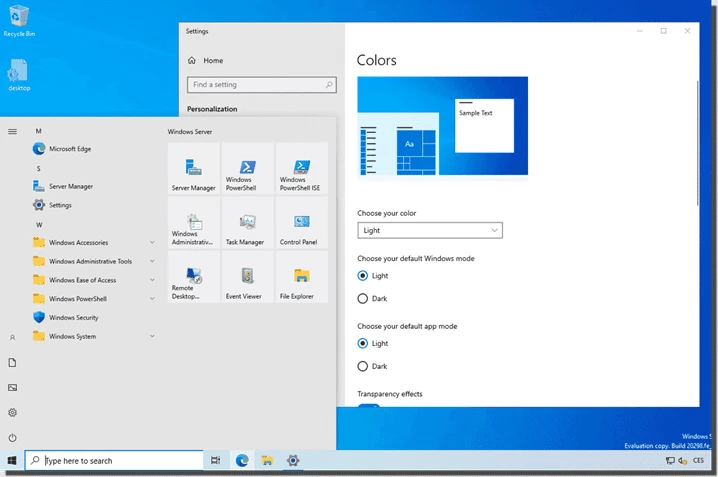
Organizations rely on this desktop and server environment rather than web-only management panels because bare-metal and hypervisor-level control demands direct hardware access. Administrators interact with deep system components, configuring local storage spaces, managing virtual machine allocations, and deploying role-based services directly through the Server Manager interface. Operating locally ensures that essential authentication services, such as Active Directory, remain functional even if external internet connectivity drops. The direct interface provides the low-latency response needed to troubleshoot routing protocols, configure firewall rules, and manage hardware drivers without relying on a remote cloud console.
Because enterprise networks constantly face external probing and internal lateral movement attempts, the operating system integrates strict firewall defaults and protocol hardening directly into the core architecture. Administrators utilize built-in credential guards to protect password hashes and prevent unauthorized users from extracting authentication tokens from system memory. This local defense model ensures that file servers, domain controllers, and remote desktop gateways maintain a hardened posture independent of third-party security software. The inclusion of native network tracing tools and command-line monitoring utilities allows IT teams to audit system performance and track background events in real time, granting total visibility over network traffic and disk activity.
By bridging local infrastructure with optional cloud integrations, the software accommodates environments transitioning to hybrid models. IT teams use it to host internal legacy applications that cannot be migrated to web services, while applying modern identity protections and automated security updates. The system handles raw compute tasks, allowing businesses to dictate exactly how processing power and memory are distributed across local departments, making it a critical tool for facilities that maintain strict data sovereignty requirements or operate secure, isolated network segments.
Key Features
- Hotpatching Capabilities: Administrators apply critical security updates to active systems without triggering a full reboot cycle. This process modifies the in-memory code of running processes, keeping virtual machines and domain controllers online during scheduled maintenance windows. By reducing the frequency of scheduled restarts, organizations avoid the operational downtime historically associated with monthly update cycles. The feature requires an active connection to the Azure Arc management plane to validate and deliver the targeted security payloads.
- Active Directory Enhancements: The identity management framework utilizes a 32K database page size to support larger and more intricate enterprise environments. This expanded capacity allows directories to handle heavy access control lists and larger cryptographic certificates natively. Administrators gain access to dedicated object repair tools that fix corrupted directory entries without requiring a complete database restoration.
- NVMe Storage Optimization: The native storage stack includes rewritten drivers specifically tailored for fast non-volatile memory express hardware. This architecture reduces CPU overhead during intensive read and write operations, increasing total input/output operations per second. Database servers and busy file shares experience shorter latency spikes during peak access periods.
- Hyper-V GPU Partitioning: The built-in hypervisor allows multiple independent virtual machines to share the compute resources of a single physical graphics processing unit. Administrators allocate specific fractions of the video card to different virtual environments directly through the Hyper-V Manager interface. This functionality proves essential for data science teams training machine learning models or designers running compute-intensive rendering applications in virtualized environments.
- SMB over QUIC: File sharing protocols use TLS encryption to encapsulate Server Message Block traffic, ensuring secure data transit over untrusted public networks. This eliminates the need for a traditional virtual private network when remote clients access internal file servers. The configuration relies on certificate-based access controls to authenticate endpoint connections before granting file visibility.
- Delegate Managed Service Accounts: System administrators secure automated background services by assigning them credentials that the domain controller rotates automatically. This eliminates the practice of manually updating passwords for service accounts, drastically lowering the risk of credential theft. Security policies enforce strict boundaries, ensuring the service account can only execute authorized tasks within its designated host environment.
How to Install Windows Server on Windows
- Download the official disk image format file from the Microsoft Evaluation Center to your local administrative workstation.
- Open the Hyper-V Manager application on your Windows client, click the Action menu, and select the option to create a new virtual machine.
- Follow the wizard prompts to assign processing cores, allocate a virtual hard disk, and point the virtual DVD drive to the downloaded installation media.
- Start the virtual machine and press any key to boot from the disk image, which loads the initial setup environment and language selection screen.
- Choose your required operating system edition and select the Desktop Experience option if you require a graphical user interface, or leave it unselected for a command-line Server Core installation.
- Select the unallocated drive space to begin the file extraction and installation process, which will automatically restart the virtual environment upon completion.
- Enter a strong alphanumeric password for the default local Administrator account when prompted by the out-of-box experience screen.
- Press the Control, Alt, and Delete keys to unlock the lock screen, log in with your new credentials, and wait for the Server Manager dashboard to launch automatically.
Windows Server Free vs. Paid
Microsoft structures the licensing model based on the physical core count of the host hardware and the specific virtualization requirements of the organization. The Standard tier, carrying a retail price of approximately $1,176, targets environments with minimal virtualization needs. This tier allows the business to run two operating system environments or virtual machines on a single physical host. The Datacenter tier costs approximately $6,771 and provides unlimited virtualization rights, making it the mathematical choice for large-scale operations running dozens of virtual machines on heavy-capacity hardware.
Both primary tiers utilize a core-based licensing model, requiring a minimum of 16 core licenses per physical server. In addition to the host licenses, organizations must purchase separate Client Access Licenses for every individual user or specific device that interacts with the server infrastructure. This includes base access for authentication services, file sharing, and print management. If employees need to log into remote desktop sessions, the business must purchase an additional Remote Desktop Services Client Access License for each concurrent user.
Organizations utilizing hybrid environments also have the option to implement a pay-as-you-go billing model through cloud-connected management interfaces. This alternative approach calculates costs based on actual consumption, allowing facilities to scale their server footprint during seasonal demand spikes without committing to expensive perpetual licenses for temporary workloads. However, permanently active infrastructure generally benefits from the predictable capital expenditure of standard retail licensing. Companies must audit their user counts, device pools, and virtual machine requirements carefully before purchasing, as mismatched licensing allocations or insufficient core coverage will trigger compliance audits and halt administrative functions.
For IT professionals evaluating the platform before committing to a procurement cycle, the vendor provides a free 180-day evaluation period. This trial allows administrators to deploy the fully functional system, test hardware compatibility, and validate custom application behavior without immediate licensing costs. If the organization chooses to deploy the trial into production, they can convert the evaluation install to a permanent retail edition by applying a valid product key through the deployment image servicing and management command-line tool.
Windows Server vs. VMware vSphere vs. Microsoft Azure Stack HCI
VMware vSphere operates as a bare-metal hypervisor dedicated entirely to abstracting hardware and managing large clusters of virtual machines. IT departments choose this platform when their primary goal is running a fault-tolerant, mixed-OS virtualization farm with advanced memory ballooning and host-migration mechanics. Administrators managing vSphere interact with the vCenter control plane to configure distributed switches and failover clusters, which requires a dedicated learning curve separate from standard Windows administration. While vSphere provides deep telemetry on storage latency and CPU ready times, it strictly serves as a foundation. Businesses still must purchase and license separate guest operating systems to actually run their applications, adding layers to the total cost of ownership.
Microsoft Azure Stack HCI functions as a specialized hyperconverged infrastructure solution designed to tightly integrate local hardware with cloud-based management tools. It simplifies datacenter operations by combining software-defined compute, storage, and networking into a single cluster managed entirely through the Azure portal. Organizations adopt this model when they want a subscription-based, cloud-managed infrastructure footprint. Because it is delivered as an ongoing service, the hardware must routinely connect to the internet to validate billing and synchronize telemetry. If the cluster loses connectivity for an extended duration, management functions lock down. This limits its viability for air-gapped facilities, defense contractors, or remote sites with unstable uplinks.
Windows Server remains the better fit for organizations that require a traditional, multipurpose operating system capable of handling virtualization, local storage, and application hosting simultaneously. It delivers the core Active Directory services, file sharing protocols, and print spoolers that office networks depend on, all without mandating a recurring cloud subscription. It provides the immediate flexibility to assign roles dynamically; a single physical machine can act as a web host, a file repository, and an identity provider simultaneously for a small branch office. For facilities prioritizing local control, predictable perpetual costs, and native compatibility with standard enterprise software, this operating system delivers the most balanced feature set.
Common Issues and Fixes
- Installation stalls on high-core hardware. The setup process can hang or trigger a blue screen on physical servers containing more than 256 logical processors. To fix this, boot into the motherboard firmware settings, locate the CPU configuration menu, and limit the active cores per socket to ensure the total logical processor count stays at 256 or below. Once the installation finishes and the latest updates are applied, you can re-enable the remaining cores.
- Standalone update packages fail to apply. Administrators applying updates via the Windows Update Standalone Installer often encounter error codes when executing the file directly from a shared network folder. To resolve this, copy the standalone update package directly to the local system drive of the target machine, ensure no other update packages are in the same directory, and run the executable locally.
- System updates roll back repeatedly. During an update cycle, the system may reboot, display a failure message, and undo all changes without logging a specific error code. This usually indicates a broken component store. Fix this by mounting the official installation media, opening an administrative command prompt, and running the deployment image servicing tool with the restore health command pointed at the mounted image source.
- Registry keys block cumulative updates. Certain servicing updates stall at the installation phase due to conflicting publisher keys within the system registry. Administrators bypass this blockage by opening the Registry Editor, navigating to the software event publisher directory, deleting the conflicting identifier key, and rebooting the host before attempting the update process again.
Version 2025 (Build 26100.7462) — December 2025
- New Feature: Introduced "Virtual Workspaces" controls within Advanced System Settings, allowing administrators to easily manage virtualization environments such as Hyper-V and Windows Sandbox.
- User Interface: Enhanced File Explorer consistency by extending Dark Mode theming to standard file operation dialogs, including copy, move, and delete progress windows.
- Networking Fix: Resolved a critical issue where external virtual switches could lose their bindings to physical network adapters after a host restart, causing them to revert to internal mode.
- System Reliability: Updated the AppX Deployment Service (Appxsvc) configuration to use an "Automatic" startup type, improving stability in specific deployment scenarios.
- Security: Integrated the latest cumulative security updates to address various vulnerabilities across the operating system.