Apeaksoft Blu-ray Player serves as a dedicated media solution for Windows users who need to bridge the gap between physical optical media and modern digital playback. While generic video players handle common web formats without issue, they often hit a wall when presented with commercial Blu-ray discs, DVD menus, and encrypted ISO images. This software removes the friction of optical media playback by including native decryption protocols and menu rendering directly in the desktop environment. Users do not need to hunt down third-party dynamic libraries or configure complex audio codecs just to watch a movie they purchased.
The desktop application is built specifically for users who maintain physical movie collections or archive their discs into digital folders and ISO images for local storage. Playing an ISO file often requires mounting it to a virtual drive first using separate software, but this application reads the folder structure and raw image files directly from the hard drive. This direct-read capability means you can keep your movies stored on external drives or network-attached storage and access full menu navigation, chapter selection, and special features exactly as if the physical disc were spinning in a local optical drive. The interface provides two prominent buttons on launch—Open File and Open Disc—making the workflow immediately apparent.
Beyond standard disc playback, the engine acts as a high-fidelity rendering pipeline for uncompressed video and audio formats. Desktop media software matters here because browser-based players and lightweight utilities often compress audio output and drop frames on high-bitrate 4K files. By utilizing the underlying hardware acceleration of the local machine—whether NVIDIA, AMD, or Intel processors—the application ensures smooth frame rates on 4K UHD files and passes high-resolution audio codecs directly to the user's sound system. It offers a practical, offline environment for home theater PC setups and movie enthusiasts who want reliable playback without adjusting decoding settings every time they insert a disc.
Key Features
- Universal Optical Media Playback: The software engine reads physical Blu-ray discs, standard DVDs, BD folders, and ISO image files without requiring external virtual drive mounting. It renders the original disc menus natively, allowing users to navigate chapter selections, bonus features, and director commentaries exactly as the studio authored them, bypassing the confusing title lists seen in basic media players.
- Hardware-Accelerated Decoding: By offloading the video decoding process to the local GPU, the application maintains smooth frame rates on heavy 4K UHD and 1080p files. This reduces CPU load significantly, preventing the stuttering, screen tearing, and thermal throttling often seen when playing high-bitrate MKV or MP4 files on standard desktop hardware or older laptops.
- Lossless Audio Passthrough: The audio pipeline supports direct decoding of high-fidelity formats including DTS-HD Master Audio, Dolby TrueHD, and ALAC. Instead of downmixing complex surround tracks into basic stereo channels, the application preserves the multi-channel separation, allowing users to route the raw audio via HDMI to dedicated home theater receivers or high-end desktop DACs for authentic spatial sound.
- Multi-Format Digital Video Support: While built around optical media, the tool functions as a highly capable daily video player by supporting a wide array of container formats. Users can open raw TS, MTS, and M2TS files from digital cameras, alongside standard web formats like H.265/HEVC MP4, AVI, and FLV, without ever needing to install third-party codec packs or filters.
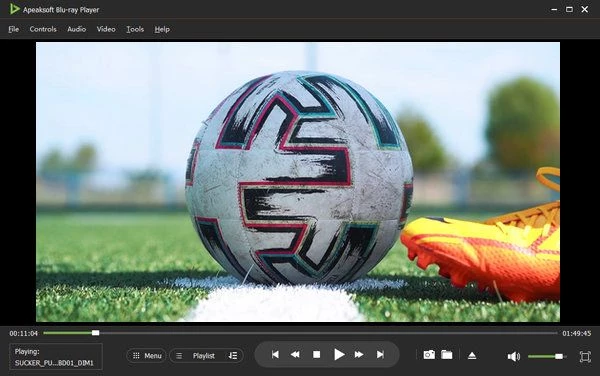
- Customizable Viewing Controls: The interface provides immediate access to playback adjustments via dedicated top-bar menus. Users can switch audio tracks and subtitle languages on the fly, adjust the screen aspect ratio to fit ultrawide monitors, modify brightness and contrast, and use standard keyboard shortcuts like the spacebar for pausing or arrow keys for seeking forward and backward.
- Integrated Snapshot Tool: A dedicated camera icon located on the bottom playback control bar allows users to capture high-resolution still frames from the currently playing video. The software saves these snapshots directly to a designated local folder in standard image formats, making it easy to archive specific scenes, verify color grading, or create custom desktop wallpapers.
How to Install Apeaksoft Blu-ray Player on Windows
- Download the installer archive from our website to your local machine, choosing a destination you can easily locate, such as your desktop or designated downloads folder.
- Extract the contents of the downloaded ZIP archive using the native Windows extraction tool or a dedicated third-party archive utility.
- Open the newly extracted folder and locate the readme.txt file; open it to review the exact installation instructions and verify any specific setup notes regarding hardware acceleration.
- Launch the executable setup file from within the extracted folder to initiate the installation wizard. Windows User Account Control will prompt you; grant the necessary administrator permissions to allow the installer to write to the system drive.
- Follow the on-screen prompts to accept the end-user license agreement and select your preferred destination path. By default, the installer routes the application files to the standard Program Files directory on your main drive, but you can alter this to a secondary storage drive if desired.
- Choose whether to create a desktop shortcut and decide whether to associate common media file extensions with the player during the final configuration step of the wizard.
- Click the install button to unpack the core application files, register the necessary media rendering libraries, and allow the setup process to finish writing its registry keys.
- Launch the application from the Start menu or desktop shortcut. On the first run, the software presents a clean interface featuring Open File and Open Disc buttons, and prompts you with an optional registration window where you can enter a license key or simply continue testing the trial version.
Apeaksoft Blu-ray Player Free vs. Paid
Apeaksoft Blu-ray Player operates on a premium commercial licensing model, meaning it requires a purchase for permanent, unrestricted use. The developer provides a free trial version so users can test their hardware compatibility, evaluate the interface layout, and verify that their specific encrypted discs or ISO files load correctly before spending any money. This trial tier acts as a functional demonstration but restricts the user experience by limiting the duration of optical media playback and applying a visible watermark to the video output, making it strictly a testing tool rather than a daily driver.
To unlock unrestricted playback and remove the watermark, users must purchase a registration code. The software is generally available through two main pricing tiers: a short-term subscription and a lifetime license. The one-month license, typically priced around $19.95, is useful for users who only need to review a few specific discs for a short-term project or presentation. The lifetime license, often available for a one-time fee of roughly $39.90, provides perpetual access to the software along with minor future updates and dedicated technical support directly from the developer.
There are no hidden in-app purchases, microtransactions, or convoluted enterprise tiers to worry about. Purchasing a license simply authenticates the installation, ensuring that high-resolution video and lossless audio play continuously without interruption. Users who encounter playback issues with specific encrypted discs within the first thirty days of purchasing a lifetime license are generally covered by a standard money-back guarantee, allowing them to rely on the software for their home theater setups with confidence.
Apeaksoft Blu-ray Player vs. VLC Media Player vs. Leawo Blu-ray Player
VLC Media Player is a highly respected open-source application that handles almost every digital video format available and costs nothing to use. However, out of the box, VLC cannot play encrypted commercial Blu-ray discs. Users must manually download AACS dynamic libraries and place key databases deep within hidden system folders—a frustrating process that frequently breaks when new disc encryptions are released by studios. VLC is the right choice for users who only play DRM-free files or web downloads, but it requires too much tinkering for uninterrupted physical media playback.
Leawo Blu-ray Player is another popular media tool that offers native disc playback and relies on a freemium model. While it manages menus and handles optical media without the manual configuration required by VLC, the free version includes intrusive advertisements and frequently pauses playback to prompt users to upgrade to its paid tier. Additionally, Leawo has a reputation for consuming high CPU resources during heavy 4K playback, which can cause system fans to spin up loudly or result in dropped frames on older desktop hardware.
Apeaksoft Blu-ray Player is the better fit for users who want a clean, ad-free, premium experience specifically tailored to optical media and home theater setups. It completely bypasses the manual AACS configuration required by VLC, playing encrypted discs natively as soon as they are inserted into the drive. Compared to Leawo, it maintains a much lighter footprint on system resources by utilizing hardware acceleration more effectively, ensuring that the viewing experience remains smooth and uninterrupted by system lag or constant upgrade prompts.
Common Issues and Fixes
- Black screen upon loading a newly released disc. This usually happens when the software encounters a brand-new decryption key on a recently manufactured movie that it does not currently recognize. Ensure your computer is actively connected to the internet, restart the application, and let it fetch the latest decryption protocols from the developer's server before loading the disc again.
- Audio and video track synchronization is slightly off. This occurs when the hardware acceleration settings conflict with specific MKV or MP4 video codecs, causing the GPU to render frames faster than the audio pipeline can process them. Open the application preferences, disable hardware acceleration temporarily, and restart the playback to force the software to rely on CPU decoding, which often realigns the synchronization.
- Disc menu fails to render or skips directly to the movie. Certain complex Java-based menus may fail to load properly if the system lacks the correct environment variables or if the disc authoring is non-standard. Right-click the main playback window, navigate to the title menu manually using the context options, and select the main feature directly to bypass the broken menu loop.
- No sound output on multi-channel speaker setups. If you are using a home theater receiver via HDMI and hear no audio, the software might be attempting to pass a raw audio format your receiver cannot decode. Go to the audio device menu at the top of the interface and ensure the correct output device is selected, or switch the audio channel setting from 5.1 surround to Stereo to force a downmix that your display can handle.
- Region code warning prevents playback from starting. Although the software bypasses most region locks automatically, some heavily restricted optical drives enforce hardware-level region checks that trigger an error. Eject the disc, open your Windows Device Manager, right-click your optical drive to access its properties, and manually change the region setting to match the disc before relaunching the player.
Version 1.1.68 — September 2025
- Enhanced decoding algorithms to boost playback speed and fluidity for 4K HDR content.
- Introduced support for decrypting and playing Blu-ray discs protected by the latest security protocols.
- Optimized the subtitle rendering engine to ensure text appears sharper and more legible.
- Improved system efficiency by reducing CPU utilization when processing high-bitrate media files.
- Resolved stability issues affecting ISO file mounting and fixed bugs with the playback resume functionality.
- Refined the user interface for better accessibility and more intuitive playback controls.