iTunes remains a centralized media hub for Windows users who prefer managing their digital collections and Apple hardware locally rather than relying entirely on cloud services. While newer separate applications handle streaming, this enduring software continues to serve as the primary utility for syncing content, backing up devices, and organizing extensive libraries of owned music and videos on desktop systems. It bridges the gap between traditional file management and mobile hardware synchronization, allowing users to physically transfer gigabytes of audio tracks, podcasts, and digital purchases directly via USB cable or local network connections.
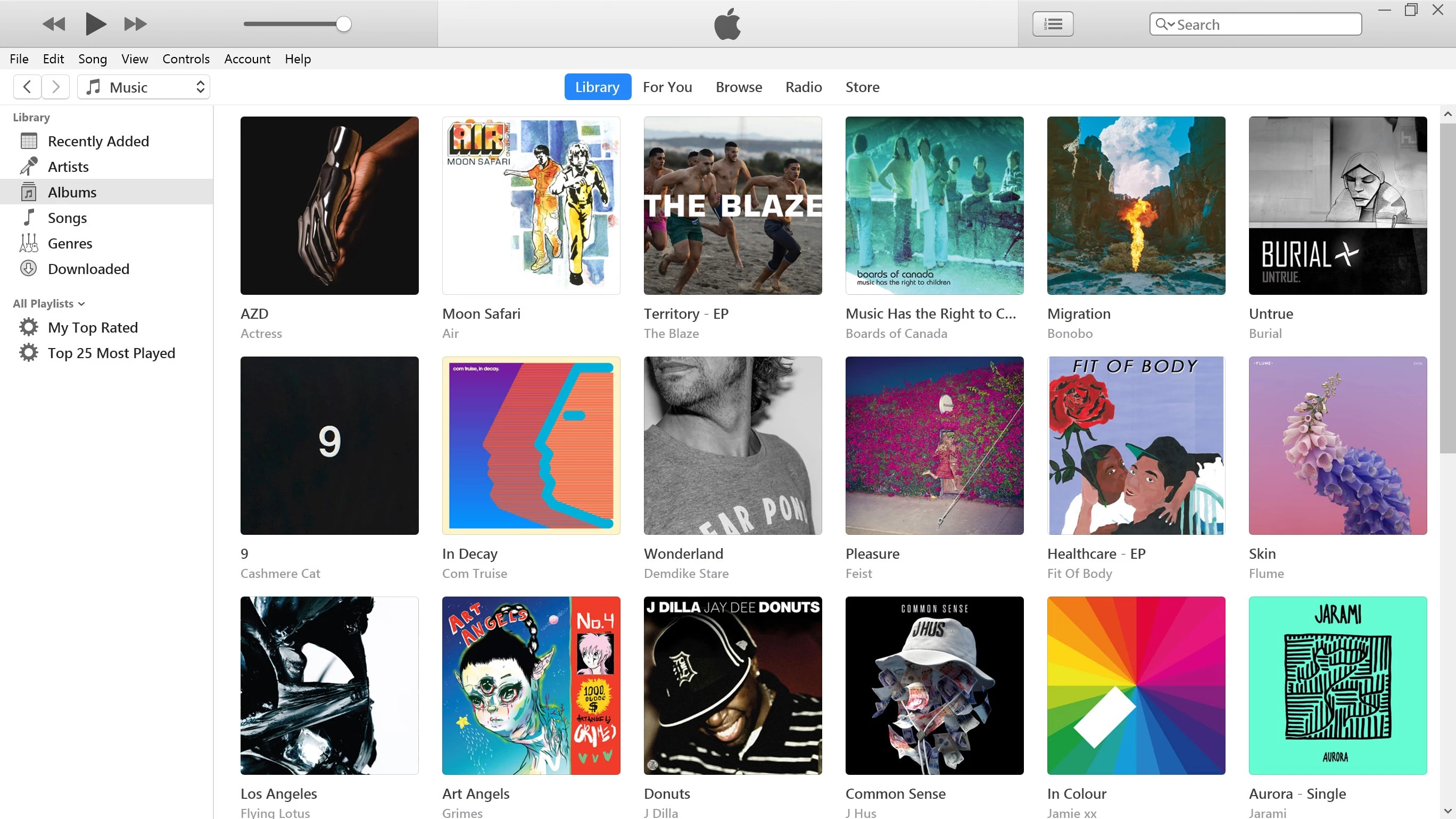
Beyond simple playback, the application functions as a critical maintenance tool for external portable hardware. Users utilize the software to perform encrypted local backups of their Apple phones and tablets, reset forgotten passcodes via secure restore procedures, and install downloaded firmware updates when over-the-air installation fails. The interface features a left-hand navigation column that separates content into distinct categories like Music, Movies, TV Shows, and Audiobooks. A central top display mimics an LCD screen, providing exact track progression, remaining time, and buffer status during playback, while the main viewing pane displays highly customizable grid or list views of the local files.
For individuals with massive digital archives, the desktop software acts as a strict database manager. Instead of letting loose audio files clutter a hard drive, the application forces a rigid folder structure by reading metadata tags and moving files into designated artist and album directories. This approach demands that users maintain clean ID3 tags, but rewards them with a highly searchable, instantly categorized media catalog. The application tracks play counts, skip frequencies, and user ratings on a five-star scale, using this behavioral data to generate dynamic listening queues that automatically update as the user's habits change.
Key Features
- Feature Name: Local Library Organization The software parses metadata tags to categorize thousands of audio tracks by artist, album, genre, and composer. Users select a track and press Ctrl+I to open the Get Info panel, where they manually edit song information, apply custom image artwork, and alter specific grouping fields. A dedicated Sorting tab allows users to override alphabetical defaults, ensuring bands with prefixes sort correctly in the main library view.
- Feature Name: Device Synchronization Moving files between a desktop computer and portable Apple hardware relies on a dedicated device summary screen. Clicking the small device icon in the top toolbar reveals specific tabs for Music, Movies, and Info. Users check specific boxes to transfer selected playlists, artists, or individual podcast episodes to the hardware, while a segmented capacity bar at the bottom visually indicates how much storage audio, video, and application data currently consume.
- Feature Name: Smart Playlists Instead of dragging and dropping tracks manually, users configure automated rules via the File menu by selecting New Smart Playlist. The configuration menu accepts variables such as play count, date added, or track duration, combined with operators like is, contains, or is not. Enabling the Live updating checkbox ensures the application dynamically populates the queue with tracks matching the parameters without manual intervention.
- Feature Name: Local Device Backups The application performs complete local backups of connected portable hardware directly to the Windows hard drive. By selecting This Computer in the backup pane and checking the Encrypt local backup option, the software securely saves account passwords, health data, and application settings. Users initiate this process via the Back Up Now button, ensuring disaster recovery does not rely on cloud servers.
- Feature Name: Integrated Storefront The interface includes a direct portal to purchase digital media, accessible via the Store tab. Purchased files download directly to the designated media folder on the local drive, natively encoded in the AAC audio format or high-definition video formats optimized for portable playback. These files immediately populate the local library and become available for offline use without requiring ongoing network connectivity.
- Feature Name: CD Ripping and Conversion Users with physical media insert audio CDs and extract the tracks directly into their digital library. Navigating to the General tab in the Preferences menu and clicking Import Settings reveals multiple encoding options. Users select between MP3, AIFF, WAV, or Apple Lossless audio depending on storage limits, and can check a box to utilize error correction when reading physically scratched discs.
How to Install iTunes on Windows
- Navigate to the official vendor download page using a web browser to locate the correct executable file for standard Windows desktop architecture.
- Download the executable file, typically named iTunesSetup.exe, and double-click the file in your downloads folder to launch the installation wizard.
- Click past the initial welcome screen and review the end-user license agreement, checking the option to accept the terms before proceeding to the options screen.
- Review the default installation paths and decide whether to check the boxes for creating a desktop shortcut and using the application as the default player for audio files.
- Click the Install button to begin unpacking the core application files, audio codecs, and the necessary mobile device support drivers required for hardware recognition.
- Wait for the progress bar to complete and click Finish to exit the wizard, which will prompt the application to launch for the first time.
- Upon the first launch, accept or decline the prompt asking for permission to share library details with the Gracenote media database, which automatically identifies unnamed audio files and fetches track metadata.
iTunes Free vs. Paid
The core desktop application is completely free to download, install, and use for local media management. Users are never charged a fee to organize their existing MP3 files, rip physical CDs, or create backups of their connected mobile hardware. The vendor does not restrict the number of files stored in the local library, nor does it place limitations on how many times a user can sync their portable devices. There are no trial periods, watermarks, or artificial export restrictions imposed on the software's basic utility functions.
Monetization occurs strictly through the integrated digital storefront and optional subscription services. Users who wish to purchase specific digital albums, rent movies, or buy television show episodes do so on a per-item basis. These transactions require an active vendor account and a registered payment method. Downloaded audio tracks utilize a DRM-free 256-kbps AAC format, meaning they remain accessible for offline playback indefinitely. Rented movies, however, utilize strict digital rights management, giving the user thirty days to start watching the video and exactly forty-eight hours to finish it once playback begins.
For users who prefer streaming over individual purchases, the software provides a gateway to the vendor's premium streaming service. This requires a standard monthly subscription fee, typically priced around eleven dollars for an individual plan. Subscribing unlocks access to a massive catalog of cloud-hosted music, which users stream directly through the desktop interface or download temporarily for offline listening. This subscription is entirely optional, and the program functions perfectly well as an offline media manager without it.
iTunes vs. MediaMonkey vs. MusicBee
MediaMonkey excels for power users managing massive, disorganized audio archives who need advanced tagging algorithms and extensive format support. It provides granular control over file renaming rules, supports a vast array of niche audio codecs natively, and allows synchronization with a wide variety of generic MP3 players. Users dealing with hundreds of thousands of tracks often find MediaMonkey handles the sheer volume with less system strain than heavier alternatives, particularly through its automated file organization features.
MusicBee serves as a highly customizable, lightweight alternative that prioritizes interface flexibility and strict audio fidelity. It includes tools for accurate CD ripping, supports the WASAPI audio interface for bit-perfect playback, and allows users to completely redesign the layout using custom skins and panel arrangements. For individuals who want a visually tailored music player without integrated storefronts or heavy mobile device drivers, MusicBee offers a highly focused desktop listening environment.
The official Apple utility remains the superior choice for individuals deeply invested in that specific hardware ecosystem. While MediaMonkey and MusicBee handle generic audio playback brilliantly, they cannot perform encrypted local backups, restore firmware, or sync purchased application data to Apple mobile devices. Users who purchase media directly from the official store, rely on the proprietary streaming service, or need a secure method to maintain their portable hardware via a physical cable will find this application strictly necessary.
Common Issues and Fixes
- Problem description. Portable hardware fails to appear in the application when connected via physical cable. This often results from the mobile device support service failing to launch in the background. To fix this, open the Windows Services utility, locate the Apple Mobile Device Service, right-click it, and select Restart before reconnecting the hardware.
- Problem description. Syncing stalls indefinitely on the Waiting for changes to be applied step. This synchronization loop frequently occurs due to corrupted voice memos or conflicting playlist rules. Resolve this by unchecking all music playlists in the device summary tab, syncing the device to remove all audio tracks locally, and then reselecting the desired playlists for a clean transfer.
- Problem description. Purchased audio tracks display a cloud icon and refuse to play without network access. This indicates the files are only stored on the vendor's servers and have not been cached locally. Click the small cloud download icon located next to the track name or album title to force the software to save the physical audio files to the designated local media folder.
- Problem description. Duplicated tracks clutter the library after importing a new folder. This happens when users drag duplicate files into the application without checking their existing database. Navigate to the File menu, select Library, and click Show Duplicate Items to display exact matches, allowing for manual deletion of the redundant audio files to clear hard drive space.
Version 12.13.9.1 — October 2025
- Added compatibility support for the latest iPad Pro models equipped with the M5 chip.
- Improved overall application stability and resolved minor performance bottlenecks.
- Fixed various security vulnerabilities and general bugs to ensure smoother operation on Windows devices.