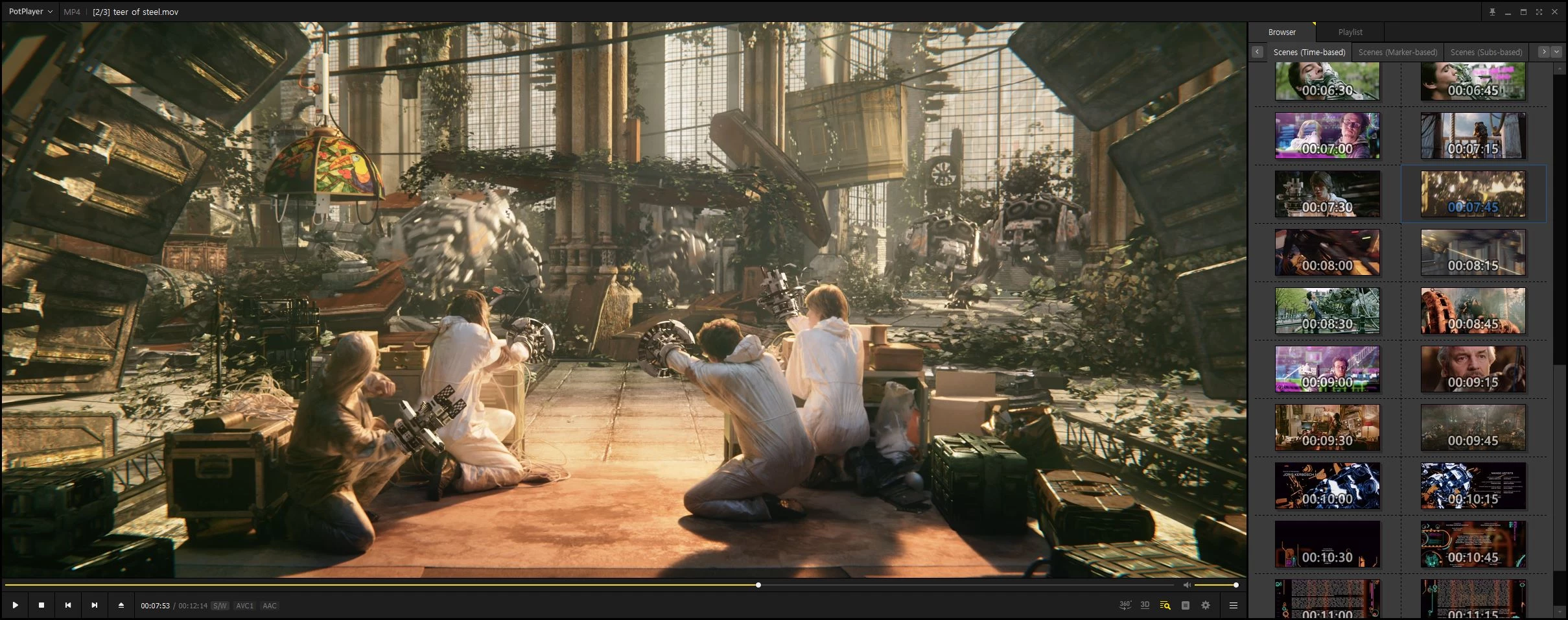
PotPlayer stands out as an adaptable media player designed to handle virtually any video or audio format without requiring manual codec installations. Unlike basic default OS players that often struggle with modern file types, this desktop application utilizes an internal OpenCodec design to ensure immediate playback of everything from standard MP4s to complex MKV containers. It serves media enthusiasts, power users, and anyone frustrated by format errors or stuttering high-resolution playback, offering a viewing environment that prioritizes concrete user control over rigid simplicity. For individuals managing large offline media libraries, the necessity of a dedicated desktop player remains critical. While cloud streaming services dominate casual viewing, professionals, archivists, and home theater enthusiasts require local applications that can decode high-bitrate files without relying on internet bandwidth. This application acts as a standalone hub for local playback, eliminating the buffering and artifacting commonly associated with web-based video.
By shifting decoding tasks to local hardware, the software bypasses the limitations of browser-based players and lightweight alternatives that lack advanced processing capabilities. Viewers running demanding files—such as high-bitrate HEVC media or high-dynamic-range video—benefit directly from hardware acceleration technologies. Instead of overwhelming the main processor and causing dropped frames, the application offloads work to the graphics card to maintain smooth performance. Furthermore, the desktop environment provides a workspace where viewers can heavily customize layouts, manage floating playlists, and map custom keyboard shortcuts for immediate interface control. It bridges the gap between everyday media consumption and technical configuration, giving users the exact tools they need to correct mismatched audio tracks or tweak subtitle timing on the fly without exiting full-screen mode.
This granular approach means viewers never have to adapt their workflow to the player; the application adapts to the user. From fine-tuning an audio equalizer for clearer dialogue to configuring multiple video renderers for optimal color accuracy, the tool provides specific pathways for deep configuration. While casual viewers can rely on the automatic settings to simply watch a movie, those willing to explore the settings menu will find an intricate control panel that dictates exactly how hardware and software interact during playback. The ability to save different preset profiles means you can have one configuration optimized for dual-monitor television output and another configured for desktop headphone listening, switching between them as needed.
Key Features
- Extensive Format and Internal Codec Support: The application utilizes an internal OpenCodec architecture to play MKV, HEVC, FLAC, and AVI files immediately upon installation. Users do not need to hunt down external codec packs to get heavy high-resolution files to run, reducing setup friction. Whether you are attempting to review a raw video capture from a digital camera, a high-fidelity lossless audio rip, or a standard web-compressed video clip, the application parses the container and streams the output directly to your screen without prompting you to search third-party forums for missing registry files.
- Hardware-Accelerated Decoding: The software offloads decoding tasks directly to the GPU using DXVA, CUDA, or QuickSync technologies. This drastically reduces CPU load and battery drain during demanding playback tasks, ensuring that high-frame-rate files play without dropped frames. By delegating the complex mathematics of video decoding away from the central processor, the software leaves your computer free to handle background tasks. This provides a measurable benefit for laptop users who want to watch media on battery power, as hardware decoding generates less heat and consumes less energy than software-based rendering.
- Advanced Subtitle Management: The player provides deep control over subtitle placement, styling, and timing for formats like ASS, SSA, and SRT. Users can quickly adjust subtitle synchronization on the fly by pressing the less-than or greater-than bracket keys to shift the text by specific half-second increments. You can change font sizes, adjust background opacity to make text readable against bright video scenes, and even load multiple subtitle tracks simultaneously for language learning purposes.
- Deep Interface and Hotkey Customization: Viewers can alter almost every playback behavior, rendering engine, and keyboard shortcut to fit their specific viewing habits. Pressing F5 opens an intricate preference menu where you can map custom hotkeys, change rendering pipelines, and adjust default window behaviors. The interface itself can be heavily modified with downloadable skins, detachable playlist panels, and transparent control bars, ensuring the software looks exactly how you want it to look.
- Audio Equalization and Filtering: The internal audio engine allows for granular sound manipulation, including a built-in equalizer, voice enhancement filters, and a volume normalizer. If a downloaded file has a misaligned audio track, you can manually sync the audio stream using keyboard shortcuts to delay or advance the sound. The volume normalizer is especially useful for watching action movies late at night, as it automatically reduces the volume of loud explosions while boosting the volume of quiet dialogue.
- Immersive Media and 3D Playback: The player handles modern immersive media formats natively without requiring dedicated companion software for headsets. Viewers can toggle various 3D modes like side-by-side or top-and-bottom formats to correctly output the video to a compatible 3D display or virtual reality setup. It also supports 360-degree video panning, allowing users to click and drag across the screen to change the camera angle within spherical video files.
How to Install PotPlayer on Windows
- Download the official Windows installer package from the verified vendor source, choosing either the 32-bit or 64-bit executable depending on your system architecture.
- Launch the downloaded setup executable and choose your preferred interface language from the initial dropdown menu. The installer supports multiple languages, allowing users to navigate the setup process in their native tongue.
- Read through the end-user license agreement and click Next to move to the component selection screen.
- Select your desired installation components, such as creating desktop shortcuts, adding quick-launch icons, and associating the application with common media file types.
- Review the default file association list carefully. Choosing to associate all media files will make the application your default player when double-clicking a video in File Explorer.
- Watch for the OpenCodec installation prompt near the end of the setup sequence. Accepting this optional component ensures maximum compatibility for rare or proprietary audio and video formats.
- Specify your destination directory, typically defaulting to the standard Program Files path on your primary drive, and click Install to extract the core files.
- Finish the setup wizard and launch the application. Once open, you can press F5 to enter the preferences and immediately configure your video renderer and hardware acceleration settings to match your hardware.
PotPlayer Free vs. Paid
PotPlayer is distributed as completely free software by Kakao. There are no paid tiers, premium subscriptions, or enterprise licenses hidden behind a paywall. All advanced capabilities, including 3D playback modes, hardware acceleration, and the OpenCodec system, are available immediately after installation without spending any money.
Because the application relies on a freeware distribution model rather than a trial system, users do not have to deal with restricted playback time limits, locked rendering engines, or premium export watermarks. The international installer provides an uninterrupted viewing experience. In the past, specific regional installers occasionally included optional third-party software offers, but current global installers provide a clean interface without intrusive adware. Many alternative media players in the commercial space require users to purchase annual licenses to unlock DVD playback, high-definition audio decoding, or advanced casting capabilities. By contrast, this software delivers all these capabilities strictly free of charge.
The business model is largely supported by Kakao's broader ecosystem rather than direct software sales. For international users, this means access to an enterprise-grade media utility without the recurring costs typically associated with premium desktop players. The only practical limitation is that the software remains a proprietary product rather than an open-source project, meaning community modifications are restricted to custom skins and translations rather than fundamental engine rewrites.
PotPlayer vs. VLC Media Player vs. MPC-HC
VLC Media Player is the universal standard for open-source media playback, renowned for running on almost every hardware environment available. You should choose VLC if you strictly prefer open-source software and want a standardized interface across multiple different devices. However, VLC's interface is quite rigid, and power users often find its hardware acceleration and advanced rendering options less optimized for high-end Windows environments compared to the deep configuration provided by alternative desktop players.
MPC-HC (Media Player Classic Home Cinema) is heavily favored by purists who want an incredibly lightweight application with a nostalgic, minimalist interface. It excels at consuming minimal system resources, making it perfect for older hardware running legacy operating systems. Yet, development on the original MPC-HC has essentially halted, and it lacks the native 3D video support, built-in screen capture, and massive customization depth that modern media consumers require.
PotPlayer is the better fit for Windows power users who want maximum control over their media environment. If you frequently watch heavy HEVC files, rely heavily on hardware acceleration like DXVA, or need to fine-tune subtitle timing, audio synchronization, and UI layouts via extensive hotkeys, it offers a significantly richer feature set than both VLC and MPC-HC.
Common Issues and Fixes
- Stuttering or lagging high-resolution video playback. This usually means your GPU hardware acceleration is disabled, forcing the CPU to handle heavy decoding. To fix this, press F5 to open Preferences, navigate to the General tab, select Performance, and enable DXVA or QuickSync to offload the work to your graphics card.
- Audio and video tracks are out of sync. Downloaded files occasionally have mismatched audio streams that ruin the viewing experience. You can quickly adjust the audio synchronization on the fly by pressing Shift plus the less-than key to delay the audio, or Shift plus the greater-than key to speed it up by small increments.
- Subtitles are appearing too early or too late. If your downloaded text file is misaligned with the spoken dialogue, you do not need to edit the file externally. Simply press the less-than key to make the subtitles appear slower, or the greater-than key to make them appear faster while the video is actively playing.
- Missing audio or video output for rare file types. While the default decoders cover most media, some proprietary formats might fail to play properly out of the box. Rerunning the installer or navigating to the settings to download the optional OpenCodec pack will resolve most missing decoder errors.
Version 250909 — September 2025
- Added a new capability to generate subtitles in real-time directly from the audio track.
- Improved performance when opening specific MKV files to reduce loading times.
- Fixed an issue causing screen corruption during playback when using WMV3/VC1 IDCT DXVA.
- Fixed a problem where a black screen would occur under certain conditions while using DXVA.
- Fixed an issue preventing embedded subtitles from displaying correctly in some MKV files.
- Fixed a black screen error encountered when playing specific AV1 video files.
- Fixed an issue where certain subtitle text would fail to appear during playback.