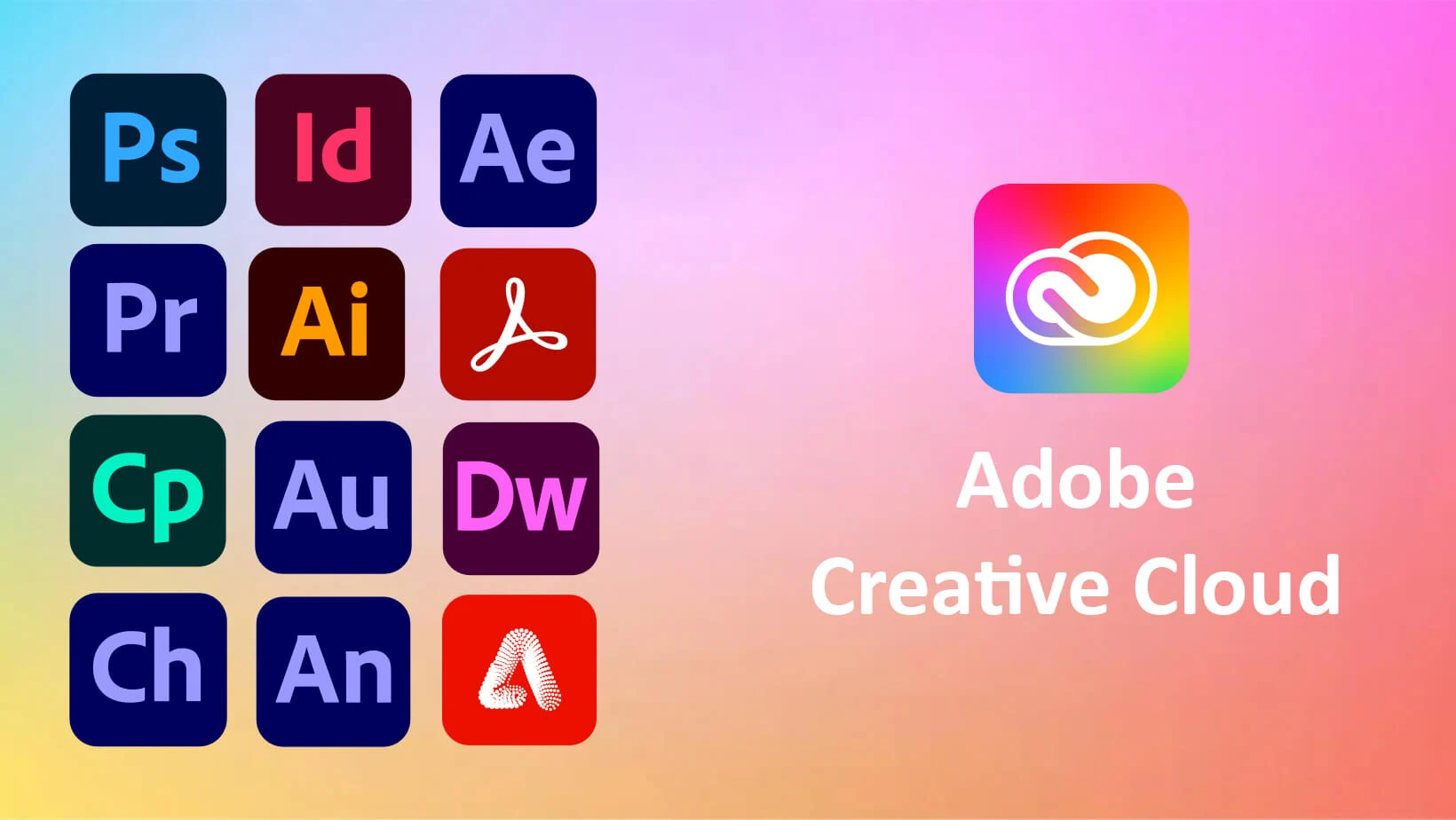
Adobe Creative Cloud is a subscription-based digital design environment that provides Windows users with professional tools for photo editing, vector illustration, page layout, and video production. Instead of treating these disciplines as separate software silos, the desktop application serves as a central operational hub where creative teams manage their installations, synchronize cloud documents, and browse stock assets or fonts. By consolidating industry-standard programs like Photoshop, Illustrator, Premiere Pro, and After Effects into a single interface, it targets visual artists, marketing departments, and video editors who need predictable and tightly integrated media pipelines. The application replaces the older model of buying standalone software boxes, ensuring that every user on a team operates with the exact same toolset, file formats, and rendering engines.
For practical daily work, this ecosystem addresses concrete tasks ranging from non-destructive raw photography processing and high-end beauty retouching to vector logo scaling and multi-cam video timeline assembly. While lightweight browser tools serve basic social media graphic needs, Adobe's desktop-first approach offers the high-performance hardware utilization required for intensive rendering, complex 3D compositing, and multilayer audio mixing. Professionals rely on these applications to utilize local Windows graphical processing units and multi-core processors, resulting in fluid playback of 4K video footage and real-time brush stroke feedback on massive canvas sizes.
The suite relies on a hybrid computing model, utilizing local Windows processing power while intelligently offloading specific tasks to online servers. For professional creators handling large-scale commercial projects, this structure ensures strict color management profiles for print work, offline reliability for core editing tasks, and instant access to continuously updated artificial intelligence features without abandoning traditional layer-based workflows. The desktop hub also acts as a bridge for team collaboration, allowing art directors to share interactive prototypes or video review links directly from their workstation, tracking feedback and revisions in real time.
Key Features
- Feature Name: Centralized Application Management. The desktop hub provides a single dashboard to install, update, and remove all licensed programs. Users can review release notes, choose specific installation languages, or schedule background updates through the Preferences menu, keeping the entire ecosystem current without hunting for manual installer files.
- Feature Name: Dynamic Link Interconnectivity. This underlying technology allows files to be shared instantly between different video and animation applications without intermediate rendering. An editor can place an After Effects composition directly onto a Premiere Pro timeline; any changes made in the animation software will instantly reflect in the video editor's preview monitor.
- Feature Name: Asset Synchronization and Libraries. Creative Cloud Libraries allow users to store color palettes, vector graphics, paragraph styles, and logos in a centralized panel. When a designer updates a brand logo in Illustrator, that change automatically pushes to active Premiere Pro timelines or InDesign layouts via the linked library panel.
- Feature Name: Advanced Generative AI Integration. Across supported applications, Adobe Firefly technology enables text-to-image creation and modification. In Photoshop, the Generative Fill tool lets users type text prompts to add objects or expand canvas borders, while Premiere Pro uses AI to extend audio tracks and video clips, processing these requests through remote servers.
- Feature Name: Cloud Document Storage. Projects can be saved directly as cloud documents rather than local files, enabling real-time collaboration and cross-device syncing. Editors can open a Photoshop cloud document (.psdc) on their Windows 11 workstation, make adjustments, and invite other team members to review the file without exporting flattened JPEG proofs.
- Feature Name: Adobe Fonts Service. The application includes a typography synchronization service containing thousands of commercial fonts. Users select desired typefaces from the online catalog, and the desktop client automatically activates them across all installed software, making them immediately available in text drop-down menus across the entire operating system.
- Feature Name: Integrated Stock and Marketplace. Editors can browse millions of royalty-free photographs, vector graphics, and video templates directly from the desktop hub. When a watermarked preview is placed into a project layout, purchasing the final license automatically replaces the preview file with the high-resolution original across all active canvases.
How to Install Adobe Creative Cloud on Windows
- Navigate to the official vendor website using your preferred browser and download the Windows installer package for the desktop management application.
- Locate the downloaded executable file, typically named Creative_Cloud_Set-Up.exe, in your default Downloads folder and double-click to launch the setup process.
- If the Windows User Account Control dialog appears on your screen, click Yes to allow the installer to make administrative changes to your device.
- When the initial setup window opens, enter your Adobe account credentials or create a new account to proceed with authentication.
- Review the installation options, where you may be prompted to answer personalization questions about your creative role; you can answer these drop-down menus or click Skip at the bottom of the window.
- Wait for the setup routine to initialize and install the core desktop application into the default C:Program FilesAdobe directory; this step requires a stable internet connection to retrieve the necessary framework files.
- Upon completion, the desktop application will launch automatically and position a shortcut icon in your Windows system tray for continuous background syncing.
- Navigate to the Apps tab on the left-hand menu of the new window to browse the catalog and click Install next to specific programs like Photoshop or Illustrator to download them to your local drive.
Adobe Creative Cloud Free vs. Paid
Adobe Creative Cloud does not offer a fully free tier for its core desktop applications, operating strictly on a subscription business model. Users can create a free account to access a limited selection of web-based tools, manage basic cloud storage, and browse the font library, but professional tools like Illustrator and Premiere Pro require a paid commitment. The vendor offers a seven-day free trial for new users to test the full ecosystem before billing begins, during which the software functions without missing features or export watermarks.
For individuals, the "All Apps" tier is structured into two primary paths: Standard and Pro. The Standard plan costs approximately $54.99 per month when billed annually and includes access to all major desktop applications, 100GB of cloud storage, and a limited allowance of 25 monthly AI generative credits. The Pro plan, priced around $69.99 per month for individuals, provides the exact same desktop software alongside unlimited standard generative AI use and 4,000 premium AI credits for advanced video and audio generation models.
Users who only need specific tools can purchase single-app subscriptions, which typically range from $10 to $35 per month depending on the program. For instance, photographers often choose the dedicated Photography Plan, which bundles Lightroom, Lightroom Classic, and Photoshop at a lower monthly rate with specific storage quotas. Businesses and educational institutions have separate licensing structures that include centralized billing, admin control panels, priority technical support, and volume discounts.
Adobe Creative Cloud vs. Affinity V2 Universal License vs. CorelDRAW Graphics Suite
Affinity V2 Universal License serves as a direct alternative for users who reject the mandatory subscription model. For a one-time fee of roughly $165, users receive permanent access to Affinity Photo, Designer, and Publisher across multiple platforms, complete with support for formats like JPEG XL. While Affinity lacks video editing tools and cloud-based AI generation, its single-payment structure and highly optimized local performance make it a strong choice for independent illustrators looking to avoid recurring monthly costs while maintaining professional non-destructive workflows.
CorelDRAW Graphics Suite targets vector illustration, page layout, and typography, offering both a $269 annual subscription and a $549 perpetual license option. It excels in specific industries like sign-making, apparel design, and wide-format printing, offering specialized node-editing tools and deep Windows optimization. Corel has also introduced AI generation tools powered by models like Flux and Stable Diffusion, but it does not provide the extensive video and motion graphics ecosystem found in larger creative suites.
Adobe Creative Cloud remains the better fit for multimedia studios, marketing teams, and hybrid professionals who require a strictly unified pipeline. When a project demands bouncing between vector design, heavy photo manipulation, complex motion graphics, and video timeline rendering, Adobe provides the necessary interconnectivity through tools like Dynamic Link. Furthermore, its continuous rollout of cloud-based AI features ensures editors have access to the latest machine-learning tools, provided they accept the ongoing monthly subscription and mandatory online check-ins.
Common Issues and Fixes
- Problem description. Creative Cloud desktop app crashes immediately on launch. This often occurs due to restricted folder permissions within the Windows file system. To fix it, open File Explorer, navigate to the local Adobe folder within the Common Files directory, and edit the security properties to ensure the Administrators and System groups have Full Control.
- Problem description. High CPU or power usage when the application is idle. Background synchronization processes can sometimes stall, causing excessive local resource drain on Windows processors. Resolve this by signing out of the application, closing all open Adobe products, and reinstalling the desktop client using the official uninstaller tool provided by the vendor.
- Problem description. Unable to access or load the library panel. Network restrictions or corrupted cache files frequently cause library connection failures and endless loading circles. Close the application completely, clear the local OOBE configuration folder found in the AppData directory, and ensure that your Windows firewall is not blocking the necessary outgoing IP addresses.
- Problem description. Software updates fail with error code 202. This specific error code indicates a network timeout or packet loss during the software download process. Verify your internet connection stability, temporarily disable any strict VPN services or custom DNS routing, and click the Retry button in the Apps panel to resume the interrupted installation.
- Problem description. Cannot find downloaded plugins on the exchange panel. Third-party extensions sometimes fail to appear in the host application after installation. Restart the desktop management application to force a synchronization check, and ensure that you are logged in with the exact same account credentials used to acquire the plugin from the marketplace.
Version 6.8.1.865 — January 2026
- Added a new language selection option directly within the desktop application's Preferences menu.
- Introduced new Upload and Preview capabilities in Projects, allowing for easier asset uploading and one-click viewing.
- Added centralized font management functionality tailored specifically for Enterprise administrators.
- Improved accessibility by making Style Kits assets visible in both the Files and Recents sections.
- Fixed various background issues and implemented general performance improvements to ensure better stability.