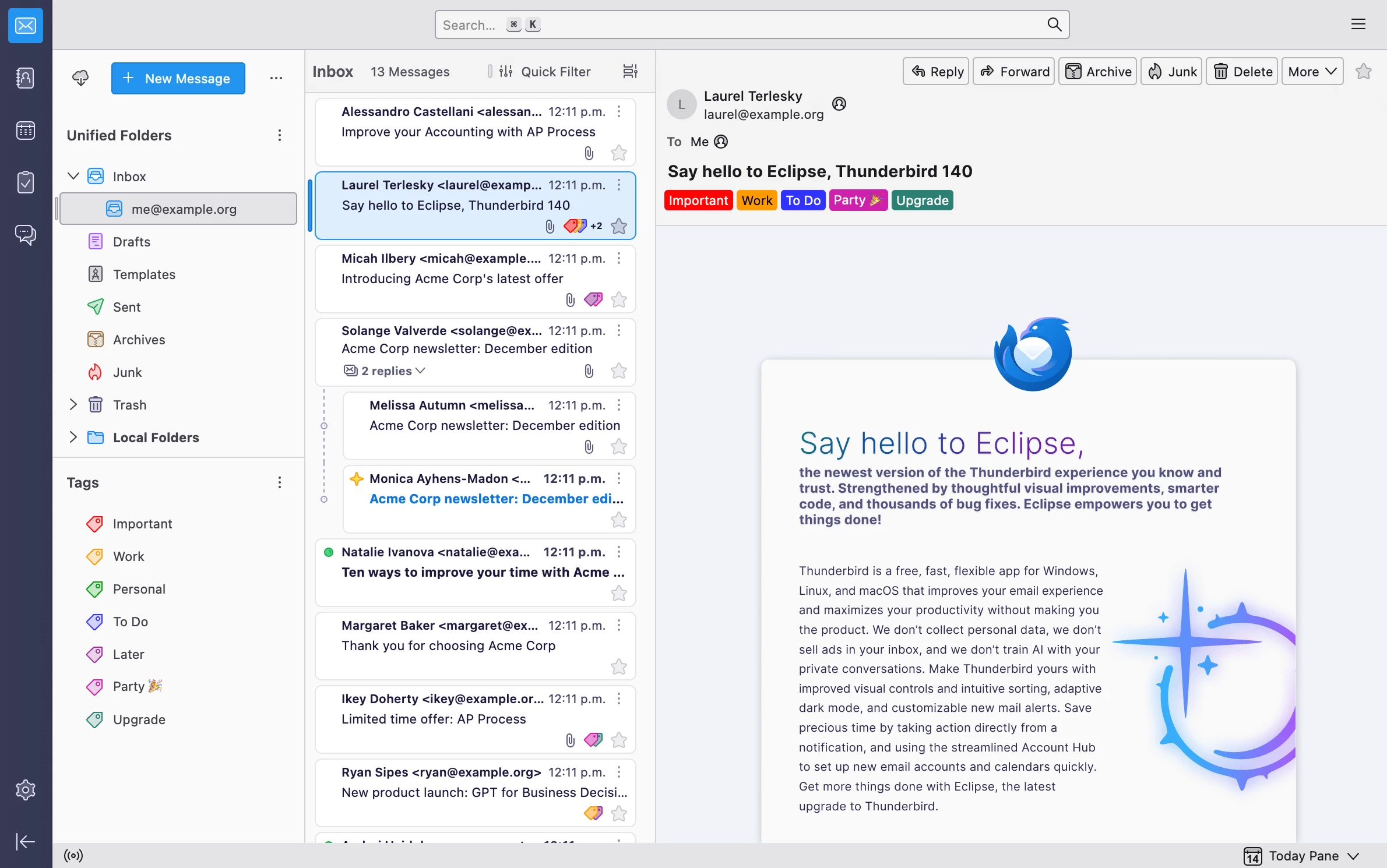
Mozilla Thunderbird serves as a dedicated desktop client for email, calendars, and contacts, built to handle multiple accounts from a single unified interface. Instead of keeping several browser tabs open for different webmail providers, users can consolidate IMAP, POP3, and Exchange accounts into one local dashboard. This approach provides strict control over data privacy, offline access to messages, and a unified inbox that aggregates incoming mail across personal and professional addresses. By storing messages locally on the hard drive, the software ensures that critical correspondence remains accessible even during internet outages or server downtime.
The application appeals to administrators, and small business owners who require advanced filtering, local archiving, and extensive customization without being tied to a specific cloud ecosystem. Unlike lightweight browser-based alternatives, this local client parses large attachments efficiently, indexes vast message histories for instant retrieval, and allows extensive interface modification through its add-on system. Users managing dozens of domain aliases or client addresses rely on the local database structure to sort and search thousands of emails without the latency introduced by cloud-dependent web interfaces.
Recent interface overhauls have modernized the visual layout, introducing dynamic folders, a customizable vertical view, and a unified toolbar that adapts to the current tab context. Despite the modernized appearance, the core functionality remains rooted in standard protocols, ensuring compatibility with virtually any email provider while prioritizing open-source transparency over proprietary lock-in. The shift toward a multi-threaded architecture allows background tasks like indexing and fetching new mail to operate without freezing the main reading pane.
Key Features
- Unified Inbox and Account Management: Users can combine incoming mail from disparate providers into a single Smart Folder view, eliminating the need to check separate accounts individually. The application supports standard IMAP and POP3 protocols, allowing users to configure custom server settings, port numbers, and authentication methods. Navigating to Account Settings reveals granular options for synchronization intervals, local storage limits, and server-side deletion rules.
- Integrated Calendar and Tasks: The native calendar system provides full scheduling capabilities directly alongside the inbox. Users can subscribe to remote CalDAV calendars, import standard .ics files, and set up recurring meetings with specific participant invitations. The Tasks tab allows for priority assignment, progress tracking, and category tagging, ensuring daily objectives remain visible without requiring a separate organizational application.
- Advanced Message Filtering: The Message Filters system applies automated sorting rules to incoming or outgoing mail based on specific trigger conditions. Users can configure rules to evaluate sender addresses, subject lines, body text, or custom headers, then instruct the client to automatically move, tag, forward, or delete the matching items. Hitting Ctrl+Shift+F opens the specific search dialog to test these criteria before saving them as permanent background filters.
- OpenPGP End-to-End Encryption: Native support for the OpenPGP standard ensures that sensitive communications remain entirely confidential between sender and recipient. The built-in OpenPGP Key Manager allows users to generate new key pairs, import existing public keys, and verify digital signatures without relying on third-party encryption plugins. When composing a message, the Options menu provides direct toggles to digitally sign or encrypt the payload before transmission.
- Tabbed Interface and Spaces Toolbar: To prevent desktop clutter, the interface utilizes a tabbed structure similar to modern web browsers, keeping multiple individual emails, search results, or settings panels open simultaneously. The Spaces Toolbar sits on the left edge of the screen, providing quick graphical shortcuts to switch instantly between Mail, Address Book, Calendar, Tasks, and Chat views. This layout allows rapid multitasking, such as comparing an email thread in one tab against a calendar schedule in another.
- Large File Management via Filelink: Instead of bouncing emails due to server attachment size limits, the Filelink feature automatically intercepts large files and uploads them to a designated cloud storage provider. Native integrations with services like Nextcloud or Box replace the physical attachment with a secure download link inserted directly into the message body. This mechanism bypasses common SMTP restrictions and prevents recipient inboxes from filling up with massive documents or media files.
- Global Search and Indexing: A dedicated background indexer parses the full text of all downloaded messages, attachments, and contacts, building a local SQLite database for rapid querying. Pressing Ctrl+K focuses the Global Search bar, which delivers instant, faceted results that can be filtered further by sender, date range, or specific attachments. The search results open in a dedicated tab, presenting an interactive timeline graph to help visualize email frequency over specific periods.
How to Install Mozilla Thunderbird on Windows
- Download the standard Windows executable installer package from the official source directory.
- Execute the setup file to launch the installation wizard and grant Administrator privileges if prompted by the Windows User Account Control dialogue.
- Select Custom setup during the initial prompt to reveal advanced installation parameters, including destination directory overrides and start menu folder configuration.
- Review the default destination path at C:Program FilesMozilla Thunderbird and adjust the drive letter if installing to a secondary solid-state drive.
- Check or uncheck the options to create a desktop icon and a quick launch shortcut based on personal preference, then proceed to the summary screen.
- Click Install to initiate the file extraction process, writing the core application binaries and necessary registry keys to the operating system.
- Leave the Launch Mozilla Thunderbird now checkbox checked and click Finish to exit the installer program and trigger the first-run initialization.
- Upon the first launch, the System Integration dialog will appear, prompting you to set the program as the default Windows handler for Email, Newsgroups, and Calendars before proceeding to the initial account setup wizard.
Mozilla Thunderbird Free vs. Paid
Mozilla Thunderbird operates entirely as free, open-source software distributed under the Mozilla Public License. Users do not need to purchase a perpetual license, subscribe to a monthly billing tier, or unlock essential features through premium upgrades. The complete toolset, including enterprise-grade encryption, the global search indexer, and unlimited account configurations, is available to all home and commercial users immediately upon installation. There are no trial periods, usage watermarks, or artificial limits imposed on the software.
The development, server hosting, and maintenance of the project are funded directly through voluntary user donations rather than upfront software sales or targeted advertising revenue. MZLA Technologies Corporation, the governing subsidiary handling the project, relies on these financial contributions to maintain update infrastructure, hire core developers, and ensure the ongoing security updates of the codebase. Users who navigate to the official website will often see optional donation prompts, but contributing is strictly voluntary and does not alter the application's functionality.
Unlike commercial email clients that often gate complex features—such as Exchange support, unlimited accounts, or advanced calendar integrations—behind professional or enterprise editions, this client imposes no artificial restrictions on corporate deployment. Organizations can install the software across hundreds of Windows workstations in an enterprise environment without facing compliance audits, mandatory seat licenses, or complex deployment fees.
Mozilla Thunderbird vs. Microsoft Outlook vs. eM Client
Microsoft Outlook functions as the definitive standard for corporate environments heavily invested in Microsoft Exchange and Microsoft 365 cloud ecosystems. It excels in complex enterprise scheduling, delegate folder access, and deep integration with proprietary Office applications like Teams and SharePoint. Users should choose Microsoft Outlook when their workplace mandates Exchange-specific administrative protocols, when relying on strict server-side retention policies, or when tight integration with other proprietary Microsoft productivity tools dictates the entire daily workflow.
eM Client provides a highly polished, modern graphical interface straight out of the box, complete with immediate support for translating messages, a dedicated deduplication tool, and snooze functionality. The application feels optimized for touchscreens and offers a smooth, visually cohesive user experience, but it strictly limits the free tier to a maximum of two email accounts. Users often prefer eM Client when they want an aesthetically modern alternative to Microsoft Outlook and only need to manage a couple of personal inboxes without diving into extensive manual configuration.
Mozilla Thunderbird remains the superior choice for individuals and organizations prioritizing data privacy, open standards, and zero financial cost regardless of how many inboxes they manage. While Microsoft Outlook requires a paid Microsoft 365 subscription or expensive standalone purchase, and eM Client restricts free users to a dual-account limit, this open-source client allows infinite IMAP or POP3 configurations, full offline archives, and deep visual customization without any monetary commitment or vendor lock-in.
Common Issues and Fixes
- Slow performance with massive local inboxes. When individual mail folders grow to several gigabytes, loading times and search speeds often degrade significantly. To fix this, navigate to File > Empty Trash, then right-click the affected folder and select Compact to purge deleted messages from the local database file, freeing up physical storage and improving index responsiveness.
- Automatic account configuration fails to find server settings. Certain smaller web hosts or private domain registrars are not listed in the default ISP database, causing the automated email setup wizard to time out or fail. Resolve this by clicking Configure manually during the setup process and directly inputting the IMAP/POP3 port numbers, SMTP host addresses, and SSL/TLS security protocols provided by your specific hosting administrator.
- Missing menu bar or toolbar buttons. Accidental clicks or major visual updates can sometimes hide the traditional File/Edit/View menu or specific action buttons like Reply or Forward. Press the Alt key on the keyboard to temporarily reveal the top menu, navigate to View > Toolbars, and check Menu Bar to pin it permanently, or right-click the top window area and select Customize to drag missing buttons back into the active interface.
- Add-ons disabled after a major application update. Third-party extensions frequently become incompatible when the underlying application framework receives structural changes during significant core updates. Users must wait for the specific extension developer to release a compatible .xpi file update, or navigate to the Add-ons Manager (Ctrl+Shift+A) to search the repository for alternative extensions that replicate the broken functionality.
- Cannot send emails despite receiving them normally. Outgoing mail failures usually stem from incorrect SMTP server authentication settings or an expired password specific to the outgoing server. Navigate to Account Settings, scroll to the bottom of the left pane to select Outgoing Server (SMTP), highlight the specific server, click Edit, and ensure the Authentication method matches your provider's requirements.
Version 147.0 — January 2026
- Added native support for Microsoft Exchange Web Services (EWS), enabling direct integration without third-party add-ons.
- Added a new configuration option within the user interface to specify preferred OpenPGP keyservers.
- Improved account security by migrating existing stored logins to utilize modern AES cryptography standards.
- Improved the reliability of folder operations, specifically addressing issues with the "Empty Trash" command.
- Fixed a stability issue that caused the application to crash during specific DNS resolution failures.
- Fixed a regression where special folder names were not correctly localized according to the server's language settings.