Spybot Anti-Beacon is a specialized privacy utility designed to stop modern Windows operating systems from silently transmitting telemetry and usage metrics back to Microsoft and third-party advertisers. As operating systems increasingly rely on cloud synchronization, background diagnostics, and artificial intelligence data collection, many users find their local activity continuously monitored and uploaded. This utility directly addresses that privacy erosion by intercepting and disabling the background services responsible for harvesting system data, search habits, and application usage patterns. By altering registry keys, scheduled tasks, and Group Policy settings, it effectively neutralizes the data-gathering mechanisms embedded in the OS core.
Targeted at privacy-conscious PC users, system administrators, and IT technicians, the software provides a concrete way to regain control over local hardware. Instead of forcing users to dig through undocumented registry paths or rely on temporary workarounds that get overwritten during the next major system update, it centralizes all privacy toggles into a single, visual dashboard. Users can shut down specific tracking functions, such as the data collection routines tied to Windows CoPilot, Windows Recall, and the Customer Experience Improvement Program. It also blocks diagnostic feedback services that report program crashes and memory states directly to vendor servers.
Relying on a dedicated desktop app rather than simple command-line scripts ensures that privacy settings remain persistent and easy to audit over time. Scripts often fail silently when Microsoft alters a registry path or introduces a new tracking service, whereas this application maintains updated definitions—referred to as immunizers—that adapt to structural changes in the operating system. This makes it a highly practical, long-term tool for maintaining strict local data governance without breaking essential network connectivity or disrupting daily file management workflows.
Key Features
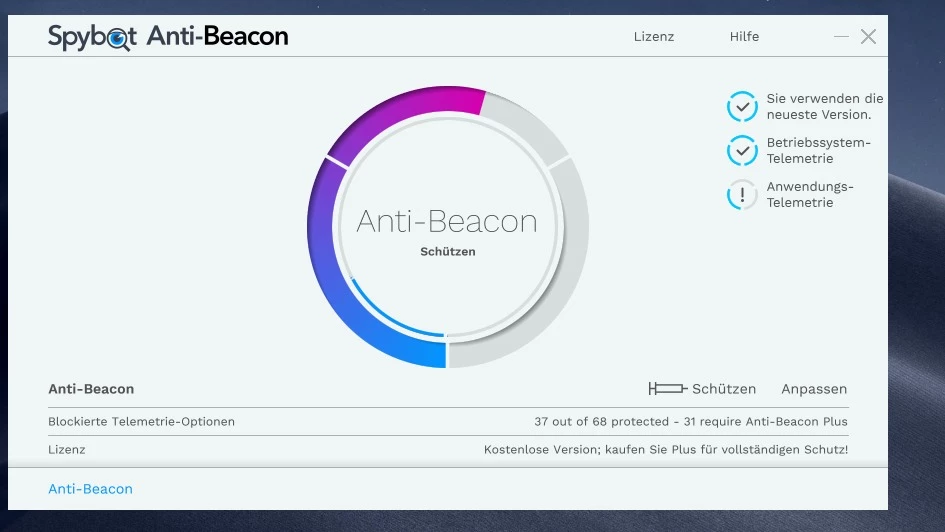
- One-Click System Immunization: Users can block known Windows telemetry instantly using the primary protection wheel on the main dashboard. This applies a recommended baseline of privacy settings immediately, saving the user from having to manually read through dozens of individual Group Policy objects or registry paths to secure their daily environment. The visual dial updates immediately to reflect the total number of secured entry points, ensuring administrators know exactly how many tracking mechanisms have been neutralized.
- Granular Customization Toggles: The Customize tab allows users to manually permit or block specific data collection services rather than applying a blanket restriction across the entire machine. This ensures that users can keep necessary background tasks running, such as captive portal detection for public Wi-Fi, while strictly disabling unwanted diagnostic uploads. Each toggle includes a brief explanation of the registry keys or services it modifies, taking the guesswork out of complex system administration.
- Live Telemetry Visualization: A dedicated monitoring tool tracks the exact background connections that Microsoft and other software vendors attempt to establish while the machine is idle or in use. It logs and visualizes the blocked network requests in real time, giving users a concrete audit trail of what data is trying to leave their machine. By providing this transparency, users can verify that their blocklists are actively functioning and catch newly introduced tracking servers quickly.
- Third-Party Application Blocking: Beyond the core operating system, the utility includes specific immunizers for tracking components embedded in non-Microsoft software installations. It targets telemetry modules in Adobe Acrobat Reader, game launcher analytics, and various OEM driver packages that silently collect hardware interaction data. Stopping these external trackers prevents local usage habits from leaking to dozens of disparate marketing and analytics databases.
- Browser Analytics Suppression: The software targets aggressive data collection routines in popular web browsers, specifically intercepting hidden tracking in Mozilla Firefox and Microsoft Edge. It shuts down tab preloading analytics, new tab page recommendations, and search category telemetry that run outside of the standard operating system core. This ensures that web browsing behavior remains private without requiring users to install separate privacy extensions for every single browser.
- AI and Assistant Restriction: Modern operating systems frequently introduce artificial intelligence assistants, so the software includes dedicated blocking protocols for additions like Windows CoPilot and Windows Recall. This ensures that background AI processing, screen-capturing telemetry, and localized indexing tools do not upload user interaction habits or context data to remote servers. Disabling these heavy computational tracking tasks also frees up local system resources, preventing unnecessary background CPU and disk usage.
How to Install Spybot Anti-Beacon on Windows
- Download the official Spybot Anti-Beacon executable installer or portable package directly to your local storage drive from the vendor distribution server.
- If you choose the portable edition, simply extract the downloaded archive to a dedicated folder on your disk or a removable USB drive, and launch the executable directly without running a setup wizard.
- If using the standard installer, double-click the downloaded setup file and accept the User Account Control prompt to grant the administrative privileges required to modify system-level registry keys and Group Policy settings.
- Follow the on-screen setup wizard to select your preferred installation directory, usually defaulting to the standard Program Files path, and decide whether to generate desktop or Start Menu shortcuts for faster access.
- Review the end-user license agreement, click the install button to copy the necessary application files to your local drive, and then click finish to close the setup interface.
- Launch the application for the first time; it will immediately execute an initial scan of your current system configuration and display the total number of permitted and blocked telemetry settings directly on the main interface wheel.
- Navigate to the customization menu to review the default immunizations carefully before clicking the central protect button to apply the initial layer of tracking prevention across the operating system.
Spybot Anti-Beacon Free vs. Paid
Spybot Anti-Beacon offers both a free tier and premium commercial licenses, depending on the depth of privacy control a user requires. The free version provides the essential telemetry blocking necessary to stop the core Windows operating system from transmitting diagnostic data and usage metrics. It includes basic immunization presets, a standard system overview, and the ability to shut down primary Microsoft tracking services. This zero-cost tier completely covers the needs of most home users who simply want to prevent their baseline operating system from constantly reporting back to vendor servers.
The paid version, generally branded as Anti-Beacon Plus or included within the broader Spybot Corporate and Technician editions, unlocks an extended list of specialized immunizers. These premium profiles target external tracking sources that operate outside of the immediate OS, including advanced browser telemetry, game platform analytics, hardware manufacturer tracking, and third-party software reporting. Upgrading to a paid license also activates the full Live Monitor functionality, which provides real-time tracking of blocked connection attempts and visual metrics detailing exactly what data the software is stopping.
The vendor structures the paid tiers as annual subscriptions, which guarantees continuous updates to the immunizer definitions as software companies frequently alter their data collection methods. Pricing typically starts at a low annual rate for standalone Plus licenses, while IT professionals can purchase technician packages that allow the software to be deployed across multiple endpoints in a business environment. The portable version is generally accessible without a fee, though it carries the same feature restrictions as the standard free installer unless unlocked with a premium license key.
Spybot Anti-Beacon vs. O&O ShutUp10++ vs. WPD
O&O ShutUp10++ is a lightweight, portable utility that focuses strictly on native Windows tracking features and presents all privacy toggles in a straightforward, color-coded list. It groups settings into safe, somewhat recommended, and risky categories, making it exceptionally easy for average users to apply changes without accidentally disabling essential operating system functions. Users should choose O&O ShutUp10++ if they want a strictly portable tool with clear, cautious recommendations on what to disable. However, it does not offer the same level of real-time network monitoring or third-party application telemetry blocking found in other privacy utilities.
WPD (Windows Privacy Dashboard) takes a broader, more network-focused approach by incorporating built-in firewall rules that block known telemetry IP addresses, alongside app uninstaller tools to strip out default Microsoft Store applications. It acts as a direct tweaker that gives power users deep control over Group Policy elements and visual app management. WPD is the better choice for users who want to modify system rules, block specific Microsoft data-harvesting IPs at the firewall level, and cleanly uninstall built-in bloatware in a single session.
Spybot Anti-Beacon serves as the strongest option for users who prioritize real-time tracking metrics and specialized protections for third-party desktop software. While WPD handles firewall IP rules and O&O manages built-in OS toggles, Spybot provides a visual dashboard with dedicated immunizers for newer AI tracking features, web browser analytics, and external software like Adobe Acrobat Reader. It is the optimal fit for users who need a continually updated, set-and-forget tool that monitors precisely which background connections are actively attempting to leave the machine.
Common Issues and Fixes
- High CPU usage or conflict with antivirus programs. Active security software may detect the utility locking down registry keys as suspicious behavior, leading to a constant background processing loop between the two programs. To fix this, open your primary antivirus settings and add the Anti-Beacon executable to the exclusion list, or disable the utility's live protection module if both are fighting over the same system resources.
- Windows Update fails to download or install patches. Aggressive telemetry blocking can occasionally interfere with the background services required to validate and download routine operating system patches. If Windows Update breaks, open the Customize tab, temporarily permit the Microsoft update-related immunizers, install the system patches, and then block the immunizers again once the reboot is complete.
- Public Wi-Fi logins or browser sync features stop working. If captive portal login pages fail to load at coffee shops or Firefox sync stops functioning, the browser telemetry immunizers are likely blocking the network verification URLs. Navigate to the customization menu and uncheck the specific Mozilla or Edge captive portal immunizers to restore standard network validation.
- The application fails to apply privacy changes. Because the software must modify low-level Group Policy objects and protected registry keys, standard user accounts do not have the authorization to execute the changes. Right-click the application shortcut and select "Run as administrator" to ensure the program has the exact system privileges needed to apply the immunization rules correctly.
Version 5.4 — November 2025
- Expanded telemetry blocking to include Apple Telemetry and Microsoft Visual Studio data collection.
- Added new immunizers for protecting privacy in gaming platforms, specifically Blizzard Battle.Net, Epic Games, and GOG (Good Old Games).
- Introduced blocking capabilities for Microsoft Windows Hard Disk Health Telemetry.
- Implemented new protections against various customer experience and analytics programs, including VMWare, Wacom, and LogMeIn.
- Enhanced tracking prevention for marketing and analytics services such as Adobe Marketo, Hotjar.com, Twilio Segment, and Fiksu.
- Updated definitions to block CloudBees RollOut and Paddle Revenue Delivery Platform analytics.
- General improvements to the portable edition and consolidated privacy setting optimizations.