Relying on the default Windows search often means staring at a loading bar while the system slowly crawls through nested folders. Everything is a highly specialized desktop search utility that solves this exact problem by instantly locating files and folders by name. Instead of relying on traditional scanning methods that check every directory top to bottom, this utility directly reads the Master File Table on local drives. The result is an index that builds in seconds and updates in real time, delivering exact file matches the exact moment you begin typing.
As local storage capacities grow, maintaining strict folder hierarchies becomes difficult. You might save an invoice in a temporary downloads folder or drop a client video on the desktop. When you inevitably need to retrieve these items months later, clicking through folders manually wastes valuable time. By keeping a live, fast index of your local storage, this utility reduces the burden of perfect file organization. You no longer have to remember exactly where a file lives; you only need to remember a fraction of its name.
While web-based document managers require an active internet connection and slow API calls to locate assets, a native desktop indexing tool keeps your entire workflow local. It tracks changes to the file system as they happen, meaning a newly downloaded image will immediately appear in the query results. By offering a clean, strict interface without visual clutter, the application serves as a direct path between knowing what a file is called and having it open on your screen.
Key Features
- Instant Master File Table Indexing: By connecting directly to the NTFS file system structure, the application bypasses standard folder-by-folder scanning. This allows it to index millions of files across multiple local drives in just a few seconds, presenting an empty search bar that is immediately ready for queries. This method is vastly superior to brute-force directory crawling, allowing a typical local disk with hundreds of thousands of files to be fully mapped in roughly one to two seconds on initial launch.
- Real-Time File Tracking: The utility constantly monitors the NTFS change journal to track file modifications, creations, and deletions in the background. If you save a new document to your desktop, the index updates instantly, ensuring that your search queries always reflect the exact current state of your local drives. You will never have to manually click a refresh button or wait for a scheduled scan to finish just to see a document you just extracted from a ZIP archive.
- Advanced Search Syntax: The search bar supports wildcards, boolean operators, and specific file path filters to narrow down large lists of results. Users can type exact syntax like ext:mp4 to isolate video files or exclude specific directories by adding an exclamation mark before the path name. Advanced users can chain multiple conditions together, combining size parameters like size:>50mb with date modifiers to isolate large media files created within the last week.
- Network Drive Support: While optimized for local NTFS volumes, the options menu allows users to manually add network-attached storage or FAT32 drives to the database. These locations are scanned on a set schedule, bringing external network assets into the same unified search window. The software allows you to define exactly how often these locations are refreshed, ensuring that shared studio servers or backup arrays remain accurately reflected in your daily queries.
- ETP and HTTP Server Sharing: Built-in server protocols allow users to host their local index and share it across a local area network or the internet. By configuring a specific port in the options menu, colleagues or secondary machines can query the host computer's database via a standard web browser or remote client. This is particularly useful for small office environments where multiple machines need to check the contents of a central storage drive without dealing with strict Windows sharing permissions.
How to Install Everything on Windows
- Download the standard Windows installer package from the official site and launch the executable file from your downloads folder.
- Review the software license agreement and select your desired installation path, keeping the default program files directory unless your system setup requires a custom location.
- Choose where to store program data and configuration settings; selecting the AppData option is recommended to keep custom user configurations separate from the core executable file.
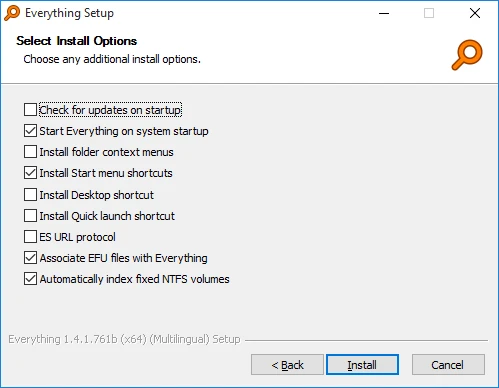
- When prompted with indexing options, check the box to install the background service if you want to index NTFS drives automatically without triggering a strict User Account Control prompt on boot.
- Decide whether to start the application automatically on system startup to ensure the background indexing process tracks file system changes constantly.
- Select any additional shortcut preferences, such as adding the tool to your desktop or pinning it to the taskbar, and proceed to finish the setup process.
- Launch the application for the first time, allowing it a brief moment to build the initial database from your local drives before making your first query.
Everything Free vs. Paid
The standard desktop application is completely free for personal and commercial use. The developer operates the core software as freeware and relies entirely on voluntary user donations to support ongoing development and maintenance. There are no trial limits, no locked features, no hidden export restrictions, and no watermarks placed on the interface. Because the project is maintained with a focus on utility over monetization, users are never interrupted by pop-up advertisements or upgrade prompts. If you find the tool useful for your daily work, you have the option to contribute a voluntary donation, but this is never enforced.
Because the software does not use a freemium model for its standard desktop client, all users have full access to network sharing, advanced search syntax, and service-level installation without purchasing a license key. The application does not require you to create an account, sign in, or maintain an active subscription. The entire feature set is provided out of the box. This makes it an ideal deployment choice for independent professionals and technical users who want a permanent, locally hosted utility without mandatory billing cycles.
For enterprise environments that need to host and share indexes across hundreds of networked clients, a distinct server product is available. This server-specific version requires a paid site license for commercial deployment, enabling centralized index management, restricted user accounts, and group policy support. The enterprise server edition efficiently manages network bandwidth and enforces strict security boundaries via active directory domains. However, if you are just a single user looking to index personal hard drives, the standard free desktop client provides all the necessary tools without any financial commitment.
Everything vs. Listary vs. Agent Ransack
Listary is designed for users who want file search directly integrated into their active workflow rather than relying on a standalone window. It embeds a search bar directly into native Windows open and save dialogs, allowing users to type partial names and instantly jump to the correct folder while actively working inside other applications. Instead of opening a separate window to find a file, you simply type on your keyboard while a file dialog is active, and Listary immediately filters the current directory. If you prefer a fuzzy-finding tool that acts like an application launcher, Listary provides a more interactive, interface-driven workflow.
Agent Ransack is built for users who need to find specific text hidden inside documents rather than just locating file names. It excels at deep, unindexed scanning, allowing you to use regular expressions to search through the actual paragraphs inside PDFs, Word documents, and text files. Agent Ransack bypasses the need for a background index entirely, opting instead for on-the-fly reading of your file system when requested. While this makes the search process take longer, it guarantees that you can find a forgotten invoice number buried inside exported tax documents without relying solely on the file's title.
Everything is the better choice when sheer speed and filename accuracy are your primary requirements. While Listary focuses on dialog box integration and Agent Ransack prioritizes deep content parsing, this utility maintains a strict, instant index of millions of file names with virtually zero delay. It consumes minimal system memory, and its interface is entirely dedicated to presenting a vast grid of actionable results. If you already know what you named a file and just want to bypass the native operating system search limitations, this utility provides a strictly responsive search experience.
Common Issues and Fixes
- The application asks for administrator permission every time Windows starts. This happens because the software requires deep system-level access to read the Master File Table directly. To fix this without disabling your computer's security prompts, open the Options menu, navigate to the General tab, check the box to install the background service, and then explicitly uncheck the option to "Run as administrator." This routes the necessary permissions through a silent background service instead.
- External hard drives or network shares do not appear in the search results. The default installation only indexes local NTFS volumes automatically, meaning drives formatted as FAT32 or exFAT will be ignored by default. To include these other formats or network-attached storage, open the Options menu, click on the Folders tab, and manually add the specific non-NTFS directories you want the software to track on a scheduled basis.
- The status bar is stuck on "Updating database" and the program freezes. This usually indicates a corrupted database file, a conflicting scheduled update on a slow external drive, or a permissions error blocking the index process. You can resolve this by closing the application completely from the system tray, navigating to your local application data folder in Windows Explorer, deleting the database file, and restarting the program to force a clean, fresh index rebuild.
- Custom preferences, UI layouts, and search history are not saving after closing the application. This occurs when the program lacks write permissions for its own installation directory, often because it was installed in the protected program files folder without redirecting its config files. Open the General tab in the Options menu and ensure the setting to store data and settings in the AppData folder is checked, which correctly routes configuration files to your writable user profile folder.
Version 1.4.1.1032 — January 2026
- Added updated localization files to provide better multi-language support.
- Improved overall compatibility and seamless integration with Windows shell extensions.
- Fixed a security vulnerability associated with executing files that end with a dot (.).
- Fixed a bug where the MSI installer would fail to properly halt the Everything process during setup.
- Fixed additional MSI installer issues related to correctly starting and uninstalling the background service.