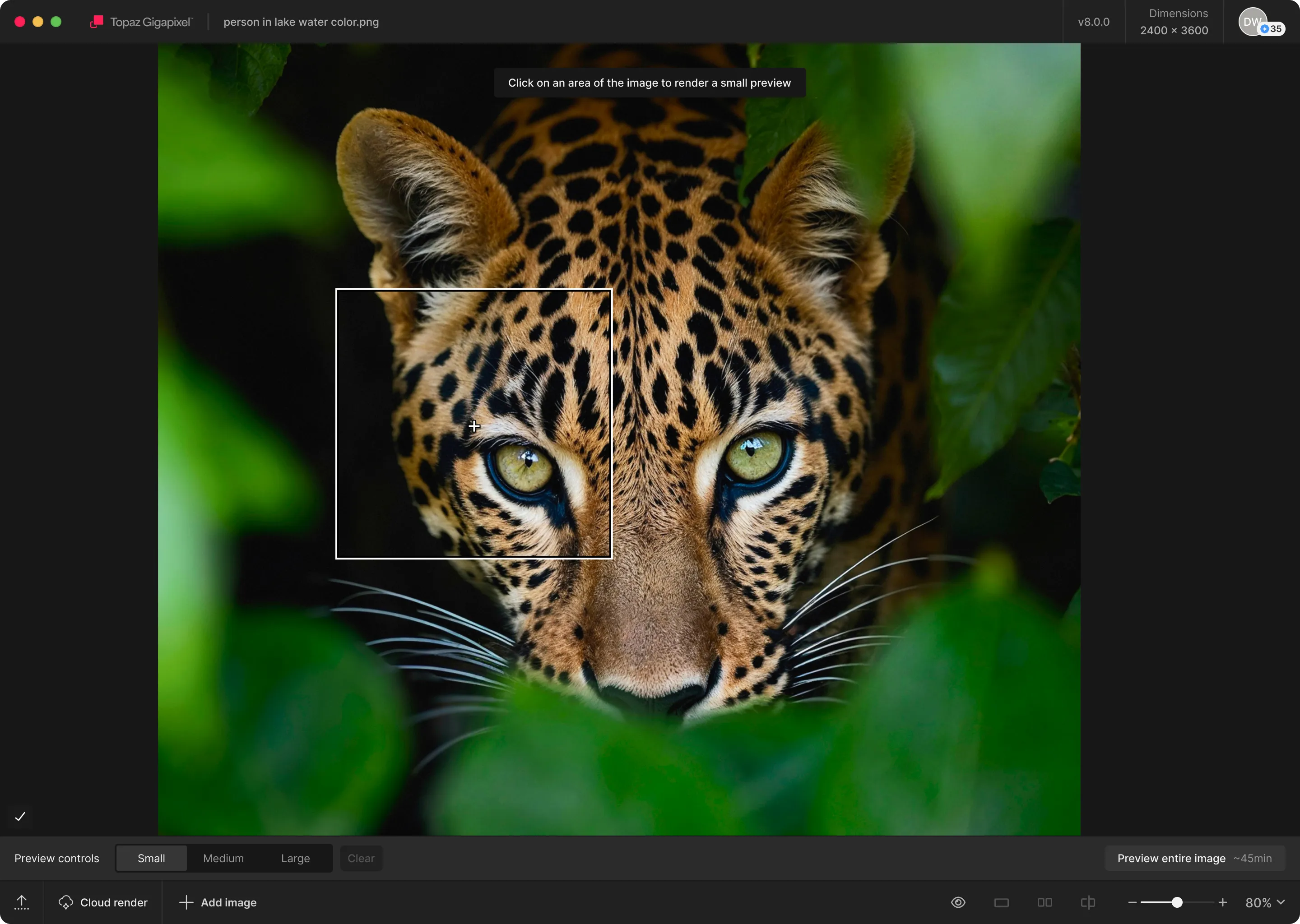
Topaz Gigapixel AI specializes in enlarging photographs and digital artwork without introducing pixelation or blur. Traditional upscaling methods, such as bicubic interpolation, simply stretch existing pixels across a larger canvas, resulting in soft edges, noticeable halos, and visible artifacts. This software analyzes the image structure and uses specialized neural networks to generate new, accurate pixels that match the surrounding textures. Digital artists preparing low-resolution assets for large-format printing, archival specialists digitizing historical photographs, and event photographers cropping heavily into wide-angle shots rely on this tool to reconstruct fine details like individual strands of hair, fabric weaves, and brickwork. The core workflow revolves around taking a small source file and multiplying its dimensions up to six times while maintaining a sharp, natural appearance.
Operating as a standalone desktop application rather than a browser-only service gives users direct control over hardware rendering. High-resolution image processing requires significant graphical computing overhead, and running the operations locally on a dedicated graphics processing unit keeps the workflow private and responsive. Users handling massive client archives or confidential photography do not have to upload gigabytes of sensitive data to external web servers. The local environment also enables offline daily usage once the initial setup and model synchronization are complete. For users with heavy workloads, the desktop framework allows them to queue hundreds of images into a batch processor, assign distinct upscaling parameters to different batches, and leave the hardware to render the final files into uncompressed TIFF or DNG formats.
Beyond basic enlargement, the application serves as an image restoration utility. When a camera misses focus slightly or a subject is captured from too far away, standard sharpening tools only amplify the existing noise and blur. The neural networks inside this application attempt to recognize the intended subject matter—identifying structural elements like architectural lines, foliage, or human facial features—and replace the degraded pixels with synthesized data that aligns with real-world textures. By giving editors independent control over the AI models and the specific strength of the recovery algorithms, the software provides a highly technical approach to salvaging otherwise unusable image files.
Key Features
- Application-Specific AI Models: The application includes multiple neural network models tailored to different source materials, including Standard, High Fidelity, Art & CG, Low Resolution, and Redefine. The High Fidelity model works best on images that already possess good detail but need a resolution bump, while the Art & CG model is specifically trained to handle vector-style lines, digital paintings, and computer-generated graphics without destroying intended color gradients. The newer Redefine algorithm acts as a creative upscaler, generating entirely new texture maps for extreme enlargements where the original file lacks any usable data.
- Face Recovery Technology: Upscaling human faces often results in unnatural, distorted features when using standard algorithms. The dedicated Face Recovery engine isolates faces within the frame and applies a separate trained model to reconstruct eyes, teeth, and skin texture. Editors can use a percentage slider to blend the synthesized facial details back into the original image, ensuring the subject remains recognizable rather than looking like an artificial composite.
- Split-Screen Comparison Interface: To evaluate how different algorithms affect the source file, the workspace features a side-by-side or sliding split-screen view. Editors can simultaneously load the Standard model in one panel and the High Fidelity model in another, adjusting sliders for noise suppression and blur reduction while watching the preview update in real-time. This direct visual feedback prevents over-processing and helps users identify the exact settings needed for a specific photograph.
- Lossless Zoom and Cropping Workflow: Instead of forcing users to export a massive file and crop it later, the workspace includes native reframing tools. Photographers can crop tightly into a specific subject—such as a bird in the distance or a specific face in a crowd—and apply the upscaling algorithms directly to that cropped region. This targeted approach saves processing time and storage space by only rendering the exact composition the editor intends to use.
- Batch Processing Engine: For high-volume projects, the desktop client supports dragging and dropping entire folders of low-resolution images into the queue. Editors can apply a global upscaling multiplier to the entire batch, or individually select specific photos to use different AI models based on their unique noise profiles. The exporter then processes the queue sequentially, allowing users to output hundreds of finalized files into specific directories using custom naming conventions and specific color profiles.
- Targeted Artifact Reduction: Heavy JPEG compression leaves blocky artifacts and color banding that become highly visible when enlarged. The internal processing pipeline identifies these compression blocks and neutralizes the digital noise before applying the upscaling multiplier. By addressing the baseline image degradation first, the software prevents the neural networks from mistaking compression artifacts for intentional texture, resulting in a cleaner final print.
How to Install Topaz Gigapixel AI on Windows
- Download the Windows installer package from the official Topaz Labs website to ensure you receive the legitimate executable without modified files.
- Run the setup application and grant administrator privileges when prompted by the Windows User Account Control dialogue.
- Follow the setup wizard instructions, ensuring the destination folder remains on your primary startup disk, as installing the application on an external drive can cause database conflicts and poor rendering speeds.
- Review the end-user license agreement, confirm your shortcut preferences, and click the install button to copy the core application files to your system.
- Launch the application for the first time while connected to the internet.
- Wait for the model downloading process to complete, which may take several minutes depending on your network speed, as the software fetches the double-zipped proprietary neural network files directly into the C:ProgramDataTopaz Labs LLC directory.
- Click the login prompt on the welcome screen and sign in with your Topaz Labs account credentials to authenticate your machine and unlock the ability to export saved images.
Topaz Gigapixel AI Free vs. Paid
The application operates on a commercial licensing model, but users can evaluate the full technical capabilities through a restricted trial mode. By downloading the software and creating a free account, editors can load their own photographs, test every available AI model, and use the split-screen interface to see the exact results of the upscaling process. However, the trial version places a hard restriction on file creation. Any image exported during the trial period will contain a prominent watermark across the final output, or the save function may be disabled entirely depending on the current account status. To process and save clean, usable images for personal or commercial projects, an active license is required.
In late 2025, the developer significantly altered the pricing structure, moving away from the traditional standalone perpetual license. Previously available as a one-time purchase, the software is now integrated into a broader Topaz Studio subscription ecosystem. Users must subscribe to a monthly or annual plan, with entry pricing starting at approximately $29 per month or $149 billed annually. This shift integrates the upscaling tool alongside other enhancement utilities and provides continuous access to the latest generative models.
The active subscription also introduces seat management for multiple devices and grants access to cloud rendering credits. While the desktop application relies heavily on local hardware to process files, the cloud credit system allows users with underpowered laptops to offload the heavy computational rendering to external servers. If a subscription lapses, users lose access to the most recent AI models and cloud rendering capabilities, fundamentally changing the long-term cost for professional photographers and studios.
Topaz Gigapixel AI vs. Upscayl vs. Adobe Photoshop
Upscayl is a free, open-source desktop application that uses public algorithms like Real-ESRGAN to enlarge images. Because it costs nothing and runs entirely locally without account requirements or model download restrictions, it appeals heavily to budget-conscious users and hobbyists. However, Upscayl lacks the specialized architectural models and dedicated face-recovery sliders found in the commercial alternative. While the open-source tool applies a blanket enlargement that often looks painterly or slightly over-smoothed, the commercial software provides granular control over individual textures, noise reduction, and facial reconstruction.
Adobe Photoshop includes a native Super Resolution feature and the Preserve Details 2.0 algorithm, which allow existing Creative Cloud subscribers to upscale images without leaving their primary editing workspace. For moderate resizing—such as bumping a photograph up by 50 percent for a standard print—the built-in Adobe tools are highly convenient and fast. Yet, when pushing an image to a 400 or 600 percent increase, the native Photoshop tools struggle to invent missing pixel data, often resulting in jagged edges and blurry details. Topaz utilizes dedicated neural networks specifically trained for extreme enlargement, resulting in significantly sharper output at maximum scale.
Choosing Topaz Gigapixel AI makes the most sense for professionals who regularly prepare low-resolution assets for large-format physical printing or archival restoration. If the workflow demands extreme cropping, precise facial reconstruction in group photos, and the ability to batch-process hundreds of files with varying AI models, the dedicated standalone application justifies its subscription cost. For occasional, minor upscaling, Photoshop or Upscayl remain the more practical choices.
Common Issues and Fixes
- AI models get stuck on "Downloading..." during initial setup. This network failure usually happens when a system firewall, VPN, or antivirus application intercepts the double-zipped model files, flagging them as suspicious. To resolve this, temporarily disable the security software during the installation phase, allow the models to download completely, and then re-enable the firewall.
- The application crashes or freezes when exporting large batches. High-resolution AI upscaling demands significant video RAM, and older graphics cards can easily become overwhelmed by the continuous processing load. Open the advanced preferences menu, lower the maximum memory usage allowance, or switch the AI processor setting from the primary GPU to the CPU, which is slower but far more stable.
- Human faces look unnatural, plasticky, or overly smoothed. When the artificial intelligence aggressively attempts to remove noise and guess missing features, it can strip away natural skin pores and grain. Decrease the Face Recovery slider strength to blend more of the original photograph back into the edit, or switch from the Standard algorithm to the High Fidelity algorithm to preserve the baseline texture.
- The Topaz plugin fails to appear in the Adobe Photoshop filter menu. Major updates to Photoshop often create new plugin directories, leaving the upscaler unlinked and unavailable within the Adobe workspace. Close Photoshop completely and run the Topaz installer again to automatically rebuild the file paths and drop the correct plugin files into the updated Adobe directory.
Latest Update — March 2026
- Upgraded the underlying Qt framework from 6.8.0 to 6.10.0, which now requires macOS users to be on at least version 13.0 (Ventura).
- Graduated the "Redefined Realistic" upscaling model from its testing phase to a fully supported, official feature.
- Resolved an authentication bug that was interfering with Enterprise Single Sign-On (SSO) logins.