Managing wireless peripherals often leads to a shortage of USB ports and a desk cluttered with tiny, easy-to-lose dongles. The Logitech Unifying Software is a dedicated utility built to fix this hardware bottleneck by linking up to six compatible mice, keyboards, and trackballs to a single receiver. Instead of sacrificing two or three ports just to use a wireless desk setup, users can consolidate their hardware communication into one dedicated channel.
This tool is designed for laptop users dealing with limited connectivity, office workers standardizing their desk equipment, and anyone who has lost their original wireless dongle and needs to map their existing mouse to a replacement receiver. It provides a direct interface to manipulate the pairing memory of the receiver dongle itself. Once a user links their hardware through the desktop application, the peripheral configuration is stored entirely on the hardware level. This means the receiver can be physically unplugged and moved to a different machine while retaining all linked connections, making the desktop app an essential initial setup point for flexible workstations and shared conference room computers.
Unlike broader configuration suites that handle macro programming or custom lighting schedules, this utility focuses purely on connection logistics. It operates with a minimal footprint, targeting the exact mechanics of device pairing. By giving users explicit control over what hardware is allowed to communicate with the receiver, and providing a direct method to revoke those connections, it solves practical troubleshooting tasks that browser-based configuration tools cannot execute due to strict USB access limitations. It essentially transforms a closed hardware loop into an adaptable wireless ecosystem.
Key Features
- Multi-Device Consolidation: The primary function of the application is managing the six-slot hardware limit of the receiver. Users can pair a compatible keyboard, a trackball, and a traditional mouse all to the exact same USB dongle, eliminating the need for separate receivers. This is practical for thin-and-light laptops that only offer one or two traditional USB Type-A ports.
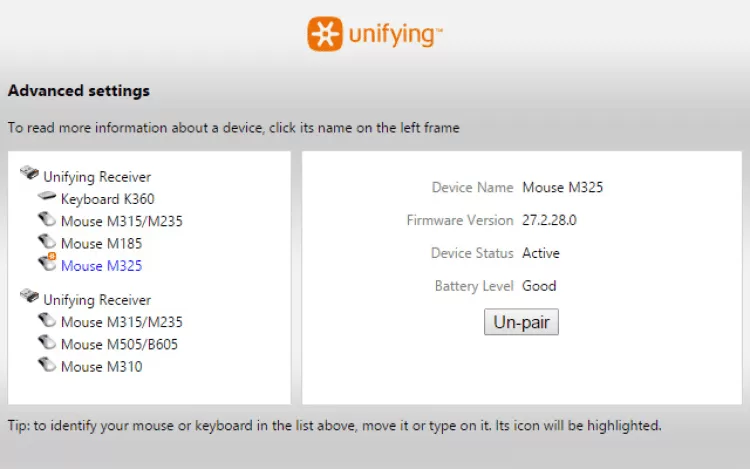
- Instant Device Unpairing: Over time, peripherals break or get replaced, but the receiver keeps their memory profile stored, eventually hitting its maximum connection limit. The software provides an explicit Un-pair button within its Advanced menu, allowing users to manually delete abandoned device profiles from the dongle. This clears the necessary communication slots so that new hardware can successfully establish a connection.
- Advanced Hardware Dashboard: Beyond simple pairing, the utility offers an Advanced view that acts as a diagnostic dashboard for your wireless setup. Selecting a specific paired device from the left sidebar reveals its current firmware version, connection status, and exact battery level. This takes the guesswork out of troubleshooting connection drops, showing instantly if a mouse simply needs new batteries or if the radio link has degraded.
- Automated Device Discovery: The application simplifies the pairing handshake by using a physical trigger rather than a complex network search. When adding a new peripheral, the on-screen wizard instructs the user to physically toggle the power switch on the mouse or keyboard off and back on. This hardware-level reboot forces the device to broadcast a pairing request, which the software immediately captures and locks into the receiver.
- Persistent Receiver Memory: Because the software writes the connection data directly into the firmware of the USB dongle, the pairing process only needs to happen once. After the initial configuration, the application can be closed or uninstalled, and the receiver will continue to recognize the linked peripherals. This allows users to set up their devices on a primary Windows machine, unplug the dongle, and move it to a restricted workstation that does not permit third-party software installations.
How to Install Logitech Unifying Software on Windows
- Download the official Windows installer package directly to your local storage drive.
- Navigate to your downloads folder, right-click the executable file, and select "Run as administrator" to guarantee the setup engine has the elevated privileges required to interact with the USB host controllers.
- Proceed through the standard setup wizard, accept the vendor end-user license agreement, and allow the installer to place the required application files in the default system directory.
- Once the installation finalizes, insert your receiver into a direct, high-speed USB port located directly on your motherboard or laptop chassis, as external hubs can block the necessary hardware identification data.
- Launch the utility from the Start menu to access the primary dashboard, where you will see a welcome screen containing the "Plug it. Forget it. Add to it." interface prompt.
- Click the primary button to add a new device, which will open a screen instructing you to physically turn your wireless peripheral off and back on using its built-in slider switch.
- Wait for the progress bar to complete the hardware handshake; once the screen updates to confirm the device is detected, move the mouse cursor or type on the keyboard to verify the active connection.
- Close the application window completely, as the utility does not need to run in the background or reside in the system tray for the hardware to function normally.
Logitech Unifying Software Free vs. Paid
The application operates on a completely free model, functioning strictly as an official hardware utility. It contains no premium tiers, no recurring subscription requirements, and no locked features reserved for enterprise users. The vendor provides this utility as a necessary functional companion to their physical hardware catalog. Anyone who purchases a compatible peripheral inherently owns the right to use the configuration tool without any ongoing software licensing fees.
The application does not impose account creation barriers, cloud sync paywalls, or feature limits tied to an online profile. It operates entirely locally, writing pairing data directly to the USB hardware without verifying a user identity against an external authentication server. It avoids the modern industry trend of locking basic hardware management behind paid accounts, ensuring that primary connectivity and troubleshooting remain accessible for the entire lifespan of the mouse or keyboard.
For office administrators and IT departments deploying hundreds of peripherals across a corporate network, the free nature of the utility simplifies endpoint management. The software can be packaged and pushed across entire workstation fleets without triggering internal compliance audits. The absence of a paid enterprise edition guarantees that every individual user has the exact same device management and diagnostic capabilities.
Logitech Unifying Software vs. Logi Bolt App vs. Logitech Options+
Logi Bolt App targets the newer generation of secure business peripherals. While the standard pairing protocol relies on a proprietary 2.4 GHz connection, Bolt uses a distinct Bluetooth Low Energy architecture with enhanced security encryption designed for strict corporate environments. Users should choose the Bolt application if they own recent office hardware that ships with a green-and-yellow receiver, as these newer devices are physically incompatible with older orange-star dongles. The pairing workflows look similar, but the physical hardware generation strictly dictates which desktop utility must handle the connection.
Logitech Options+ acts as a broad customization suite rather than a simple pairing utility. It allows users to remap side buttons, adjust scroll wheel resistance, create application-specific macro profiles, and monitor advanced device analytics. Users should install Options+ when they want to fundamentally alter how their hardware behaves during daily office tasks. However, Options+ acts as a heavy background application and occasionally struggles to cleanly remove older paired devices from legacy receivers, making it less ideal for raw radio connection management.
Logitech Unifying Software is the better fit when users need absolute simplicity and exact control over receiver memory without the overhead of macro programs. If the sole objective is to link a replacement mouse to an old receiver, clear out a maximum connection limit, or consolidate office peripherals without leaving a background task running in the system tray, this dedicated utility remains the most direct solution. It performs a single hardware configuration job efficiently, allowing users to close it and rely purely on the local hardware connection once the pairing sequence finishes.
Common Issues and Fixes
- The software reports that too many devices are connected and refuses to pair new hardware. The receiver has a strict hardware limit of six peripheral slots. Open the application, navigate to the Advanced view, select an old, broken, or lost device from the left sidebar menu, and click "Un-pair" to free up a communication slot for the new addition.
- The application cannot detect the USB receiver when it is plugged into a hub. External unpowered hubs and monitor docking stations often fail to pass the specific hardware identification data required for a pairing handshake. Remove the receiver from the hub and plug it directly into a high-speed USB port on the computer chassis, then restart the utility.
- The peripheral will not initiate the pairing handshake even after toggling the power switch. Verify that the device actually supports the specific protocol by checking for the orange six-point star logo printed on the plastic casing. If the device uses a standard Nano receiver or the newer Bolt standard, it will remain invisible to this specific application and will not trigger a connection prompt.
- The paired connection drops intermittently after the computer wakes up from sleep mode. Windows power management may be incorrectly turning off the active USB port. Open Device Manager, locate the USB Root Hub associated with the receiver, right-click to access Properties, and under the Power Management tab, uncheck the box that allows the computer to turn off the device to save power.
Version 2.52.33 — August 2023