SteelSeries GG operates as the central command hub for managing gaming peripherals, routing virtual audio, and capturing gameplay footage on Windows 10 and Windows 11 systems. Rather than forcing players to install separate drivers for mice, a dedicated equalizer for headsets, and third-party recording software for video clips, this desktop application combines hardware configuration and media capture into a single unified interface. The main dashboard is divided into distinct operational modules—Engine, Sonar, Moments, and 3D Aim Trainer—each designed to handle a specific technical task without requiring external plugins or physical hardware mixers.
Gamers, esports competitors, and live streamers rely on the desktop client because web-based configuration tools cannot interact deeply enough with the Windows kernel or hardware firmware. Polling rate adjustments, custom macro execution, and low-latency audio processing require direct local driver access. By running natively on the host machine, the software intercepts audio signals before they reach the physical outputs, applies parametric equalization, and splits the signal into discrete virtual cables. This capability is especially important for streamers who need to separate game audio from voice chat for broadcasting, a task that traditionally required physical mixing consoles, external sound cards, or complex digital audio workstation setups.
Choosing this platform over lightweight, barebones peripheral drivers makes sense for users who want to actively modify their daily gaming environment. While generic mouse configuration tools simply map keyboard inputs to mouse buttons, the modules included here interact dynamically with supported game clients. For example, the software reads real-time game state data to trigger automatic video recording when a player secures a multi-kill, or it shifts keyboard backlighting to a flashing red sequence when a character's health drops below a critical threshold. It consolidates multiple necessary background utilities into one highly organized executable, significantly reducing the need to run overlapping, resource-heavy overlay applications while gaming. For competitive players, reducing background processes while maintaining full control over hardware input latency is a critical workflow advantage.
Key Features
- Engine Hardware Configuration: The Engine module provides direct control over peripheral firmware, allowing users to modify polling rates, custom DPI steps, and lift-off distance for mice. The interface includes an active visual layout of the connected device, where clicking any button opens a binding menu for applying macros, media controls, OS commands, or application shortcuts. Changes can be saved directly to the onboard memory of compatible devices, ensuring the customized settings persist even if the software is closed or the device is moved to a different computer.
- Sonar Parametric Equalizer: Sonar replaces standard graphic equalizers with a parametric EQ interface, giving players precise control over frequency bands, Q-factors, and gain levels. Instead of choosing generic flat profiles, users can drag individual nodes on a frequency graph to isolate and boost the exact pitch of enemy footsteps, reload animations, or ability audio cues while suppressing muddy bass tones. The module includes community and developer-tuned profiles optimized for specific competitive titles, acting as a dynamic audio filter that adapts to the specific sound engine of the active game.
- Sonar Audio Mixer: This virtual mixing console creates four distinct playback devices in Windows: Game, Chat, Media, and Aux. By assigning applications to these specific virtual channels, users can independently adjust the volume of voice communication software without affecting the master game volume. The interface also allows streamers to route a separate, perfectly balanced audio mix directly to broadcasting software, ensuring the broadcast audience hears a different mix than the player's local headset.
- ClearCast AI Noise Cancellation: To clean up microphone input, the software utilizes machine learning algorithms trained to distinguish human speech from background interference. The noise cancellation slider actively suppresses mechanical keyboard clattering, desk fan noise, and background conversations before the audio ever reaches voice chat applications. A built-in digital noise gate allows users to set a strict decibel threshold, ensuring the microphone only opens and transmits when they are actually speaking loudly enough to break the barrier.
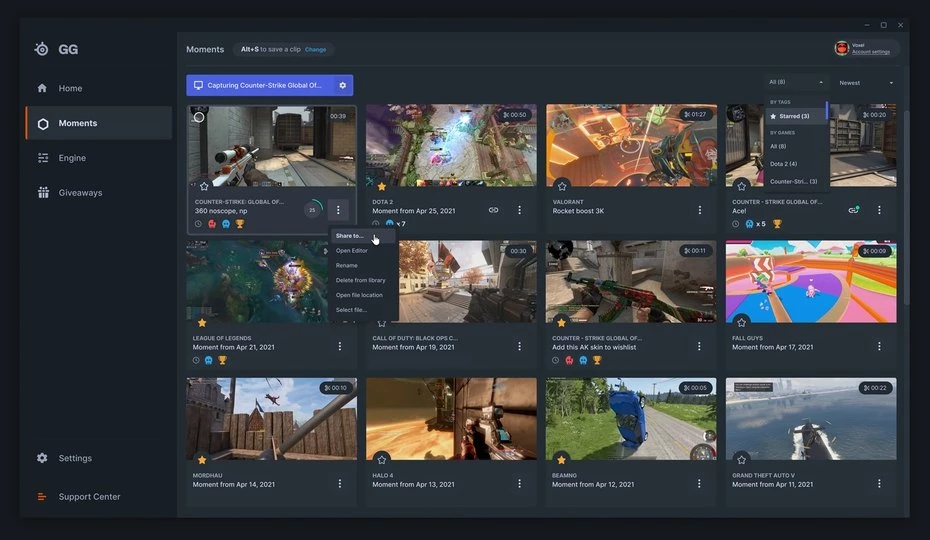
- Moments Auto-Clipping: Moments runs a lightweight video capture overlay that records a rolling buffer of gameplay in the background. Using GameSense integration, the software reads memory triggers in supported titles to automatically save video clips when significant events occur, such as winning a battle royale match or securing a rare achievement. The built-in editor provides a timeline interface for trimming raw footage, adding text overlays, applying basic transition effects, and exporting the final MP4 file directly to social media platforms.
- 3D Aim Trainer: Integrated directly into the main client, this module offers a dedicated environment for practicing mouse mechanics without launching a full game. It translates mouse sensitivity values and field-of-view settings exactly from popular shooters, allowing users to practice tracking moving targets or flicking to static targets under identical mechanical conditions. Post-session analytics track accuracy percentages, crosshair pathing efficiency, and raw reaction time, identifying specific areas where mechanical mouse control requires further refinement.
How to Install SteelSeries GG on Windows
- Download the official Windows installer package directly from the vendor website, ensuring you save the executable file to a local drive rather than a network location.
- Double-click the downloaded setup file to launch the installation wizard, granting administrative privileges if prompted.
- Select your preferred interface language from the dropdown menu, read the license agreement, and confirm the destination folder path.
- Wait for the setup wizard to extract the core components, install the necessary background services, and register the virtual audio drivers required for the Sonar module.
- Click Finish to close the wizard and launch the application for the first time, which will prompt an optional login screen for cloud synchronization and profile backups.
- Connect your compatible peripherals directly to the rear USB ports on your motherboard, avoiding unpowered external USB hubs to ensure stable data transfer.
- Navigate to the Engine tab to check for any red firmware update banners, and follow the on-screen instructions strictly, keeping the devices plugged in while the flash process completes.
- Open the Sonar tab to run the initial audio setup, assigning your physical headset as the master playback device and your physical microphone as the master input device for the virtual mixer.
SteelSeries GG Free vs. Paid
The entire software suite is entirely free to download, install, and operate on Windows environments. The developer does not require paid subscriptions or licensing fees. All primary modules, including the macro manager, virtual audio mixer, video capture tool, and aim trainer, are available immediately upon installation. There are no export watermarks placed on recorded gameplay clips, and no artificial time limits restrict how long the parametric equalizer can process background audio.
The business model relies entirely on physical hardware sales. While the Engine module inherently requires compatible vendor keyboards, mice, or headsets to provide any configuration value, the rest of the application remains hardware-agnostic. The Sonar audio mixer and Moments video capture tools work with any brand of microphone, headphones, or webcam connected to the system. Users are not required to purchase a specific headset to utilize the advanced AI noise cancellation or virtual routing channels.
While the client includes an account system, registration is strictly optional for local hardware management and audio routing. Creating a free account enables cloud synchronization, allowing players to back up their custom equalizer profiles, macro binds, and lighting configurations. Logged-in users also gain access to a Giveaways tab, which routinely distributes free digital items, trial keys, and in-game cosmetics through promotional partnerships, adding supplemental value to the free platform.
SteelSeries GG vs. Logitech G HUB vs. Razer Synapse
Logitech G HUB focuses heavily on a streamlined, minimalist interface designed to get users in and out of their hardware settings quickly. It excels at managing Blue microphone voice filters and simple macro assignments without overwhelming the user. Gamers should choose G HUB when they utilize a predominantly Logitech hardware ecosystem and prefer a utility that handles basic DPI and lighting changes with minimal background resource consumption.
Razer Synapse offers an incredibly dense environment for visual customization, largely driven by its Chroma Studio module, which supports intricate, layer-based RGB lighting synchronization across an entire room. It provides exceptional macro control and secondary keybinding options through its Hypershift feature. Users typically opt for Synapse when visual aesthetics take priority, though they must accept its heavier memory footprint.
SteelSeries GG is the better fit when users require professional-grade virtual audio routing alongside their standard peripheral management. Because the platform includes a full parametric equalizer and a multi-channel digital mixer that works with any audio hardware brand, it eliminates the need for third-party audio routing utilities. It stands out as the superior choice for live streamers and competitive players who want to manage their hardware, split their voice chat audio, and record gameplay clips from a single centralized dashboard.
Common Issues and Fixes
- The application opens briefly and immediately closes. This behavior frequently occurs due to aggressive software conflicts with third-party RGB management utilities like SignalRGB. To resolve this, open the settings menu of the conflicting utility, navigate to the conflicts or processes tab, and add an explicit exception to prevent it from terminating the primary background executable.
- System audio cuts out or sounds muffled after a Windows update. The virtual audio mixer occasionally loses track of the correct physical output device during operating system updates. Open the Sonar tab, verify that your physical headset is still selected as the master fallback device, and check the Windows Sound Control Panel to ensure the virtual Game channel is set as the default playback endpoint.
- The Moments module fails to capture or save gameplay video. Graphics driver updates can corrupt the hardware encoding pathways the software relies on. Navigate to the Moments settings, toggle the video encoding format from hardware to software rendering, or perform a clean installation of your GPU drivers to restore the original encoding hooks.
- Firmware updates stall indefinitely or fail to complete. Interruptions in data transfer typically happen when hardware is routed through unpowered USB hubs or front-panel case extensions. Cancel the update, plug the peripheral's wireless transmitter or cable directly into a primary USB port on the rear motherboard panel, restart the application, and initiate the update again.
- The system crashes or reboots unexpectedly when the computer goes idle. The audio module sometimes issues permanent system power requests that prevent the Windows kernel from entering low-power sleep states, causing a timeout crash. Disable USB selective suspend in the advanced Windows Power Options menu, and ensure the headset is not configured to keep audio streams permanently active in the background.
Version 100.0.0 — December 2025
Added:
- 3D Aim Trainer page refresh with updated visuals and UI
- New EQ Presets for Borderlands 4, Skate, and EA SPORTS FC 26
- Improved YouTube account management in GG
Improved:
- Enhanced Fortnite color management for better auto-clipping quality
- Updated Home page to show battery and connection status for Apex Pro wireless keyboards
- Optimized Chatmix feature between Sonar and devices
Fixed:
- Battery level reporting for Apex Pro TKL Wireless Gen 3 over Bluetooth
- Battlefield 6 and Roblox game detection issues
- Post-game clips report not opening Moments tab after game completion