Boom D transforms standard computer audio into a spatial, 3D surround soundstage without requiring expensive multi-channel hardware. Designed as a system-wide audio equalizer and enhancer, this utility intercepts audio signals from media players, web browsers, and games, applying advanced algorithms to simulate depth and directionality. Budget audiophiles, gamers, and movie enthusiasts rely on it to compensate for flat-sounding laptop speakers or low-end headphones. Instead of buying physical amplifiers or dedicated sound cards, users simply run the desktop application to push audio output significantly louder, clearer, and richer.
Unlike basic media player plugins or web browser extensions that only affect a single tab, Boom D functions across the entire operating system. This means the 3D surround processing applies equally to streaming services like Netflix, music platforms like Spotify, and local game engines. The desktop environment allows it to install a dedicated virtual audio driver, effectively creating an intermediary layer where fine-grained equalization, spatial positioning, and per-app volume controls take place before the sound reaches the physical speakers. This level of administrative system control is impossible with lighter alternatives, making the standalone client necessary for users who want consistent audio calibration across their entire workstation.
The application runs quietly in the system tray, providing immediate access to equalization sliders and output routing without requiring users to navigate complex Windows menus. By residing locally on the machine, the utility processes audio in real-time with virtually zero latency. This low-latency performance is crucial when watching high-definition video content where audio sync issues would ruin the viewing experience, or during fast-paced gaming sessions where delayed auditory feedback could impact performance. Unlike cloud-based audio processing tools that depend on a stable internet connection, this software handles all algorithmic calculations directly on the local CPU, ensuring consistent reliability even when working entirely offline. Furthermore, because it hooks into the core audio architecture, the enhancements apply to both wired analog headphones and wireless Bluetooth headsets, offering complete flexibility regardless of the physical connection.
Key Features
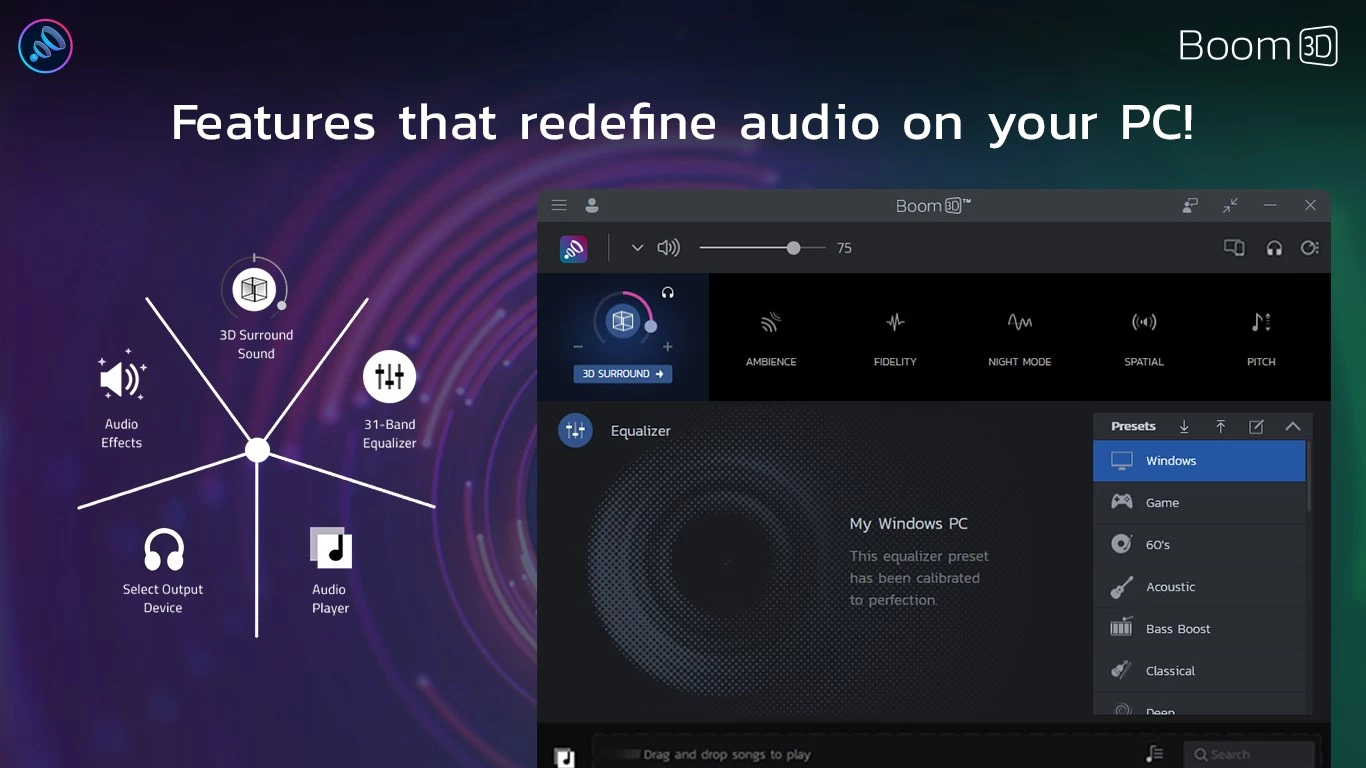
- 3D Surround Sound: The application uses spatial audio algorithms to simulate a virtual surround sound environment through standard stereo headphones. This adds simulated depth to in-game environmental cues and width to movie soundtracks without requiring a multi-speaker physical setup or specific media encoding. It intercepts the raw stereo signal and projects it across a virtual 360-degree soundstage.
- Advanced 31-Band Equalizer: Users gain precise control over specific audio frequencies through a detailed graphical slider interface. The software includes handcrafted presets tailored to different genres, such as Jazz, EDM, and Hip Hop, allowing listeners to match the equalization to their media instantly. Listeners can also save their custom slider configurations as user profiles for quick switching.
- App Volume Controller: The built-in volume mixer lets users set independent audio levels for every active program on the computer. This makes it possible to mute a background web browser while keeping a game or voice chat at maximum volume, directly from the system tray interface. It acts as a direct upgrade to the standard Windows volume mixer by integrating directly with the spatial effects.
- Pre-Amp Audio Amplification: By utilizing the Pre-Amp slider, listeners can safely push their system volume beyond the standard hardware limits. This function boosts low-level audio signals, making quiet dialogue or poorly mixed videos fully audible on weak laptop speakers. It prevents extreme distortion by scaling the audio curve before it clips against the physical output limits.
- Headphone EQ Calibration: The software includes specific equalization profiles designed to compensate for the acoustic imperfections of thousands of popular headphone models. Applying these specific profiles flattens the frequency response, resulting in a more accurate listening experience for the exact hardware in use. This ensures that bass-heavy headphones do not drown out the mid-range dialogue.
- Built-in Audio Player and Radio: A standalone media player interface handles local audio files and supports custom playlist management. Additionally, the player connects directly to over 20,000 local and international internet radio stations, categorized by genre and region, right inside the main dashboard. This eliminates the need to open a separate web browser to stream background internet radio.
How to Install Boom D on Windows
- Download the official Boom D installation package from the vendor's direct site or search for the application within the Microsoft Store environment.
- Launch the setup wizard and grant administrator privileges when prompted by the User Account Control dialogue, so the installer can write necessary system files.
- Review the end-user license agreement, select the destination folder on your primary local drive, and proceed with the standard file extraction.
- Allow the setup program to install the virtual audio driver, a critical step that modifies the Windows sound control panel to intercept system audio.
- Finish the installation process and reboot the computer if the wizard requests it, ensuring the new virtual audio driver initializes correctly alongside the operating system.
- Open the application from the desktop shortcut or Start menu, and follow the initial first-run configuration screen to select your primary headphone or speaker type.
- Verify that the newly created virtual audio device is set as the default playback device in the Windows sound settings, ensuring the system routes all media through the software's equalizer.
Boom D Free vs. Paid
Boom D operates on a commercial pricing model, offering users a limited-time free trial before requiring a purchase. Upon initial installation, users typically receive a 7-day or 30-day evaluation period, depending on the current promotional structure from the developer. During this trial window, all functions, including the 31-band equalizer, 3D surround sound, and app-level volume mixer, remain fully unlocked for testing. The product does not inject audio watermarks or artificial static during the trial, ensuring listeners get an accurate representation of the sound quality before committing to the purchase.
Once the trial period expires, the software stops processing audio enhancements until a license is activated. The vendor sells a perpetual lifetime license for Windows, generally priced around $12 to $15 depending on regional currency and storefront discounts. This one-time payment grants permanent access to the current application build without forcing users into recurring monthly or annual subscription fees. Buyers checking out through the Microsoft Store or the official website tie the license to their respective accounts, allowing them to restore the purchase if they reinstall the operating system on a new machine.
While the application does not rely on a subscription, minor updates and bug fixes are included in the initial license cost. Major future upgrades or entirely new product generations might require a separate upgrade purchase, but the existing build will continue to function indefinitely. Users who prefer to test the software thoroughly should secure the trial from the official site, as third-party storefront policies may vary regarding trial lengths and refund windows.
Boom D vs. FxSound vs. Dolby Atmos for Headphones
FxSound is a free, open-source audio enhancer that dramatically improves volume and bass on budget hardware. Users who simply want their laptop speakers to sound louder without spending money often prefer FxSound, as it provides basic equalization and volume boosting without requiring a paid license. However, FxSound lacks the advanced spatial audio simulation, per-app volume routing, and granular 31-band frequency control found in Boom D.
Dolby Atmos for Headphones is a premium spatial audio application available via the Microsoft Store, explicitly designed to decode Atmos-encoded movie and game audio. It excels at delivering highly accurate, object-based surround sound in natively supported titles like Cyberpunk 2077 or premium video streaming tiers. While Dolby Atmos offers superior directional audio for natively supported content, it relies entirely on the media's original mix and does not feature a detailed system-wide volume mixer or built-in internet radio player.
Boom D sits between these two as a versatile, system-wide manipulator that applies its 3D audio effect to any stereo source, regardless of whether the media was mixed for spatial audio. It is the better choice for users who want to upmix standard web videos, manage individual application volumes from a single interface, and heavily customize their EQ bands, rather than relying strictly on Dolby-encoded files or basic free volume boosters.
Common Issues and Fixes
- Audio crackling or popping during playback. This typically occurs when the Pre-Amp slider is pushed too high, causing the audio signal to clip against the physical hardware limits. Lower the Pre-Amp level within the software, or try quitting and restarting the application to reset the virtual audio driver buffer.
- Loss of sound after waking the computer from sleep. Sometimes the operating system fails to reinitialize the virtual audio driver correctly upon waking from a low-power state. Open the Windows Sound control panel and manually re-select your preferred physical output device, then switch it back to the virtual device to restore the audio route.
- Interference with competitive game audio or anti-cheat engines. Certain multiplayer games block virtual audio cables, or the spatial processing muddies specific directional footsteps. In these cases, open the Windows sound properties, navigate to the Enhancements tab of your physical device, and ensure the disable enhancements box is checked to let the raw game audio pass through.
- Volume resetting to lower levels upon startup. The application may fail to remember a maximum volume state from the previous session, initializing at lower limits instead. Users can quickly fix this by adjusting the master volume slider back to maximum upon launch, though a clean reinstallation of the audio drivers may resolve persistent memory states.
- Conflicts with other spatial audio applications. Running Windows Sonic or DTS alongside this software can cause severe audio distortion and processing delays. Ensure that only one spatial audio solution is active at a time by disabling alternative formats in the spatial sound dropdown menu on your taskbar.
Version 2.2.6 — June 2025
- Enhanced onboarding experience for quicker familiarization with application capabilities
- Optimized system integration for smoother audio processing
- Resolved various stability issues for improved reliability
- Refined performance metrics for better resource management