DRmare Spotify Music Converter extracts streaming audio tracks from the source servers and saves them as permanent local files on a Windows machine. Designed for users who want to move their playlists off the proprietary streaming platform, this desktop application intercepts the audio stream and re-encodes it into standard formats like MP3, FLAC, or WAV. It targets music collectors, car audio enthusiasts, and local media server owners who need absolute control over their music library without relying on a constant internet connection or the official streaming client.
Web-based downloaders often capture highly compressed, low-quality audio or rely on unreliable browser scraping scripts that break constantly whenever the streaming provider updates their web player architecture. This desktop utility uses direct stream capture technology to interact directly with the source interface, ensuring the resulting files maintain the original bitrates—up to 320 kbps for standard streams or 24-bit depth for lossless tracks. Users choose this local software approach because it processes massive playlists in batches, applies metadata tags automatically, and avoids the broken links and missing album art common to basic extraction tools.
Real work involves dragging an entire 500-song playlist link into the software, setting the target format to FLAC in the preferences panel, and letting the engine process the queue overnight. The resulting files are free of playback restrictions, meaning they can be loaded onto standard MP3 players, burned to physical media, or imported into DJ mixing software. This eliminates the rented media problem where tracks disappear from a library due to licensing disputes or account tier downgrades.
Key Features
- Direct Stream Decryption: Bypasses proprietary file locks to extract tracks directly from the source server. Instead of recording audio through a hardware soundcard—which introduces noise and compression artifacts—the software captures the raw digital stream before it reaches the speakers, preserving the exact source fidelity.
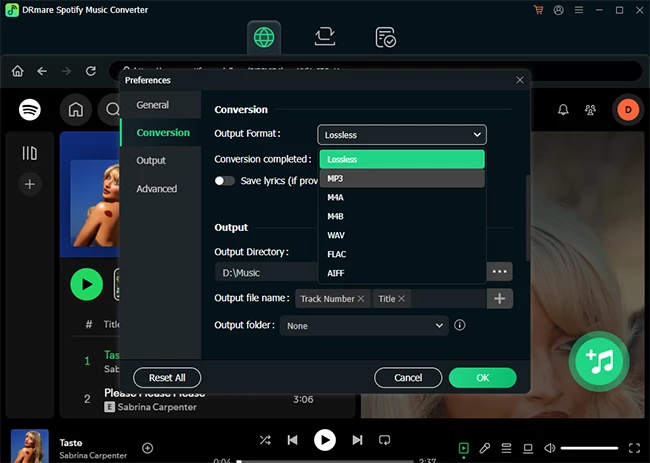
- Format Conversion Options: Outputs tracks into universally recognized extensions including MP3, WAV, FLAC, AAC, M4A, and M4B. Users can navigate to the Preferences menu to define specific sample rates from 44.1kHz to 192kHz and lock the bit rate at a strict 320 kbps for maximum compatibility with external hardware. This flexibility guarantees that the exported files will play on old car stereos that only recognize standard MP3s, as well as high-end audiophile equipment that requires uncompressed WAV or FLAC data.
- Batch Playlist Processing: Handles massive extraction queues without requiring manual intervention for every track. Users simply drag a playlist or album URL into the main interface, and the engine processes the entire list sequentially, capable of reaching speeds up to 15 times faster than standard playback duration depending on network conditions. This parallel processing means a playlist of one hundred songs can be completely encoded and saved to the hard drive in a fraction of the time it would take to listen to them.
- ID3 Tag Preservation: Automatically identifies and writes metadata directly into the converted files. The resulting files display accurate track titles, artist names, album titles, track numbers, and high-resolution album artwork when imported into standard media managers or car stereo displays.
- Built-in Web Player Integration: Operates directly through an embedded browser interface tailored for the streaming service. This eliminates the need to install the official desktop client or manage background processes, allowing users to log in, search for tracks, and trigger downloads from a single unified window.
- Customizable Output Architecture: Sorts output files automatically based on user-defined directory rules. The settings panel allows users to organize completed downloads into specific folders categorized by Artist, Album, or Artist/Album combinations, keeping massive local libraries strictly organized.
How to Install DRmare Spotify Music Converter on Windows
- Download the official Windows installer executable from the developer's website and locate the file in your default downloads folder.
- Double-click the installer package to trigger the setup wizard, accepting the user account control prompt if Windows requests elevated permissions to write to the local disk.
- Review the end-user license agreement, click to accept the terms, and specify a destination folder on your primary local drive for the program files.
- Allow the installation routine to copy the necessary executable files, libraries, and decryption modules to your local storage, which typically finishes in under a minute.
- Launch the application from the newly created desktop shortcut or the Windows Start menu to trigger the initial setup and network connectivity check.
- On the first run, the interface will prompt you to log into your streaming account using the embedded web player; enter your credentials to allow the software to read your library and playlists.
- Navigate to the top-right menu, select "Preferences", and switch to the "Convert" tab to define your default output folder, audio format, and target bit rate before attempting your first extraction.
DRmare Spotify Music Converter Free vs. Paid
DRmare Spotify Music Converter operates on a strictly freemium business model, offering a trial application alongside multiple premium subscription tiers. The free trial is readily available for anyone to install and test, but it imposes a strict operational limit: it will only convert the first 60 seconds of any given track. This restriction allows users to verify that the network capture, audio encoding, and metadata tagging work correctly on their specific hardware before committing to a purchase.
To unlock full-length track processing and batch queue capabilities, users must acquire a valid license key. The developer offers flexible pricing depending on how long the user expects to need the software. A standard monthly subscription costs roughly $14.95, which covers a single personal computer and includes technical support and software updates for that 30-day period. This tier is often chosen by users who just need to archive a specific playlist for an upcoming trip or event.
For long-term library management, the company provides extended licenses. A quarterly license is available for about $29.95, while a permanent, perpetual lifetime license costs around $79.95. The lifetime tier removes the recurring billing cycle entirely, providing permanent access to the current software build and all future updates on one machine. Upgrading from the free trial simply requires entering a purchased registration code into the software's menu panel, instantly unlocking the 60-second restriction without requiring a separate installation.
DRmare Spotify Music Converter vs. NoteBurner Spotify Music Converter vs. Sidify Music Converter
NoteBurner Spotify Music Converter focuses heavily on dual-engine extraction, allowing users to choose between recording from the official desktop client for maximum stability or the web player for faster processing. It supports high-resolution audio capture and offers additional built-in tools, such as CD burning and direct upload options to cloud storage. Users who want an all-in-one media management suite that handles the post-conversion tasks like burning physical media often lean toward NoteBurner, though its interface can feel slightly more cluttered due to these extra modules.
Sidify Music Converter shares a nearly identical objective but distinguishes itself with a highly polished, modern interface and strong multi-platform support. It excels at parsing complex URLs quickly and offers an integrated lyrics downloader, saving synchronized lyric files alongside the audio tracks. While it performs exceptionally well for standard MP3 and FLAC extraction, it tends to carry a premium price tag and heavily pushes its bundled software packages, which might deter users who only want a standalone extraction utility without the upselling tactics.
DRmare Spotify Music Converter strips away the bloat of CD burners and cloud uploaders to focus entirely on efficient, stable stream capture. It is the better choice for users who simply want to drag massive playlists into an interface and walk away while the software processes hundreds of tracks into strictly organized, perfectly tagged FLAC or MP3 directories. Its straightforward Preferences menu and reliable batch processing engine make it the most pragmatic option for building a local archive without navigating through unnecessary secondary features.
Common Issues and Fixes
- Spotify Error Code 30 connection failure. This happens when a proxy server or active VPN intercepts the local network traffic, preventing the software from authenticating with the streaming servers. To resolve this, open the host machine's proxy settings and disable them entirely, or whitelist the application executable within your VPN configuration panel so that the traffic routing remains direct and unfiltered.
- Converted files contain no audio or skip abruptly. This usually occurs when the computer goes into sleep mode or the hard drive enters a power-saving state during a long batch process. Fix this by navigating to your Windows Power Options and setting the machine to "Never Sleep" while connected to power, ensuring the disk write process remains uninterrupted.
- The application fails to parse a copied playlist URL. This indicates that the clipboard contains tracking parameters or the link format has changed on the server side. Solve this by relying on the embedded web player to locate the playlist directly, or click the "Share" button in the official app to generate a fresh, clean link without extra tracking text.
- Output folders are cluttered with mislabeled tracks. This happens if the user leaves the default output organization rules blank or the source tracks lack proper metadata. Fix this by navigating to Menu, then Preferences, then Convert, and setting the "Archive output tracks by" dropdown to "Artist/Album" so the engine automatically builds a clean directory tree.
Version 3.5.0 — July 2025
Added:
- Automatic system language detection and application as default interface language
- Support for latest Spotify Microsoft Store version
Improved:
- Product optimization for better performance
Fixed:
- Registration failure issue in certain system environments
- Various bugs affecting stability