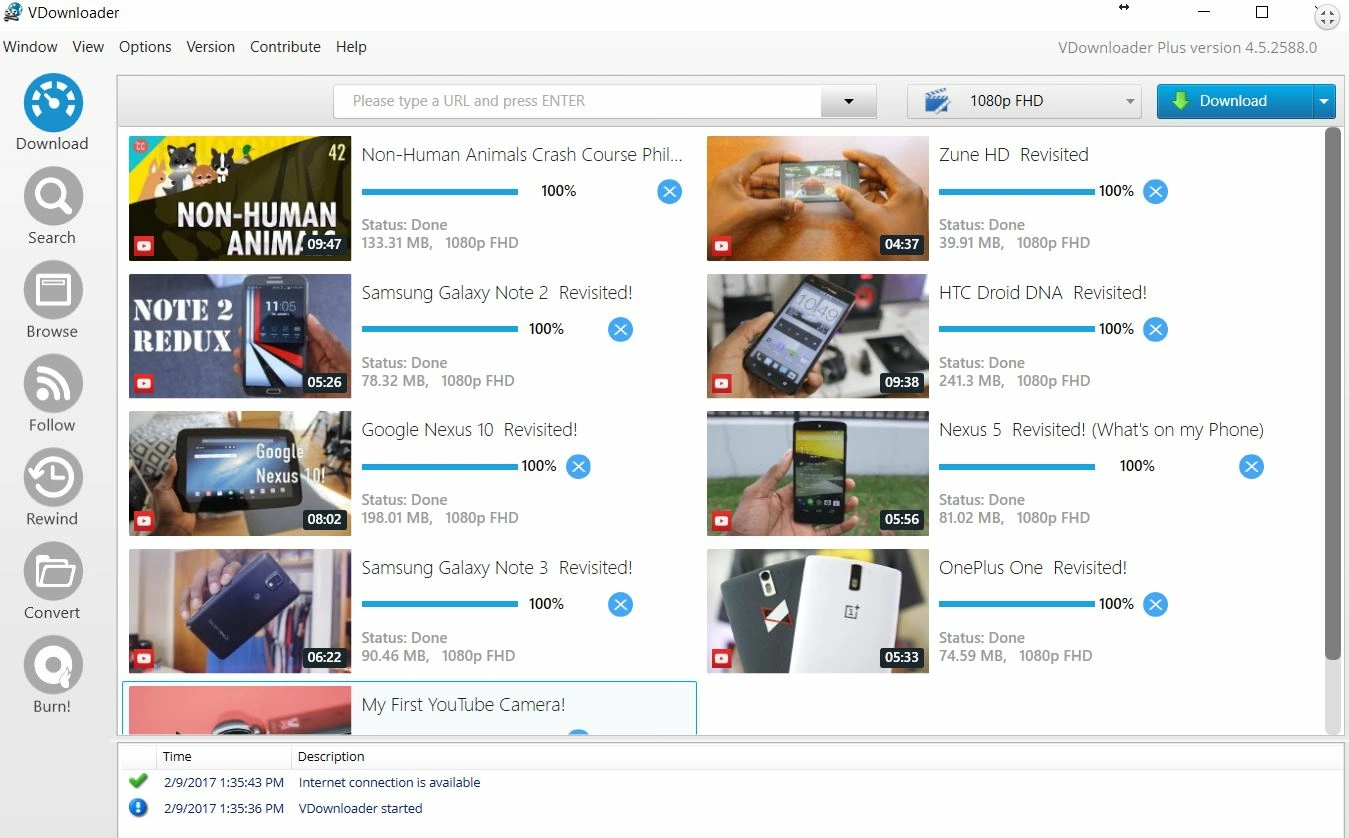
Saving online video content locally often requires navigating a maze of unreliable browser extensions, ad-heavy web tools, and artificial bandwidth caps. For users who need a direct, hardware-based method to archive digital media, VDownloader Plus acts as a dedicated desktop retrieval tool. This utility connects directly to the hosting servers of over 200 video platforms, extracting the raw media streams and saving them directly to a local hard drive. Instead of relying on a web browser to parse video files, the software handles the network requests, stream merging, and file conversion internally.
The transition from browser-based streaming to local file management solves several practical workflow problems. Content creators frequently face deleted videos, muted audio tracks due to copyright claims, or region-blocked media. Archiving these files locally ensures permanent access for research, video editing, or offline viewing during travel. Because web-based downloaders force users to upload their link to a third-party server, wait for a remote conversion, and then download the result, the process is notoriously slow. A native Windows application skips the middleman, pulling the data packets directly to your local storage and utilizing your machine's CPU for any necessary format transcoding.
Moving this process to a standalone desktop environment also provides granular control over the final file structure. Modern streaming sites do not store high-resolution videos as single files; they separate the high-definition video track from the audio track to optimize buffering. When users try to extract a 4K stream using basic tools, they often end up with a silent video. VDownloader Plus identifies these separate server-side tracks, downloads them simultaneously, and merges them into a single playback-ready file. This technical capability makes it highly relevant for video editors, digital archivists, and educators who require exact file formats without relying on unstable online utilities.
Key Features
- Multi-Platform Video Capture: The extraction engine recognizes URLs from hundreds of different hosting platforms, including Vimeo, Twitch, Facebook, and DailyMotion. Instead of using separate tools for different websites, users paste the target link into the main interface, and the software automatically determines the correct parsing method to extract the underlying media file.
- Built-in Video Trimmer: The application includes a dedicated Trim tab that allows users to specify an exact start and end time before initiating the network request. If a user only needs a 45-second clip from a four-hour live stream archive, the software cuts the segment at the source level, preventing the need to download gigabytes of unnecessary data just to edit it later in external software.
- Format Conversion Engine: Downloaded streams can be transcoded locally into various container formats, such as MP4, AVI, MKV, or MOV. For users who only want the audio track, the software can strip the visual data entirely, exporting the final file as a lightweight MP3 or WAV audio file suitable for digital audio workstations or mobile media players.
- Batch and Playlist Downloading: Rather than forcing users to copy and paste links one by one, the application parses entire channel URLs or public playlist links. Once a playlist URL is submitted, the interface populates a list of all contained videos, allowing the user to select specific entries or download the entire collection in one continuous background queue.
- Clipboard Link Monitoring: When active, a background listener monitors the Windows clipboard for copied web addresses. If it detects a supported video URL, it automatically forwards the link to the download queue without requiring the user to switch active windows, heavily accelerating the process of gathering multiple sources during research.
- Scheduled Downloads: Large batches of high-resolution files require significant network bandwidth, which can interfere with daytime video calls or web browsing. The integrated scheduler allows users to queue hundreds of links and set the actual network transfer to begin during off-peak hours or when the computer detects an idle state.
How to Install VDownloader Plus on Windows
- Navigate to the official vendor website and download the primary Windows executable file to your local storage drive.
- Double-click the downloaded setup file to launch the installation wizard. If prompted by Windows User Account Control, grant the necessary administrative permissions to allow the creation of required background services.
- Read and accept the End User License Agreement to proceed to the directory configuration screen.
- Select the destination folder path on your local drive where the core application files will reside. Decide whether you want a desktop shortcut created for quicker access.
- Click the install button and wait for the wizard to extract the necessary conversion dependencies and media merging components to your system folder.
- Launch the application from the Start menu. Upon the first run, navigate to the settings menu to input your purchased license key, which will authenticate with the vendor server and unlock the Plus-tier capabilities.
- Open the preferences panel and designate a dedicated folder for your saved media files to ensure large 4K exports do not accidentally fill your primary operating system partition.
VDownloader Plus Free vs. Paid
The developer offers a layered pricing model that separates basic media extraction from high-bandwidth, high-resolution archiving tasks. The Free tier allows users to capture standard-definition and high-definition streams from supported websites. However, this unpaid version restricts access to premium resolutions, blocks bulk playlist processing, and limits access to the integrated trimming utility. It operates well for casual users who only need occasional low-resolution clips but introduces friction for batch archiving.
Upgrading to the Plus tier removes these artificial caps and introduces advanced media handling. The paid version is structured through three distinct payment paths: a Plus Monthly subscription at $5, a Plus Yearly subscription at $30, and a Plus Lifetime perpetual license for $65. Paying for the Plus tier directly unlocks the ability to target 2K, 4K, and 8K video streams, ensuring maximum visual fidelity.
In addition to resolution unlocking, the Plus tier activates the automation and scheduling modules. Users gain the ability to parse massive playlists, target entire creator channels, and utilize the clip trimming functions before the file hits the local disk. The Lifetime license specifically appeals to users who want to avoid recurring subscription charges while maintaining permanent access to the high-resolution extraction scripts.
VDownloader Plus vs. 4K Video Downloader+ vs. YTD Video Downloader
4K Video Downloader+ focuses heavily on channel subscription mechanics and extracting embedded subtitle tracks from specific hosting platforms. It operates across multiple non-Windows operating systems, making it highly versatile for mixed-hardware environments. However, it lacks a native pre-download trimming tool. Users who need to cut specific segments out of long broadcasts will prefer VDownloader Plus, as it prevents the mandatory downloading of massive, unedited source files.
YTD Video Downloader is an older, established utility that offers basic video extraction but strictly throttles network transfer speeds on its free tier, making high-definition file retrieval frustratingly slow. While YTD supports multiple export formats, its interface has not kept pace with modern multi-track streaming architectures. VDownloader Plus offers a significantly faster baseline transfer speed and handles modern 8K stream merging with fewer network timeouts.
Choosing between these utilities depends on the specific daily task. If the primary goal is capturing exact 30-second clips from extensive online archives to save local storage space, VDownloader Plus provides the superior toolset. If the objective is cross-platform channel synchronization with complex subtitle parsing, 4K Video Downloader+ handles those strict parameters highly effectively.
Common Issues and Fixes
- "Error" message when parsing a video link. Video hosting platforms frequently update their backend code to block third-party extraction. To resolve this, open the application settings and check for a software update. Installing the latest build updates the extraction scripts to match the host site's new API structure.
- Application fails to launch or crashes on startup. This usually indicates a corrupted configuration file or missing background dependencies. Reinstall the software completely and verify that your Windows operating system has the correct Microsoft .NET Framework active and fully updated.
- Clipboard monitor misses copied links. The background listener may have stalled or been manually disabled. Navigate to the application settings and toggle the option labeled "Immediately download video URLs copied to the clipboard" off and then back on to restart the monitoring service.
- Files default to WebM format instead of MP4. Many high-resolution streams default to the WebM container on the server side to save bandwidth. To force an MP4 export, go to the advanced formatting options in the interface and explicitly set the target format to MP4 before starting the extraction queue.
- Downloads stuck at 0% progress indefinitely. A local firewall or overly strict antivirus software might be blocking the application's outbound network connection. Open your Windows security settings and add an exception for the executable file to allow standard HTTP traffic to pass through.
Version Latest — 2025
- Added support for new high-definition video formats to ensure compatibility with the latest media standards.
- Improved application stability and launch speed, reducing load times on all supported devices.
- Fixed an issue where the content list would occasionally fail to refresh or display incorrect metadata.