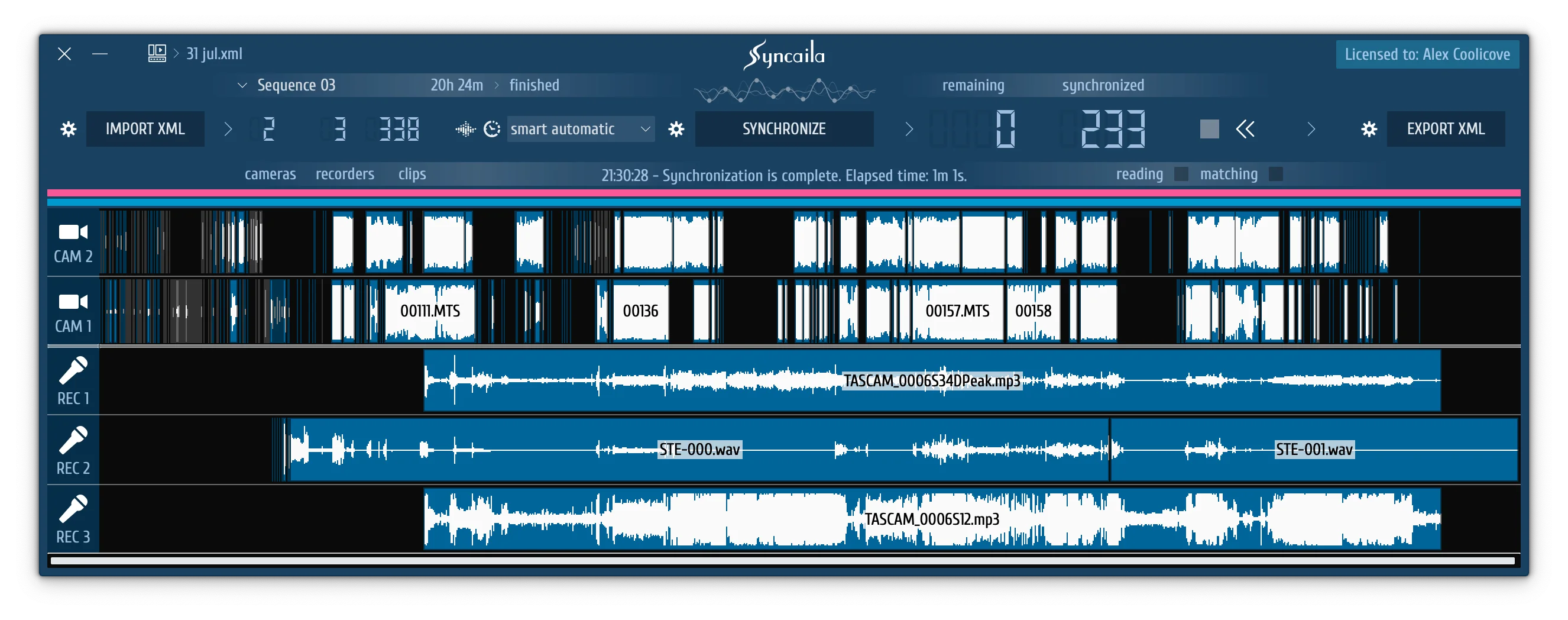
Syncaila is a standalone automatic synchronization application built for video editors managing multi-camera shoots and external audio recorders. Instead of relying on hardware timecode generators or manually aligning clapperboard spikes on an editing timeline, this desktop tool analyzes audio waveforms to match multiple video and audio tracks accurately. It serves documentary filmmakers, event videographers, and television editors who deal with large folders of disjointed media recorded across different camera models and field recorders. By automating the alignment phase of post-production, the application eliminates the tedious process of sliding clips back and forth frame by frame to find audio matches. The core engine simulates a human editor's logical workflow but processes the analysis locally, allowing users to align entire days of shooting at once without requiring manual intervention.
The workflow operates entirely through XML or AAF interchange files rather than acting as a traditional plugin inside a host editing window. Editors first organize their unsynced media inside their primary non-linear editing system—such as Premiere Pro, DaVinci Resolve, or Final Cut Pro—and export the timeline as an interchange sequence file. They then import this file into the synchronization interface, which immediately loads the metadata and displays the tracks. Once the user clicks the synchronize button, the engine calculates the chronological order and waveform matches, generating a new, correctly aligned sequence file. This new XML or AAF file imports directly back into the primary video editing software, creating a fresh timeline where all cameras and audio recorders are positioned exactly where they belong.
Choosing a dedicated desktop application for this specific task prevents the main video editing software from crashing or stalling under heavy analysis loads. Major editors often struggle to bulk-analyze long-form recordings with noisy scratch tracks, leaving clips staggered or dropping them entirely. By dedicating local CPU and memory resources solely to waveform matching, this tool maintains strict chronology and organizes orphaned clips neatly, even when processing files with wind noise or poor microphone placement. Furthermore, keeping the process isolated ensures that the application operates across multiple host programs, giving freelancers the flexibility to change their main editing software without losing their multi-camera alignment pipeline.
Key Features
- Standalone Sequence Processing: The application processes sequences via standard XML and AAF interchange files rather than running as an embedded plugin. This architectural choice allows it to communicate with major non-linear editors like Premiere Pro, DaVinci Resolve, Media Composer, and Vegas Pro. Because it runs independently, it prevents the host editor from freezing during heavy audio analysis.
- Timecode-Free Synchronization: The engine relies purely on audio waveform analysis rather than hardware metadata. Editors can mix footage from professional cinema cameras with consumer drones, action cameras, and pocket audio recorders. The software successfully aligns all media even if timecode jamming was completely ignored on set or if the clocks on the cameras were configured incorrectly.
- Chronological Clip Ordering: When analyzing an exported timeline, the software maintains the strict chronological order of the original shoot. It calculates the natural gaps between different takes and orders the files sequentially across the tracks. This behavior ensures that the resulting sequence represents a continuous, historically accurate timeline of the event rather than a random stack of clips.
- Silent Clip Placement: Media lacking usable audio, such as slow-motion b-roll or silent drone footage, is not discarded by the engine. The synchronization logic places these silent files logically at the end of the sequence or groups them by track. This prevents them from interfering with the main synced timeline while keeping them easily accessible for the editing phase.
- Adjustable Search Accuracy Levels: Users control the sync engine parameters through a dedicated settings menu, choosing between different thoroughness levels. This allows editors to force a deeper, more intensive waveform scan for challenging projects with muffled microphone audio, wind noise, or overlapping dialogue. Dropping the thoroughness level speeds up processing for clean studio audio, while maximizing it solves complex environmental recording issues.
- Lightweight Media Caching: To accelerate repeated synchronization tasks on the same multi-camera project, the application generates small, localized cache files on the computer's storage drive. If an editor needs to add a forgotten external audio track to an already processed sequence, the software re-syncs the timeline rapidly without needing to rebuild the entire waveform database from scratch.
How to Install Syncaila on Windows
- Download the Windows installer executable from the official vendor website and save it to your local storage drive.
- Launch the downloaded setup wizard and grant administrator privileges when prompted by Windows User Account Control to allow the installation.
- Review the End User License Agreement, accept the terms, and define a destination folder on your primary drive or leave the default path intact.
- Choose whether to create a desktop shortcut, then proceed to copy the standalone application files to your system.
- Click Finish to close the setup wizard and launch the program to verify that the main interface loads correctly.
- Open the Settings menu on your first run and assign a dedicated directory for the application's cache files, preferably on a fast SSD to ensure quick waveform reading during analysis.
- Open the License Info window and enter your registered email address and license key while connected to the internet to activate the full processing limits.
Syncaila Free vs. Paid
The developer uses a shareware licensing model that allows video editors to test the waveform engine against their own project files before committing to a purchase. New users receive a fully functional 20-day trial period upon installation. During this window, all track and clip restrictions are lifted, meaning the software behaves exactly like the premium tier. Editors can process feature-length timelines, multi-day festival shoots, and mixed-format media without dealing with watermarks, export limitations, or artificial processing delays. This evaluation phase ensures users can verify direct compatibility with their specific camera models and interchange workflows.
Once the initial trial window expires, the software automatically reverts to a permanent free mode. This free tier never expires, but it limits the synchronization capacity to a maximum of 20 clips spread out across two tracks. This constraint makes the free version suitable for simple dual-camera interview setups or short vlogs. However, it is insufficient for complex documentary, reality television, or wedding timelines that involve dozens of takes and multiple external audio recorders running simultaneously.
To unlock the synchronization capacity permanently, users purchase a one-time perpetual license. The pricing model offers different tiers based on the scale of the user's projects, alongside an unrestricted full license for professional post-production houses. These are one-time payments rather than recurring subscriptions, and they include unlimited updates to all subsequent minor and major builds of the application. While the software processes files locally and operates offline, activating the permanent license requires a temporary internet connection, and certain time-limited seasonal licenses require an active connection on every run.
Syncaila vs. Maxon PluralEyes vs. Adobe Premiere Pro
Maxon PluralEyes operated as the industry standard for external audio synchronization for over a decade, functioning both as a standalone application and a direct extension panel. Editors working on legacy projects or those who preferred triggering syncs directly inside a host interface utilized PluralEyes for its visual feedback and immediate timeline updates. However, PluralEyes has entered an official maintenance mode and is no longer actively developed to support newer camera formats and updated interchange standards. When comparing the two, editors move to Syncaila because it actively receives updates for modern raw camera formats and offers a broader range of logic adjustments for chronological sorting.
Adobe Premiere Pro includes a built-in "Synchronize" function that attempts to match audio waveforms directly on the timeline without requiring any roundtrip file exports. This native tool is useful for quick alignments involving a single camera and one external microphone, as it requires only a simple right-click command and zero file management outside the application. However, Premiere Pro frequently struggles with large-batch processing, often failing to detect matching waveforms on noisy audio tracks or creating staggered, messy timelines when dealing with multiple cameras starting and stopping randomly throughout an event.
Syncaila is the better fit for editors dealing with large folders of disjointed media, particularly when built-in non-linear editing tools fail. While the interchange file roundtrip process adds a few extra file-management steps compared to a native timeline function, the actual waveform analysis is more accurate and resilient against poor audio quality. For complex documentary work, unscripted events where timecode was ignored, or multi-day festival shoots, the dedicated application aligns the footage correctly where NLE tools simply return a match error or push clips visibly out of sync.
Common Issues and Fixes
- The synchronized sequence drifts out of sync over time. This usually happens when the source media frame rate does not match the timeline frame rate in your editing software. Fix the timeline frame rate to exactly match your source media before exporting the initial interchange file to ensure accurate timing calculations.
- Media files appear offline after importing the sequence. Older video editing suites often write file names instead of absolute file paths to the exported file. To prevent this, uncheck the option to include media during the export, or upgrade to a modern editor release where this pathing behavior is resolved.
- Multichannel audio clips lose their track linking. DaVinci Resolve has known quirks with parsing complex audio tracks via sequence files. Use the editing function to decompose clips in place to ungroup them in Resolve before exporting, or switch to the AAF interchange format which often yields better audio track mapping.
- The program cannot deactivate a license on a broken computer. Because the broken hardware is inaccessible, the abandoned activation slot will remain locked temporarily. The vendor licensing server automatically resets abandoned activations after a set period of two months, freeing up the slot for a new device without requiring direct intervention.
- Error messages appear when opening timelines with audio effects. Host editors write proprietary effect tags into their export files that external tools cannot parse. Disable heavy audio plugins, speed ramps, and voice isolation features on the source timeline before exporting to ensure the waveform analysis runs on clean, unmodified audio tracks.
Version 2.7.9.3 — November 2025
- Added support for R3D media files originating from Nikon ZR cameras.
- Improved stability and compliance for FCPXML X format imports and exports.
- Fixed a critical startup crash affecting macOS users with Intel processors.
- Fixed an issue where audio channels were lost in non-standard FCPXML X configurations.
- Fixed a crash that occurred when loading RED video files containing no audio tracks.