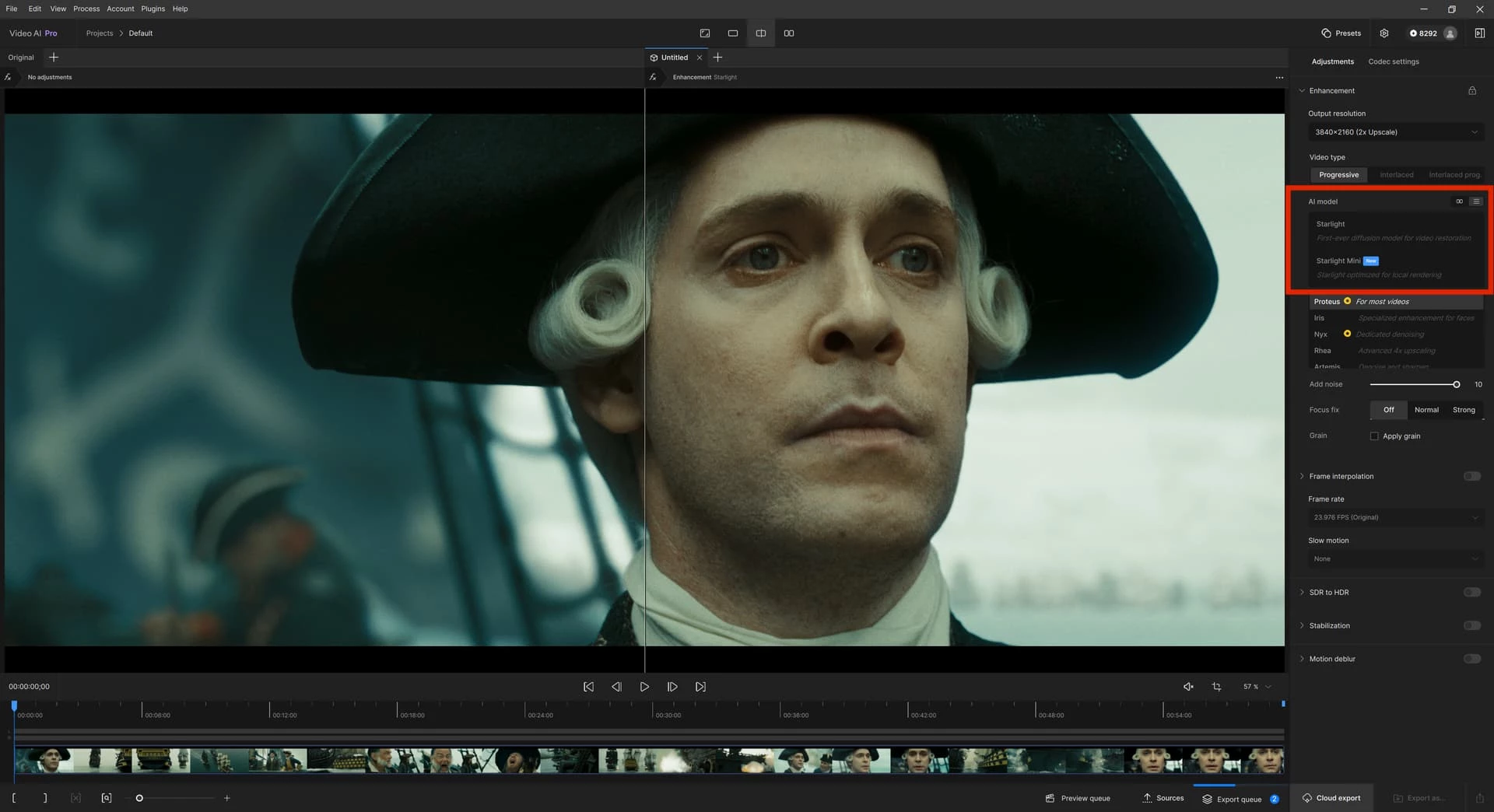
Topaz Video AI operates as a dedicated desktop application engineered to restore, upscale, and refine digital video footage using specialized machine learning models. Instead of functioning as a traditional non-linear editor, this software acts as a standalone rendering engine that handles complex enhancement tasks such as frame interpolation, motion deblurring, stabilization, and deep noise reduction. Archivists, documentary filmmakers, and post-production professionals rely on its focused toolset to salvage low-resolution archival clips, clean up noisy drone shots, or prepare standard-definition media for modern ultra-high-definition displays.
Unlike browser-based upscaling utilities that compress files and restrict upload sizes, running this process locally on a Windows 10 or Windows 11 workstation provides direct access to high-performance GPU hardware. Local rendering guarantees privacy for sensitive or unreleased footage, removes cloud bandwidth bottlenecks when processing gigabytes of raw files, and allows users to export directly to professional intermediate codecs. The interface is specifically structured around importing media, selecting the correct AI model based on the specific degradation of the source file, and queuing heavy batch exports without interrupting other daily tasks.
By ignoring standard timeline editing in favor of an input-to-output pipeline, the software avoids feature bloat and directs all processing overhead toward visual output. You simply load a video file, map an AI model to the specific artifact or issue present in the frame, and initiate the processing sequence. Relying on temporal data—where the engine analyzes multiple adjacent frames forward and backward in time—allows the system to separate genuine subject detail from random digital noise, preventing the plastic, overly smoothed look common in older static filters.
Key Features
- AI Upscaling and Enhancement: Select specific neural network models like Artemis for general footage, Proteus for manual control over sharpness and noise, or Gaia for high-quality source material to increase resolutions up to 4K or 8K. The interface allows users to dial in exact percentage scales or select standardized output dimensions from a drop-down menu.
- Frame Interpolation Engine: Use models like Apollo or Chronos to generate new frames within a clip, converting standard 24fps or 30fps footage into smooth 60fps or 120fps slow-motion. Instead of blending existing frames and creating ghosting artifacts, the software calculates vector motion to draw entirely new intermediate images.
- Deep Denoising and Deblurring: Remove sensor grain, compression artifacts, and motion blur by analyzing temporal data across multiple adjacent frames. The system isolates actual movement from digital artifacting, preserving fine details like skin texture or film grain while stripping out unwanted low-light noise.
- Advanced Video Stabilization: Correct camera shake and jitter natively within the rendering pipeline, mapping scene depth to steady handheld or drone footage. It manages rolling shutter effects and micro-jitters without relying on the extreme cropping or the artificial background warping typical of standard nonlinear editing tools.
- Batch Processing Workspace: Drag and drop multiple files directly into the central Video Library, apply distinct enhancement models or presets to each clip, and queue them for continuous rendering. Users can set the application to process overnight, maximizing hardware utilization.
- Professional Format Support: Export final rendered files using standard modern containers and encoders including H.264, H.265, and AV1. For users requiring maximum data retention for further color grading, the software also supports exporting directly to professional intermediate codecs like Apple ProRes and uncompressed image sequences.
- Workspace Split-View Preview: Compare original clips alongside enhanced versions before committing to a lengthy render. Users can toggle a side-by-side view, loop short sections of the timeline, and evaluate how parameter changes affect specific details before initiating the final output process.
How to Install Topaz Video AI on Windows
- Download the official Windows installer package directly from the vendor's website to your local drive.
- Launch the setup executable and accept the end-user license agreement when the initial prompt appears on screen.
- Review the default installation directory, keeping in mind the vendor strictly recommends installing the application on your primary internal startup disk rather than a slower external drive to prevent read/write bottlenecks during heavy processing.
- Complete the installation wizard and click the final button to launch the application for the first time.
- Provide your account credentials on the initial activation screen to verify your license status, which requires an active internet connection.
- Connect the application to your local media folders by dragging a test video directly into the main interface to trigger the initial setup workspace.
- Select an enhancement filter to initiate a local caching process; the software must connect to external servers to download specific AI models directly to your computer the first time you attempt to use them.
Topaz Video AI Free vs. Paid
Topaz Video AI operates as a premium desktop application, though prospective users can install a free demo to test its capabilities on their specific hardware. The trial tier allows full access to all AI models, interface controls, and export settings, but enforces a visible permanent watermark on any rendered video. This demo state strictly serves as an evaluation environment, allowing editors to verify that their graphics cards can process the heavy workloads and to inspect the exact quality improvements before committing financial resources.
To remove the watermark and unlock the application for commercial use, users must purchase a paid license. The vendor has shifted its pricing structure over time, currently offering subscription models that typically range from $33 per month for personal use to $67 per month for professional tiers, alongside annual billing options averaging around $299 to $396 per year depending on the specific user plan. There is no longer a permanently updated perpetual license, meaning access to the newest neural models and software features requires maintaining an active billing cycle.
The paid tiers enable unlimited local rendering without cloud export caps, ensuring users can process massive archival files entirely offline once the necessary AI models are initially cached. Because all processing occurs on local hardware rather than remote servers, users do not pay per-minute rendering fees or credit-based consumption charges. Some professional workflows may require specific higher-tier enterprise licenses if the software is deployed across multi-user commercial studio environments, making it necessary to review the official terms of service for studio compliance.
Topaz Video AI vs. DaVinci Resolve Studio vs. VideoProc Converter AI
DaVinci Resolve Studio operates as a complete non-linear editing, color grading, and audio mixing suite that includes its own built-in neural engine upscaling and retiming tools. Editors who need to cut, color, and mix entire projects within a single timeline often prefer Resolve Studio, as it prevents the need to render massive intermediate files just to upscale a few specific clips. However, its hardware demands are exceptionally high across the entire board, and its built-in upscaling models offer fewer specialized categories for salvaging heavily compressed or severely degraded analog footage compared to a dedicated restoration tool.
VideoProc Converter AI targets users looking for a lighter, faster, and more general-purpose media toolkit for everyday consumer tasks. It combines basic format conversion, DVD ripping tools, direct web downloading, and AI upscaling into a single accessible interface that requires significantly less GPU power to run efficiently. Casual users attempting to quickly upscale family home videos or convert old file formats for mobile devices usually find VideoProc far more forgiving on standard computer hardware, though it lacks the granular temporal control and high-end ProRes export options expected in professional post-production pipelines.
Topaz Video AI remains the superior choice for dedicated restoration tasks where absolute final visual quality acts as the primary requirement. By operating entirely as a standalone rendering engine, it dedicates all available system resources to complex temporal frame analysis, offering distinct, trainable models for specific visual artifacts like interlacing, severe low-light noise, or extreme motion blur. When an editor needs to recover completely unusable archival footage or prepare standard-definition digital media for a professional 4K broadcast, Topaz provides the exact specialized tools necessary to execute that specific job without the distraction of unrelated editing features.
Common Issues and Fixes
- AI model download failures. Users often encounter errors stating the software cannot download specific neural models during processing, stopping the render entirely. To fix this, ensure your firewall is not blocking the application, verify your internet connection is active, or navigate to the settings menu and change the default model directory to a folder with unrestricted read/write permissions.
- Slow export speeds or UI freezing. Processing high-resolution video can easily consume all available GPU memory, causing the application to stall or the interface to become unresponsive. Open the software preferences, reduce the maximum memory usage limit to 80 percent, set the maximum number of simultaneous processes to one, and ensure your dedicated graphics card is manually selected as the AI processor rather than leaving it on automatic mode.
- Distorted faces in background subjects. When upscaling low-resolution video, specific neural models like Iris or Rhea may occasionally hallucinate or distort small facial details in wide background shots. To mitigate this, switch the processing mode to the Proteus model and manually reduce the Improve Detail parameter to negative values, or process the video in two passes by running a visual enhancement first without scaling, followed by a dedicated upscale pass.
- Audio sync issues or crashes during ProRes export. Rendering extremely long videos directly to Apple ProRes HQ occasionally results in application crashes near the end of the process or completely misaligned audio tracks. A reliable workaround involves exporting the enhanced footage to an H.265 or H.264 container at a high bitrate to ensure stability, then using a secondary dedicated transcoding tool to convert the final file if ProRes is strictly required for the final delivery timeline.
- Split view preview misalignment. Sometimes, while evaluating footage in the dual-pane view, the before-and-after panels fail to synchronize panning movements, leaving one side static. To resolve this visual bug, exit the preview pane, switch back to the single view mode, and then re-enable the split view, or temporarily change the output resolution setting to force the interface to refresh the cache.
Version 1.1.0 — 2025
- Added support for the DNxHR codec, including profiles for LB, SQ, HQ, HQX, and 444.
- Reintroduced the "Starlight Mini" model name by popular demand and improved its stability on AMD and Mac systems.
- Introduced a new Denoise filter and significantly improved the quality of Grain generation.
- Improved performance and stability for After Effects and DaVinci Resolve plugins, resolving freezing issues and enhancing output quality.
- Optimized engine performance to reduce crashes on Windows AMD and NVIDIA RTX 20 series GPUs during processing and export.
- Fixed an issue where Cloud rendering caused resolution mismatches for Starlight model exports.
- Resolved a bug preventing the application from fully closing and fixed a playback issue requiring double-clicks.