Nuance Power PDF Advanced, which has evolved through acquisitions by Kofax and is now maintained as Tungsten Power PDF Advanced, serves as a professional-grade document editor designed for enterprise and daily office workflows. While standard document readers only allow viewing and basic highlighting, this application provides an exact toolkit for creating, modifying, and assembling industry-standard files. Legal professionals, administrators, and office managers use it to handle concrete tasks such as redacting sensitive financial data, generating interactive forms, and merging completely different file types into a single portfolio. By keeping all processing local rather than relying on cloud uploads, the desktop app ensures strict compliance with internal data privacy rules.
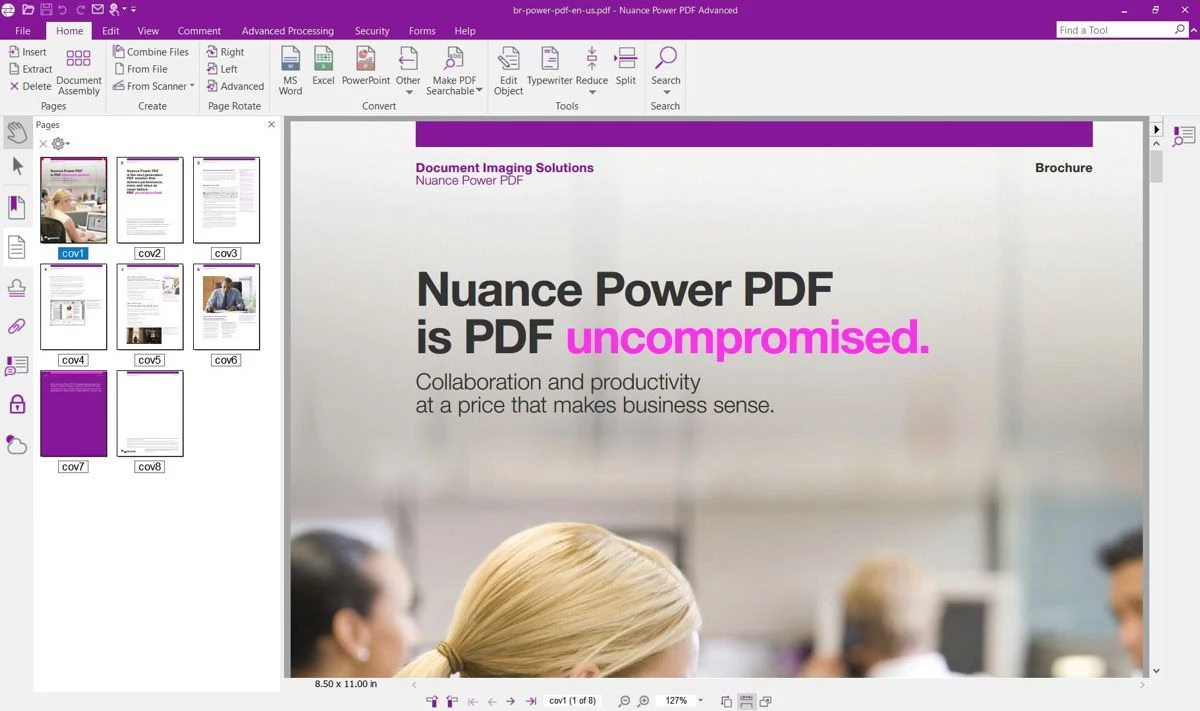
A major reason organizations deploy this software over standard category alternatives is the user interface. The layout deliberately mirrors the Microsoft Office ribbon, placing tools under familiar tabs like Home, Edit, and View. This design eliminates the steep learning curves typically associated with advanced document editing. Users moving from Microsoft Word to this application will immediately recognize the Quick Access Toolbar and the categorized command structures. Rather than digging through nested menus to find a Bates numbering tool or a watermark option, employees can simply use the ribbon search bar to locate the exact command needed for their current task.
In practical terms, the desktop application excels at heavy-duty file conversion and compilation. Built on the OmniPage optical character recognition engine, the software translates scanned paper forms and flat image files into fully editable text documents. Office workers can scan an incoming invoice directly into the program, verify the text accuracy using the built-in proofreader, and export the data straight into an Excel spreadsheet. This local, offline-capable conversion process avoids the security risks of sending sensitive documents through third-party web converters, keeping corporate data strictly on the internal hard drive.
Key Features
- OmniPage Optical Character Recognition: The application uses a dedicated engine to convert flat images and scanned paper into searchable text. Users can run the OCR proofreader tool to visually compare the original scan against the recognized text, allowing them to manually correct any misread characters before exporting the final file to editable Word or Excel formats.
- Redaction and Bates Numbering: Legal and financial users can permanently scrub sensitive information from documents using the redaction tool located in the Security ribbon. The software offers pattern-based redaction to automatically find and remove social security numbers or credit card sequences, while the Bates numbering tool applies sequential identification stamps across thousands of pages.
- Document Assembly and Portfolios: Instead of managing dozens of loose files, users can merge Word documents, Excel spreadsheets, and JPEG images into a single container file. By navigating to the Document Assembly tab, users can drag and drop pages within the Pages panel to reorder them, extract specific pages to create new files, or build a structured portfolio.
- Automated Form Building: The FormTyper utility scans flat, static documents and automatically detects areas that should be fillable fields. It overlays text boxes, checkboxes, and radio buttons onto the file, turning a printed application into an interactive digital form. Users can then use the Forms ribbon to adjust field properties, set tab orders, and add digital signature blocks.
- Office-Style Ribbon Interface: Navigation relies on a tabbed layout identical to Microsoft Office, reducing the time spent searching for tools. Users can customize the Quick Access Toolbar to pin their most frequent commands, such as Email a Page or Split Document, and use the Find a tool search bar to locate buried functions instantly.
- Digital Signature Integration: The software provides dedicated tools for signing and routing documents without opening an external web browser. Users can apply local certificate-based cryptographic signatures to lock file integrity, or connect directly to platforms like DocuSign and Tungsten SignDoc from the Security tab to send contracts out for external signature gathering.
How to Install Nuance Power PDF Advanced on Windows
- Download the official Windows installer executable directly from the vendor's distribution page or partner portal, ensuring you have the correct architecture package for your operating system.
- Temporarily pause strict active antivirus shields before extracting the installer package, as some security tools falsely flag the background extraction of the setup files.
- Launch the setup wizard and select your primary language from the initial drop-down menu, which dictates both the installation prompts and the default user interface language.
- Enter your alphanumeric license key when prompted by the licensing dialogue box, or select the option to run the application in a limited trial mode for evaluation.
- Choose the Custom installation path if you need to exclude specific components. The Custom menu allows you to prevent the installation of browser extensions or specific enterprise content management integrations.
- Review your installation directory path and click Install to allow the setup wizard to copy the necessary executable files, registry keys, and local font dependencies.
- Launch the application for the first time while connected to the internet to complete the final online activation ping, which registers your hardware ID with the vendor's licensing server.
Nuance Power PDF Advanced Free vs. Paid
The application does not operate on a freeware or freemium model. Instead, new users can access a 15-day free trial that provides full access to the toolset, allowing them to test the OCR engine, form building, and redaction tools on their own hardware. Once the trial period ends, the software locks its editing and saving functions, prompting the user to input a valid license key to restore full functionality.
The primary financial draw of this application is its perpetual licensing model. While the industry standard often forces users into monthly subscriptions, this software offers a one-time purchase option for individual licenses. Buying the software grants you permanent ownership of that specific software edition, meaning you can use it indefinitely without facing recurring billing or unexpected price hikes. This model appeals strongly to small businesses and independent professionals looking to strictly control software expenditures over long periods.
Enterprise and corporate buyers have access to volume licensing tiers, which include deployment tools for Citrix and Windows Server environments. While minor fixes and security updates are provided at no extra cost, major upgrades do require a separate purchase. Existing users generally receive a discount code to purchase the newer iteration. For organizations that prefer predictable budgeting, an optional maintenance package is available during the initial purchase, covering premium technical support and free upgrades to future editions as long as the maintenance contract remains active.
Nuance Power PDF Advanced vs. Adobe Acrobat Pro vs. Foxit PDF Editor
Adobe Acrobat Pro serves as the absolute standard for electronic document management, offering extensive cross-platform availability, web-based tools, and deep JavaScript form-scripting capabilities. It integrates directly with Adobe's creative suite and provides highly detailed preflight tools for commercial printing. However, Acrobat Pro strictly requires an ongoing monthly subscription, and its expansive menus can overwhelm administrative workers who simply need to combine pages or redact text. Acrobat is best for creative professionals and organizations that rely heavily on Adobe's entire ecosystem and cloud services.
Foxit PDF Editor presents a highly customizable interface with excellent cloud connectivity, supporting over forty cloud storage providers and offering dedicated applications across various desktop and mobile hardware. It includes advanced AI-powered redaction and quick document comparison tools, making it a strong contender for teams needing remote collaboration. On the downside, Foxit heavily pushes its subscription-based Editor+ tiers for full functionality, making it less attractive to buyers specifically seeking a pure offline, one-time-purchase application.
Nuance Power PDF Advanced is the better fit for organizations aiming to eliminate recurring software rental costs while keeping all document processing strictly local. By offering a perpetual license, it dramatically lowers the total cost of ownership over a three-year span compared to subscription-only competitors. The direct Microsoft Office ribbon interface ensures that employees can start working immediately without retraining. If your primary needs involve local OCR processing, Bates numbering, secure redaction, and drag-and-drop document assembly on Windows desktops, this application delivers high-end utility without the ongoing financial burden.
Common Issues and Fixes
- The OCR engine applies an incorrect language structure when exporting. Open the document conversion settings dialog box before exporting. Clear the incorrect default language from the active list and manually select your actual language to ensure proper character recognition.
- The installation wizard freezes or fails to complete the file extraction phase. Strict endpoint protection software often blocks the installer from writing temporary files. Temporarily pause your security software, complete the installation wizard, and add the application folder to your antivirus whitelist before re-enabling protection.
- Extracted Rich Text Format documents appear completely blank in basic viewers. Basic text editors struggle to render files saved with the application's True Page layout option. To view the text and formatting correctly, set a standard word processor like Microsoft Word as the default handler for all extracted files.
- The FormTyper utility misses certain text fields when converting a flat image. Navigate to the Forms tab on the main ribbon and select the Text Field tool. Manually draw a box over the missed section, then adjust the field properties to define the text size and character limits.
- The application experiences severe lag when scrolling through heavy vector graphics. Navigate to the software preferences and locate the graphics rendering section. Disable the hardware acceleration or change the active graphics library setting to force standard software rendering, which usually stabilizes the scrolling performance.
Version 2025.3 — November 2025
- Added Cloud Editor functionality, enabling users to modify, annotate, and collaborate on PDFs directly within a secure web browser interface without needing a local installation.
- Added deep integration with Microsoft 365, allowing for real-time co-authoring and document sharing via Microsoft Teams and SharePoint.
- Added AI Copilot capabilities (BYO license) that utilize OpenAI or Azure models to summarize documents, explain complex content, and auto-redact sensitive information.
- Added native support for Windows-on-ARM devices, ensuring full compatibility and optimized operation on modern ARM-based hardware.
- Improved document accessibility with enhanced tagging tools that now support the latest PDF/UA and PDF/UA-2 compliance standards.
- Improved application performance and battery efficiency on portable devices through a unified 64-bit architecture and ARM optimization.
- Fixed previous compatibility gaps by standardizing the 64-bit architecture across all product editions.