Repetitive computer tasks drain time and energy, whether that involves clicking through identical database forms, processing bulk file conversions, or maintaining an active session in a desktop game. TinyTask provides a direct method for automating these actions on a Windows desktop without requiring users to write a single line of code. Instead of learning a scripting language, individuals simply record their exact mouse movements, clicks, and keystrokes, and then command the software to replay that exact sequence on demand. This approach translates physical desktop actions into repeatable digital workflows in seconds, offering immediate relief from manual data entry and repetitive interface navigation.
The software caters directly to office workers handling manual data transfers, gamers setting up away-from-keyboard farming routines, and system administrators automating temporary configurations. Because the application hooks into the operating system at a low level to track screen coordinates and physical inputs, it operates quite differently from browser-based macro extensions. A browser extension can only interact with webpage elements, but a desktop-level macro utility can interact with the start menu, file explorer, proprietary enterprise software, and independent applications simultaneously. When a user needs to drag a file from a local folder into an active application window, only a native desktop tool can capture and replicate that cross-application behavior.
Despite its minimal disk footprint, the utility is entirely self-contained and avoids relying on external runtimes like Java or the .NET framework. The developer achieved this by relying purely on native operating system API calls, ensuring the executable loads instantly and requires almost zero system memory to operate. Users prefer this approach when they need a reliable, immediately available tool that does not consume background processing power or require complex configuration. It solves the specific problem of immediate, temporary automation. When a script is too complex or time-consuming to write for a five-minute data entry chore, capturing the screen actions directly provides the fastest path to completion.
Key Features
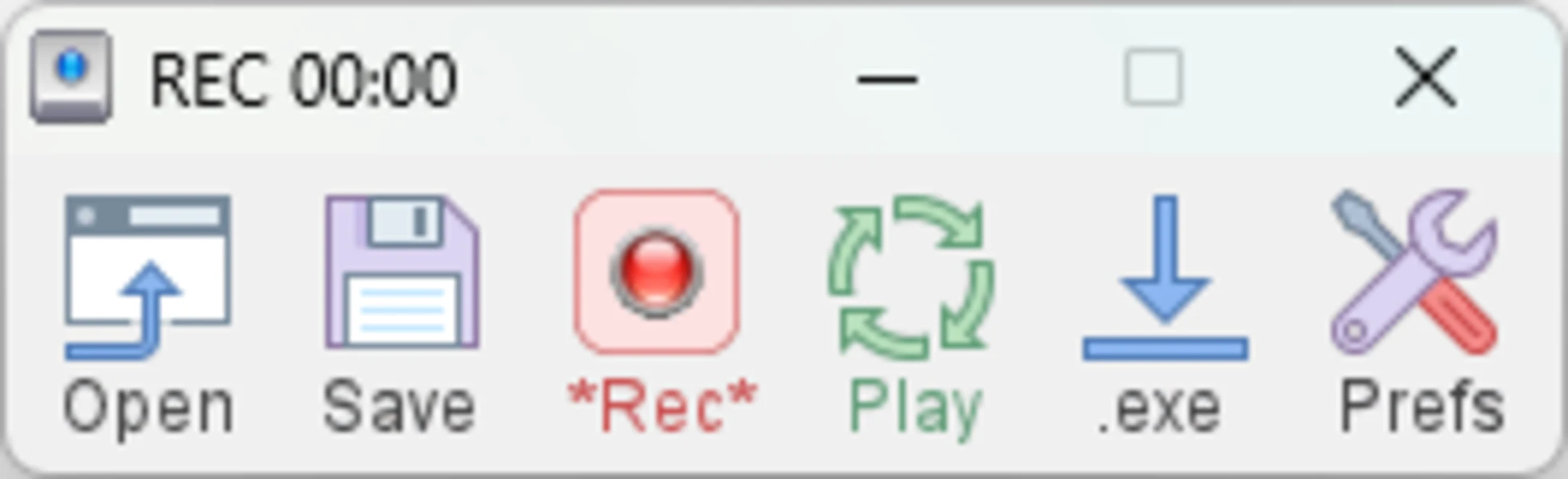
- Feature Name: Direct Input Recording: The application captures raw X and Y screen coordinates for the mouse cursor, left and right mouse button clicks, and all standard alphanumeric keyboard inputs. Users initiate this mode by clicking the Record button or using a designated shortcut key, allowing them to perform their workflow exactly as they normally would while the utility logs every action in the background.
- Feature Name: Standalone EXE Compilation: Users can convert a saved recording directly into a standalone Windows executable file using the Compile to EXE button on the main toolbar. This embeds the recorded macro and the runtime engine into a single file that can be shared with coworkers or clients, allowing them to run the automated sequence on their own computers without needing the original macro software installed.
- Feature Name: Continuous Playback and Looping: Through the settings menu, users can toggle Continuous Playback to make a macro repeat endlessly until manually interrupted by a hotkey. Alternatively, the Set Playback Loops option allows users to define a specific numeric value, ensuring the sequence runs exactly the required number of times before stopping automatically, which is particularly useful for processing a known quantity of files.
- Feature Name: Adjustable Playback Speeds: The software allows users to modify the execution speed of a recorded macro without needing to re-record the manual actions. By navigating to the Playback Speed menu, users can select standard multiplier speeds or push the execution up to 100x faster than the original recording, drastically reducing the time needed for bulk data entry tasks that do not rely on system loading delays.
- Feature Name: Customizable Control Hotkeys: To prevent the recording toolbar from interfering with the capture process, users can trigger recording and playback using keyboard shortcuts instead of clicking the graphical interface. The default F8 key starts and stops recording, while the Print Screen or F12 keys handle playback, though users can customize these assignments in the preferences menu to avoid conflicts with active game clients or daily software tools.
- Feature Name: Native File Export: Recorded sequences are saved in a proprietary, tightly compressed .rec file format that takes up almost no disk space. These files can be archived, organized in local desktop folders, and loaded back into the main application whenever the specific automated workflow is needed again, making it easy to build a library of repeatable tasks for different ongoing projects.
How to Install TinyTask on Windows
- Navigate to the official download source and retrieve the standard Windows installer package, typically designated as the setup executable.
- Double-click the downloaded setup file to initialize the installation wizard on your local machine.
- Grant the necessary administrator permissions when the Windows User Account Control prompt requests authorization to proceed with the system setup.
- Review the destination folder path, which typically defaults to creating a dedicated application folder within your primary system drive's Program Files directory.
- Select the optional checkbox to generate a desktop shortcut if you prefer launching the macro toolbar directly from your main screen rather than searching the Start Menu.
- Progress through the final wizard screen and click the Finish button to complete the file extraction and installation process.
- Launch the application to reveal the compact graphical interface, keeping in mind that the tool runs entirely on demand and does not configure background services or require system reboots to function.
TinyTask Free vs. Paid
The application is entirely free for all personal, educational, and commercial use cases. The developer does not gate functionality behind premium tiers, pro licenses, or monthly subscription models. Every feature available in the application, including the ability to adjust playback speeds and set continuous loops, is unlocked by default the moment the executable is launched. There are no trial periods to expire, no software activation keys to input, and no arbitrary limits placed on the length or complexity of the macros you choose to record.
One of the most important aspects of this freeware model applies to the executable compilation feature. When a user packages their recorded sequence into a standalone file, the resulting application is entirely royalty-free. The developer imposes no distribution restrictions, meaning IT administrators can freely deploy these compiled macros across hundreds of enterprise workstations, and freelance consultants can provide compiled automation scripts to their own clients without paying licensing fees. The exported files do not contain developer watermarks, artificial delays, or promotional nag screens.
Because the software relies entirely on native operating system API calls and avoids external frameworks, the development and maintenance costs remain low enough to be supported entirely through voluntary contributions. The sole developer maintains a donation link for users who find practical value in the utility, but contributing money is not a strict requirement for downloading, installing, or utilizing the software in a daily production environment.
TinyTask vs. AutoHotkey vs. Macro Recorder
AutoHotkey operates as the definitive standard for advanced Windows automation, utilizing a deep, text-based scripting language that supports conditional logical operations. Users who need an automation sequence to read a local text file, make a conditional decision based on that data, or scan the screen for specific pixel colors will find AutoHotkey completely necessary. However, this scripting power comes with a steep learning curve, requiring users to read extensive documentation, memorize specific syntax, and write code manually, which creates friction for non-technical workers who just want to automate a basic sequence immediately.
Macro Recorder serves as a premium, visually oriented alternative that captures desktop inputs and maps them onto a detailed, editable timeline interface. When a sequence is recorded in Macro Recorder, the user can click into individual events, adjust the exact millisecond delay between mouse clicks, drag actions to new positions, and insert visual logic blocks without touching raw text code. This visual editing interface is excellent for refining imprecise recordings and managing longer workflows, but the software requires purchasing a commercial license to unlock its full potential, and the installation footprint is considerably larger and heavier on system resources.
This minimalist utility is the better fit for users who prioritize instant deployment, zero financial cost, and an absolute lack of a learning curve. When the objective is a linear, predictable sequence of clicks—such as a simple routine in a gaming client or a repetitive copy-paste cycle between two static office applications—recording the screen directly takes mere seconds. Setting up an AutoHotkey script or navigating a heavy visual timeline editor overcomplicates a simple problem that can be solved with a single click of a record button and a playback hotkey.
Common Issues and Fixes
- Problem description. Mouse scroll wheel movements are not captured during the recording phase. The macro capture engine relies on absolute coordinates and keystrokes, and it does not reliably track the physical scrolling action of a mouse wheel. To ensure your macro navigates long documents or web pages correctly, use the left mouse button to manually click and drag the scrollbar on the side of the window, or rely on the Page Down and directional arrow keys on your keyboard during the recording process.
- Problem description. The macro misses buttons and clicks the wrong areas during playback. The application records raw X and Y screen coordinates rather than tracking specific application buttons or underlying interface elements. If you move an application window, resize your browser, or change your monitor resolution before playing the macro back, the cursor will click the empty space where the button used to be. Fix this by always maximizing your target windows or keeping them in the exact same desktop position every time you execute the automated workflow.
- Problem description. The default F8 recording hotkey fails to trigger the capture mode on laptops. Many modern laptop keyboards configure the top row of function keys to control hardware settings like volume and screen brightness by default, intercepting the command. If pressing F8 does not start the recording, hold down the Fn key located near the bottom left of your keyboard while pressing F8, or open the application preferences and remap the recording hotkey to a different keyboard combination entirely.
- Problem description. Compiled standalone executable macros are flagged or deleted by antivirus software. When you compile a macro into a standalone file, the software packages the runtime engine and the raw instructions together using methods similar to how certain malware packers disguise their code. This frequently leads to false-positive detections by Windows Defender or third-party security tools. To resolve this issue, you must manually add the specific compiled executable file to your antivirus software's exclusion list or whitelist to prevent it from being quarantined.
- Problem description. Setting the playback speed to maximum causes the automated sequence to fail. Increasing the macro execution speed to 100x can cause the utility to issue clicks and keystrokes much faster than the target application or website can physically load. This results in the macro attempting to interact with interface elements before they actually appear on the screen. If your automated sequence breaks at high speeds, you need to lower the playback speed multiplier in the settings menu, giving the operating system sufficient time to render the interface between recorded actions.
Version 1.77 — November 2019
- Added internal stability checks to enhance recording reliability on recent Windows versions.
- Improved the "Compile to EXE" feature to ensure generated executables are more robust.
- Fixed critical bugs that were causing playback errors and potential crashes in previous builds.