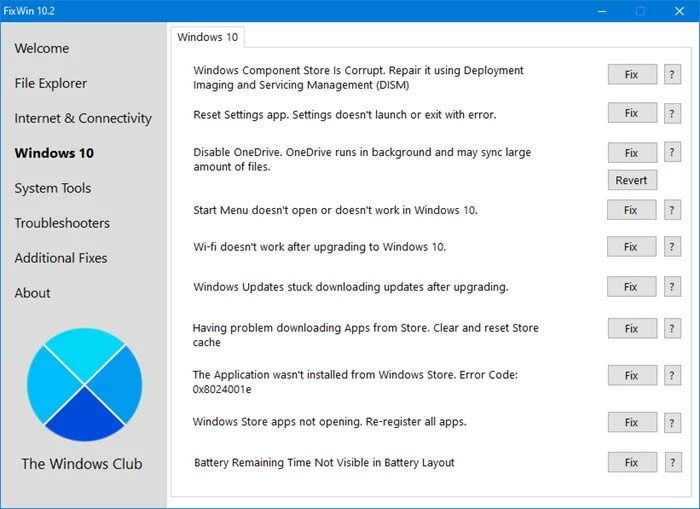
FixWin is a specialized, portable system repair utility designed to resolve specific annoyances, interface glitches, and functional breakdowns within modern Microsoft operating systems. Rather than forcing users to navigate complex command-line interfaces, memorize PowerShell scripts, or manually edit registry values, the software acts as a centralized dashboard for applying direct, single-click fixes. It targets everyday operational hurdles that occur after major system updates, such as frozen Start Menus, unresponsive taskbars, disappearing Wi-Fi adapters, or broken Store applications. By consolidating dozens of known administrative workarounds into a single interface, it provides a practical alternative to reinstalling the operating system or spending hours searching forums for batch file scripts.
The utility is primarily aimed at system administrators, help desk technicians, and practical desktop users who need immediate resolution for known operating system bugs. Unlike deep malware removal scanners or hardware diagnostic suites, this tool focuses strictly on the native software environment. When File Explorer fails to load thumbnails, when the Recycle Bin icon stops refreshing, or when the Settings app closes unexpectedly, users can open the utility, navigate to the relevant tab, and execute the exact Microsoft-approved command needed to restore normal function. Because it operates as a native desktop application, it can interface directly with system services, restart the Explorer process, and rebuild corrupted caches without relying on web-based diagnostic tools that often fail when network connectivity is broken.
A major structural advantage of this troubleshooting tool is its portable nature and diagnostic transparency. It categorizes its operations into six distinct sections: File Explorer, Internet and Connectivity, System Fixes, System Tools, Troubleshooters, and Additional Fixes. Before applying any registry tweak or service restart, users can click an adjacent information icon to see the exact script or registry path the program intends to modify. This transparent approach ensures that administrators know exactly what changes are being made to the host machine. By keeping the utility portable, technicians can carry it on an encrypted USB drive, run it directly on a malfunctioning machine without running a setup installer, and immediately begin repairing network stacks or re-registering core dynamic link libraries.
Key Features
- Feature Name: File Explorer and Interface Restoration: The application includes a dedicated module for repairing broken interface elements and shell extensions. Users can rebuild corrupted desktop icon caches, restore missing taskbar jump lists, fix issues where thumbnails fail to render, and bring back missing Recycle Bin icons. Each operation targets specific registry keys or shell background processes, terminating and restarting the Explorer service automatically so changes appear immediately.
- Feature Name: Internet and Network Stack Reset: Network connectivity issues often persist even after rebooting a router, but this tool provides direct resets for the local networking stack. It allows administrators to flush the DNS cache, reset the TCP/IP protocol, repair a corrupted Winsock catalog, and restore default firewall rules. These single-click actions execute the equivalent of multiple chained command-prompt inputs, making it easy to restore web access after a problematic update or removed VPN client.
- Feature Name: Store Application Re-registration: When built-in applications crash on launch or fail to download updates, the utility can re-register the entire application package database. By executing the necessary PowerShell commands in the background, it clears the local app store cache and rebuilds the package deployment records. This is particularly useful for fixing a frozen Settings panel or a calculator app that closes immediately after opening.
- Feature Name: Built-in System Tools Access: Instead of forcing users to remember keyboard shortcuts or search for hidden administrative consoles, the software provides a centralized launchpad for native diagnostics. It offers direct buttons to trigger the System File Checker, initiate a DISM image repair, open the Registry Editor, or launch the Advanced System Information panel. This saves time when preparing a machine for deeper manual servicing.
- Feature Name: Pre-action Diagnostic Transparency: Every fix listed in the interface is accompanied by a dedicated information button that reveals the exact background operation. Clicking this button displays a dialog box showing the specific registry path being altered or the exact command-line syntax being deployed. This educational approach allows system administrators to verify the safety of the fix and understand the underlying mechanics of the operating system repair.
- Feature Name: Native Troubleshooter Integration: The utility aggregates all scattered internal diagnostic wizards into one accessible menu. Users can trigger wizards for playing audio, printing, managing homegroups, or fixing incoming connections without having to dig through nested control panel categories. By bringing these wizards to the forefront, users can attempt official automated diagnostics before applying manual registry overrides.
How to Install FixWin on Windows
- Navigate to the official The Windows Club download page and retrieve the compressed ZIP archive containing the software package.
- Right-click the downloaded archive and select the extract option to unpack the contents into a dedicated folder on your local drive or an external USB flash drive.
- Because the application is entirely portable, there is no traditional setup wizard to click through; simply locate the extracted executable file within the destination folder.
- Right-click the executable file and select the option to run as an administrator, which is required since the tool needs elevated privileges to modify system services and registry keys.
- If Windows Defender or a third-party antivirus flags the executable due to its ability to alter system files, open your security software settings and add the file to the exception or exclusion list.
- Upon the first launch, review the initial dashboard and immediately use the built-in button to create a System Restore Point before applying any specific fixes.
- Familiarize yourself with the six main category tabs to locate the specific troubleshooting operations required for your current machine state.
FixWin Free vs. Paid
The developer, The Windows Club, distributes this software entirely as freeware. There are no paid tiers, no professional upgrades, no enterprise licensing costs, and no hidden subscription requirements. Users have immediate access to the full suite of troubleshooting tools, registry fixes, and network resets without having to bypass a paywall or register for an account. The application does not restrict the number of fixes you can apply, nor does it impose a time limit on how long you can keep the portable executable on your local storage drive.
Unlike many system optimization utilities that scan a computer for errors but require a credit card to actually execute the repairs, this tool executes every listed command completely free of charge. The business model relies on the surrounding educational content and ad revenue generated directly on the developer's primary website, rather than monetizing the executable file itself. This makes it an ideal addition to an IT department's deployment toolkit or a home user's emergency recovery drive.
Because the software is fully free, users should be cautious about downloading it from unauthorized third-party mirrors that might attempt to bundle the tool with adware or fake premium installers. The official portable archive contains no bundled software, no trial watermarks, and no background telemetry services, ensuring that the footprint on the host machine remains as light as possible.
FixWin vs. Tweaking.com Windows Repair vs. Windows Repair Toolbox
Tweaking.com Windows Repair is designed for catastrophic operating system damage, particularly the kind left behind after a severe malware infection. It focuses on mass-resetting file permissions, registry permissions, and WMI components through an automated, multi-step sequence that can take over an hour to complete. While it excels at deep structural recovery when a machine is barely functional, it is often overkill for a user who simply needs to fix a missing Recycle Bin icon or a frozen taskbar, as running a full permission reset can disrupt custom user configurations.
Windows Repair Toolbox takes a different approach by acting as a lightweight graphical interface that downloads and manages dozens of third-party utilities. Instead of housing the fixes internally, it provides organized links to download malware scanners, hardware monitors, and uninstaller tools on demand. This is highly useful for a technician running diagnostics on a workbench, but it relies heavily on an active internet connection to fetch the required third-party applications, making it less effective on an offline machine with a broken network stack.
FixWin is the better choice when dealing with specific, known interface annoyances and native feature breakages that require immediate, targeted resolution. Because it houses its fixes internally and does not require an active internet connection to download external tools, it can instantly reset a network adapter or re-register built-in applications on an offline machine. It is the most efficient option for users who want to apply a single, transparent registry fix without initiating a massive system-wide permission reset or navigating a complex suite of external third-party downloads.
Common Issues and Fixes
- Antivirus quarantine blocks execution. Because the utility is designed to modify core registry keys and execute administrative PowerShell commands, Windows Defender or third-party security software may flag it as a false positive. To resolve this, open your antivirus quarantine history, restore the executable, and add the application's specific folder path to your security exclusion list.
- Fixes do not apply on heavily modified operating systems. If a user has run third-party debloater scripts or used custom ISO images that permanently strip out components like the Microsoft Store or Edge browser, the specific repair commands will fail. There is no direct fix for this other than performing an in-place upgrade to restore the missing core system files before attempting to use the troubleshooting utility.
- Access denied errors when applying a repair. Certain network resets and system file checks require deep administrative access to alter protected directories. If the tool is launched with standard user permissions, these commands will return an error or simply do nothing; always close the program, right-click the executable, and select the administrator launch option.
- System instability after clicking multiple fixes simultaneously. Rapidly applying dozens of registry alterations and process restarts without rebooting can cause the Explorer shell to become unstable. The developer strongly recommends applying only one fix at a time, restarting the computer to verify the result, and utilizing the built-in button to create a restore point before starting any diagnostic session.
Version 11.2 — June 2025
- Added full support for the Windows 11 24H2 update to ensure compatibility with the latest OS features.
- Improved system performance and stability by introducing a new option to reset Virtual Memory (PageFile) settings.
- Fixed a persistent issue where the system would report "Windows cannot find C:/Windows/regedit.exe" when attempting to launch the Registry Editor.