Dropbox operates as a dedicated cloud synchronization engine that binds remote file storage directly to the Windows desktop environment. Moving beyond basic web-based uploads, the desktop application anchors itself into File Explorer, allowing users to interact with remote assets exactly as if they were stored on a local hard drive. This local-first approach to cloud storage appeals to professionals, freelancers, and creative teams who manage massive project directories, video files, and complex design documents that are too cumbersome to download manually through a web browser. The client serves as a persistent background bridge, translating local file interactions into secure network transfers without requiring manual intervention.
The core utility of the application lies in its ability to abstract file location and optimize local disk utilization. Through on-demand synchronization mechanisms, the software presents the entire structural tree of a user's cloud account within standard Windows folders, but leaves the heavy binary file data on remote servers until a user double-clicks a specific file to open it. This exact architecture allows a user working on a laptop with a constrained solid-state drive to map terabytes of project data without actually exhausting their local physical storage. When heavy rendering tasks, video editing, or offline work periods are required, users can pre-fetch specific directories via context menus to keep them physically pinned to the local drive.
By operating continuously in the Windows system tray, the client monitors file changes at the disk level. It intercepts file save commands from third-party applications—whether a basic text editor or a heavy 3D modeling environment—and immediately pushes those specific data changes to the remote database. This creates an automatic safety net for active projects, ensuring that hardware failure or accidental deletion on a local Windows machine does not result in lost work. The background agent handles encryption, network packet management, and bandwidth throttling autonomously, keeping the user focused on standard file management tasks.
Key Features
- Block-Level Syncing: Instead of uploading an entire file every time a modification occurs, the engine analyzes the binary structure and transmits only the exact data blocks that changed. If a user edits a single text layer in a two-gigabyte design file, the software uploads just those altered megabytes, reducing network saturation and sync times.
- On-Demand File Access: The application integrates directly into the Windows right-click context menu, offering explicit controls over file locality. Users can right-click any mapped directory and select "Make online-only" to delete the local payload while leaving a structural placeholder, or "Make available offline" to force a permanent local download.
- Granular Selective Sync: For strict local storage management, users can navigate to the application preferences and uncheck specific top-level directories entirely. This prevents the folders from even appearing in File Explorer, which is practical for archiving legacy projects or hiding massive shared team drives from a personal computer.
- Version History and Recovery: The background service automatically archives previous iterations of files as they are saved, without requiring the user to enable a manual backup routine. By accessing the web interface through a locally synced file, users can restore overwritten documents or recover deleted directories from the past 30 to 180 days, depending on their account tier.
- Dropbox Transfer: Users can securely dispatch massive file payloads to external clients who do not possess their own accounts. The transfer utility generates a standalone download page for the specified assets, supporting payloads up to 100 gigabytes on professional tiers, complete with password protection and automated expiration timers.
- Local Area Network Synchronization: When multiple computers on the same physical network are running the client and syncing the same account, the software bypasses external internet routing. It transfers the file data directly across the local switch or router, accelerating large distribution tasks within a physical office environment.
How to Install Dropbox on Windows
- Download the executable installer package from the official vendor website, ensuring you save it to your standard Windows Downloads folder.
- Double-click the installer executable to initiate the process on your Windows 10 or Windows 11 system. The vendor explicitly advises against manually selecting the "Run as Administrator" context menu option, as the setup wizard is designed to handle user-level permissions and registry writes automatically.
- Wait for the thin client to establish a connection with the remote servers and fetch the remaining application components. A progress bar will track the automated downloading and unpacking phases.
- Once the background files are extracted and the application launches, the primary authentication window will appear on screen. Enter your account email and password, or use the provided single sign-on redirect button to authenticate securely via your default web browser.
- Review the critical configuration prompt asking how you prefer to handle initial file synchronization. Choose between "Make files local" to immediately begin downloading your entire cloud archive to your physical drive, or "Make files online-only" to save disk space by mapping the directory structure with zero-byte placeholders.
- Complete the setup wizard to finalize the configuration. The software will pin a dedicated directory shortcut to the Quick Access panel in Windows File Explorer and launch the background sync agent, visible as an active icon in the Windows system tray.
Dropbox Free vs. Paid
The vendor structures its business model around capacity limits and administrative tools, offering both individual subscriptions and pooled team environments. The Basic free tier provides a permanent 2 GB capacity limit. While this tier incurs no financial cost and requires no credit card, its low ceiling restricts it to lightweight document synchronization, making it impractical for heavy photo backups or professional media workflows.
Individual professionals generally choose between the Plus and Professional tiers. The Plus plan, priced at $11.99 per month when billed annually, expands capacity to 2 TB and includes a standard 30-day version history window. The Professional tier costs $19.99 per month, increasing capacity to 3 TB and extending the file recovery window to 180 days. This tier also unlocks advanced sharing controls, such as custom watermarks and branded file transfer pages, specifically targeting freelancers who deliver digital assets directly to clients.
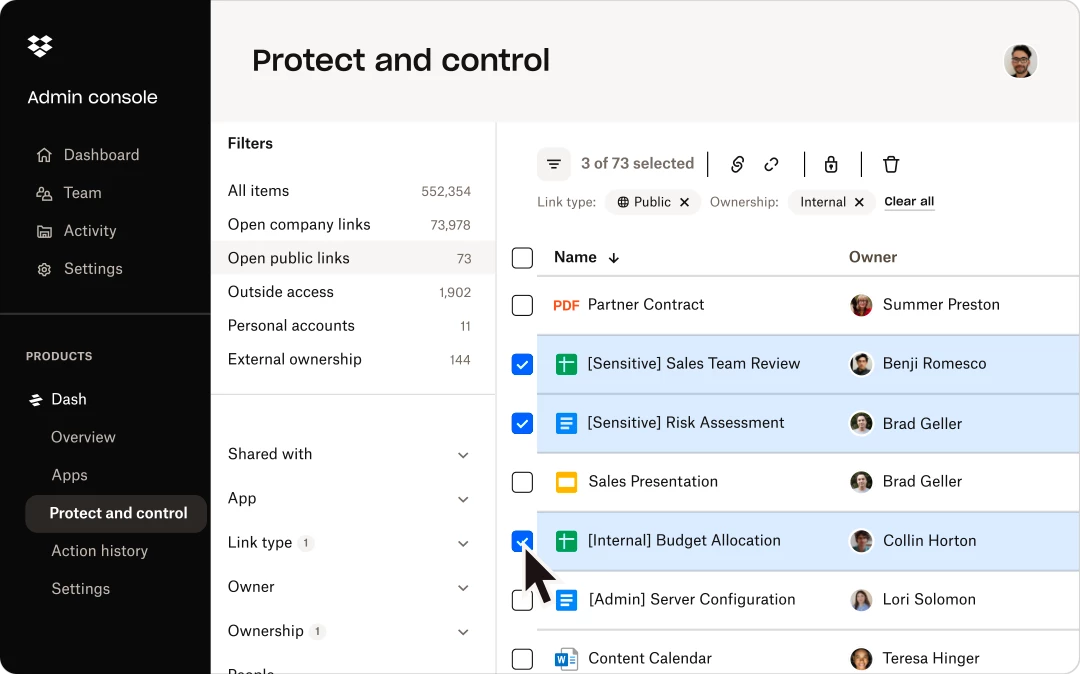
For multi-user environments, the Standard and Advanced business plans shift the focus to centralized management. Standard requires a minimum of three users at $18 per user per month, providing a pooled 9 TB of storage alongside basic administrative dashboards. The Advanced tier, costing $30 per user per month, provides unlimited storage subject to fair use policies, or 15 TB pooled in newer contract structures. Business tiers introduce essential enterprise capabilities, including tiered administrator roles, detailed audit logs, device approval mandates, and the necessary compliance frameworks for regulated industries.
Dropbox vs. Google Drive vs. OneDrive
Google Drive prioritizes real-time document editing over raw synchronization speed. Its primary advantage is deep structural integration with Google Docs, Sheets, and Slides, allowing multiple users to edit the same file simultaneously in a web browser. The service also provides a generous 15 GB free tier. However, its desktop client syncs complete file structures rather than delta blocks. If a user modifies a massive video project, the Drive client must re-upload the entire file, which causes significant friction and bandwidth consumption during heavy media workflows.
OneDrive exists as the native storage layer for the Windows ecosystem and the Microsoft 365 productivity suite. Its pricing model is aggressive, frequently bundling 1 TB of storage alongside standard Word and Excel subscriptions, making it a cost-effective default option. The service includes specialized security features like a Personal Vault that requires secondary authentication. However, power users frequently report that the OneDrive desktop sync engine struggles with massive directory counts, occasionally hanging on file indexing when faced with tens of thousands of deeply nested, small files.
Dropbox remains the optimal choice for users who prioritize absolute file synchronization speed, platform neutrality, and predictable offline availability. Because it utilizes block-level delta transfers, it handles large, frequently changing files far more efficiently than Google Drive or OneDrive. It separates the storage layer from a forced office productivity suite, providing a focused, reliable background engine that excels in environments where users pass heavy binary assets, design files, and raw media back and forth across different hardware configurations.
Common Issues and Fixes
- Synchronization stalls on "Indexing" or "Syncing files" indefinitely. This usually occurs when a third-party application, such as a backup utility or an active video editor, locks a specific file and prevents the background engine from reading it. Closing active applications, pausing and resuming the sync agent from the system tray, or rebooting the computer forces the agent to release the lock and rebuild its local index.
- Status overlay icons disappear in Windows File Explorer. The Windows operating system strictly limits the number of custom icon overlays that can be loaded simultaneously. If you install competing cloud storage utilities or heavy shell extensions, they can overwrite the necessary registry keys. Uninstalling unused synchronization tools and restarting the Windows Explorer process typically restores the visual checkmarks.
- Local physical storage fills up unexpectedly. If the application is set to local synchronization by default, it will attempt to download every remote asset added by team members. To resolve the space warning, right-click the heaviest directories in File Explorer, select the "Make online-only" context menu option, and allow the engine to purge the local binary data while keeping the structural placeholders intact.
- Permission errors block file uploads to the cloud. When a file is migrated from an old hard drive or another user profile, it may carry restrictive file ownership metadata that blocks the sync engine from reading the data. To clear the conflict, move the problematic file to the standard Windows Desktop, rename it slightly to clear temporary cached locks, and drag it back into the primary mapped directory to force a clean upload protocol.
Version Latest — 2025
- Added a new dual-mode desktop experience for Dash, offering a lightweight launcher for quick actions and a persistent full-view window for multitasking.
- Added Optical Character Recognition (OCR) capabilities, enabling users to search for and extract text directly from images and scanned PDFs.
- Improved collaboration features within Stacks, ensuring that files added from Dropbox automatically inherit shared permissions to eliminate access request friction.
- Improved the mobile app interface with a redesigned home screen and navigation bar for faster access to search and chat tools.
- Improved AI summarization performance, now supporting Stacks containing over 20 files for quicker content review.