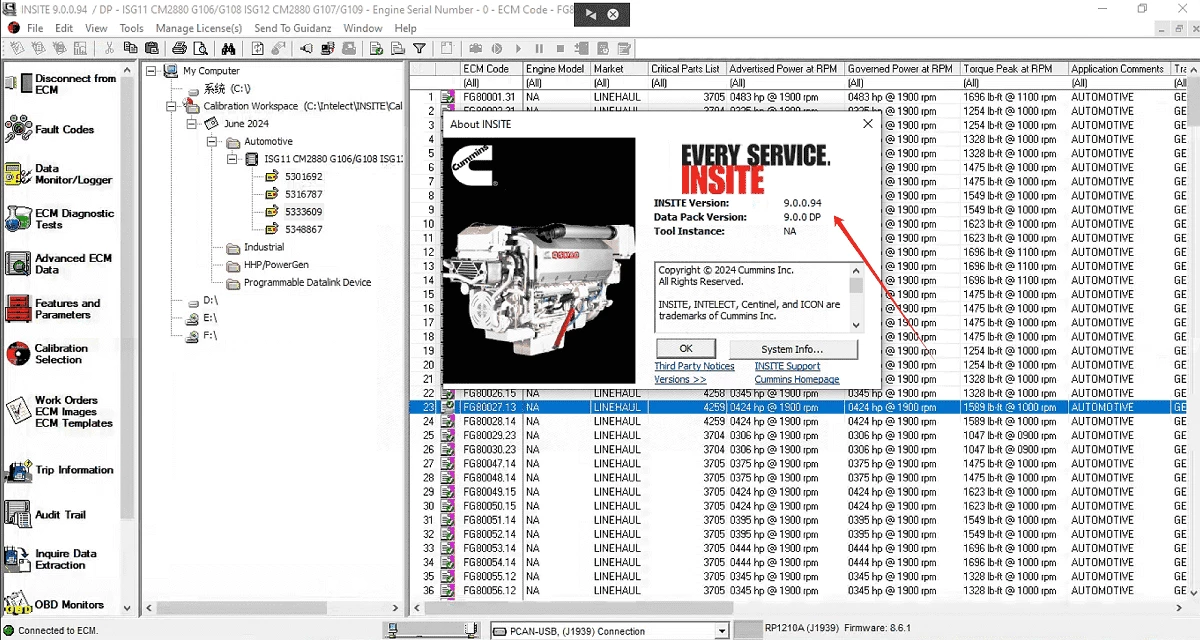
Cummins INSITE operates as a specialized diagnostic application built exclusively for technicians, fleet managers, and heavy-duty mechanics who maintain Cummins diesel and natural gas engines. Modern commercial vehicles rely on Electronic Control Modules (ECMs) to manage fuel timing, emissions output, and variable geometry turbocharger behavior. When a mechanical fault occurs or an emissions system throws a code, standard OBD-II scanners fail to provide the necessary data depth. This desktop application bridges that gap, connecting directly to the engine's internal network via a compliant datalink adapter to read proprietary sensor data, execute bidirectional hardware tests, and alter operational parameters at the factory level.
Mechanics deploy this application in repair bays, agricultural fields, and remote mining sites where immediate, offline access to engine logic is required. Unlike lighter, browser-based diagnostic platforms that rely on continuous internet connectivity, a locally installed Windows application guarantees zero-latency communication during critical physical tests. For example, executing a cylinder cut-out test or a forced stationary regeneration requires uninterrupted millisecond-level data transfer between the laptop and the ECM. Relying on cloud processing for these tasks introduces unacceptable risks of connection dropouts while commanding heavy engine hardware.
Furthermore, this application moves beyond basic triage by providing the official troubleshooting trees linked specifically to the connected engine's serial number. Instead of merely clearing a check engine light, a technician uses the interface to trace voltage irregularities, verify physical wiring diagrams, and test individual actuators before authorizing expensive parts replacements. By forcing the mechanic to work within the manufacturer's exact digital parameters, the software eliminates guesswork, shortens repair times, and ensures the vehicle returns to highway operation under safe, validated conditions.
Key Features
- Fault Code Management and Diagnosis: The application queries the engine directly to retrieve both active and inactive diagnostic trouble codes. Beyond displaying the alphanumeric code, the Fault Information System opens step-by-step troubleshooting charts, guiding the mechanic through specific sensor voltage checks and harness inspections based on the factory service manual.
- Live Data Monitoring: Through the Data Monitor and Logger menu, users select specific engine sensors and track their output in real time. Mechanics can drag parameters like fuel rail pressure, intake manifold temperature, and throttle position into the active graphical pane, allowing them to record live performance during a physical road test to isolate intermittent issues.
- Engine Diagnostic Tests: The software includes a menu of bidirectional tests that command the ECM to actuate physical hardware components. Technicians select specific routines from the list, such as an injector cut-out test to identify a dead cylinder, an EGR valve sweep, or a forced stationary DPF regeneration, testing mechanical parts without removing them from the block.
- Features and Parameters Adjustment: Fleet administrators utilize the adjustments tree-view to alter operational limits directly inside the engine logic. By expanding specific parameter categories, users can modify the maximum allowed road speed, adjust idle shutdown timers, and configure Power Take-Off (PTO) behavior, comparing the original programmed value against the new entry before saving.
- ECM Calibration and Reflashing: Located within the Calibrations workspace, this module allows technicians to transfer entirely new operating logic to the engine. Mechanics download verified INCAL files from the official portal and load them into the application to update base code, resolve known factory bugs, or match the software to newly installed engine hardware.
- Work Orders and Audit Trails: To maintain strict maintenance records, the software automatically logs every parameter change, cleared code, and calibration flash. The built-in work order utility captures an initial snapshot of the ECM state before the repair begins and generates a final out-of-shop report, providing fleet managers with a verifiable history of the diagnostic session.
How to Install Cummins INSITE on Windows
- Download the official installation archive directly from the vendor's digital portal or insert the physical installation media if operating in an offline shop environment.
- Extract the downloaded archive into a temporary local directory, such as a new folder on the root drive, utilizing standard Windows file extraction utilities.
- Navigate to the extracted folder, right-click the setup executable file, and select the administrator privilege option to ensure the installer has permission to write to system directories.
- Proceed through the initial InstallShield Wizard, which will automatically detect and prompt the installation of necessary framework dependencies, including the Microsoft .NET Framework and the Tool Licensing Service.
- Approve the installation of the INSITE Data Pack when prompted by the wizard, keeping the default destination folder path unless a specific shop IT policy dictates an alternative drive location.
- Complete the main setup phase, after which the wizard will require the installation of the Cummins Update Manager, a separate background utility that handles future software patches and calibration file updates.
- Restart the Windows computer fully to finalize all registry modifications and allow the background licensing services to initialize properly.
- Launch the newly created desktop shortcut, verify that the computer's date and time settings are completely accurate, and input your valid subscription license credential to move the application out of simulator mode and enable physical vehicle connections.
Cummins INSITE Free vs. Paid
The application operates strictly on a commercial subscription model and does not offer a fully functional free tier for professional shop use. While users can install the core software without payment, the unpaid state only provides access to a restricted simulator mode. This simulator allows technicians to navigate the menu structure and view dummy data for training purposes, but it actively blocks physical communication with any real engine hardware. Executing actual diagnostic work requires purchasing a commercial subscription.
The standard commercial tier, INSITE Lite, covers the daily operational needs of most independent repair facilities and general fleet garages. Priced generally between $1,000 and $1,400 annually depending on the regional distributor, this tier unlocks all diagnostic troubleshooting, live data logging, bidirectional component testing, and parameter adjustments. A technician using the Lite subscription can read codes, force regenerations, and change road speed limits, but they remain locked out of altering the engine's core operating base code.
For dealerships, engine rebuilders, and performance shops, the vendor offers the INSITE Pro tier at a significantly higher annual cost. The Pro subscription retains every function from the lower tier while adding the critical ability to download, load, and flash ECM calibration files. This specific authorization allows the mechanic to update the fundamental operating logic of the engine, adjust horsepower ratings if the factory base code permits it, and program entirely blank control modules prior to installation.
All software licenses are bound by a strict 12-month expiration cycle. Once the yearly subscription lapses, the application immediately reverts to a read-only state. Technicians can still open previous work orders and review old data logs, but the software will disable all vehicle connection capabilities and hardware tests until a new subscription credential is authenticated. Furthermore, shops must budget for an RP1210 compliant datalink adapter, which is a required separate hardware purchase needed to physically link the laptop to the truck.
Cummins INSITE vs. JPRO Commercial Vehicle Diagnostics vs. CAT Electronic Technician
JPRO Commercial Vehicle Diagnostics functions as a heavy-duty triage tool built to scan all modules across mixed fleets. When a truck enters the bay, JPRO queries the engine, transmission, ABS, and body controllers simultaneously, regardless of whether the components are built by Paccar, Detroit Diesel, or Cummins. Technicians rely on JPRO for rapid, complete-vehicle health reports and general fault clearing. However, JPRO lacks the proprietary engineering files required to flash new base code or modify deep operational parameters inside a specific engine module.
CAT Electronic Technician provides the exact same depth of control as the Cummins software, but the vendor engineered it strictly for Caterpillar on-highway engines and heavy construction machinery. A mechanic operating CAT ET can perform cylinder cut-out tests, calibrate hydraulic controls, and reflash ECMs on Caterpillar equipment. Because the underlying communication protocols and module architectures are entirely distinct, the Caterpillar software cannot read a Cummins block, just as the Cummins software remains useless on Caterpillar machinery.
Technicians choose Cummins INSITE when they require absolute, factory-level authority over a Cummins powerplant. While an all-makes scanner handles the initial diagnostic scan, the manufacturer-specific application is required to execute proprietary VGT calibrations, update ECM logic files, and navigate official symptom-based troubleshooting trees directly linked to the specific engine serial number.
Common Issues and Fixes
- Error 10003 during startup or installation. This software failure typically occurs when leftover data from a previous version interferes with the new installation process. To fix this, users must navigate to the hidden program data directories on the root drive, delete all associated vendor folders, clear the Windows temporary files directory, restart the computer, and launch the installer again.
- Data Monitor parameters disappear or fail to load. Technicians frequently report that the live data monitoring screen shows empty columns instead of sensor values. The fix involves opening the data monitor menu, deleting the currently active parameter group, and manually creating a brand new monitor group to force the application to re-poll the sensors.
- Saved calibration files do not appear in the workspace. The software occasionally fails to recognize newly downloaded engine logic files placed on the hard drive. Mechanics resolve this by downloading the specific base code manually from the vendor portal and extracting the uncompressed files directly into the local calibrations subfolder before restarting the application.
- Datalink communication hardware fails to connect. The application will reject communication with the engine if the incorrect adapter protocol is active. The user must open the connections menu, verify that the physical adapter profile matches the exact hardware device plugged into the laptop port, and confirm that the USB adapter drivers are fully updated.
Version 9.3.0.22 — December 2025
- Enhanced ECM Compatibility: Added full support for post-2024 engine architectures, including X15 Performance and X12 Efficiency models compliant with EPA 2025 and Euro VI Step E standards.
- System Architecture Alignment: Synchronized the core application with Data Pack version 9.3.0 DP to eliminate parameter mismatches and ensure complete fault description availability across all supported platforms.
- Connection Stability: Improved the communication handshake process to reduce timeout errors and accelerate initial connection times with protected Electronic Control Modules (ECMs).
- Real-Time Monitoring: Refined parameter streaming accuracy, correcting sensor scaling discrepancies and removing deprecated data points for cleaner live monitoring.
- Calibration Fixes: Resolved specific connectivity issues during calibration downloads for QSK19/45/60 and QSM11 modules when using J1708 protocols.
- Platform Optimization: Optimized background service performance and memory management specifically for Windows 11 environments to prevent diagnostic session interruptions.
- Security Updates: Implemented stricter Master Password handling to prevent modules from entering a ROM Booted state during calibration attempts.