SketchUp Pro is a desktop 3D modeling application built for architects, interior designers, landscape planners, and construction professionals who need to move quickly from conceptual sketches to finalized design documentation. Unlike dense engineering tools that require a steep learning curve for basic shapes, this software centers around a direct push-pull modeling logic. Users can draw flat shapes and extrude them into 3D forms, applying realistic textures and organizing complex project files using a straightforward system of groups, components, and tags. This accessibility has made it a staple in architectural offices where rapid spatial iteration is prioritized over parametric constraints.
The desktop application serves as the core of a professional workflow, allowing offline modeling while still connecting to cloud-based resources when an internet connection is available. Rather than building every generic chair or window frame from scratch, designers use the integrated 3D Warehouse to download manufacturer-specific furniture, lighting fixtures, and architectural details directly into their active projects. This ecosystem drastically reduces the time spent modeling secondary elements, allowing professionals to dedicate their focus to the primary spatial design, structural layout, and environmental interaction of their buildings. While basic shapes can be formed in any 3D tool, architects choose this platform specifically for its ability to organize these large scenes into exact, construction-ready hierarchies.
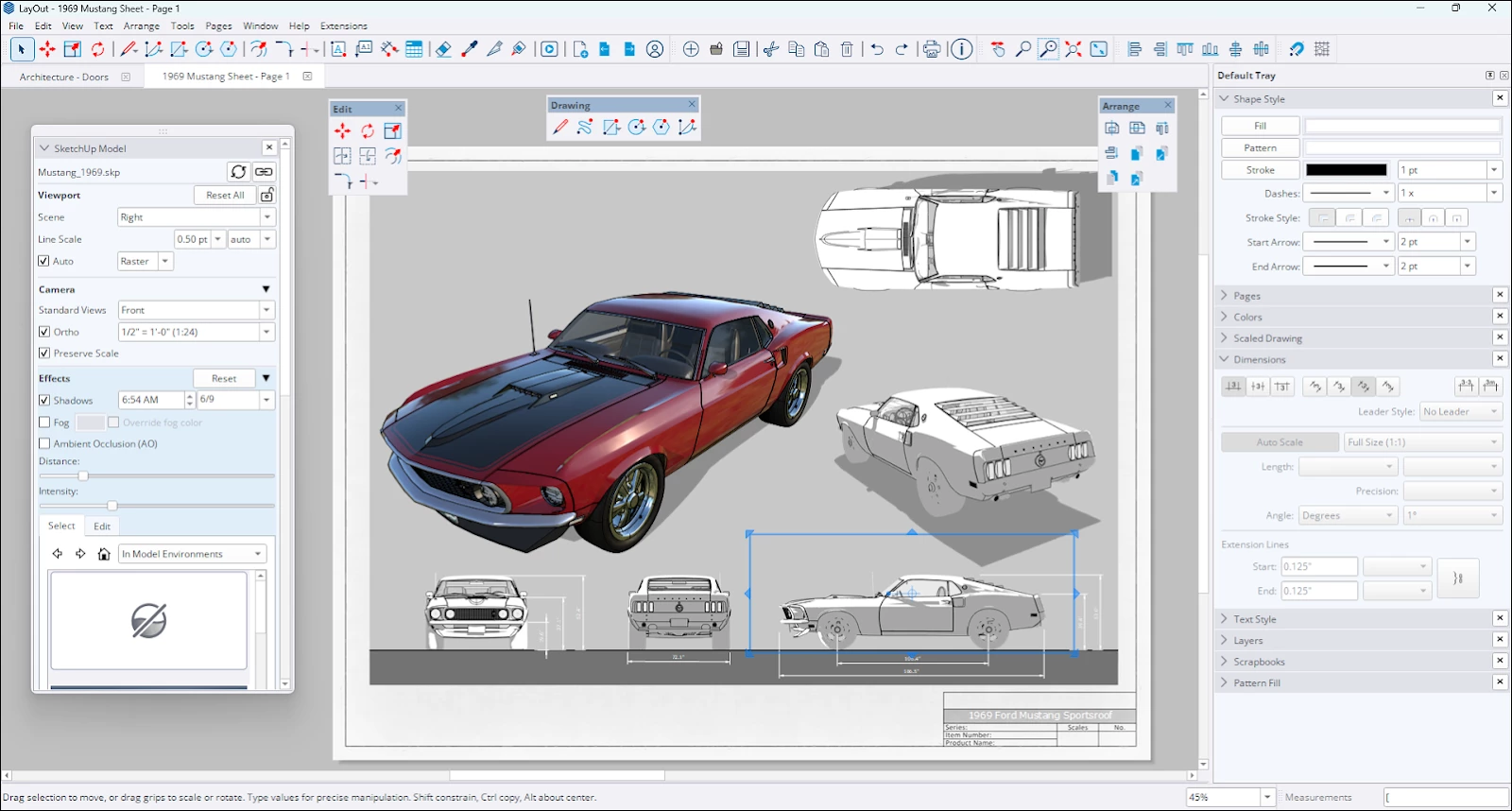
Recent updates have integrated artificial intelligence tools directly into the interface, reducing the time spent on repetitive texturing and basic object generation. Designers use the main modeling window to iterate on building massing or interior layouts, applying materials and setting up camera scenes representing real human eye levels. Once the 3D model is approved, they rely on the included LayOut application to convert those 3D models into scaled 2D construction drawings, floor plans, and presentation packets. This hybrid approach ensures that a single 3D source file dictates all 2D output, reducing scaling errors and alignment mistakes when client requests force a late-stage design change.
Key Features
- Push-Pull Modeling: Create 3D forms by drawing 2D shapes with the Line or Rectangle tools and extruding them along an axis using the Push/Pull tool (shortcut 'P'). This direct modeling approach removes the need for complex parametric data entry during the initial concept phase, letting users pull walls up from a flat floor plan and manually type exact dimensions into the measurement box for accuracy.
- AI Render: Generate visualizations from the active viewport by typing a text prompt and selecting a stylistic preset. Accessed via the magic dust icon on the toolbar, this built-in extension applies lighting and stylistic filters over the raw geometry without requiring external rendering engines, consuming a set number of AI credits per generation.
- Generate Object: Use text prompts within the AI Assistant panel to create specific 3D assets complete with physically based rendering (PBR) textures. This feature speeds up the process of populating interior scenes with secondary items like custom furniture or fixtures, rather than hunting for specific models in external libraries or modeling them from scratch.
- LayOut Integration: Send the 3D model directly into the LayOut application using the "Send to LayOut" command to create 2D page presentations. Changes made in the 3D model automatically update in the 2D viewports, keeping floor plans, section cuts, and elevations perfectly synchronized for construction documentation and contractor handoffs.
- Photoreal Materials: Apply advanced textures from the native library that react realistically to scene lighting. Unlike older flat image tiles, these materials include mapping for shine, roughness, and metalness, easily identifiable in the material tray by their 3D cube thumbnails, allowing for a much richer visual presentation directly within the modeling viewport.
- PreDesign Tools: Pull climate and weather data into the early stages of a project to test sun angles, shading strategies, and glazing ratios. This web-based module connects to the desktop workflow, helping architects make informed decisions about site orientation and building footprint before detailed modeling begins, grounding conceptual designs in real-world environmental data.
- Component and Tag Management: Organize complex files by turning repetitive geometry into Components. Editing one instance of a component automatically updates all copies across the model. Combined with the Tags panel, users can toggle the visibility of structural elements, furniture, or landscaping to keep the viewport running smoothly and generate isolated views for presentation.
How to Install SketchUp Pro on Windows
- Navigate to the official vendor account portal using your web browser and download the Windows installer executable package to ensure you have the correct and unmodified setup file.
- Locate the downloaded file in your local directory, right-click the executable, and select "Run as administrator" from the context menu to grant the installer the necessary elevated permissions for modifying system folders.
- Review the installation language options presented in the initial setup screen and confirm the default destination path on your local drive, which is typically located in the standard Program Files directory.
- Click the Install button to begin unpacking the application files; the installer will process the required libraries and automatically place shortcuts for the main application, the LayOut tool, and the Style Builder directly on your desktop.
- Launch the primary application from the newly created desktop shortcut and carefully read through the end-user license agreement, clicking to accept the terms when prompted by the dialogue box.
- Click the "Sign In" button on the welcome screen to authenticate your software license via your default web browser, which verifies your active subscription tier, checks your AI computing credit balance, and unlocks the user interface.
- Choose a default template from the startup menu based on your preferred unit of measurement, such as Architectural Inches or Architectural Meters, to establish the correct grid and scale before you draw your first line.
SketchUp Pro Free vs. Paid
SketchUp Pro is a paid software tier designed for commercial users, operating strictly on an annual subscription model. The vendor requires an active account to purchase and manage the license, which costs approximately $399 per year per user. This tier includes the desktop application, the LayOut 2D documentation tool, access to the Extension Warehouse, and a monthly allotment of 150 computing credits for the native AI rendering and object generation features. Base subscriptions also include Trimble Connect collaboration features, providing 10 GB of pooled cloud storage for teams to share project files.
For users who do not need the desktop application, the vendor offers a browser-based Free tier. The Free version lacks support for third-party plugins, does not include LayOut, provides limited cloud storage, excludes all AI credits, and is intended strictly for personal or hobbyist projects. A middle tier, SketchUp Go, offers web and mobile tablet modeling capabilities for a lower annual fee of around $129, but it still omits the full desktop feature set and advanced export formats required for professional architectural work.
At the top end, the Studio subscription increases the annual cost to approximately $819. This tier bundles everything in the Pro package while adding direct Revit file importing, point cloud scanning tools for as-built modeling, and an integrated V-Ray license for high-end photorealistic rendering. The Studio tier also increases the monthly AI credit allowance to 200 credits and doubles the base cloud storage limit.
SketchUp Pro vs. Blender vs. AutoCAD
Blender is an open-source 3D creation suite that relies on polygon mesh modeling and is widely used for animation, visual effects, and game design. Users who need advanced sculpting tools, character rigging, highly complex node-based material creation, or built-in high-end rendering often choose Blender. However, its interface is notoriously dense and highly customized for media production. It lacks the straightforward dimensioning, precise architectural drafting tools, and direct documentation pipelines required to produce standard construction plans for builders.
AutoCAD is the industry standard for 2D drafting and precise line work, utilizing a command-line interface and strict layer management system built for engineers and drafters. While it does support 3D modeling, its 3D toolset feels rigid and highly technical compared to direct modeling alternatives, making it better suited for mechanical detailing rather than rapid spatial exploration. AutoCAD excels when a project demands strict adherence to traditional 2D CAD standards, complex external reference management, and exact geometric tolerances over visual conceptualization.
SketchUp Pro hits the practical middle ground for architects, interior designers, and spatial planners. It is the better choice when the primary goal is to quickly iterate 3D spatial concepts, apply materials, and immediately generate presentation drawings or basic 2D layouts without getting bogged down in the technical overhead of high-end animation software or strict engineering platforms. The direct push-pull mechanics and the massive 3D Warehouse ecosystem allow designers to build and populate architectural scenes faster than almost any other tool on the market.
Common Issues and Fixes
- Model clipping plane cutting into geometry. This visual glitch occurs when the camera field of view is too wide or when imported CAD elements are placed miles away from the true origin point, confusing the OpenGL depth buffer. Fix this by turning on Hidden Geometry, deleting stray lines far from the center axis, and using the Zoom Extents tool to reset the camera.
- Heavy polygon models causing slow navigation. Importing highly detailed assets like 3D trees, vehicles, or complex furniture from the 3D Warehouse can overwhelm the viewport frame rate and cause stuttering. Fix this by assigning heavy components to specific tags and turning their visibility off while working on the broader architectural shell, or by substituting complex models with low-poly proxies until final rendering.
- Extensions fail to load after an update. Third-party plugins often break or disappear when migrating to a newly installed desktop environment, causing workflow interruptions for users who rely on custom ruby scripts. Fix this by using the Extension Warehouse to check for developer updates, or use the native Migrate Preferences tool to move active plugins properly from older installations.
- LayOut files crashing during export. Large 3D viewports set to vector rendering can exhaust system memory during PDF creation, leading to application freezes or unexpected closures. Fix this by switching background viewports to raster rendering for complex textures and shadows, and reserving vector rendering only for sharp line work and text overlays.
Version 2026.1 (26.1.189) — December 2025
- Native AI Render Integration: The generative rendering tool (formerly SketchUp Diffusion) is now fully integrated into the desktop application, allowing users to create photorealistic visuals, apply style presets, and use in-painting to refine specific image areas directly from the viewport.
- New AI Assistant: introduced a smart side-panel assistant that provides instant in-app support for workflow questions and includes a "Generate Object" feature to create 3D models with PBR textures from text prompts or reference images.
- PDF Import for Windows: Added native support for importing PDF files directly into SketchUp on Windows, eliminating the need to convert documents to image formats before use.
- Migrate Preferences Tool: Implemented a new utility to automatically transfer custom shortcuts, workspace layouts, and file location settings from previous SketchUp versions, streamlining the upgrade process.
- Tape Measure Enhancements: Updated the Tape Measure tool with a new mode that allows for the creation of specific guide points (rather than just guide lines) relative to model geometry.
- Toolbar Configuration Fix: Restored the missing "Commands" tab in the Configure Toolbar dialog on Windows, fixing an issue where users could not customize toolbars effectively.
- General Stability: Addressed various bugs, including fixes for middle-mouse panning behaviors, text selection glitches, and layer name editing on locked layers.
- Installer Updates: Version 26.1.189 includes updated installers to ensure the latest AI extensions are correctly deployed during setup.