PDF24 Creator is a free Windows desktop utility designed to handle daily document management tasks, from merging and compressing files to converting images into searchable text. Unlike subscription-based editors that force users into a cloud environment, this software processes documents locally on your computer, ensuring sensitive financial records, confidential business contracts, or personal health information remain strictly on your hard drive. By operating entirely offline, it eliminates the privacy concerns associated with uploading files to third-party web portals.
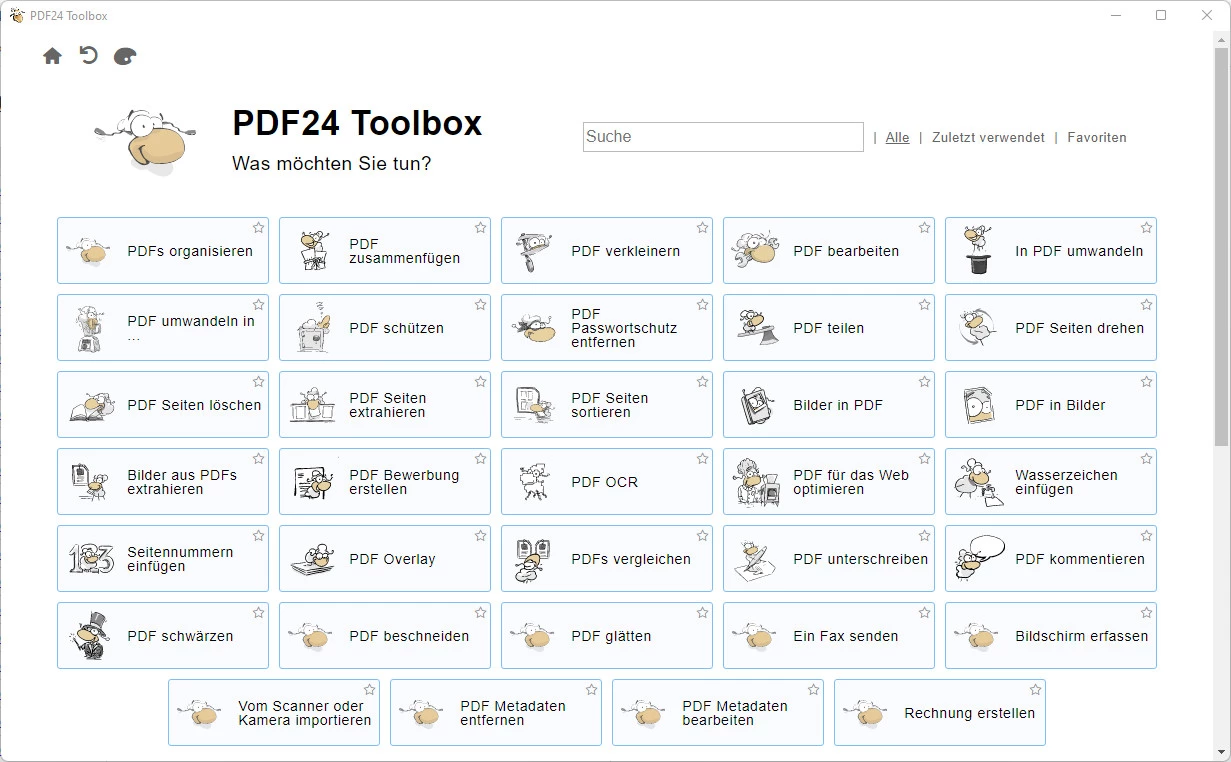
Originally built around a virtual printer driver, the application has evolved into a modular toolkit accessed through a central launcher grid containing dozens of specific tiles. When a user needs to combine invoices, extract a single page from a massive report, or drastically reduce a file size for an email attachment, they simply click the corresponding tile and complete the isolated task. By utilizing standard hardware resources rather than remote servers, the tool removes the friction of waiting in upload queues or paying monthly fees just to rearrange pages or add a quick visual watermark.
Because the software focuses on structural document manipulation rather than complex paragraph rewriting, it is particularly suited for administrative workflows, legal clerks, educators, and students. Users choose it over heavy office suites when they need a fast, utilitarian approach to document assembly without navigating nested ribbon menus. Whether acting as a background printer for legacy enterprise software or running as an interactive batch processor for end-of-month archiving, the utility serves as a reliable desktop companion for Windows environments.
Key Features
- Virtual PDF Printer: By installing a system-level print driver, the software allows any application with a print dialog to generate a document natively. Users can hit Ctrl+P in their web browser, accounting software, or photo viewer, select the newly installed virtual printer from the drop-down menu, and immediately save the output as a customized file. This feature bypasses the need for dedicated export buttons, ensuring that even older legacy programs can produce modern, standardized documents.
- Document Merger and Splitter: The core assembly module provides a drag-and-drop workspace where multiple files can be visually combined or separated. Users open the creator interface, load several documents into the file browser, and drag individual pages between different open windows. This visual approach allows users to extract a specific chapter, drop out blank pages, or append a scanned cover letter to a main text report before hitting the save button.
- Optical Character Recognition (OCR): The built-in text recognition engine converts scanned images and unselectable text into fully searchable documents. By applying the OCR tool to a scanned invoice or an image-based contract, users generate a hidden text layer that allows them to highlight, copy specific paragraphs, or search for keywords using standard Ctrl+F keyboard shortcuts. The tool supports multiple language dictionaries to improve character detection accuracy.
- File Compression Engine: High-resolution scans and presentations packed with unoptimized images often result in massive file sizes that exceed standard corporate email attachment limits. The compression module allows users to adjust the DPI settings and image quality percentage via a slider, drastically reducing the storage footprint. The preview function helps ensure the final text remains legible for screen reading even after compression is applied.
- Format Conversion: The toolkit supports two-way conversion between standard office formats and the portable document format without requiring a separate word processor. Users can drag a Word document, Excel spreadsheet, or a batch of JPEG images into the converter tile to generate standardized files ready for distribution. Users can also extract existing pages into individual image files for web publishing or archiving purposes.
- Security and Protection: For confidential workflows, the software includes a dedicated module to apply password encryption and set strict usage restrictions. Users can lock a document with a master password to prevent unauthorized printing, copying, or modification by third parties. The interface also provides tools to add visible text watermarks, page numbers, or custom stamps to mark pages clearly as drafts or confidential material.
- Batch Processing: Instead of converting or compressing files one by one, the file tools interface allows users to queue up entire folders at once. By selecting multiple items and applying a specific predefined profile, the software processes the entire batch sequentially. This bulk operation capability saves significant manual effort and screen clicking during large archiving projects, standardizing the output resolution and file naming conventions across hundreds of documents.
How to Install PDF24 Creator on Windows
- Download the official Windows installer package (available as either an EXE or MSI file) directly from the developer website to your local storage drive.
- Double-click the downloaded setup file to launch the wizard, granting administrative privileges when prompted by the Windows User Account Control security dialog.
- Review and accept the end-user software license agreement to activate the next button, then proceed to the installation directory selection screen.
- Choose your preferred installation components; by default, the setup will include the virtual print driver, the fax printer, and the Ghostscript interpreter which is necessary for rendering text and graphics correctly.
- Select whether you want the included reading module to be registered as your default application for opening this specific file type. You can easily uncheck this box if you prefer to keep your existing default viewer active.
- Click through the final confirmation screen to begin the extraction and copying process, allowing the installer to place the required system drivers, registry keys, and desktop shortcuts onto your machine.
- Finish the setup wizard and launch the application from the Start menu. The software will immediately open the main grid interface showing all available modular tools without requiring any account registration, cloud sign-in, or activation steps.
PDF24 Creator Free vs. Paid
PDF24 Creator operates under a strict freeware model, meaning the desktop application is completely free to use for both personal and commercial purposes. There are no premium tiers, no hidden subscription requirements, and no arbitrary trial limitations designed to force an upgrade. Users who install the desktop application have immediate, unrestricted access to the entire suite of tools, from basic page merging to advanced optical character recognition, without ever needing to input credit card details or create a user account.
Unlike many competing desktop utilities that restrict batch processing capabilities or apply mandatory vendor watermarks to exported documents unless a license fee is paid, this software imposes no such artificial barriers. The output generated by the virtual printer or the assembly modules is entirely clean and ready for professional distribution. The developer, Geek Software GmbH, sustains the ongoing development of the project through advertising revenue displayed on their separate web-based tools portal and through optional paid business services like online faxing, rather than monetizing the core offline installer.
Because there is no enterprise licensing cost, recurring maintenance fee, or per-seat billing, the software is highly favored by IT departments managing large Windows network deployments. Small businesses, educational institutions, and freelance professionals benefit from a fully offline toolkit that handles daily administrative requirements without adding recurring software expenses to the balance sheet. If a user only needs structural document editing rather than deep typographical layout control, the freeware approach provides everything required at absolutely zero cost.
PDF24 Creator vs. Adobe Acrobat Pro vs. Foxit PDF Editor
Adobe Acrobat Pro is the established industry standard for deep document editing, offering exacting control over native text rewriting, complex interactive form creation, and prepress color management workflows. Users should choose Adobe when their daily work involves rewriting paragraphs directly inside a finished document, altering vector graphics, or managing secure signature routing across large enterprise teams. However, this level of control requires a significant monthly subscription fee and a heavy installation footprint that can be excessive for users who only need to execute basic structural tasks like combining files.
Foxit PDF Editor provides a highly polished, ribbon-based interface that closely mimics standard office productivity software, making it an excellent premium alternative for users who need advanced editing but prefer a traditional workspace. It excels at fast text reflow, assisted document summarization, and detailed annotation tools tailored for collaborative review environments. Like Adobe, Foxit requires a paid license, making it a significant financial investment for users who only occasionally need to merge files or compress scanned receipts.
PDF24 Creator is the better fit when users need a strictly utilitarian, cost-free solution for structural manipulation rather than deep content editing or paragraph formatting. If the goal is simply to combine three vendor invoices, compress a massive scanned report for email delivery, or print a web page via a virtual system driver, this software handles the job offline without any financial commitment. It intentionally sacrifices the unified, ribbon-based interface and direct text-editing capabilities of Adobe and Foxit in favor of a modular, grid-based toolkit that focuses purely on getting basic administrative tasks done quickly and securely on a local machine.
Common Issues and Fixes
- Clunky workflow when performing multiple tasks. Because the software uses a modular grid, users often find it frustrating to open a file in the compression tool, save it, and then open it again in the watermark tool. To fix this, users should bypass the individual tiles and open the main Creator workspace module instead. This centralized drag-and-drop area allows for combining, rotating, and basic structural editing in one continuous session before saving the final output, significantly reducing menu navigation.
- Virtual printer fails to appear in the print dialog. Occasionally, Windows updates or strict corporate security policies prevent the print driver from installing correctly, leaving the user unable to generate documents from third-party applications. To resolve this, open the Windows Settings, navigate to the Printers & Scanners menu, and ensure the print spooler service is running. If the printer is still missing, running the official installer again and selecting the Repair option usually restores the necessary driver registry keys.
- Poor text recognition during OCR processing. When using the OCR tool on low-quality, faded, or handwritten scans, the resulting text layer may contain gibberish or miss words entirely. Users can fix this by increasing the DPI and contrast of the original scan before processing. Furthermore, users should check the OCR settings menu to ensure the correct primary language dictionary is downloaded and selected, as the engine struggles significantly if it attempts to read Spanish text using an English dictionary.
- Large files consume excessive system memory. Attempting to merge or compress documents containing hundreds of unoptimized, high-resolution images can cause the application to slow down or temporarily freeze on older computers with limited RAM. To mitigate this memory bottleneck, process massive documents in smaller batches of 50 pages at a time, or close background applications to free up system resources, as the visual rendering engine relies heavily on available memory to display accurate page previews.
Version 11.29.0 — December 2025
Added:
- Reader: Option to insert blank pages via context menu.
- Toolbox: CLI flags for '-createInvoice' including language code and XML regeneration.
- DocTool: Support for '-param' and '-header' command line arguments.
Improved:
- Creator: Enhanced mouse wheel behavior for scrolling and zooming previews.
- Output Profiles: Better display scaling on multiple monitor setups.
- Printer Installer: x64 and amd64 architectures are now treated as synonyms.
- Toolbox: Scrollbar colors adapted to the active theme.
Fixed:
- Creator: Fixed an issue where full-window preview mode did not scale correctly.
- Reader: Fixed single-instance check to prevent opening multiple windows for selected files.
- Toolbox: Resolved errors when converting to secure PDF.
- Toolbox: Fixed issues with password-protected PDFs in the Merge tool.
- eInvoice: Corrected XML output for tax category O (Not subject to VAT).
Security:
- Updated components (OpenJDK 17.0.17.10, WebView2 143.0.3650.66, QPDF 12.2.0).