Data loss events rarely result in the immediate destruction of digital files. When a document, image, or archive is deleted from a storage device, the operating system typically only removes the file index, marking the associated disk sectors as available for new data. On traditional mechanical hard drives, the physical magnetic state of the disk remains completely untouched. Even on solid-state drives, if the TRIM command has not yet cleared the blocks, the data persists in a raw state. Hetman Partition Recovery is designed to intercept this process before those sectors are overwritten. It operates as a low-level desktop application that bypasses standard file system restrictions, scanning the physical disk surface to locate and reconstruct orphaned data blocks. This utility is built for system administrators, IT support technicians, and PC users dealing with accidentally emptied Recycle Bins, formatted external drives, or hardware failures that render a disk RAW and inaccessible.
Operating natively on the desktop is a strict requirement for data restoration. Browser-based utilities or lightweight cloud applications cannot interface directly with a storage controller or read raw byte streams from a corrupted Master File Table. Hetman Partition Recovery requires local execution to analyze NTFS, FAT, and ReFS structures directly at the block level. By mounting the hardware at the lowest level, the software reconstructs broken partition tables and extracts intact files, offering a practical path to data retrieval without shipping the physical hard drive to a specialized laboratory. The software handles everything from internal mechanical hard disk drives and solid-state drives to removable USB flash media and SD cards.
The desktop environment also provides the necessary stability for long-running disk operations. Rebuilding a lost partition table from a multi-terabyte drive can take several hours of continuous read cycles. The application manages system memory to prevent crashes during these deep scans, logging recovered file signatures and organizing them into a navigable directory. Because data recovery requires absolute read-only access to prevent further damage to the failing drive, the application relies on strict local system permissions that only a dedicated Windows desktop client can enforce.
Key Features
- Fast and Full Analysis Modes: The software includes two distinct scanning engines. The Fast Scan reads the existing file allocation table to undelete recently removed items in seconds. The Full Analysis mode ignores the file system entirely, scanning the disk surface byte-by-byte to identify file signatures such as DOCX headers, PDF markers, or JPEG metadata on formatted or corrupted drives.
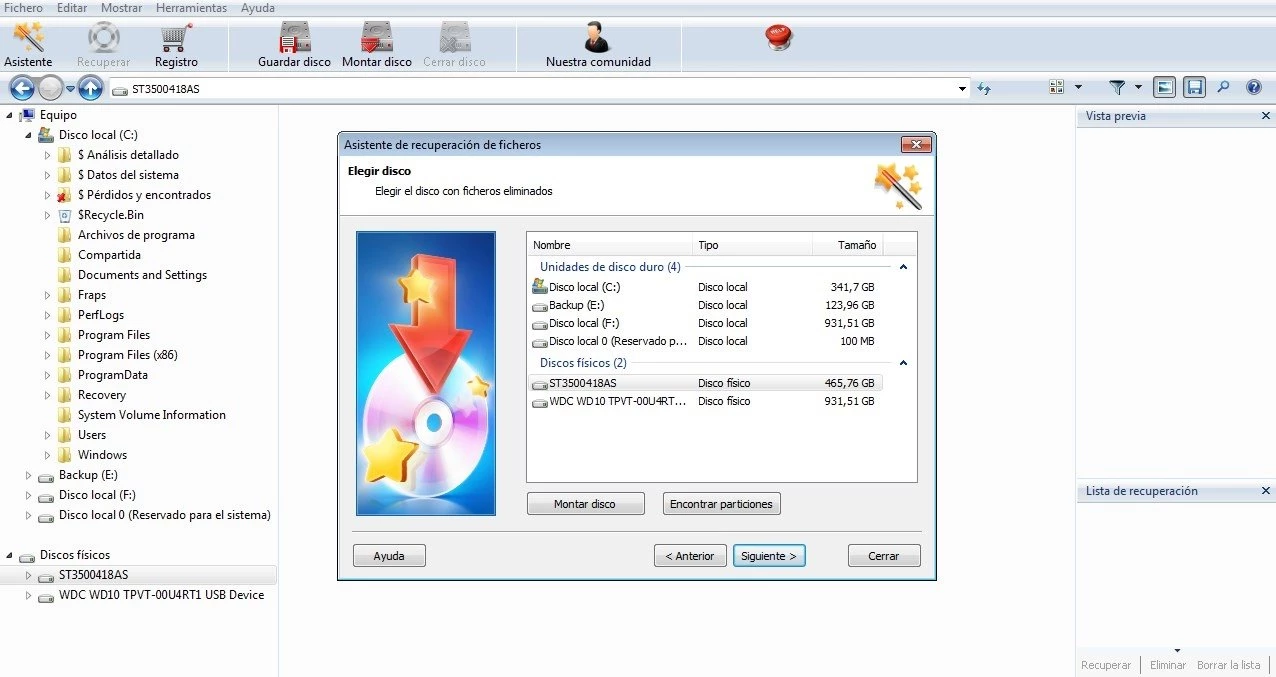
- Familiar Explorer-Style Interface: Instead of forcing users to learn a new navigation paradigm, the interface mimics the native Windows file manager. Users browse through a directory tree on the left panel while viewing file icons and details on the right, making it straightforward to locate specific folders that went missing after a system crash without relying on disorganized file dumps.
- Visual Pre-Recovery Preview: Before committing to a restoration, users can view the contents of the found files to guarantee their integrity. The built-in viewer displays photos, plays audio files, and renders text documents directly within the application window. This confirms the data is intact and not corrupted before the user decides to extract the data to a new drive.
- Disk Imaging for Failing Hardware: Scanning a physically failing drive multiple times can push it to complete failure. The software includes a specific tool to create an exact byte-for-byte virtual image of the problematic physical disk. Users can then disconnect the failing hardware and run all recovery operations safely from the mounted image file, isolating the damaged mechanics.
- Built-In Hex Editor: Advanced users and forensic investigators can inspect the raw data of any file or logical partition. The hex viewer displays the exact hexadecimal values and ASCII text of the selected disk sector, allowing technicians to verify file headers, check for active encryption, or manually identify partition boundaries that the automated scan might have missed.
- Damaged Partition Table Reconstruction: When a drive loses its logical volumes and appears as unallocated space in Disk Management, the application reads the residual file data to calculate where the original partitions began and ended. It then virtually rebuilds the directory tree, allowing users to extract files exactly as they were organized before the logical failure occurred.
How to Install Hetman Partition Recovery on Windows
- Download the Windows installer executable directly from the official vendor website to ensure you have the untampered package.
- Launch the setup wizard and review the end-user license agreement before proceeding.
- Select your preferred display language from the dropdown menu, which dictates the interface text for the application.
- Choose an installation directory. It is critical to select a drive letter that is entirely separate from the disk you intend to recover. Installing the software onto the same drive that suffered data loss will overwrite the exact deleted files you are trying to save.
- Select whether to create a desktop shortcut and a Start menu folder for quick access.
- Click install and allow the setup application to extract the necessary binary files and libraries to your local storage.
- Finish the setup process and launch the application.
- On the first run, ensure you allow the User Account Control prompt to grant administrator privileges. This is strictly required for the software to access the physical storage controllers and read raw disk sectors.
Hetman Partition Recovery Free vs. Paid
Hetman Partition Recovery operates on a try-before-you-buy model, meaning the initial download functions strictly as an evaluation tool. Users can install the software, run both fast and deep scans on their storage devices, locate lost partitions, and use the visual preview tool to verify that their specific documents, archives, or photos are intact. However, extracting and saving those files to a new local drive requires a paid license. This ensures users can confirm the software works for their specific data loss scenario before spending any money, but it does not offer a fully free tier with a limited data allowance.
The pricing structure is divided into three distinct perpetual license tiers based on usage rights and specific technical requirements. The Home Edition costs $97.95 and is restricted to personal use, covering standard file and partition restoration on local drives. The Office Edition, priced at $237.95, permits corporate use and unlocks the ability to recover data directly from virtual machine disks. This includes direct support for VHD, VDI, and VMDK files used in enterprise hypervisor environments, which the Home tier cannot process.
For IT service providers, the Commercial Edition costs $397.95 and grants the legal right to use the software to provide data recovery services to third-party clients. All three tiers require a one-time payment per user rather than an ongoing monthly subscription. The license does not impose a limit on the amount of data recovered or the number of times the software can be run, making the total cost predictable for users handling large multi-terabyte drives or recurring administrative tasks.
Hetman Partition Recovery vs. EaseUS Data Recovery Wizard vs. Recuva
EaseUS Data Recovery Wizard targets a similar audience but relies heavily on a guided, wizard-first interface rather than a traditional file explorer layout. EaseUS performs well with standard file retrieval and automatically sorts found items by file type, which benefits users who want a hands-off approach. However, it lacks the immediate built-in disk imaging and hex editing tools found directly on the main screen of Hetman Partition Recovery. Furthermore, the perpetual licensing tier for EaseUS is generally more expensive than the entry-level Hetman offering, making Hetman a more direct choice for technicians who want raw block-level controls without a premium price tag.
Recuva is a widely recognized alternative that appeals to users looking for a no-cost undelete utility. It excels at recovering recently deleted files from the Recycle Bin or restoring data from healthy flash drives using its fast scan engine. Because it primarily reads the existing Master File Table, Recuva struggles significantly when tasked with scanning a RAW drive, a formatted disk, or a corrupted partition table. It frequently returns no usable results in severe data loss scenarios because it lacks the deep signature-based reconstruction logic found in commercial tier applications.
Hetman Partition Recovery fits securely between these two approaches, offering more technical depth than Recuva while maintaining a straightforward, folder-based navigation system. Users should choose Recuva for simple, immediate undelete tasks on healthy drives. Hetman Partition Recovery becomes the necessary choice when the entire disk volume is missing, the file system reads as RAW, or the hardware is failing and requires an immediate byte-for-byte disk image before the physical drive fails completely.
Common Issues and Fixes
- Missing files after a fast scan. If the quick analysis does not locate your deleted documents, the file system index was likely overwritten. Switch to the "Full Analysis" mode, which ignores the index entirely and scans the physical disk surface for raw file signatures like document headers and image markers.
- Recovered documents refuse to open or display errors. This indicates that the physical sectors where the file was stored were partially overwritten by new data before you ran the recovery. You will need to check the scan results for an older, intact version of the file, or use a dedicated file repair utility to fix the broken hexadecimal header.
- The failing drive causes the system to freeze during scanning. A hard drive with physical bad sectors can cause the Windows storage controller to lock up and hang the application. Use the "Save Disk" feature to create a byte-for-byte image of the drive first, then disconnect the physical hardware and run your recovery scan exclusively on the mounted image file.
- The external drive does not appear in the software disk list. The drive may have lost its mounting point or been marked as offline by the operating system due to corruption. Open the Windows Run dialog, type DiskMgmt.msc, locate the drive, and right-click to initialize it or assign a drive letter, ensuring you decline any prompts to format the disk.
- Saved files are missing after a successful recovery operation. This typically happens if you saved the recovered files back to the exact same drive you were scanning, which immediately corrupts the data path. Always select a physically separate hard drive or a large external USB drive as the destination folder for your recovered items.
Version 5.1 — October 2025
- Added native support for high-capacity storage drives exceeding 16 TB in size.
- Improved deep scanning algorithms to significantly increase scan speed and file detection accuracy.
- Enhanced recovery logic for detecting and restoring lost NTFS and exFAT partitions.
- Optimized the built-in file previewer for better rendering of multimedia formats before recovery.
- Fixed an issue where saving disk images containing bad sectors could result in write errors.
- Resolved a stability bug that caused the application to freeze when previewing specific file types on Windows 10 and 11.
- Refined the user interface to streamline navigation and improve overall accessibility.