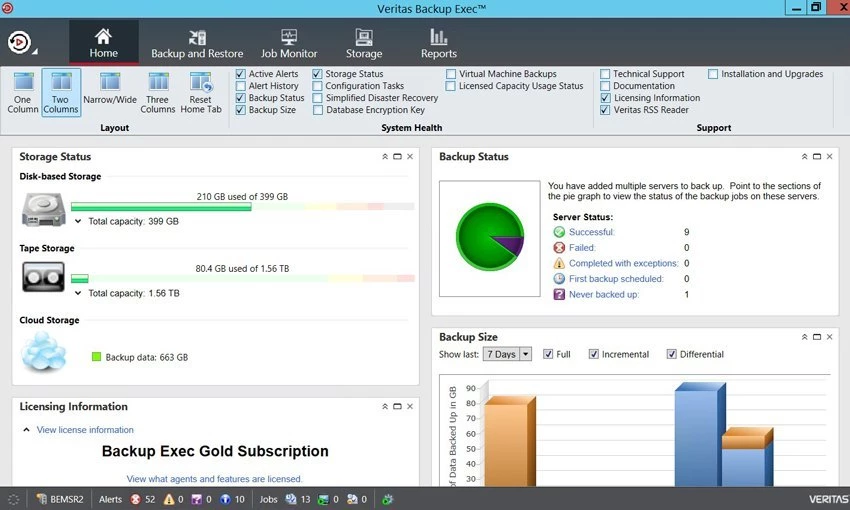
Veritas Backup Exec operates as a central data protection and disaster recovery console for IT administrators managing diverse physical, virtual, and cloud-based infrastructure. It handles the scheduling, routing, and encryption of backup jobs across local storage arrays, tape libraries, and remote cloud targets. Rather than relying on basic file-copy utilities, administrators use this software to take application-aware snapshots of active databases, including Microsoft SQL Server, Microsoft Exchange, and Oracle, as well as file servers without taking them offline. The software is built to maintain compliance logs, helping organizations meet strict data retention policies mandated by frameworks such as GDPR or PCI-DSS.
The software addresses the practical challenge of unified recovery. In environments running Microsoft Hyper-V or VMware, it coordinates directly with hypervisor APIs to back up virtual disks and configurations. If a hardware failure occurs, IT teams can mount these backups directly from the storage repository, spinning up a recovery instance while the primary hardware is repaired or replaced. It also provides granular item recovery, meaning an administrator can extract a single deleted email or database table from a massive backup archive without restoring the entire server footprint. This eliminates the need to build temporary staging servers just to recover a handful of missing files.
A heavy, local server installation remains necessary for this level of infrastructure management. Browser-based or lightweight cloud-only agents cannot directly interface with legacy physical tape drives, manage localized hardware encryption devices, or orchestrate high-speed, local area network (LAN) transfers across isolated subnets. By maintaining an on-premise management console, IT departments maintain strict control over their backup catalogs, hardware controllers, and cryptographic keys without exposing internal server topologies to external web interfaces. This localized approach is critical for institutions that handle air-gapped backups or maintain strict internal networking policies that restrict persistent cloud connections.
Key Features
- Ransomware Resilience: The software actively monitors the local media server for unauthorized processes attempting to modify or encrypt backup repositories. If anomalous behavior is detected, it blocks the process from altering the stored data, ensuring clean recovery points remain available even if the broader network is compromised.
- Instant Virtual Machine Recovery: Administrators can mount protected VMware or Hyper-V virtual machines directly from the backup disk storage. This spins up a functioning recovery instance instantly, keeping critical applications accessible while the primary physical server is being restored in the background.
- Granular Recovery Technology: This tool allows administrators to open a completed backup archive and extract individual items rather than recovering the whole volume. Users can select and export specific Active Directory objects, SharePoint documents, or individual Microsoft Exchange emails directly from the centralized console interface.
- Data Deduplication: The software scans the backup data blocks across physical and virtual environments to identify and store only unique data. This significantly reduces the total storage footprint, lowering hardware costs for local disk arrays and reducing bandwidth consumption for offsite cloud targets by dropping duplicate OS files and redundant application data.
- Hardware and Software Encryption: Backup jobs can be configured to use 128-bit or 256-bit AES software encryption for data in transit and at rest. It also interfaces directly with T10-standard hardware encryption devices, offloading the heavy cryptographic processing to compatible physical tape drives to maintain high network transfer speeds.
- Native Cloud Connectors: The management console supports direct backup pathways to Amazon S3, Microsoft Azure, and Google Cloud Storage. IT teams can configure automated retention policies to move aging backup sets from local physical storage to lower-cost public cloud tiers, optimizing long-term archiving costs.
- Anomaly Detection: The software continuously tracks standard backup behaviors, such as average job completion times and daily data change rates. If a sudden spike in changed files occurs—often a symptom of a ransomware infection encrypting files—the console generates an immediate alert so administrators can investigate before the malicious data replaces older, clean backup chains.
How to Install Veritas Backup Exec on Windows
- Download the installation package from the vendor licensing portal and extract the contents to a local administrative drive on your designated Windows server.
- Launch the primary executable file to open the Installation Wizard and select the primary installation option from the initial splash screen.
- Review and accept the end-user license agreement, then choose whether to perform a Typical installation or a Custom installation to select specific optional components, such as the administration console or remote deployment agents.
- Allow the setup utility to perform an Environment Check, which verifies that the server meets the physical memory requirements, has adequate disk space for the primary catalog, and that required Windows services are active.
- Specify a dedicated system service account with domain administrative privileges, as the background services require these credentials to interact with network resources, Active Directory, and remote file systems.
- Designate a destination folder for the application files, and define where the local SQL Express database will reside, which the software uses to track all backup metadata, file catalogs, and job histories.
- Review the installation summary and click Install to begin copying files, configuring background tasks, establishing the Media Server Deduplication Pool, and registering the necessary application components in the Windows registry.
- Restart the host machine if prompted by the setup utility, then open the central desktop console to configure your initial physical storage targets, network tape drives, and remote logon credentials.
Veritas Backup Exec Free vs. Paid
Veritas Backup Exec is commercial enterprise software and does not offer a permanent free tier for production use. Organizations generally start with a 60-day trial evaluation, which provides temporary access to the central administration console, deduplication features, and cloud storage connectors to test compatibility with existing physical infrastructure. Once the trial evaluation expires, administrators must purchase a commercial license to continue running scheduled backup jobs and performing recoveries.
The licensing model is split into several structures depending on organizational size and infrastructure design. A common option for mid-sized environments is the Simple Core Pack. This is an on-premise subscription license that covers a specific number of instances, such as five virtual or physical servers. The cost for a Simple Core Pack starts at approximately $700 to $800 for a one-year term. Multi-year contracts lower the annualized cost, and the package typically includes essential technical support, software updates, and basic troubleshooting during the active subscription period.
Alternatively, larger organizations often use Capacity Edition licensing, which is priced per front-end terabyte of data protected, regardless of how many individual servers or virtual instances generate that data. This model is divided into Bronze, Silver, and Gold tiers. Bronze covers basic local backups, Silver adds support for complex applications and databases, and Gold activates all available features, including central administration of multiple media servers and advanced tape library orchestration. Perpetual licensing is also available for some editions, though maintenance contracts are required for continued software updates.
Veritas Backup Exec vs. Veeam Data Platform vs. Acronis Cyber Protect
Veeam Data Platform focuses heavily on highly virtualized environments, offering deep hypervisor integration, instant VM recovery, and advanced testing through its SureBackup technology. IT teams often choose Veeam when their infrastructure is almost entirely virtualized on VMware or Microsoft Hyper-V, and they prioritize a modern, highly responsive user interface with transparent configuration workflows. Veeam handles virtualized application-aware processing exceptionally well, making it the default choice for modern, cloud-focused data centers.
Acronis Cyber Protect combines standard data protection with native endpoint security tools, such as integrated antivirus scanning and active anti-malware defense mechanisms. Smaller IT departments often favor Acronis because it consolidates both security monitoring and backup policies into a single, straightforward dashboard. This reduces the number of separate security utilities they need to manage on end-user machines and remote servers, providing an all-in-one approach to small business network defense.
Veritas Backup Exec remains the stronger choice for organizations managing a complex hybrid mix of legacy physical hardware, extensive physical tape storage libraries, and modern virtual machines. Its mature Granular Recovery Technology and native compatibility with physical tape hardware give administrators exact control over diverse, multi-platform environments. When an IT department needs to execute physical-to-virtual conversions or maintain compliance logs across both legacy database servers and modern cloud storage buckets, this software handles the hardware intersections better than virtualization-only tools.
Common Issues and Fixes
- Backup jobs fail with an E000FED1 error code regarding a VSS writer. This happens when the Windows Volume Shadow Copy Service fails to snapshot the target application data, usually because a database is locked. Open a command prompt, run the command vssadmin list writers to locate the faulted service, and restart the specific application or reboot the target server to clear the error state.
- The administration console displays error code 1603 during an agent update. This typically indicates that a remote agent installation failed due to an interrupted process or blocked communication port. Verify that Windows Management Instrumentation (WMI) is enabled on the target server, check for sufficient system drive disk space, and ensure local firewalls are not blocking the push installation.
- Background services fail to start due to an authentication error. This occurs when the password for the dedicated system service account expires or changes in Active Directory, preventing the application from authenticating. To restore functionality, open the Configuration and Settings menu, navigate to Manage Logon Accounts, and update the System Logon Account credentials to match the active domain password.
- Data transfers to cloud storage fail with a timeout warning. This issue is frequently caused by network interruptions or misconfigured outbound firewall rules blocking port 443. Confirm that the host machine has an active internet connection and that the edge firewall allows outbound HTTPS traffic to the specific regional IP addresses for your Amazon S3, Azure, or Google Cloud storage bucket.
- Active backup schedules halt unexpectedly with an insufficient disk space alert. When the designated target storage array or deduplication pool runs out of physical capacity, the software automatically pauses jobs to prevent data corruption. Administrators must log into the console and manually delete outdated backup sets, modify the data lifecycle management retention policies, or provision additional physical drives to the storage pool to resume normal operations.
Version Latest — 2025
- Added full support for Windows Server 2025, allowing for complete backup and recovery operations as well as installation of server and agent components on the new OS.
- Introduced WORM (Write Once, Read Many) capability for OVHcloud S3 object storage, ensuring better protection against ransomware and accidental deletion.
- Expanded cloud region support for Amazon AWS (Mexico, Thailand, Malaysia) and Google Cloud (Stockholm, Mexico) to offer greater storage flexibility.
- Enhanced Microsoft 365 granular recovery with a new option to restore Exchange items directly to a personal storage table (.pst) file.
- Improved protection for collaboration tools by adding support for the backup and restore of Microsoft Teams private channel site data.
- Updated Role-Based Access Control (RBAC) to fully support Central Administration Server (CAS) and Managed Backup Exec Server (MBES) deployments.