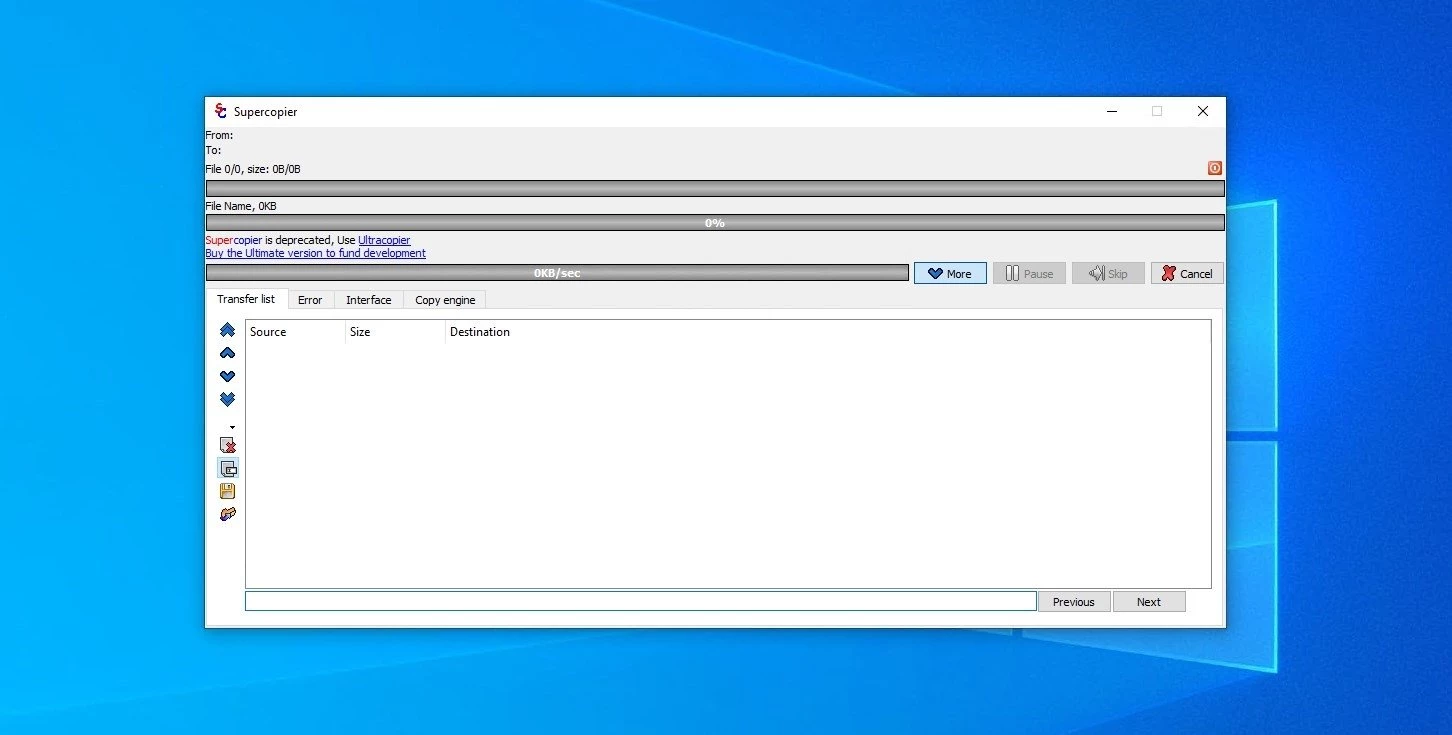
Moving large batches of data across local storage drives, external disks, or network shares using standard operating system tools often introduces unnecessary friction. The default Windows Explorer copy handler is sufficient for moving a handful of documents, but it struggles with massive data migrations. When transferring thousands of mixed-size assets—such as raw photographs, heavy database backups, or large video renders—the default utility can crash or stall silently due to a single read error or permission conflict. If an operation fails halfway through, determining which assets successfully transferred and which require a second attempt becomes a tedious manual process. Supercopier replaces the default copy and paste commands with a dedicated, persistent interface built specifically to handle heavy data transfers without interrupting daily computing tasks.
Designed for system administrators, multimedia editors, and power users who demand strict control over their storage operations, this utility shifts file migration from an unpredictable background process to a manageable queue. It intercepts standard commands and opens its own actionable dashboard where users can actively monitor read and write speeds, manage file collisions, and review detailed error logs. This level of oversight ensures that moving terabytes of data across physical drives remains a reliable and entirely transparent operation.
Relying on a native desktop application for file transfers provides distinct advantages over using web-based synchronization tools or basic command-line scripts. Operating locally, the software interacts directly with the file system buffer, avoiding the overhead of browser-based interfaces while providing immediate visual feedback that scripts lack. It stays minimized in the system tray, monitoring the clipboard and intercepting copy commands only when needed. This approach allows users to maintain full physical control over their hardware resources, adjusting transfer speeds dynamically to prevent disk thrashing while running demanding desktop applications alongside heavy file migrations.
Key Features
- Dynamic Transfer Queues: Users can actively edit the copy list while a transfer is already in progress. Rather than canceling an operation to add a forgotten folder, files and directories can be dragged directly into the active queue. Users can also select specific items currently in the list and click the delete or skip buttons to remove them before the engine attempts to process them.
- Pause and Resume Control: Heavy data transfers can be paused instantly to free up disk bandwidth and CPU cycles for other active desktop applications. Clicking resume allows the operation to pick up exactly where it halted, avoiding the need to restart the entire batch. This capability is highly practical when dealing with unstable network environments or external drives that momentarily disconnect.
- Speed Throttling: The software allows administrators to set strict transfer speed limits measured in megabytes per second. By adjusting the speed limit slider in the main interface, users can prevent a massive file migration from entirely saturating a mechanical hard drive or a shared network connection, ensuring other networked devices or local applications remain responsive.
- Error Logging and Collision Rules: When a file is locked by another program or a duplicate name is detected, the transfer queue does not freeze or crash. The software logs the specific error into a dedicated Error Log tab and applies pre-defined collision rules. Users can configure the application to automatically skip, overwrite, overwrite if different, or rename either the new or old file, keeping the rest of the queue moving.
- Copy List Exporting: Frequent backup routines can be organized by saving an existing transfer queue into a proprietary SCL file format. Instead of manually selecting the same source folders every week, administrators can load the saved file to instantly populate the queue with the exact same directory paths, standardizing recurring local backup operations.
- Granular Interface Customization: The visual layout of the transfer window can be extensively modified to accommodate different desktop setups and accessibility needs. Within the Configuration menu, users can adjust the foreground and background colors of the progress bars, change text outline colors, and modify border highlights. This ensures the tracking window remains highly visible when monitoring transfers across multiple high-resolution displays.
How to Install Supercopier on Windows
- Download the official Windows installer package from a verified directory or the official open-source repository.
- Locate the downloaded executable file in your local directory and run the setup wizard with administrator privileges to ensure the utility can interact with low-level file system operations.
- Review the terms of the GNU General Public License and accept the agreement to proceed with the setup.
- Select the destination folder for the application files, or accept the default local directory path provided by the installer.
- Choose whether to enable automatic integration with Windows Explorer during this step; selecting this option allows the application to intercept standard copy and paste commands directly.
- Proceed through the final installation screen, allow the wizard to copy the necessary binaries to your drive, and click finish to close the setup window.
- Upon first launch, check the system tray in the lower right corner of your desktop, as the utility minimizes there by default rather than opening a large primary window.
- Right-click the system tray icon to access the Configuration menu, where you can immediately define your preferred file collision actions and default buffer settings.
Supercopier Free vs. Paid
Supercopier is a completely free and open-source utility licensed under the GNU General Public License. There are no paid tiers, hidden subscription models, or premium license keys required to unlock the software. Every available function—including advanced error logging, transfer speed throttling, dynamic queue management, and list exporting—is included in the standard installation at zero cost.
Because the application is maintained by the open-source community, its development and distribution rely on volunteer effort and optional user donations rather than traditional commercial software sales. This means that individual users, IT professionals, and system administrators can deploy the utility across multiple desktop environments without worrying about licensing audits or activation limits.
Furthermore, the software avoids the aggressive monetization tactics often found in freemium utility categories. Users do not have to navigate trial expiration dates, artificial speed caps, mandatory account sign-ins, or restricted file-size limitations. The open-source nature of the project also guarantees that advanced users or enterprise IT teams can inspect the source code directly, ensuring the tool adheres to internal security and compliance standards before wide-scale deployment.
Supercopier vs. TeraCopy vs. FastCopy
TeraCopy is a highly recognizable alternative that provides a polished interface, strong hash verification capabilities, and deep integration with the operating system shell. While it offers a very capable free version for home users, TeraCopy reserves several advanced administrative features—such as the ability to edit copy lists, manage favorite folders, and save transfer histories—for its paid Pro license tier. TeraCopy is generally chosen by users who want a visually refined, commercial-grade tool and are willing to pay for advanced queue management functionality.
FastCopy takes a distinctly different approach, focusing almost entirely on maximizing raw file transfer performance at the hardware level. It is engineered to execute data migrations as fast as the physical drives will allow, utilizing highly optimized buffer management and multithreaded operations. However, FastCopy's graphical interface is notoriously dense and highly technical, lacking the visual clarity of modern desktop utilities. It is typically the preferred tool for IT professionals and system administrators who prioritize command-line execution and maximum speed over an accessible, interactive transfer queue.
Supercopier occupies a practical middle ground for users who require active queue management without upgrading to a paid license. It provides a much more interactive and visually forgiving interface than FastCopy, making it easier to pause batches, skip specific errors, and manage file collisions manually. At the same time, it keeps entirely free the advanced list editing and queue exporting capabilities that TeraCopy places behind a commercial paywall, making it a highly effective choice for users seeking maximum functionality at no cost.
Common Issues and Fixes
- Interrupted transfers freezing the queue. If a momentary network drop causes the visual transfer queue to freeze, users should avoid forcing the application to close. Instead, open the system tray menu and manually pause the specific thread. Wait for the network connection to stabilize before clicking resume, or check the error log tab to skip the currently stalled file.
- Unusually low file transfer rates. If the copying speed drops significantly below the known hardware limits of your local drive, check the Speed limit configuration in the active options pane. Ensure that a low megabyte-per-second throttle was not accidentally enabled and saved as a default setting during a previous background transfer.
- Missing file collision prompts. If duplicate files are automatically overwritten or skipped without triggering a user warning, the default collision rules have likely been modified. Open the Configuration window, navigate to the Copies and moves behavior tab, and set the file collision action back to prompt the user for manual input.
- Double prompts when using alternative file managers. Users running third-party file managers may experience duplicate dialog boxes when pressing standard keyboard shortcuts to move files. To resolve this, open your third-party file manager's settings and adjust the hotkey configurations to disable native confirmation dialogs, allowing the dedicated transfer utility to handle the command exclusively.
Version 3.0.1.5 — December 2025
- Enhanced copy engine performance for faster transfer speeds, particularly with large files.
- Improved stability and error handling during file collisions and network transfers.
- Fixed minor bugs related to the remaining time calculation and interface responsiveness.
- Updated language translations and internal libraries for better compatibility.