Seagate DiscWizard provides a specialized, hardware-locked data migration and disaster recovery environment built specifically for users upgrading their computer storage. Powered by the established Acronis True Image engine, the utility offers a deeply integrated desktop application capable of moving an entire operating system, installed software, customized settings, and personal files from an aging hard drive to a newly purchased solid-state drive. Unlike basic file synchronization scripts or cloud storage agents that merely duplicate documents, this software operates at the fundamental sector level of the storage medium. This low-level disk access ensures that complex boot records, hidden recovery partitions, and active system files are replicated exactly, allowing the computer to boot directly from the new drive without requiring a clean installation of Windows.
The choice to deploy a desktop-bound architecture rather than a portable executable or browser-based dashboard is strictly necessary for the scope of work this tool performs. Modifying active file systems and locking the primary drive for an exact one-to-one clone requires kernel-level storage drivers and a dedicated pre-boot environment. When a user initiates a full disk clone, the application often orchestrates a system restart, temporarily bypassing the standard Windows desktop to perform the heavy lifting in an isolated workspace. This guarantees that no files are modified by background services during the transfer.
The software primarily serves home users, system builders, and IT technicians who need a reliable, cost-effective method to upgrade physical hardware. By offering enterprise-grade cloning capabilities specifically to owners of Seagate, Maxtor, LaCie, and Samsung drives, the utility eliminates the need to purchase separate disk management licenses. Users rely on this application to confidently swap out failing mechanical drives, expand storage capacity, and maintain exact historical images of their entire machine for bare-metal disaster recovery scenarios.
Key Features
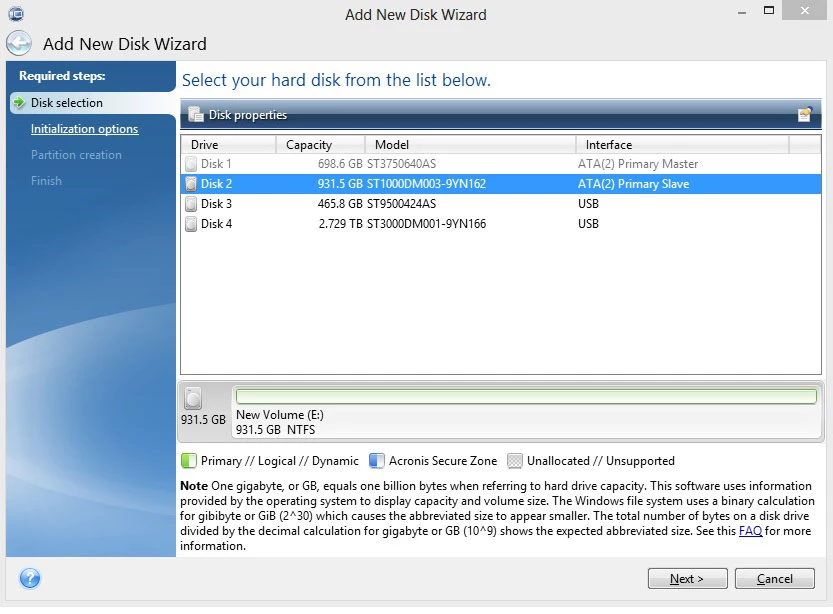
- Sector-by-Sector Disk Cloning: The core Clone Disk wizard actively duplicates the entire contents of a source drive to a target drive, capturing exactly how the data sits on the physical platters or flash memory. This process guarantees that complex bootloader configurations, hidden recovery partitions, and operating system registry files remain intact. Users can opt for an automatic proportional resize, which stretches or shrinks partitions to fit the new drive capacity, or a manual mode to specify exact megabyte allocations.
- Complete System Image Backup: Instead of migrating data immediately to a new disk, users can generate a compressed archive file containing the full state of the machine. The application packages the operating system, installed desktop programs, and personal directories into a proprietary archive format that can be stored on an external USB drive or network-attached storage array for future deployment.
- Bootable Rescue Media Creation: Recognizing that a failing hard drive often prevents the Windows desktop from loading, the software includes a dedicated Rescue Media Builder. This tool formats a standard USB flash drive or optical disc into a standalone bootable environment, allowing users to bypass the broken internal storage entirely, launch the recovery interface in memory, and restore a saved image directly to a replacement disk.
- Secure Drive Cleansing: When retiring an old computer or repurposing a drive, simple formatting does not permanently erase the underlying data. The Drive Cleanser module addresses this by writing continuous patterns of zeroes and random data across every sector of the disk, ensuring that sensitive financial documents and saved browser passwords cannot be recovered by forensic data retrieval software.
- Hardware-Specific Volume Management: The software provides utilities for initializing and formatting massive storage arrays that older operating systems struggle to recognize. For users installing high-capacity drives, the application handles the complex transition from older Master Boot Record structures to modern GUID Partition Table layouts, ensuring the operating system can address the full advertised capacity.
- Acronis Core Engine Integration: Under the hood, the application licenses the exact data transport and compression algorithms utilized by Acronis True Image. This integration means users benefit from highly optimized read and write operations, minimal CPU overhead during background image creation, and proven reliability for bare-metal restores, all wrapped in a highly familiar visual interface.
How to Install Seagate DiscWizard on Windows
- Navigate to the official vendor support portal to download the Windows installer package, ensuring you have at least one supported Seagate, Maxtor, LaCie, or Samsung drive ready to connect.
- Locate the downloaded executable file in your directory and launch the setup process, granting the necessary User Account Control permissions when Windows prompts you to allow system modifications.
- Choose the default installation type, keeping in mind that the software must be installed on your primary system partition to properly install the required low-level storage drivers and volume shadow copy services.
- Review the end-user license agreement, noting that the installer will also package the Bonjour service, which the software utilizes to automatically discover and communicate with network-attached storage devices on your local network.
- Allow the installation progress bar to finish writing the program files, configuring the registry entries, and starting the necessary background services before clicking the final button to close the setup wizard.
- Connect your supported hard drive or solid-state drive to the motherboard or an active USB port, then launch the application from the Start menu so it can perform its initial hardware validation check.
Seagate DiscWizard Free vs. Paid
Seagate DiscWizard operates on a unique hardware-locked licensing model, meaning the software is provided entirely free of charge but restricts its usage based on the physical components inside the computer. Instead of asking users to pay a one-time perpetual license fee or subscribe to a monthly billing cycle, the developer requires the presence of at least one supported hard drive or solid-state drive. As long as the software detects a Seagate, Maxtor, LaCie, or Samsung drive connected to the system motherboard or via a direct USB interface, the application unlocks its complete feature set without requesting payment details.
The free tier encompasses all the necessary tools for major hardware migrations and disaster recovery. Users gain unrestricted access to the Acronis-powered disk cloning wizard, full system image creation, and the bootable rescue media builder. There are no artificial data caps, no intentional throttling of transfer speeds, and no intrusive watermarks placed on the backup files. The application performs its primary job—moving an operating system from an old disk to a new disk—without attempting to upsell the user halfway through the process.
Because this software acts as an explicit hardware benefit, it deliberately omits the broader ecosystem features found in standalone, paid backup applications. Users looking for continuous background file synchronization, off-site cloud storage integration, automatic mobile device backups, or active ransomware monitoring will not find those features here. For consumers who strictly need a reliable, cost-free method to safely replicate their primary system drive during a hardware upgrade, this model provides excellent practical utility without unnecessary ongoing software expenses.
Seagate DiscWizard vs. Macrium Reflect vs. AOMEI Backupper
Macrium Reflect has long served as the industry standard for system administrators who demand granular control over partition imaging and complex backup scheduling. While the historical free edition of Macrium was recently retired, its paid tiers offer highly advanced features like rapid delta cloning, hardware-independent restores to entirely different motherboards, and deep command-line scripting capabilities. Users should choose Macrium Reflect if they are managing a diverse fleet of workstations with mixed hardware brands, or if they require a rigid, highly customized daily backup routine that goes far beyond a single drive upgrade.
AOMEI Backupper focuses heavily on interface accessibility and flexible backup options for everyday desktop users. The standard edition handles basic file backups and data disk cloning quite well, though migrating an active Windows operating system to a new solid-state drive typically requires upgrading to a paid professional tier. AOMEI does not artificially lock its cloning engine to any specific hardware manufacturer, making it a highly versatile choice for users who frequently swap between various budget drive brands or build custom machines using whatever components are currently available on the market.
Seagate DiscWizard is the superior choice when a user has explicitly purchased a supported Seagate or partner drive and wants immediate, cost-free access to a premium cloning engine. By leveraging the Acronis architecture, it eliminates the need to evaluate paid licensing tiers or navigate restricted trial versions just to execute a one-time operating system migration. If the target hardware meets the brand requirements, this utility provides the fastest, most straightforward path to upgrading a primary drive without spending additional money on dedicated software.
Common Issues and Fixes
- The software fails to detect a newly connected drive. If the application does not recognize the target disk, the drive is likely entirely raw and uninitialized. Open the Windows Disk Management console, right-click the unallocated space representing the new drive, and initialize it as either MBR or GPT before relaunching the cloning wizard.
- The clone operation hangs on a black screen after restarting. The cloning process often requires a system reboot to lock the primary drive, but strict motherboard security settings can block the temporary Acronis environment from loading. Restart the computer, enter the BIOS or UEFI settings, and temporarily disable Secure Boot to allow the pre-OS cloning environment to run properly.
- The application refuses to launch and displays a license error. The software performs a strict hardware check upon launch and will immediately close if no supported drive is detected. Ensure your external drive is plugged directly into a primary motherboard USB port rather than a hub, or verify that internal SATA cables are firmly seated to pass the hardware validation.
- Dynamic disk cloning is blocked by the interface. The underlying cloning engine specifically requires basic disks and will refuse to clone a volume formatted as a dynamic disk. You must use a dedicated partition management tool to convert the dynamic disk back to a standard basic disk without destroying the data before attempting the migration.
- A cloned solid-state drive fails to boot Windows. If the cloning process finishes but the computer cannot boot from the new drive, the motherboard might still be attempting to boot from the old hardware path. Disconnect the old hard drive entirely, plug the new solid-state drive into the primary SATA port, and verify the boot order in the motherboard settings.
Version 27.0.39868 — March 2023
- Updated the underlying backup engine to align with Acronis True Image 2021 technology for better reliability.
- Added full compatibility and support for Windows 11 operating systems.
- Improved connectivity and detection capabilities for USB external storage devices.
- Enhanced support for handling and cloning diagnostic partitions during disk migration.
- Optimized overall performance and stability for faster backup and recovery operations.