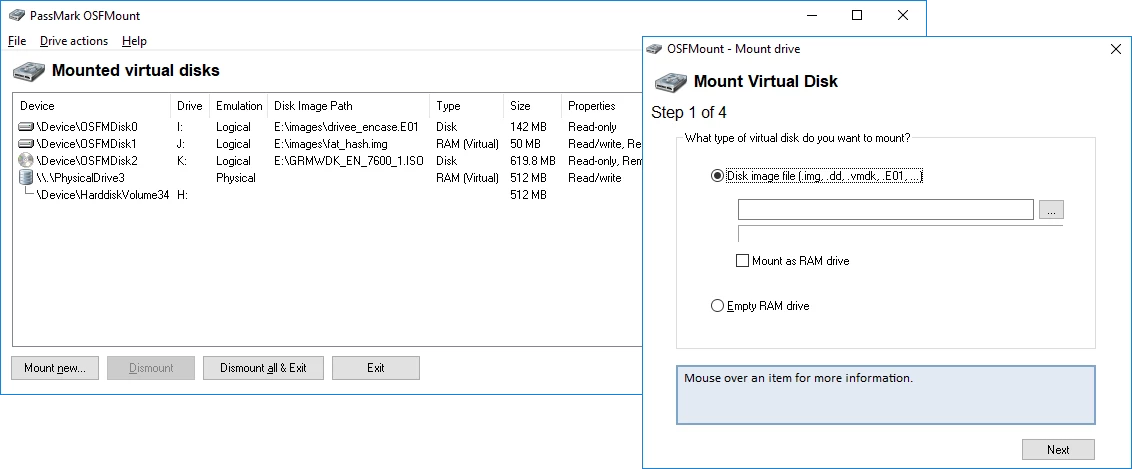
OSFMount is a specialized utility designed to map local image files as physical disks or logical drive letters directly within the Windows operating system. While basic image mounters typically handle standard optical formats to bypass physical discs, this tool targets deeper system-level storage management. It acts as a bridge between raw storage containers and the active operating system, allowing users to interact with complex forensic images, virtual machine disks, and raw bit-for-bit copies exactly as if they were actual hardware drives plugged into the motherboard. By interpreting the distinct sector structures of these containers, the software translates static archive data into fully functional file systems that Windows Explorer and third-party applications can read, navigate, and analyze without requiring manual extraction.
The primary audience consists of system administrators, digital forensics investigators, software testers, and users who require high-speed volatile storage. In forensic contexts, handling a suspect drive directly risks altering the original data evidence. Investigators instead create a bit-for-bit copy and use this application to read the contents in an isolated, read-only state. This guarantees the original evidence remains mathematically intact while allowing standard file recovery and analysis tools to scan the virtualized drive for deleted records. For software testers and database managers, the application serves a distinctly different purpose: creating virtual drives housed entirely in system memory. Because random access memory operates at speeds far exceeding solid-state drives, mapping a temporary drive into memory provides significant read and write performance for cache-heavy operations, compilation tasks, or local server testing. The temporary nature of this memory also ensures that sensitive test data is systematically destroyed the moment power is lost.
Using a dedicated desktop application for these tasks is essential due to the deep system integration required to emulate hardware. Browser-based tools or lightweight file extractors cannot present a raw data dump to the Windows Disk Management subsystem. OSFMount achieves this by installing a dedicated system-level driver, allowing it to bypass basic file extraction and force the operating system to treat the mounted file as a block device. Whether an administrator is extracting a specific configuration file from a dormant virtual machine or a developer is compiling code within a temporary volatile disk, the software provides the direct operating system hooks necessary to perform the work without moving gigabytes of data back and forth across physical drives.
Key Features
- Broad Image Format Compatibility: The software reads and maps a wide array of storage containers, including standard optical images like ISO and BIN, alongside complex system formats such as VMDK, VHD, and raw DD files. It also actively supports specialized forensic formats, notably EnCase E01 and S01, allowing investigators to mount professional evidence files without converting them to intermediate formats first. By natively understanding these distinct container structures, the utility saves hours of processing time that would otherwise be spent extracting massive archives to an intermediate hard drive.
- Physical Disk Emulation: Instead of just assigning a basic letter to a folder of extracted files, the application can emulate a complete physical hardware disk. When this option is active, the mounted file appears directly inside the Windows Disk Management console as an active drive. This allows specialized recovery programs to scan the master boot record and sector data exactly as if a physical platter drive were spinning in the machine, making it possible to recover raw deleted partitions that standard logical mounting would obscure.
- Write Cache Mode: To ensure that original source files remain unaltered, the utility mounts most containers as read-only by default. When users need to execute programs, alter registry hives, or test changes within an image, Write Cache Mode intercepts all new data writes and diverts them to a separate temporary delta file. This leaves the base image untouched while still simulating full write access for the user, providing a safe sandbox environment for analyzing potentially destructive malware or testing system modifications.
- Volatile RAM Disk Creation: Users can designate a specific block of system memory to act as an independent drive letter. Formatting this memory space with FAT32, exFAT, or NTFS creates a fast storage pool for temporary browser caches, database temp files, or intermediate rendering output. Because this storage pool exists exclusively in active system memory, it bypasses the standard input and output limitations of solid-state drives, heavily accelerating intensive read operations while ensuring the data vanishes entirely the moment the machine powers off.
- Multi-Partition Mounting: When handling a complete bit-for-bit copy of an entire hard drive, the container often holds multiple distinct partitions, including hidden boot sectors, primary data volumes, and recovery partitions. The interface allows users to target specific partitions within the file for isolated viewing, or use the interface to map all recognized partitions simultaneously. This maps each segment to separate drive letters in a single action, granting immediate visual access to the full structural layout of the cloned machine.
- Command-Line Automation: For environments requiring repetitive setups, the utility provides a full command-line interface executable alongside the standard visual menu. Administrators can write batch scripts to automatically load specific network images, assign predetermined drive letters, configure exact memory allocations, and launch dependent applications during the Windows startup sequence. This ensures that strictly controlled environments can mount necessary virtual drives upon boot without requiring any manual interaction with the graphical user interface.
How to Install OSFMount on Windows
- Navigate to the official PassMark developer website and download the Windows installer package to ensure you receive the unmodified, correctly signed system drivers.
- Launch the downloaded setup executable and confirm the standard User Account Control prompt, as the setup strictly requires administrative privileges to register its core kernel-level components.
- Review the provided end-user license agreement, accept the terms, and select your preferred destination folder, which defaults to the standard Program Files directory on your primary system drive.
- Click the install button to initiate the file transfer; during this step, the installer will copy the core application files and actively register the critical osfmount.sys driver with the operating system registry.
- Wait for the setup routine to complete the driver registration process, which provides the deep system hooks necessary for the application to perform actual physical disk emulation later on.
- Restart your computer immediately if the installer displays a prompt to do so. A reboot is frequently required if you are updating from an older installation and the previous build of the system driver is currently locked in active memory by the operating system.
- Open the newly installed application from your Windows Start menu and click the "Mount new" button located in the primary interface to begin configuring your first virtual storage device or memory pool.
OSFMount Free vs. Paid
PassMark distributes OSFMount entirely as freeware. There are no paid tiers, premium subscriptions, or hidden trial restrictions integrated into the software. Users receive the full capability of the tool immediately upon installation, without being forced to register an account, verify an email address, or input a license key. The software operates entirely offline once installed, performing all emulation and memory allocation natively on the host machine without communicating with external cloud licensing servers.
Unlike many utilities in the virtual drive space that heavily restrict their free offerings to basic tasks, this application does not impose artificial limits on how you construct or manage your workflow. You can create as many virtual drives as your available system letters and hardware memory will allow. There are no visual watermarks stamped onto the interface, no enforced export size caps when saving RAM disk states back to physical storage, and no pop-up advertisements prompting an upgrade to a nonexistent premium tier.
The developer maintains this tool as a free component that logically complements its broader commercial portfolio. PassMark produces a wide array of enterprise-grade hardware testing and forensic analysis programs, such as OSForensics, which do require paid commercial licenses. By providing the mounting utility at no cost, the company supports the foundational needs of the digital forensics community while generating revenue through its dedicated data analysis and hardware benchmarking suites. Because of this structural business model, both casual personal users and strict commercial environments can deploy the utility in daily production workflows without encountering licensing barriers, usage audits, or unexpected operational costs.
OSFMount vs. Arsenal Image Mounter vs. ImDisk
Arsenal Image Mounter targets the exact same digital forensics demographic but handles its business model and feature access differently. Arsenal relies on a custom virtual SCSI adapter to provide deep Windows integration, making it capable at bypassing certain system limitations when mounting raw data. However, while Arsenal offers a base free tier, its most advanced forensic capabilities—such as directly mounting Windows Volume Shadow Copies or launching temporary virtual machines from a static image—are locked behind a commercial subscription. Users who strictly need standard physical disk emulation, read-only protection, and E01 container support without navigating a paid tier often prefer PassMark’s offering for everyday tasks.
ImDisk represents the open-source foundation of many modern virtual drive tools and is renowned for its lightweight footprint and minimal system overhead. It excels at basic RAM disk creation and mounting straightforward files for users who prefer minimal background processing. Nevertheless, ImDisk’s primary interface is largely driven by command-line parameters or community-built graphical toolkits, making it less intuitive for immediate visual configuration. Its development has also slowed considerably, and it does not handle complex proprietary forensic formats like EnCase containers as cleanly. PassMark actually utilized early ImDisk concepts to build OSFMount, but heavily modified the architecture to support modern 64-bit processing, distinct forensic formats, and a much clearer graphical interface.
OSFMount sits comfortably between these two alternatives as the most practical choice for the majority of users handling virtual drives. It provides a more accessible, visually structured interface than ImDisk, minimizing the learning curve for users who need to map a drive quickly. At the same time, it offers advanced forensic container support and deep physical disk emulation for free, avoiding the commercial restrictions of Arsenal Image Mounter. Unless an investigator specifically requires Arsenal’s paid Volume Shadow Copy exploration tools, PassMark’s utility delivers the complete set of daily imaging tools for zero financial cost.
Common Issues and Fixes
- Error loading OSFMount Driver during startup. This failure occurs when the Windows operating system actively blocks the osfmount.sys background component from loading into memory. The issue is frequent on machines running Windows 10 or Windows 11 configured with strict memory integrity and core isolation security policies. Check your Windows Security settings to ensure the specific driver is not being blocked, and verify that you launched the main application with full administrator rights.
- Access Denied message during installation. Users typically see this exact error text when attempting to update the software while a previous build of the background service is still running. The operating system explicitly locks the system driver in memory, preventing the new installer from overwriting the older file. Cancel the active setup, restart the machine to drop the driver from active memory, and run the installer again from your downloads folder.
- Image header is corrupted or not accessible. When attempting to load a raw storage file, the application might return an NT error code C00000098 indicating failure. This often means the file system itself is mathematically damaged or the tool is reading the wrong starting sector of the container. When mounting the file, enter an offset of 4096 bytes in the configuration menu to force the tool to skip the standard header and read the raw data directly.
- RAM Disk contents disappear after rebooting. By physical definition, a memory-based storage pool is strictly volatile and requires continuous electrical power to maintain its state. If you format a memory drive, place files inside it, and shut down the computer, those files are permanently destroyed by the hardware. To retain the data for a future session, you must use the application's export function to write the current state of the memory drive back to a permanent physical file before shutting down.
- Drive letters fail to appear in certain Windows environments. Occasionally, when mounting a container directly via the command-line interface, the virtual drive letter will map successfully to the system but fail to appear visually in the Windows Explorer sidebar. This is a known interaction issue with older desktop shell environments. Restarting the Windows Explorer process from the Task Manager or assigning a different drive letter usually forces the visual interface to refresh and display the mapped volume correctly.
Version 3.1.1003 — March 2024
- Resolved a critical issue where mounting a drive with physical emulation could prevent the system from booting after a restart on Windows 10 (v1809).
- Fixed a bug that prevented image files located on network shares from being mounted when using physical emulation mode.
- Implemented general stability improvements and minor bug fixes.