DiskGenius Pro operates as a technical utility that merges deep data recovery capabilities with structural disk management. When a storage drive suffers severe logical damage, a simple file undelete tool is rarely enough. Users often face corrupted partition tables, raw file systems, or accidentally formatted volumes that require direct intervention at the sector level. This desktop application provides the necessary framework to scan, reconstruct, and manage storage devices without relying on basic Windows utilities. It targets system administrators, IT technicians, and power users who need exact control over how their physical and virtual drives are structured, repaired, and cloned. Storage disasters involve complex variables, from damaged file headers to completely erased Master Boot Records, and resolving them demands a utility engineered for direct hardware interaction rather than superficial scanning.
Operating strictly as a local desktop application is necessary given the low-level hardware access the software requires. Browser-based tools or lightweight cloud utilities cannot interface directly with disk controllers, read raw hexadecimal sector data, or rebuild an operating system's boot configuration. Managing storage requires direct interaction with the motherboard's input/output systems, whether the user is connecting a failing SATA hard drive, an NVMe solid-state drive, or a fragmented USB flash drive. By running locally, the software utilizes the host machine's physical processing power to execute complex deep-scan algorithms. This local processing ensures that gigabytes or terabytes of recovered files are safely restored to a local destination without network bandwidth bottlenecks, latency issues, or the privacy concerns associated with uploading sensitive file fragments to a remote server.
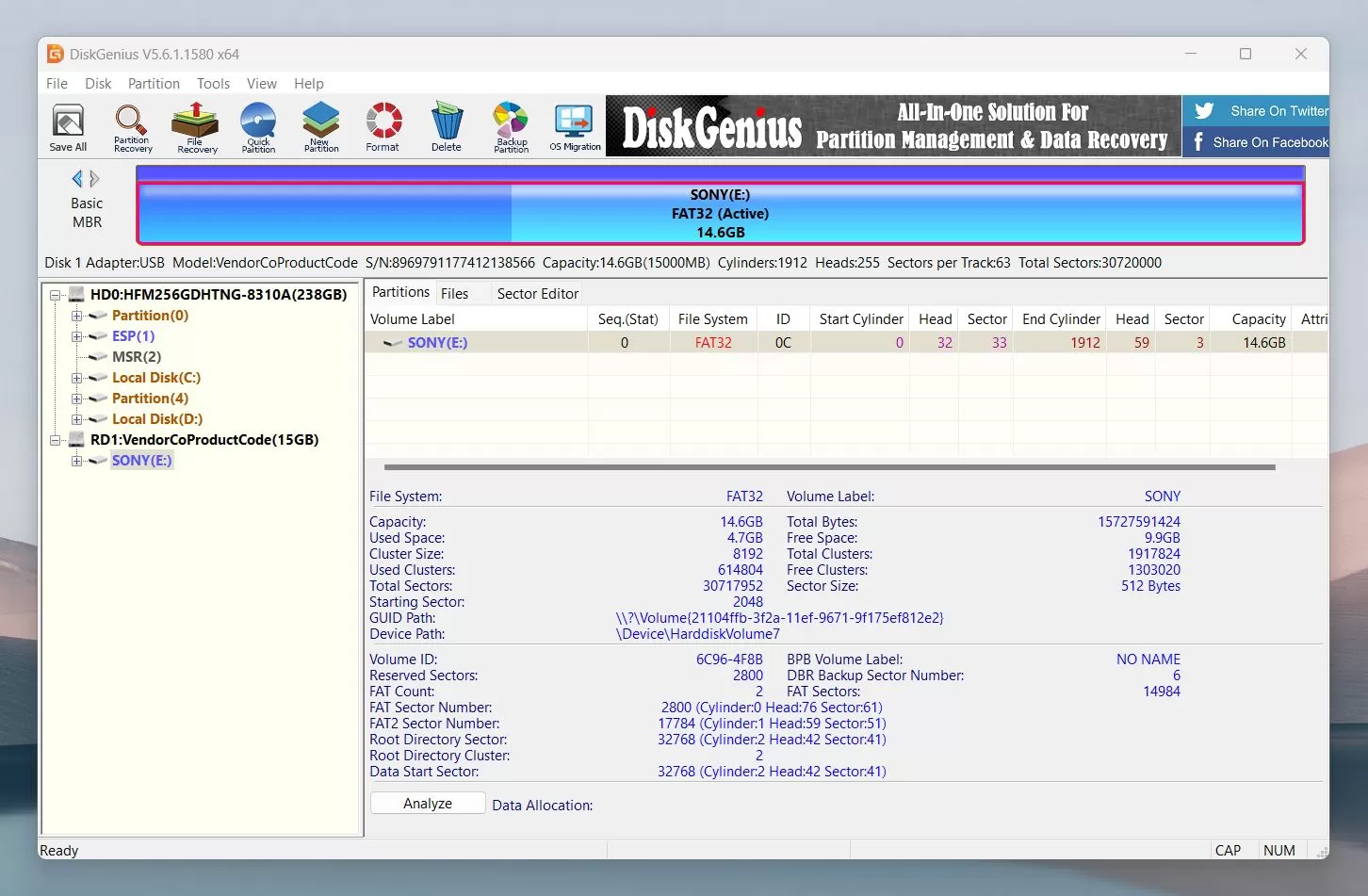
The application tackles specific administrative workflows rather than simple consumer tasks. Users launch the program to reconstruct virtual RAID arrays, convert dynamic disks to basic disks without wiping data, and recover lost files from BitLocker-encrypted partitions. It handles file systems that native Windows tools cannot manage natively, such as the EXT2, EXT3, and EXT4 formats common in server environments and network-attached storage. Instead of offering a simplified, wizard-only interface that obscures technical details, it exposes the raw geometry of the connected storage, presenting cylinders, heads, sectors, and precise hexadecimal values. This level of transparency allows technicians to diagnose exactly why a drive is failing, isolate bad sectors, and extract critical files before the physical hardware degrades entirely, making it an essential diagnostic utility for storage disasters.
Key Features
- Data Recovery Engine: Scans logical drives and physical disks to locate deleted files and reconstruct lost partitions. It bypasses the standard operating system file handlers to read raw sector data, allowing it to recover documents, archives, and media from formatted drives, RAW file systems, and corrupted volumes.
- Advanced Partition Management: Provides a complete toolset for organizing storage geometry without destroying existing data. Users can resize, split, extend, or hide partitions on the fly. It natively handles conversions between MBR and GPT partition styles and allows for the modification of cluster sizes and drive letters directly from the main interface.
- Sector-Level Disk Cloning: Offers multiple cloning methodologies for migrating data or backing up failing drives. The "Copy All Sectors" mode creates a 1:1 identical physical clone, which is critical for forensic backups, while the "Copy All Valid Sectors" mode accelerates the process by ignoring empty space based on the file system layout.
- Raw Hexadecimal Editor: Integrates a low-level hex editor that allows IT professionals to view and manually modify the exact byte values on a storage device. This is used for advanced troubleshooting, such as repairing corrupted file headers, manually fixing damaged Master Boot Records, or analyzing malware footprints.
- Virtual Machine Disk Support: Mounts virtual disk files directly within the host operating system without requiring the original virtualization software. It supports VMDK, VHD, VHDX, and VDI formats, allowing users to extract files, resize virtual partitions, and perform data recovery on virtual machines as if they were physical drives.
- Bad Sector Detection and Repair: Includes a dedicated diagnostic tool to scan mechanical hard drives and solid-state drives for read delays and physical defects. The Verify or Repair Bad Sectors function visually maps the disk's health and attempts to logically block off damaged blocks so the operating system no longer tries to write data to them.
- Virtual RAID Reconstruction: Allows users to virtually rebuild broken RAID arrays when the hardware controller fails. By inputting the original RAID parameters—such as block size, disk order, and RAID level—the software can emulate the array logically, enabling the extraction of files from RAID 0, RAID 5, or RAID 10 setups.
How to Install DiskGenius Pro on Windows
- Navigate to the official vendor website and download the standard Windows installer package to your local machine.
- Locate the downloaded setup executable and double-click it to begin. If the Windows User Account Control prompt appears, click Yes to grant the installer the necessary administrative privileges.
- Select your preferred installation language from the initial dropdown menu and proceed to read and accept the end-user license agreement.
- Choose the destination folder for the application. Important: If you are installing the software specifically to recover deleted files or lost partitions, you must change the default installation path. Install the program on a completely different physical drive or a removable USB flash drive, as installing it on the same drive where data was lost will overwrite the very sectors you are trying to recover.
- Review the shortcut options, choosing whether to place a launch icon on the desktop and within the Start Menu for quick access.
- Click the Install button to extract the core application files, hardware drivers, and hex editing modules to the selected directory.
- Once the progress bar completes, click Finish to exit the setup wizard. The application will launch automatically, run a quick hardware check, and display the main interface populating a list of all detected storage controllers and attached drives.
DiskGenius Pro Free vs. Paid
The developer offers a tiered pricing model that separates basic disk management from advanced enterprise recovery tools. A free version is available for everyday users, providing capable partition resizing, formatting, and drive cloning. However, this free tier enforces a strict limitation on data recovery: it will scan and locate lost files, but it only allows the actual recovery of files that are 64 KB or smaller,. This effectively turns the free version into a diagnostic and preview tool, letting users verify that their lost photos, documents, or databases are intact and readable before they commit to purchasing a license.
To unlock functional data recovery, users must upgrade to a paid tier. The Standard edition costs $69.90 and removes the 64 KB file size restriction,. It allows for unlimited file recovery from standard Windows file systems like NTFS, FAT32, and exFAT, while also enabling the ability to undelete lost partitions and format USB drives in bulk.
The Professional tier, which targets IT technicians and system administrators, requires a $99.90 annual payment or a $129.90 one-time payment for a lifetime perpetual license. This tier unlocks the software's most technical capabilities. Paying for the Pro version grants access to the raw hex editor, virtual RAID reconstruction, BitLocker partition decryption, and the ability to mount and recover data from EXT2, EXT3, and EXT4 file systems,. It also allows users to clone a disk to multiple target drives simultaneously, making it a critical investment for professional diagnostic workflows.
DiskGenius Pro vs. EaseUS Partition Master vs. MiniTool Partition Wizard
EaseUS Partition Master is built primarily around user experience, offering a visual, modern interface that makes partition resizing and OS migration accessible to general consumers. It relies on intuitive sliders and clear graphical representations of disk space, making basic storage management less intimidating. However, EaseUS strictly separates its tools; deep file recovery requires a completely different software purchase. When users need to diagnose a failing drive, edit raw sectors, or recover a formatted volume in the same workflow, DiskGenius provides a much deeper, unified toolset, albeit with a steeper learning curve.
MiniTool Partition Wizard bridges the gap by offering both partition management and a data recovery module within a single interface. It excels at creating bootable media and handling dynamic disk conversions for typical Windows environments. While its recovery scanner is effective for standard NTFS and FAT32 drives, MiniTool lacks the specialized engineering functions found in its rival. It does not offer a direct hex editor, nor does it support complex virtual RAID reconstruction or direct mounting of VMware virtual disk formats.
DiskGenius Pro is the definitive choice for IT professionals, forensic investigators, and system administrators who require absolute control over storage geometry. While its interface looks like a traditional utilitarian administrative console rather than a modern consumer app, this design exposes the raw technical details of the hardware. When a technician needs to decrypt a BitLocker drive, manually correct a Master Boot Record using hexadecimal values, or extract data from an EXT4 partition from a Windows machine, DiskGenius provides the low-level architecture required to complete the job.
Common Issues and Fixes
- Target SSD is not detected during cloning. This usually occurs if the new solid-state drive has not been initialized or the USB-to-SATA adapter connection is loose. Open the native Windows Disk Management utility to initialize the drive, ensure the cables are firmly seated, and then refresh the device list in the application.
- The disk cloning process stops abruptly with a read error. This indicates that the source hard drive contains physical bad sectors that the standard read process cannot bypass. Cancel the operation, run the Verify or Repair Bad Sectors tool from the Disk menu, or switch the cloning mode from sector-by-sector to the "Copy all files" mode, which ignores damaged empty space,.
- Recovered files are corrupted or will not open. This happens if the lost files were partially overwritten before the scan, or if the user recovered the files back onto the exact same partition they were lost from. Always save recovered data to a completely different physical drive or external disk to prevent structural file damage.
- Windows Cannot Access the Specified Device error appears. The application may fail to access a storage volume if third-party antivirus software blocks low-level sector reading, or if the drive lacks an assigned letter. Temporarily pause the antivirus protection, or right-click the volume in the software interface and assign a new drive letter to force Windows to recognize the mount point,.
Version 6.1.1.1742 — December 2025
- Implemented the ability to export status reports for "Verify/Repair Bad Sectors" and "File Copy" operations directly to Excel format.
- Enabled "Search For Known File Types" to run as an independent function within the File Recovery module.
- Optimized scanning algorithms to significantly improve performance when recovering data from SSDs.
- Enhanced the file copying engine to deliver faster transfer speeds.
- Added detection for physical devices underlying system-mounted virtual disks to improve reliability during disk cloning and file copying.
- Refined data recovery results for partitions using the FAT32 file system.
- Resolved a critical bug where read errors would cause the entire file copy process to terminate unexpectedly.
- Fixed an interface lag issue when using the Spacebar to select files during recovery sessions.
- Corrected visual display errors appearing in certain context menus.
- Addressed stability issues that occasionally caused failures during Disk Clone and System Migration processes.
- Eliminated the generation of excessive invalid files when recovering specific formats (MTS, DEX, TIFF) by type.
- Fixed a software exception that could occur when recovering files from EXT4 partitions.