EaseUS Data Recovery Wizard Technician is an enterprise-grade data retrieval application built specifically for IT service providers, system administrators, and help desk professionals. When a client organization faces sudden data loss—whether from a formatted server drive, a deleted array, or a corrupted partition—technicians need a reliable method to extract files before the affected hardware is decommissioned. Consumer-level undelete tools explicitly prohibit commercial use, but this technician-level license authorizes IT teams to install the software across unlimited client machines and provide paid data recovery services. It handles severe logical damage by bypassing standard file system requests to read raw sectors directly from the storage medium.
Operating as a local desktop application is strictly necessary for this category of professional work. Browser-based recovery attempts or automated cloud backups frequently fail during catastrophic hardware events, especially if the client network connection is down or the operating system refuses to boot. By deploying a standalone Windows client, technicians retain full control over the physical read operations. They can install the environment on a portable external drive, connect it to the compromised machine, and extract data to an isolated destination without risking further overwrite operations on the source disk. The application interfaces directly with Windows Disk Management APIs, identifying drives that no longer mount normally in the host operating system.
Modern Windows environments introduce complex challenges for data retrieval. Traditional mechanical hard drives retain magnetic data long after the master file table drops the index pointer, making them ideal candidates for deep sector analysis. Conversely, modern solid-state drives utilize aggressive wear-leveling algorithms and background garbage collection that can quickly erase unlinked sectors. EaseUS Data Recovery Wizard Technician accounts for these hardware differences by prioritizing rapid surface reads and supporting all primary Windows file systems, including NTFS, FAT32, exFAT, and ReFS. This ensures IT administrators have a single, unified utility capable of addressing legacy Windows 7 workstations and modern Windows 11 enterprise endpoints alike.
Key Features
- Unlimited Client Deployment: The primary differentiator of this tier is its licensing model. IT professionals can activate the software on an unlimited number of desktops, laptops, and servers owned by their clients. This allows managed service providers to integrate data rescue into their standard service level agreements without purchasing a new software seat for every incident. The technician simply retains control of the license credential, keeping overhead costs fixed while servicing hundreds of distinct network endpoints.
- Deep Scan Sector Analysis: The scanning engine operates in two phases. A preliminary scan queries the file allocation table for recently unlinked files, returning results in seconds. The subsequent Deep Scan bypasses the index entirely, reading the disk sector by sector to identify magic numbers and file signatures from fragments that the operating system considers empty space.
- RAW Partition Extraction: When a file system is severely damaged by a power failure or improper ejection, the disk may appear as RAW in Windows Disk Management. The application scans these raw structures to locate the missing partition boundaries, allowing technicians to pull files from drives that Windows prompts the user to format. It identifies the lost partition table backups hidden at the end of the disk, restoring access to the entire directory tree without requiring a risky rebuild command.
- Pre-Recovery Visual Preview: Before committing time and destination storage to an extraction, technicians can double-click items in the results list to view them. The built-in preview pane renders documents, plays media files, and displays a hex editor view for unrecognized extensions. This exact verification step ensures the target data is not permanently corrupted before initiating the transfer, saving hours of unnecessary data migration.
- Scan Session Export and Import: Scanning multi-terabyte enterprise arrays can take over 24 hours. The interface includes an Export Scan Status button that saves the current sector map as an RSF file. Technicians can pause the process, shut down the machine, and load the RSF file the next day to resume exactly where they left off without rescanning the disk.
- WinPE Bootable Media Creator: For client machines that suffer a blue screen of death or refuse to load the operating system, the application includes a WinPE builder. Technicians can write a standalone Windows Preinstallation Environment to a USB flash drive, boot the dead machine from the BIOS, and access the internal hard drive directly without relying on the host operating system.
- Network Attached Storage (NAS) Support: Beyond direct-attached hard drives, the software supports extraction from broken NAS enclosures. Service providers do not need to physically dismantle the client hardware or remove the individual disks; the application can connect to the NAS logically over the local network to locate deleted shares and bypass standard file permissions to extract the missing data.
How to Install EaseUS Data Recovery Wizard Technician on Windows
- Download the official Windows installer executable from the vendor distribution server to a stable, malware-free workstation.
- Launch the setup package, grant administrator privileges when prompted by Windows User Account Control, and accept the end-user license agreement.
- Select a safe installation directory. Never select the drive or partition that requires data recovery, as writing the application files to that location will permanently overwrite the deleted client data.
- Choose whether to create a desktop shortcut and standard start menu folders, then proceed with the installation process. The installer will unpack the core binaries and scanning logic.
- Launch the application and click the activation prompt in the top menu bar.
- Enter your purchased technician license code to authenticate the software and unlock unlimited multi-machine deployment capabilities.
- If you are preparing a toolkit for field service, navigate to the bootable media section immediately after activation to burn the WinPE rescue environment to a dedicated flash drive.
- For maximum safety on critical recovery jobs, adjust the application settings to route all temporary cache files to an isolated drive, preventing any accidental spillover onto the client failing disk.
EaseUS Data Recovery Wizard Technician Free vs. Paid
The EaseUS data retrieval ecosystem is divided into strict consumer and business tiers. The standard Free edition is designed for home users and allows a maximum recovery limit of 2GB. It includes the exact same scanning engine as the paid tiers, making it highly useful for verifying that a file is structurally intact before spending any money. However, the Free edition strictly prohibits commercial use and cannot be deployed across multiple client sites by an IT provider.
For professional environments, the vendor offers the Pro tier for single-machine usage, and the Technician tier for unlimited client usage. The Technician edition is explicitly licensed for service providers performing paid recovery work. It costs $299 for a one-year subscription, $399 for a two-year subscription, and $499 for a perpetual license that includes lifetime upgrades. These paid tiers remove all data volume limits and include priority technical support directly from the developer to assist with difficult extractions.
While the Technician tier does not offer a standalone free trial, service providers can download the standard Free edition to evaluate the interface and scanning logic. This unactivated state acts as a complete diagnostic tool; it will scan the damaged array, locate the missing files, and allow the technician to preview the contents. The payment is only required when the technician is fully satisfied that the client data is readable and ready for extraction. This transparent evaluation method prevents IT departments from spending budget on software that cannot overcome a specific physical hardware limitation.
EaseUS Data Recovery Wizard Technician vs. R-Studio vs. Stellar Data Recovery Technician
R-Studio is a highly technical, forensic-grade application designed for dedicated data labs. It provides extremely deep low-level access, manual hex editing, and custom block-size parameter entry for broken hardware arrays. While it excels at handling complex logical damage, its dense interface and steep learning curve make it slower to deploy for routine help desk tasks where a technician just needs to quickly recover an accidentally deleted folder.
Stellar Data Recovery Technician targets the exact same IT service provider market, offering multi-system licensing and an exceptionally polished, visual user interface. It includes specialized built-in repair tools for fixing broken JPEG and MP4 files after they are recovered. However, when parsing extremely large, highly fragmented enterprise drives, Stellar deep scan operations can sometimes take longer to complete than direct sector-based alternatives.
Service providers should choose EaseUS Data Recovery Wizard Technician when they need a well-balanced, rapid-deployment tool that minimizes training time. It hides the complexity of hex offsets and manual hardware geometry behind a clean, categorical interface, allowing general IT support staff to achieve high-yield extractions without requiring specialized forensic training. It is the practical choice for managed service providers dealing with everyday hardware failures and accidental formats on Windows machines.
Common Issues and Fixes
- Overwritten data due to installation path. Users frequently install the application directly onto the primary system drive, only to discover that the files they wanted to recover from the desktop are gone forever. The operating system writes the software installer over the exact sectors where the deleted files lived. Always download and install the software to a secondary internal drive or an external USB storage device.
- Scan operations take multiple days on enterprise drives. Reading every physical sector on a high-capacity mechanical hard drive is restricted by the hardware maximum read speed, causing deep scans to span multiple days. Pause the scan, use the Export Scan Status feature to save the progress as an RSF file, and resume the operation during off-hours to avoid tying up the client machine indefinitely.
- Recovered files fail to open in their default application. After extracting a document or video, the host application may report that the file is corrupted. This occurs because the file was fragmented prior to deletion, or the solid-state drive issued a TRIM command that zeroed the sectors. Always use the built-in preview pane before extracting; if the preview fails to render the image or text, the structural integrity is lost and extraction will not fix it.
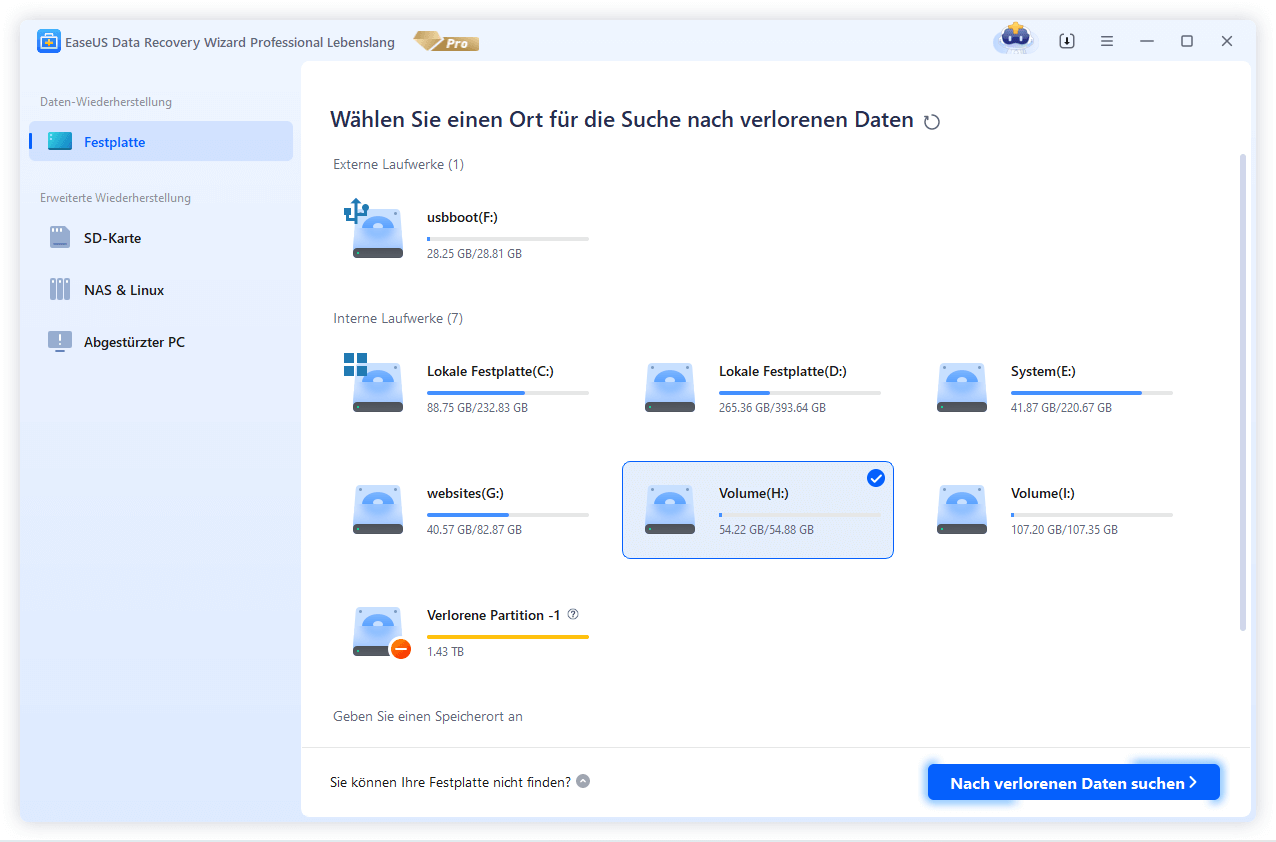
- The client disk does not appear in the scanning interface. The application cannot scan a drive if the host machine cannot detect the hardware at the BIOS level. Open Windows Disk Management; if the drive appears as Unallocated or RAW, the software can scan it. If the drive does not appear in Disk Management at all, the hardware controller or read/write heads are physically dead, requiring a cleanroom repair instead of a software scan.
- Reconstructed arrays reporting incorrect folder structures. When scanning a broken logical volume, the resulting file tree might appear scrambled, with files placed in the wrong directories. This happens when the controller parameters, such as block size and disk order, are not correctly identified by the automated scan. Restart the application, navigate to the specific reconstruction menu, and manually input the client exact stripe size and disk order before initiating the deep scan.
Version 20.1.0 — December 2025
- Added breakthrough SmartSector Rebuild (SSR) engine to intelligently reconstruct fragmented files from heavily used external devices like USB drives and SD cards.
- Improved recovery success rates by approximately 30% for FAT32 and exFAT file systems, specifically targeting data lost due to frequent deletion or formatting.
- Added capability to repair files that fail to load in the preview window, ensuring more recoverables are usable.
- Optimized user interface interactions for a more streamlined and efficient recovery workflow.
- Enhanced underlying scanning algorithms to better identify and restore complex file structures.